How To Use Social Scraper In NexaEra Dashboard.
Want a list of real, engaged social media accounts you can turn into leads — without any manual copy-pasting? The Social Scraper pulls posts, profiles, and hashtags from Instagram, TikTok, YouTube, and more, then hands you a clean spreadsheet. Let me show you how.
Written By Fred Yalmeh
Last updated About 2 months ago
Go to www.nexaera.com
1. Introduction
In this video, you'll learn how to pull social media data from any major platform and export it as a spreadsheet. From there, you can analyze it, build lead lists, or feed it into your agents. Let's dive in.
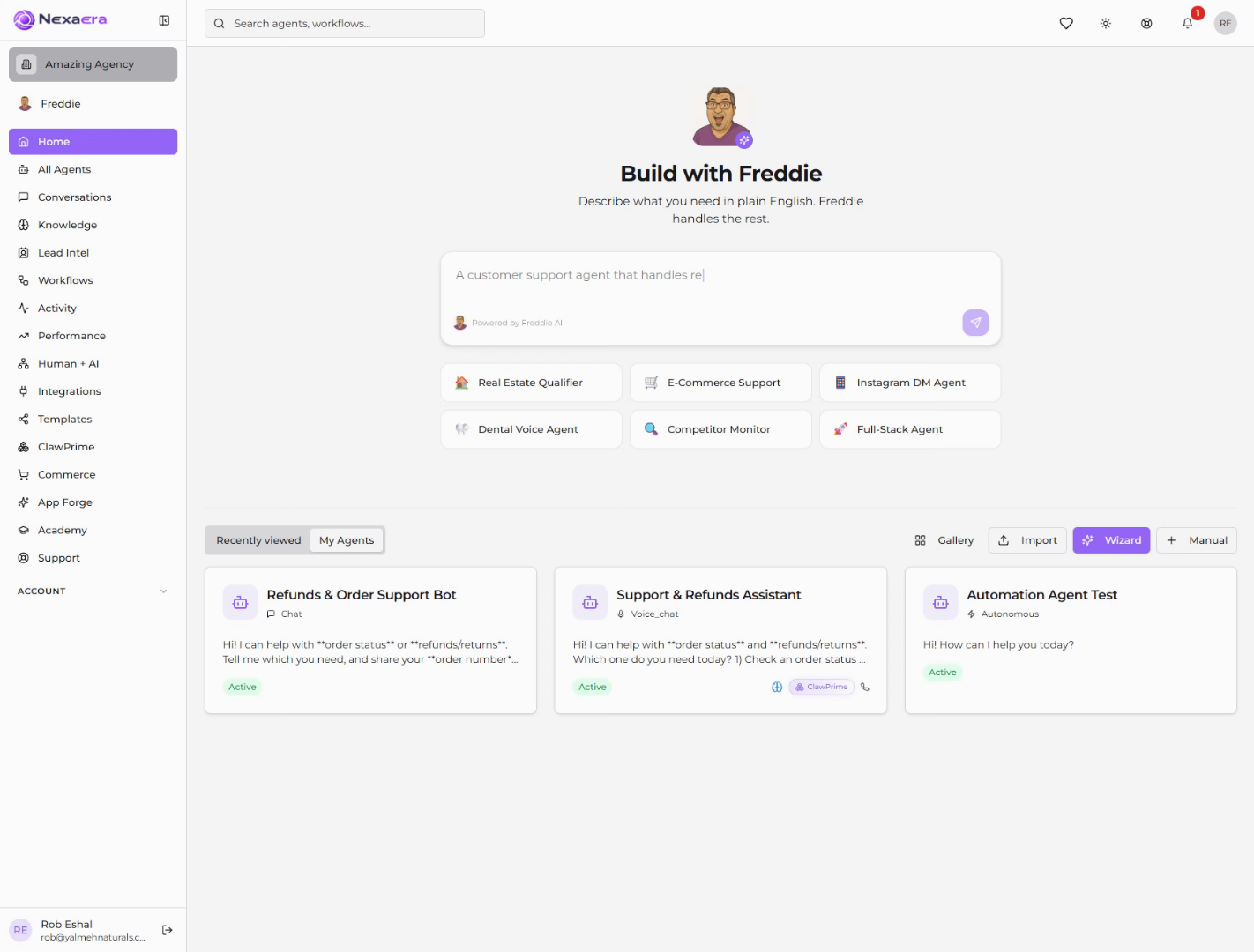
2. Access Lead Intel Section
Start on the left sidebar and click "Lead Intel." This is your built-in CRM, and the Social Scraper lives right inside it.
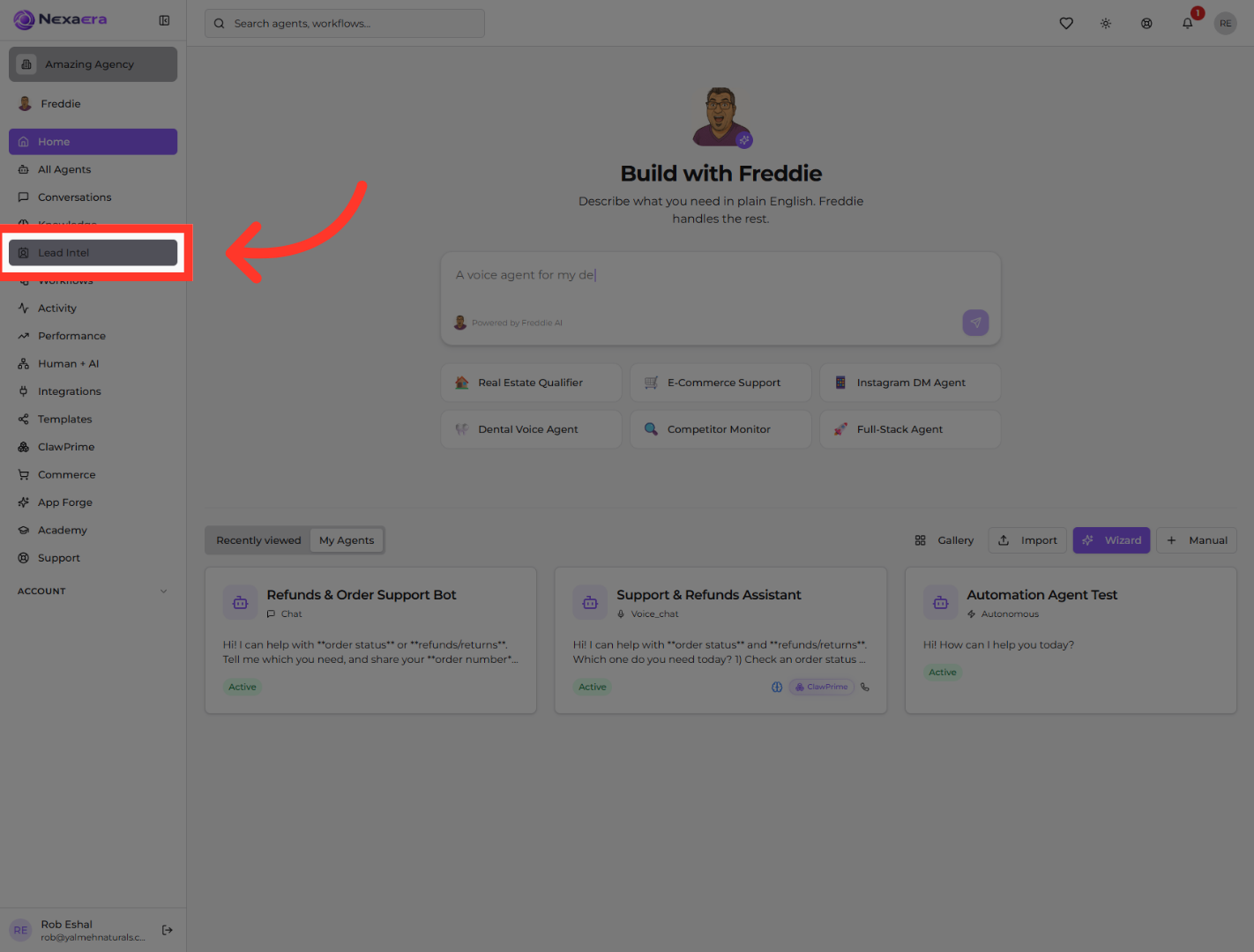
3. Open Social Scraper Tool
Along the top, click the "Social Scraper" tab. You'll see tiles for Instagram, Facebook, TikTok, YouTube, and Google Maps — every platform you can pull data from.
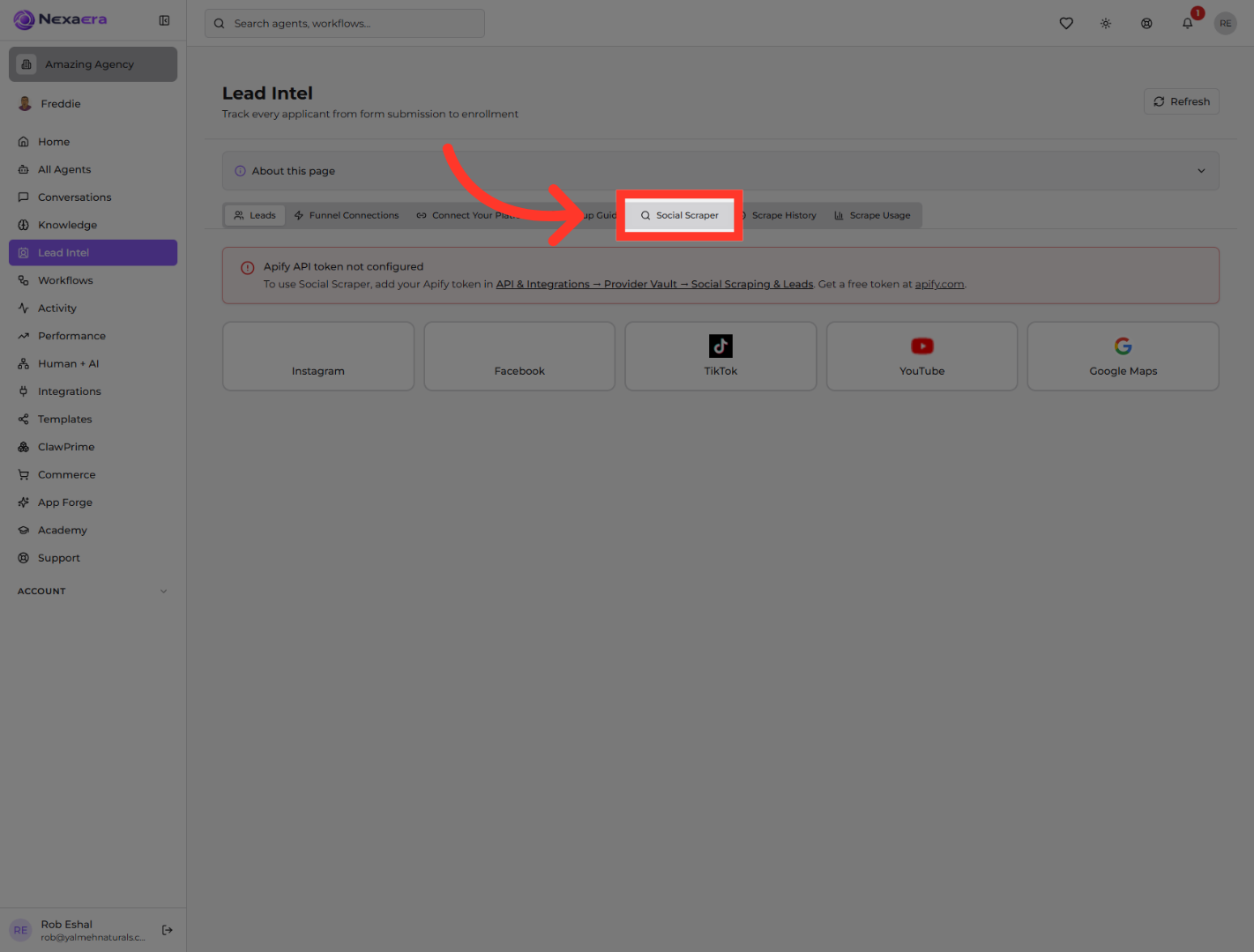
4. Select Instagram Platform
Now pick the platform you want to scrape. We'll go with Instagram for this example. Just click its tile to open the Instagram scraper.
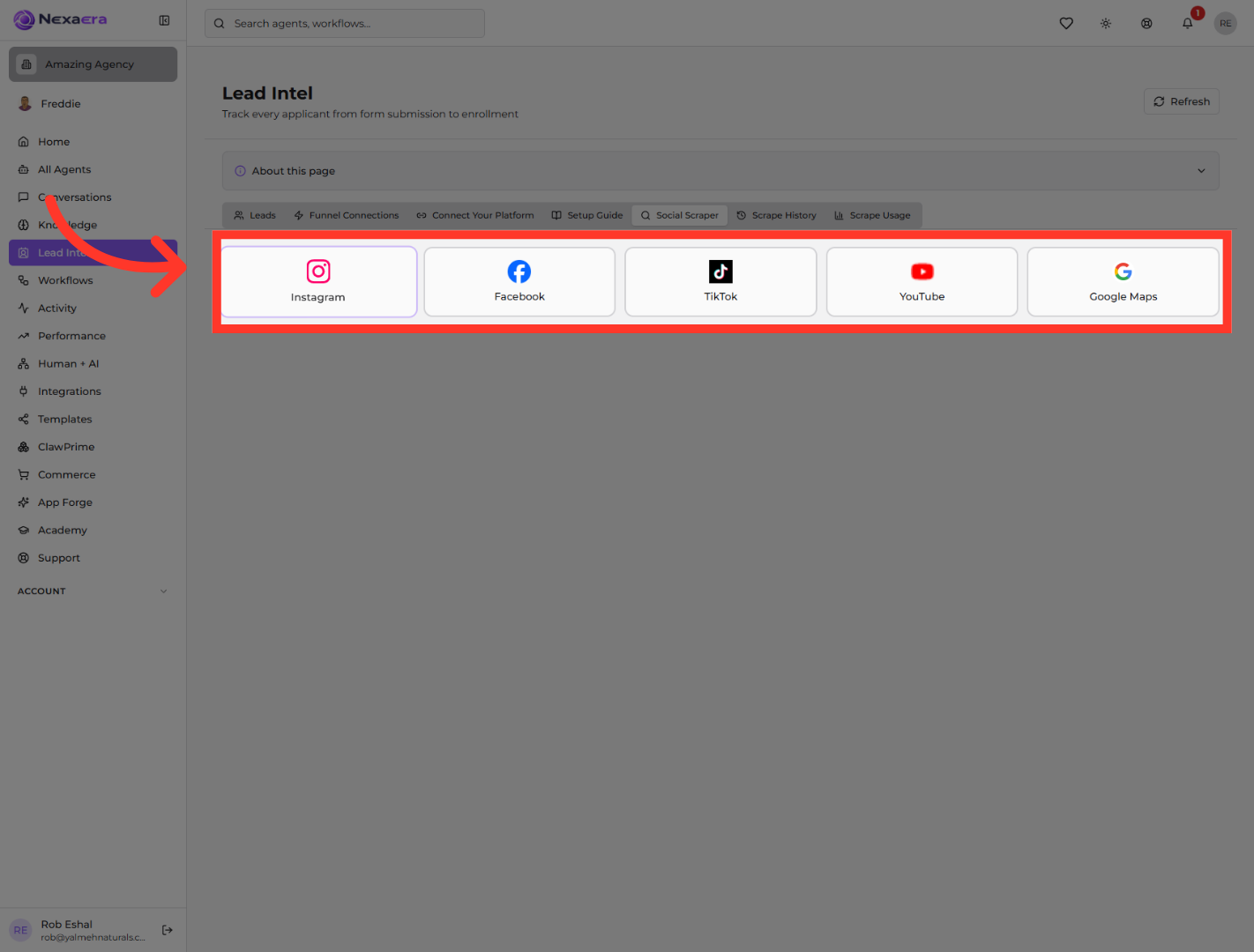
5. View Instagram Posts
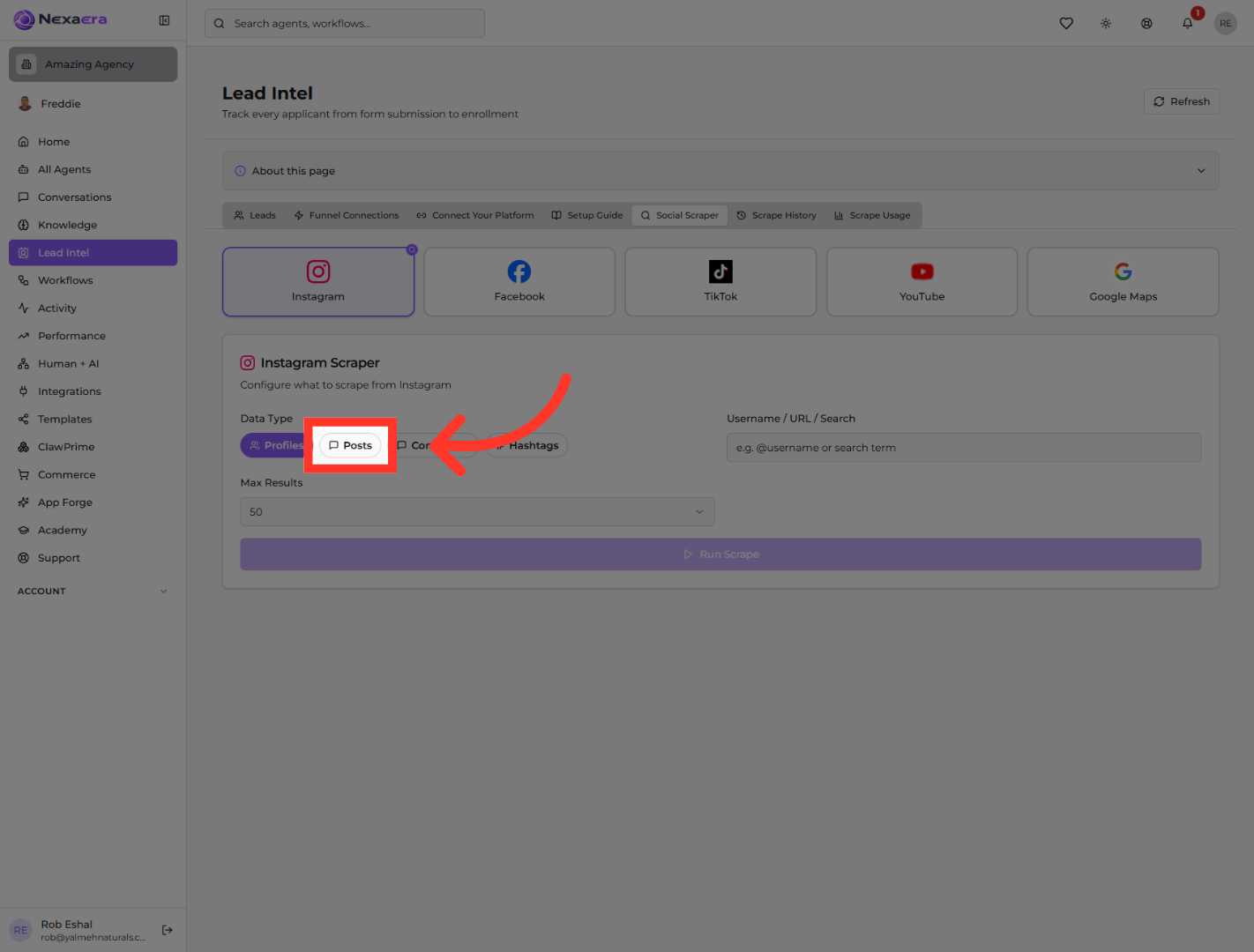
Next, choose your data type. You can pull Profiles, Posts, Comments, or Hashtags. We'll click "Posts" to grab recent posts from an account.
6. Set Results Display Limit
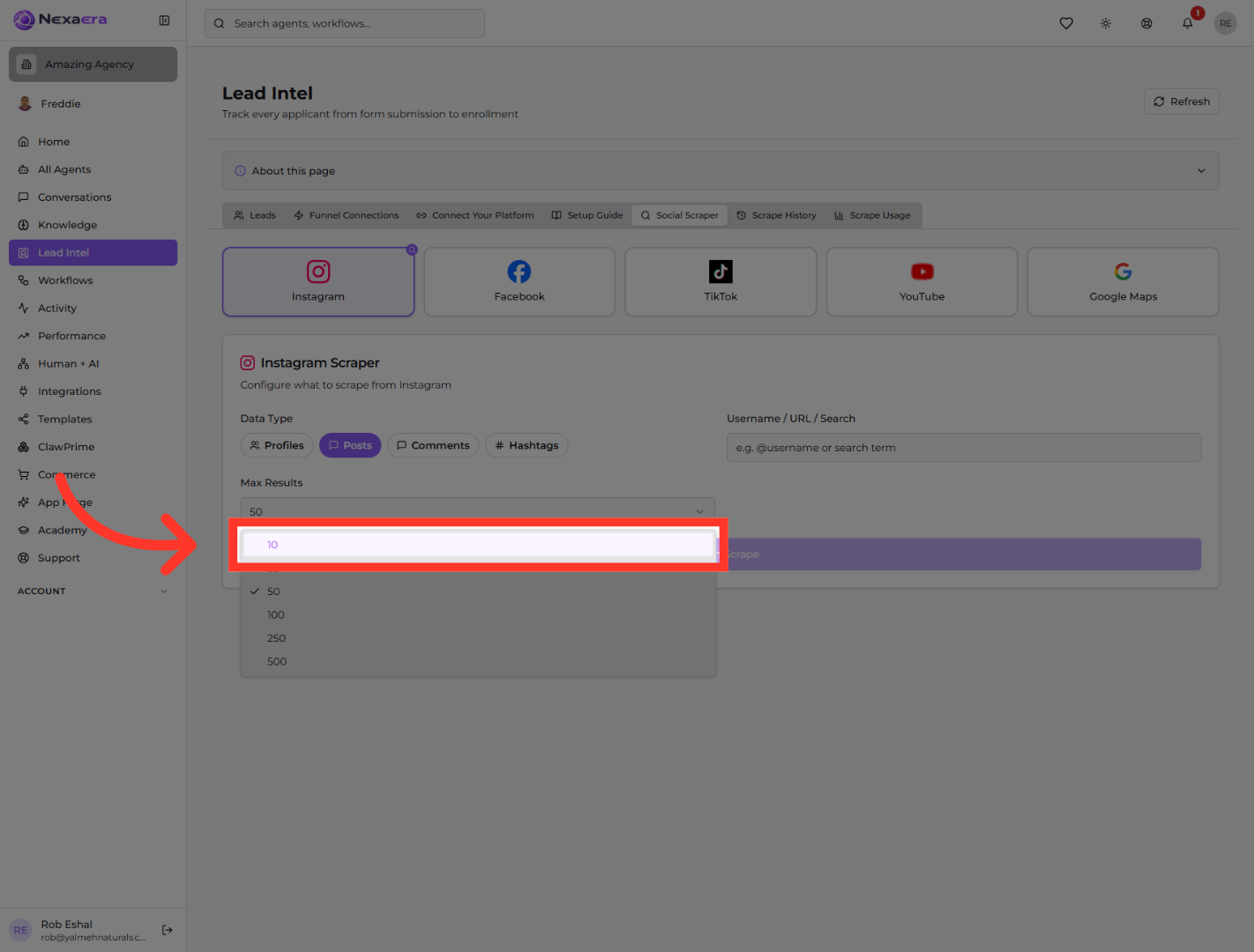
Now set how many results you want. Open the "Max Results" dropdown and pick a number. We'll choose ten to keep this quick, but you can go all the way up to five hundred.
7. Open Search Field
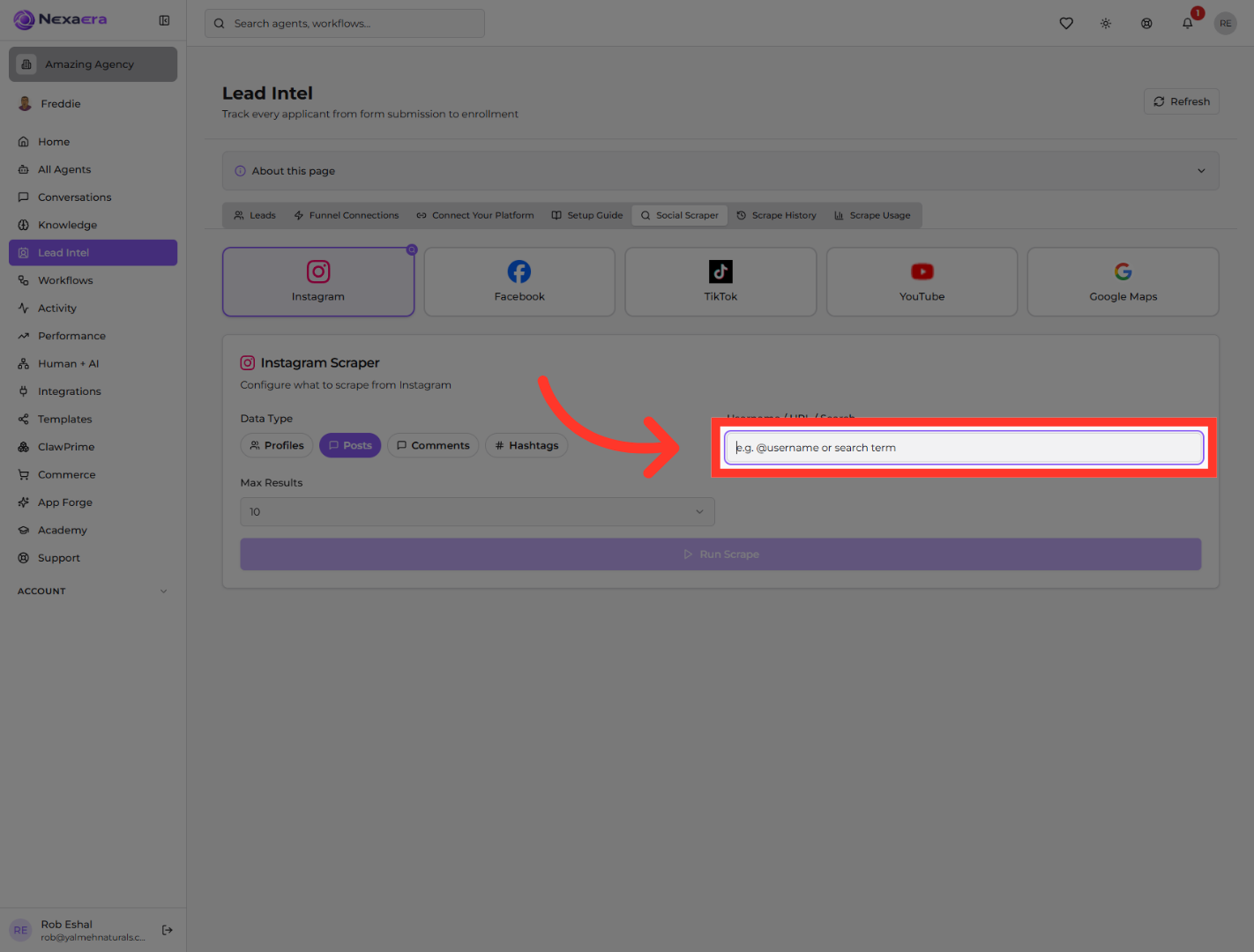
Click into the search field. Here you type an account handle, a URL, or a search term — whatever you want to pull data from. Pop in your target and you're ready to go.
8. Start Scraping Process
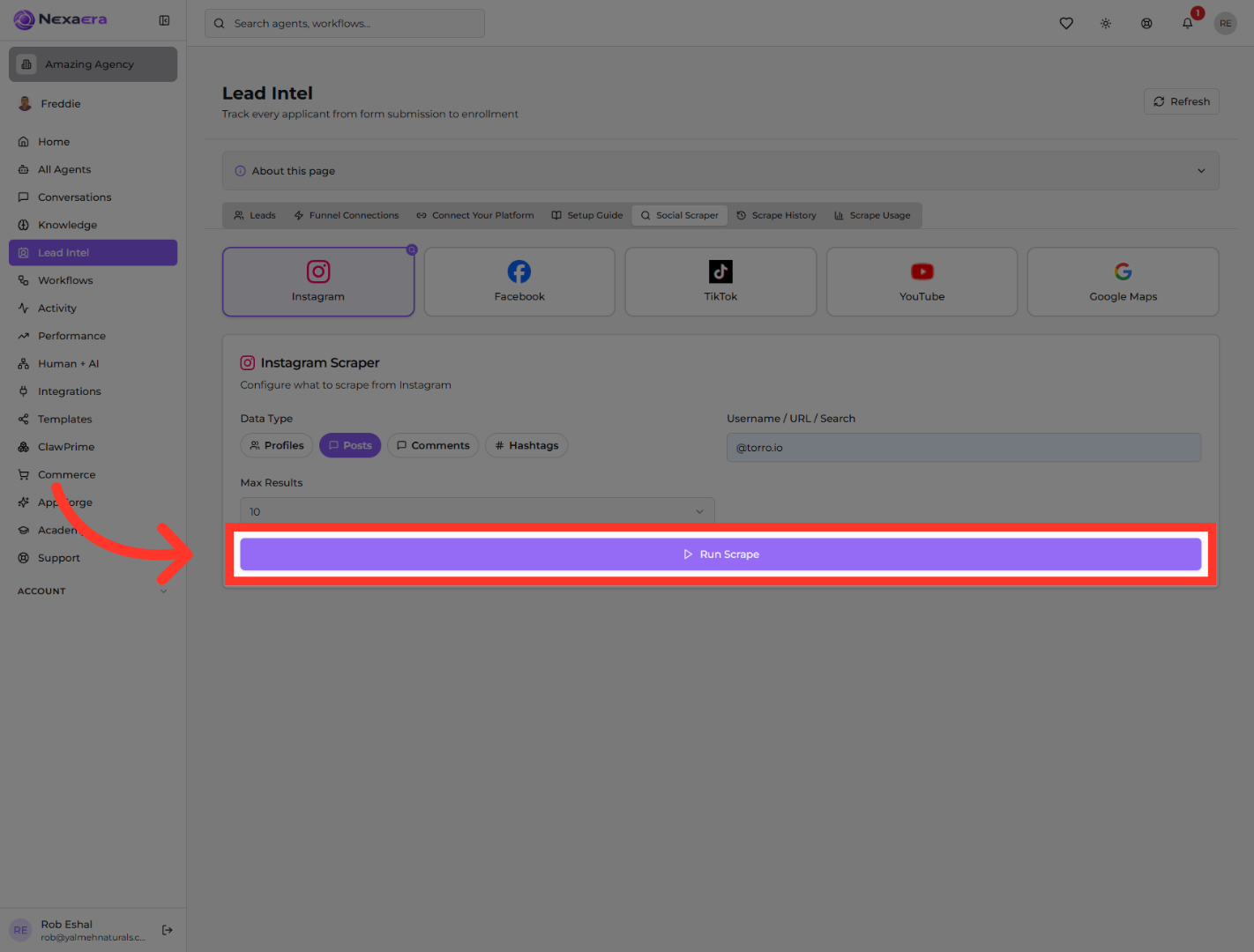
Everything's set, so let's go. Click the "Run Scrape" button. The scraper heads out and starts collecting your data based on what you entered.
9. View Scrape Results
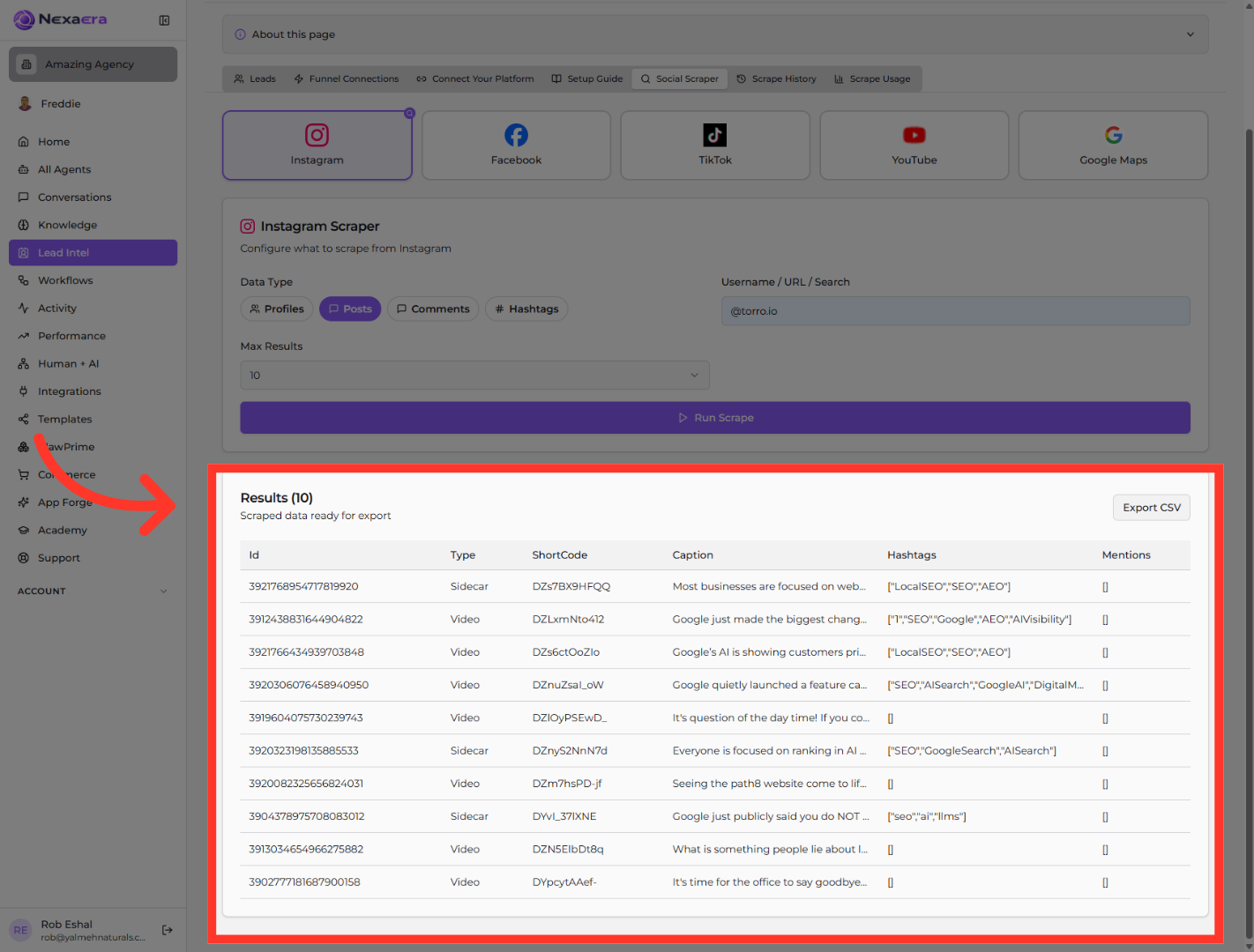
Give it a few seconds to work. Then your results appear in a neat table — you'll see each post's caption, its hashtags, any mentions, and more. Everything's laid out and ready.
10. Export Data as CSV
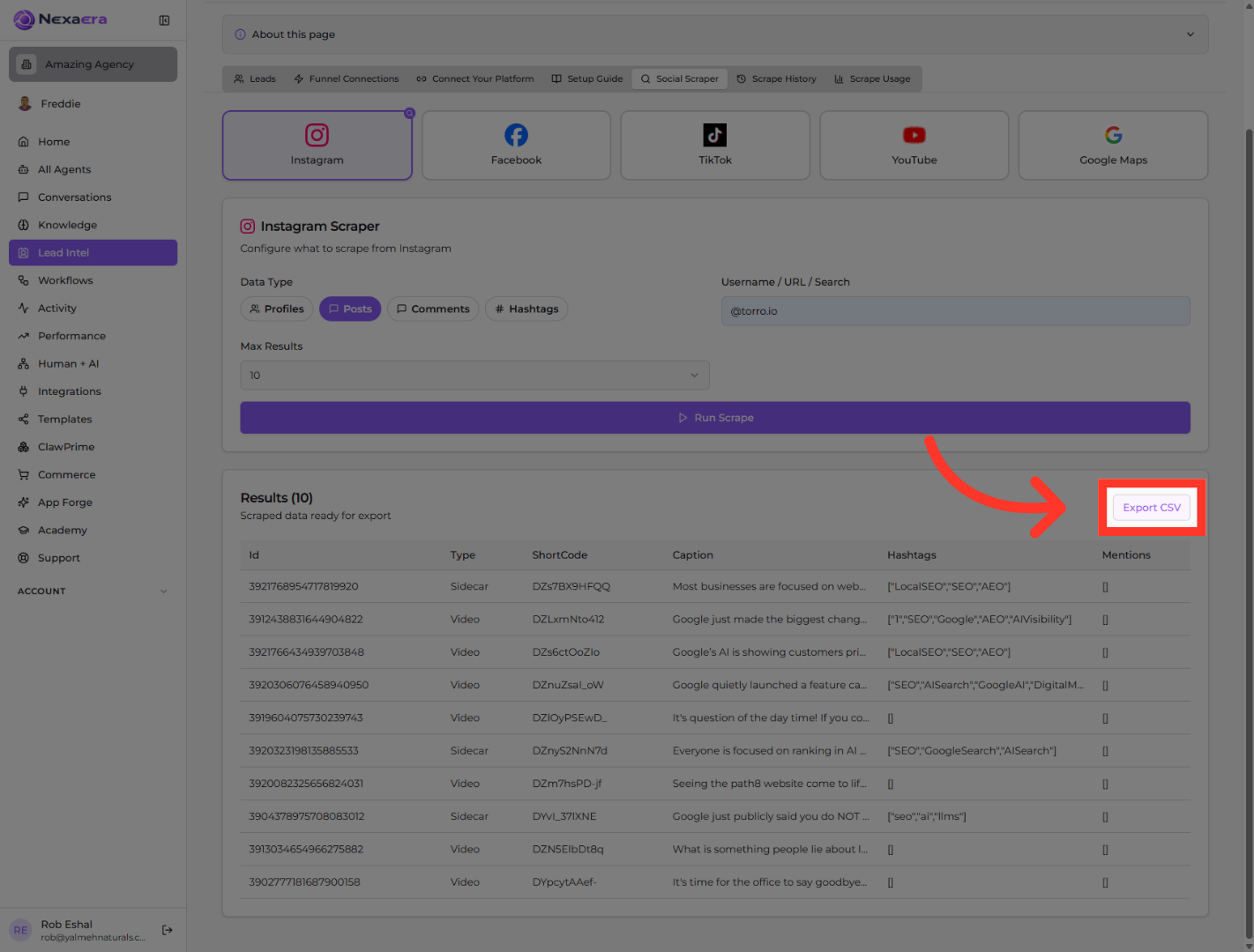
Last step. Click "Export CSV" to download everything as a spreadsheet. Now you can open it in Excel or Google Sheets, analyze it, or turn it into a lead list.
And that's the Social Scraper in a nutshell. You picked a platform, set your filters, ran the scrape, and exported clean data — all in a couple of minutes. Use it for lead lists, competitor research, or trend spotting. See you in the next one.
Still need help? Ask the team