Import And Manage Products In NexaEa Commerce
Already have a product catalog somewhere else — like Shopify? You don't have to rebuild it by hand. In this quick video, you'll learn how to sync your catalog and import products straight from Shopify. Let's do it.
Written By Fred Yalmeh
Last updated About 1 month ago
Go to nexaera.com
1. Introduction
In this video, you'll learn two time-savers: how to keep your product catalog in sync, and how to import products from a connected Shopify store. Let's dive in.
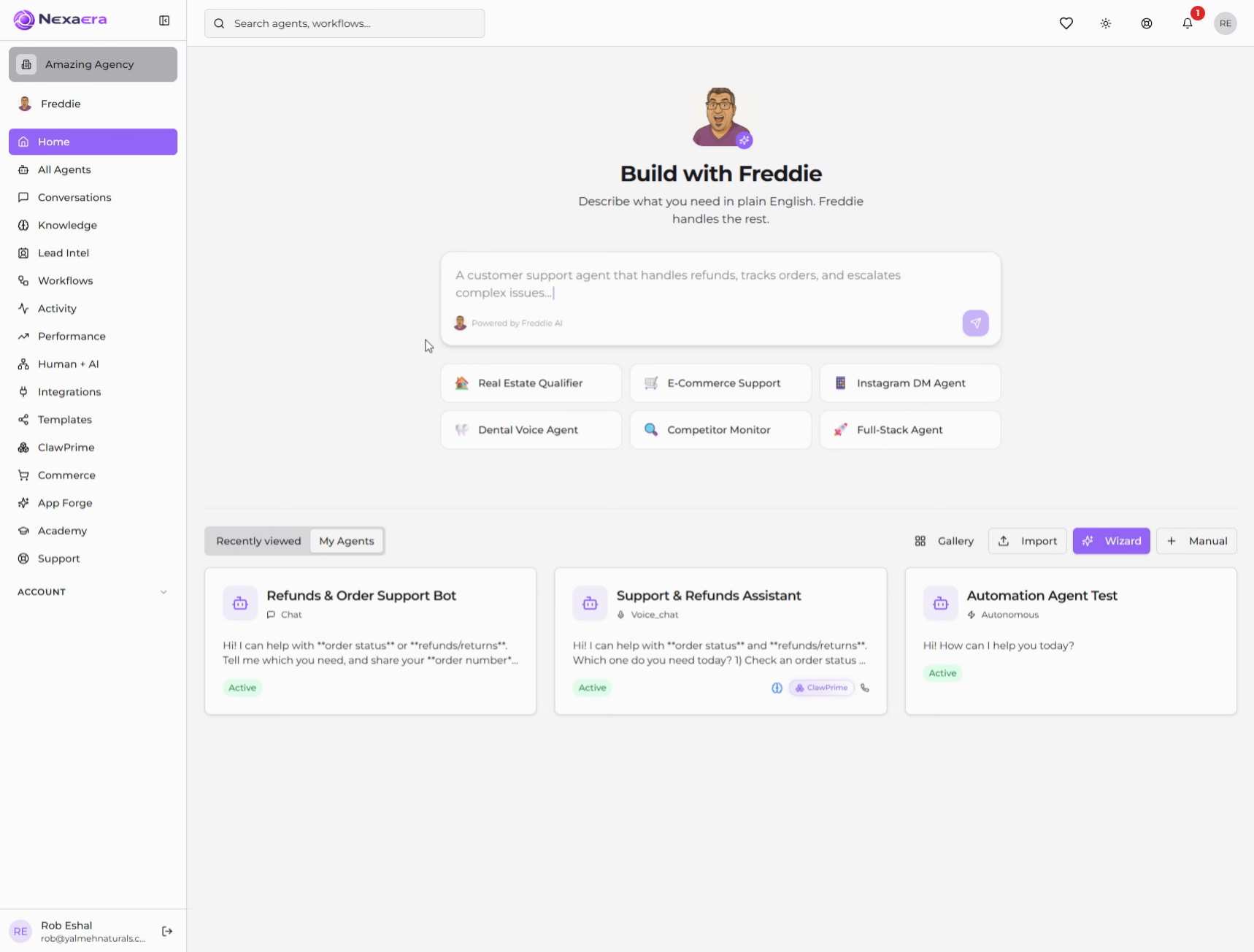
2. Access Commerce Section
On the left sidebar, click "Commerce." This opens your store settings and product catalog.
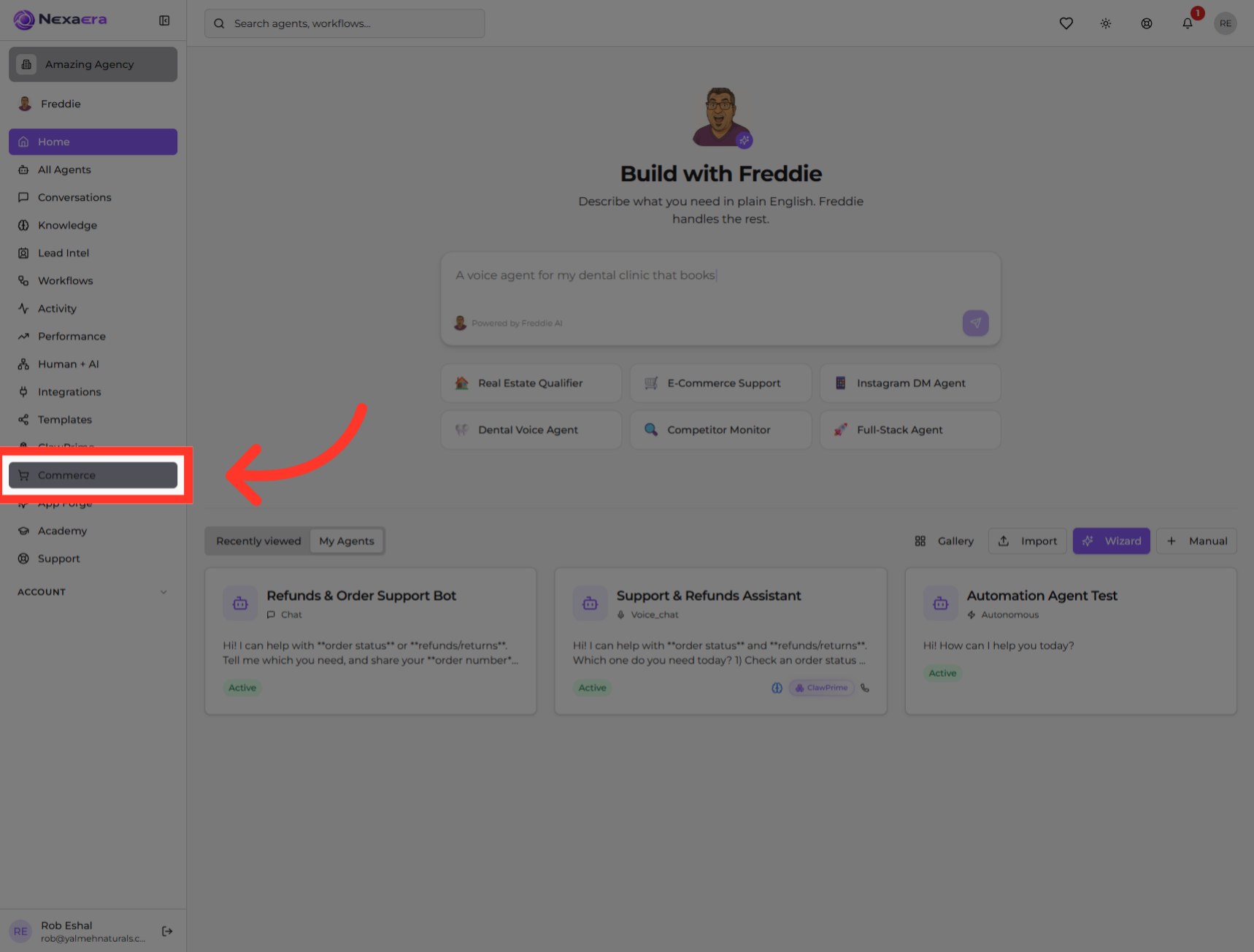
3. Open Products Page
Along the top, click the "Products" tab. This is your product catalog, where every item you sell is managed.
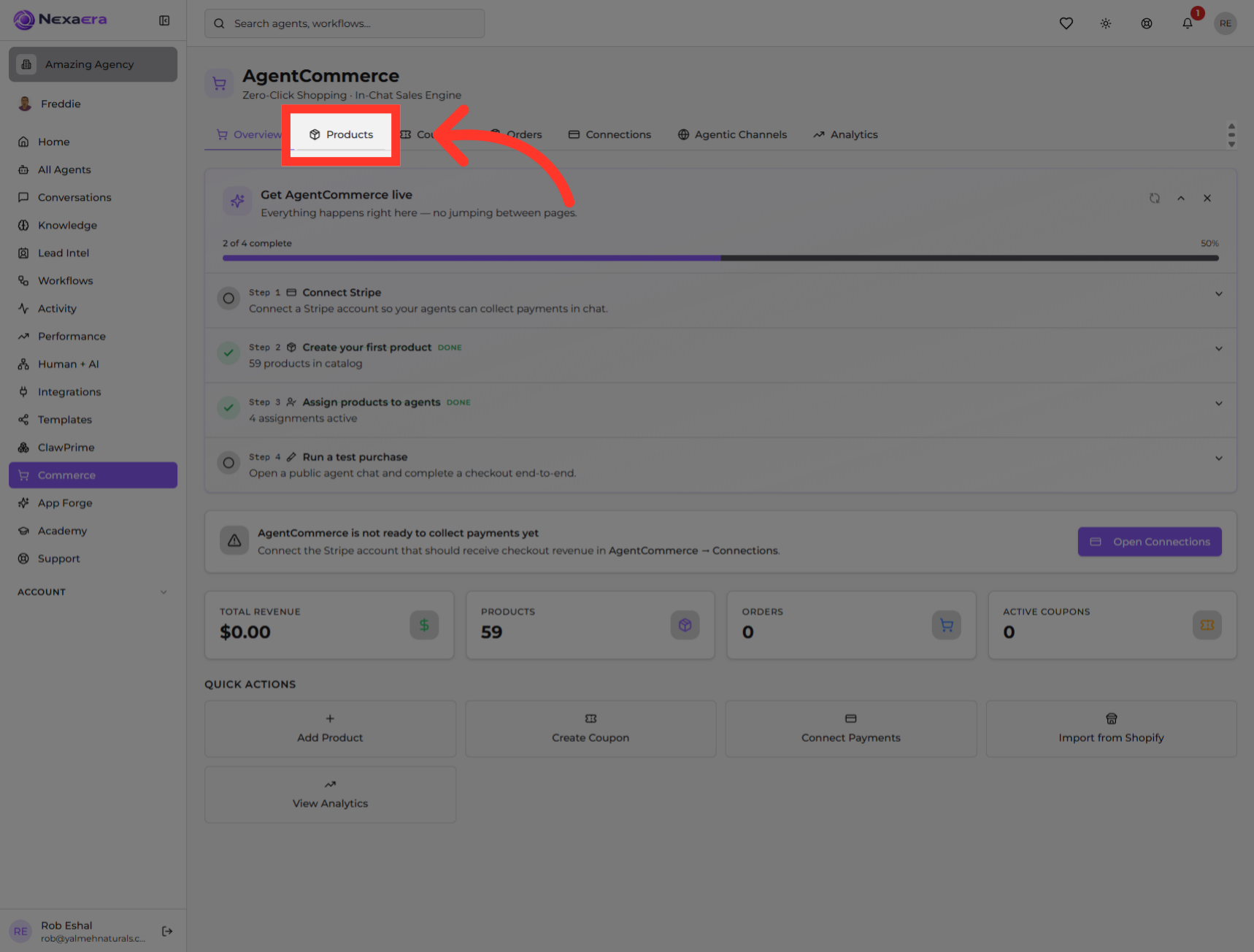
4. Synchronize Product Data
Up in the top-right, you'll see a "Sync" button. Click it to refresh your catalog and pull in the latest product data. It's the quickest way to make sure everything's current.
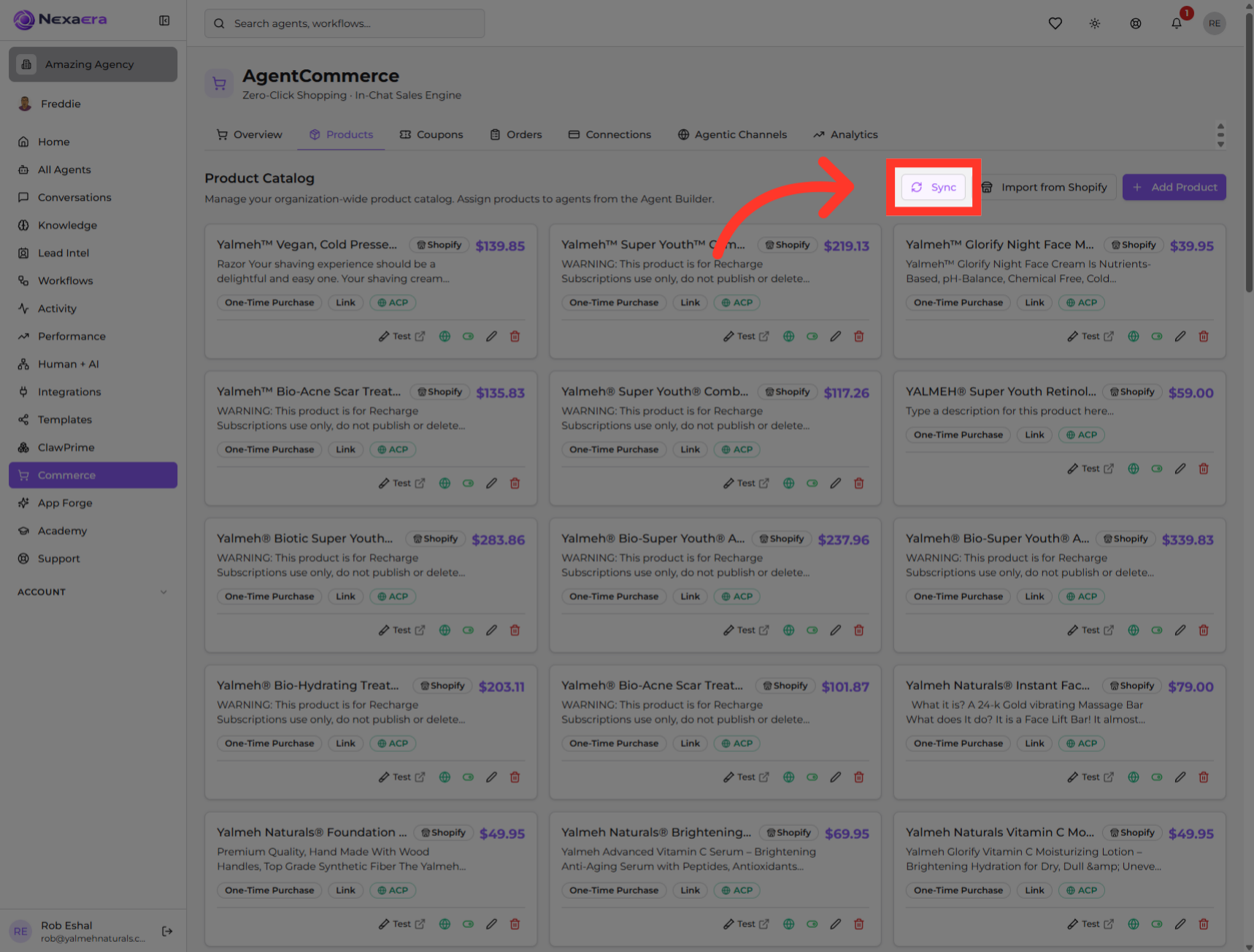
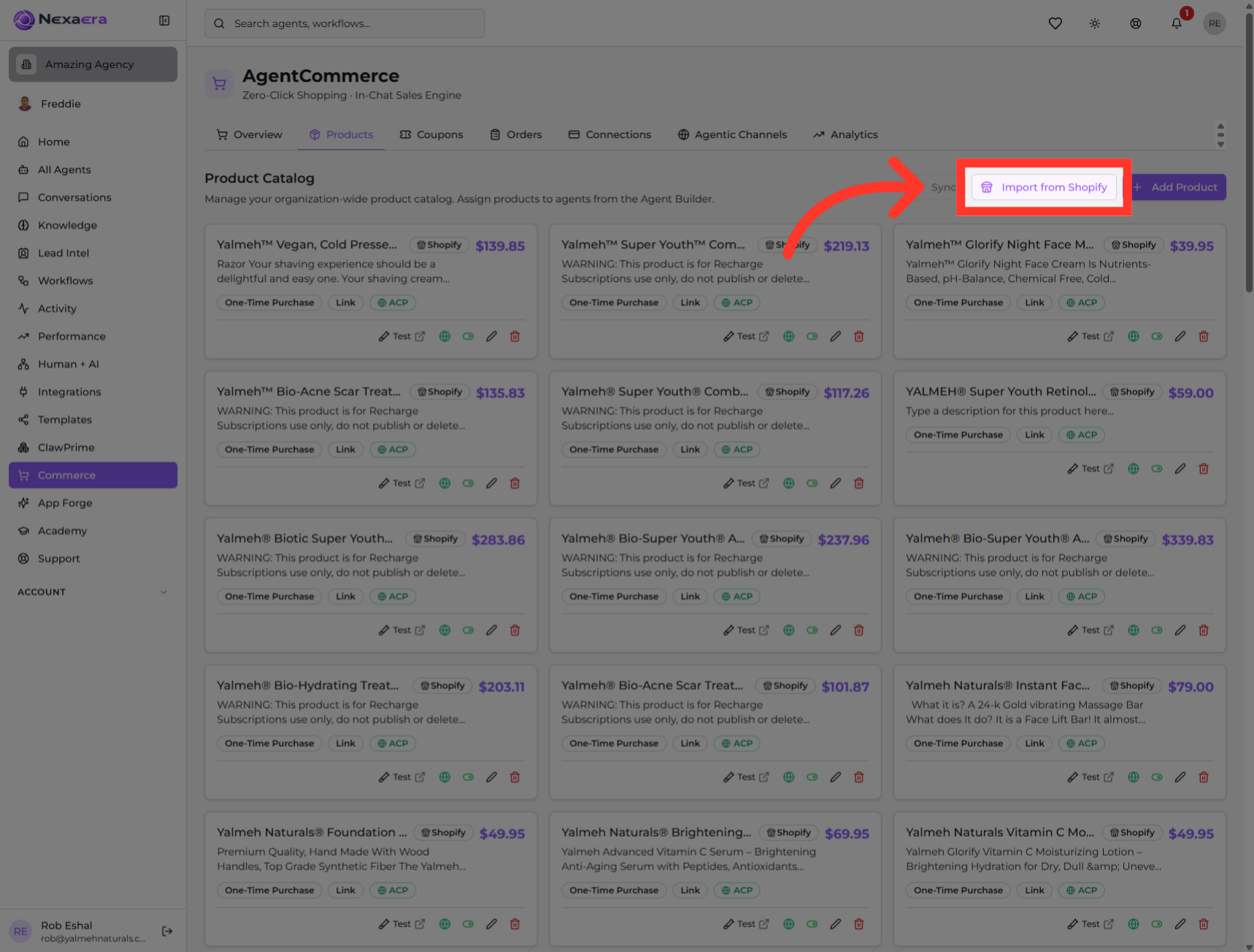
5. Import Products From Shopify
Right next to it is "Import from Shopify." Click it to bring products in from your connected Shopify store — no manual re-entry needed.
6. Import Process
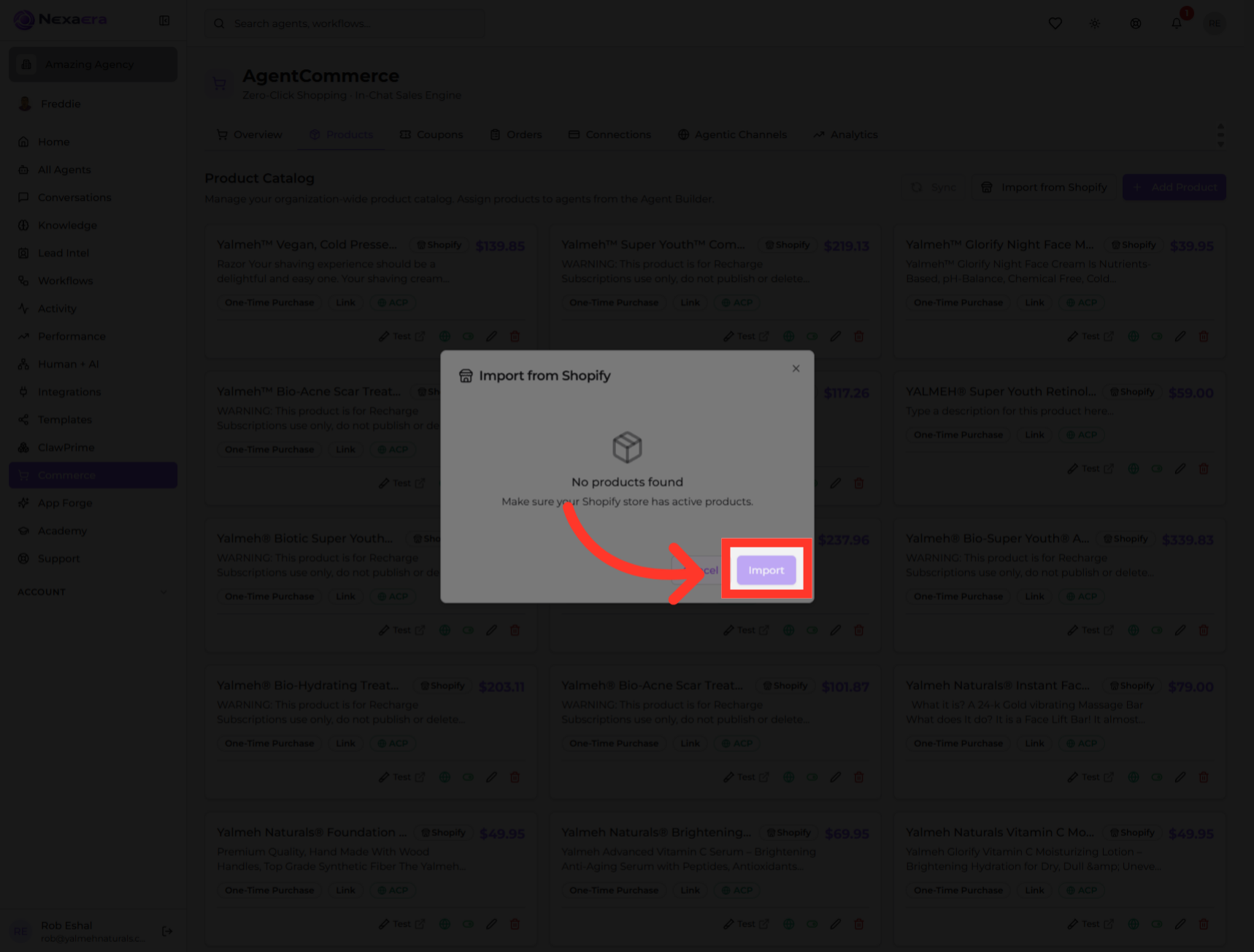
A window opens to confirm the import. Click "Import" to start pulling your products across. If it says "no products found," just double-check that your Shopify store is connected and has active products.
And that's how you keep your catalog fresh. You've seen how to sync your products and import them from Shopify. Connect your store, hit import, and your whole catalog flows right in. See you in the next one.
Still need help? Ask the team