NexaEra Dashboard Overview
This tutorial guides you through configuring and launching agents within the NexaEra dashboard.
Written By Fred Yalmeh
Last updated About 2 months ago
You will learn how to navigate the interface and set up agents tailored to your needs.
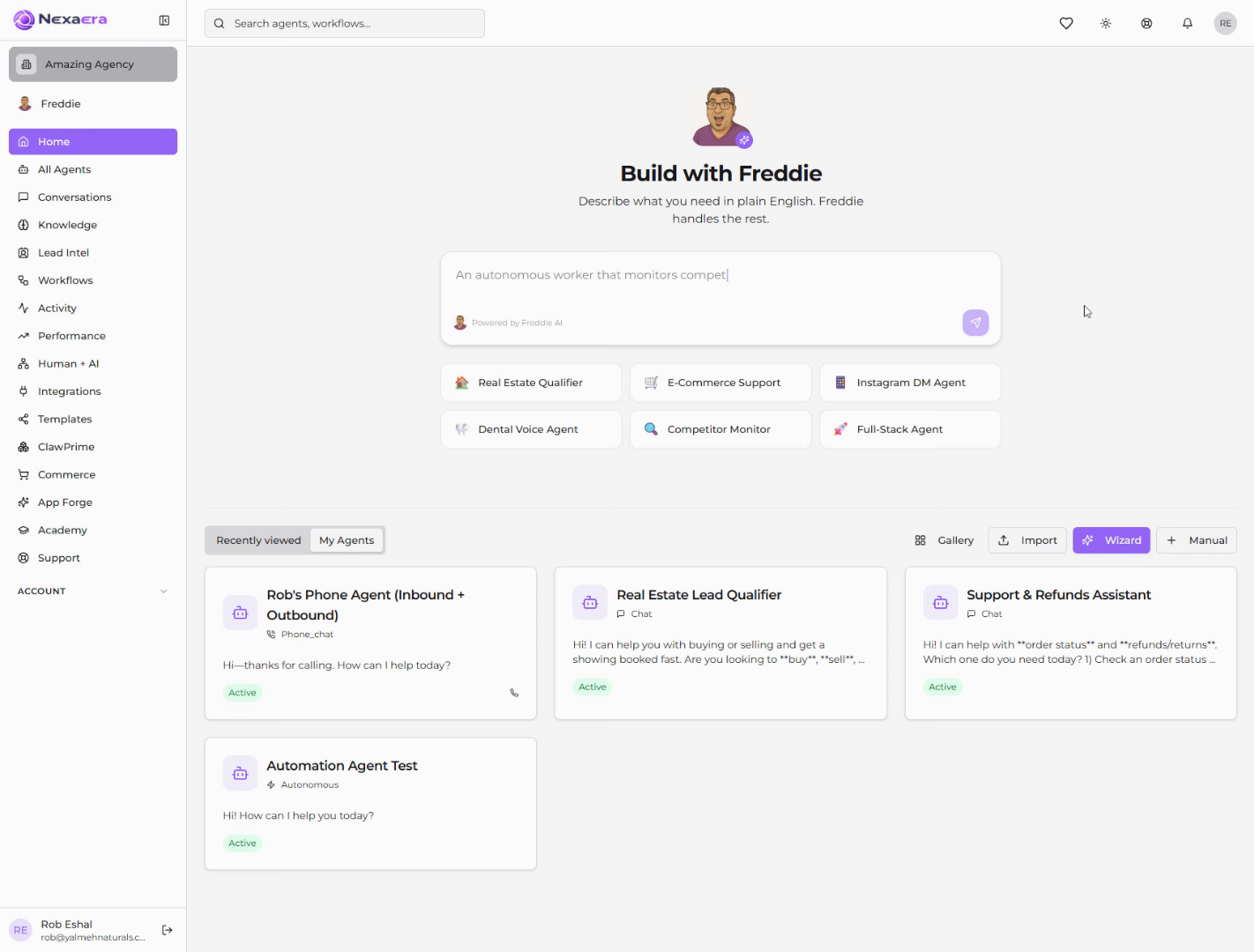
2. Access Nexaera Home Dashboard
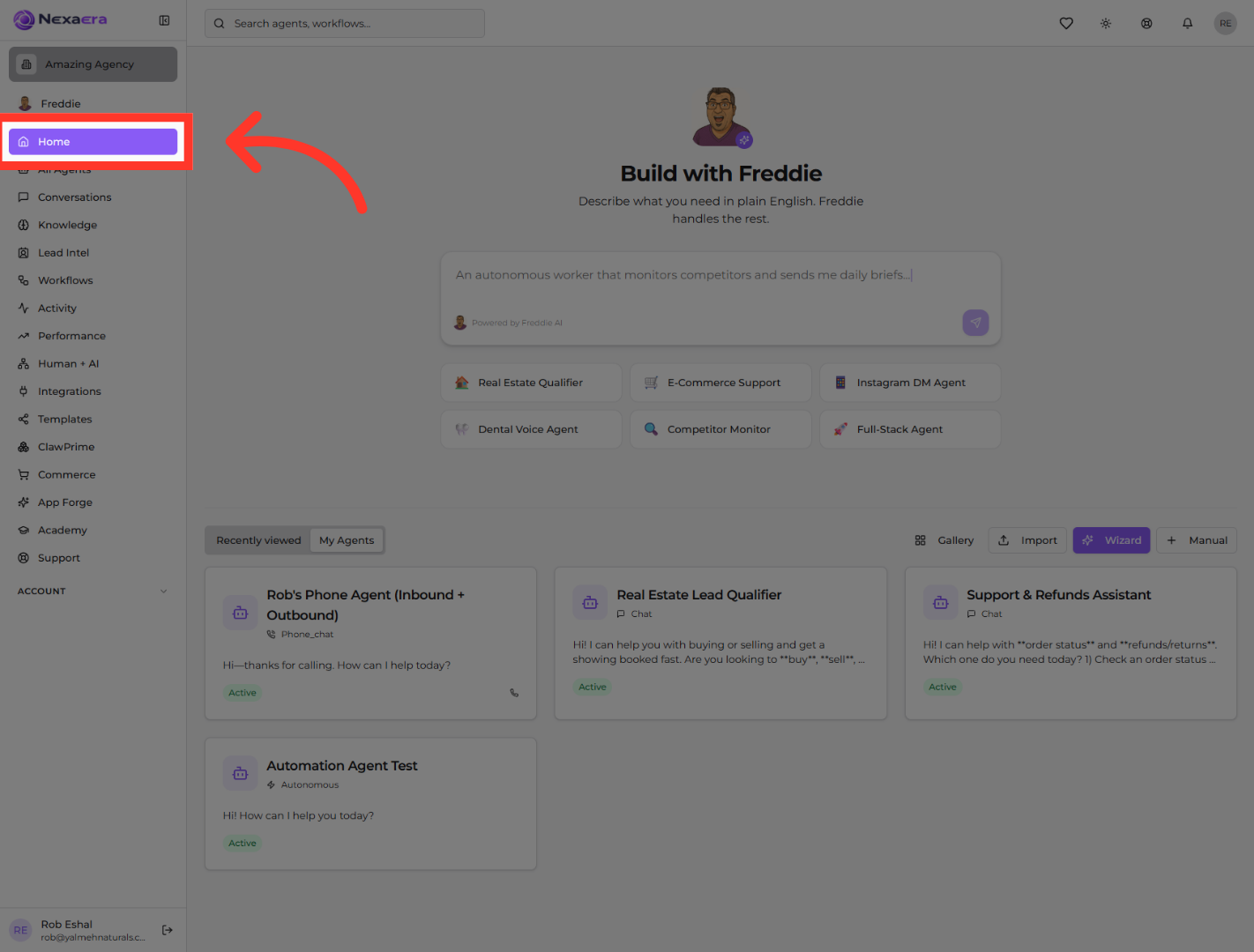
Click "Home" to access the main dashboard of Nexaera where you can manage your agents and settings.
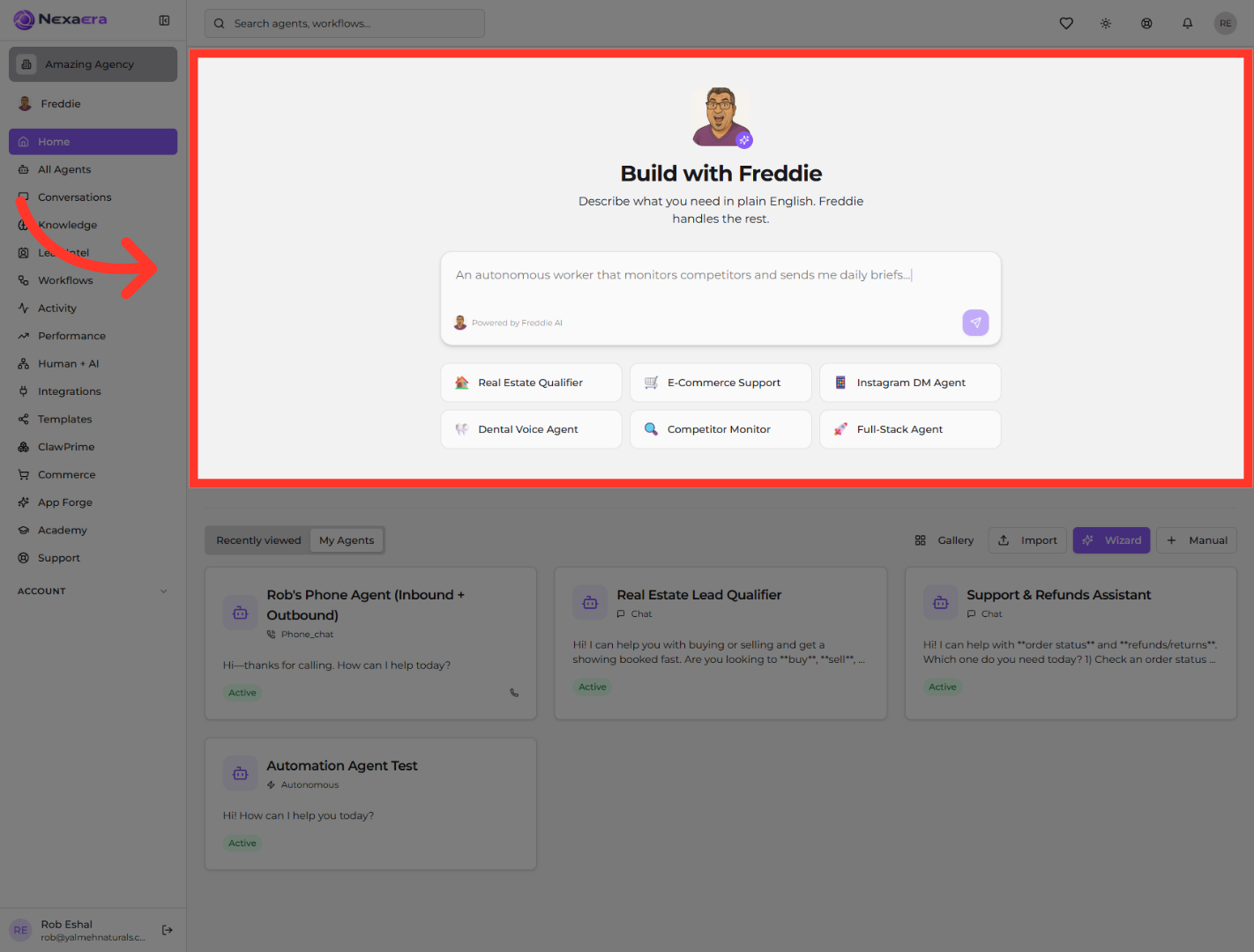
3. Open Build with Freddie Section
Click "Build with FreddieDescribe what you need in plain English. Freddie handles the rest.An autonomous worker that monitors competitors and sends me daily briefs...Powered by Freddie AI🏠Real Estate..." to explore available agent templates and features.
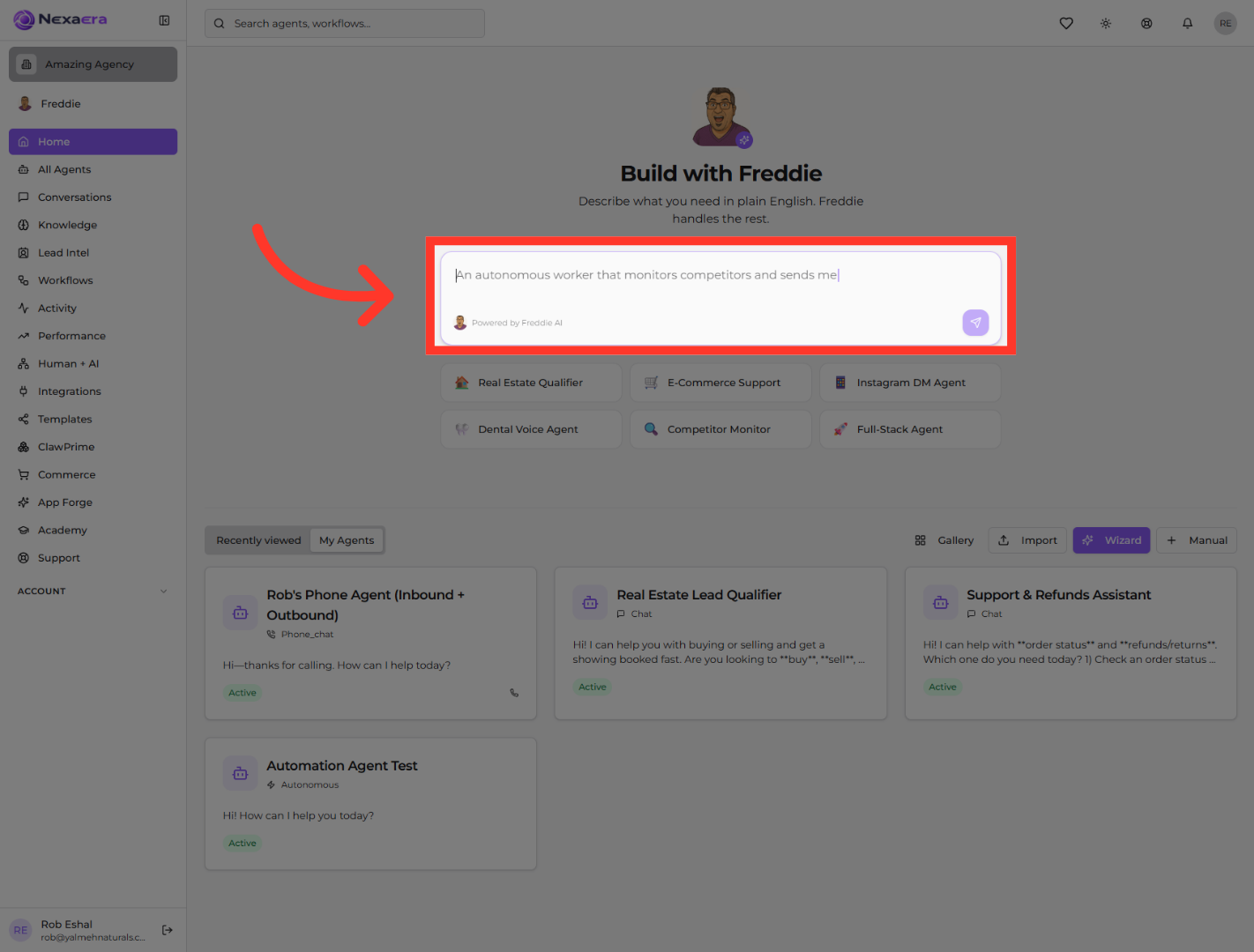
4. Proceed to Next Dashboard Action
Click here to continue to the next step in configuring your agent within the Nexaera dashboard.
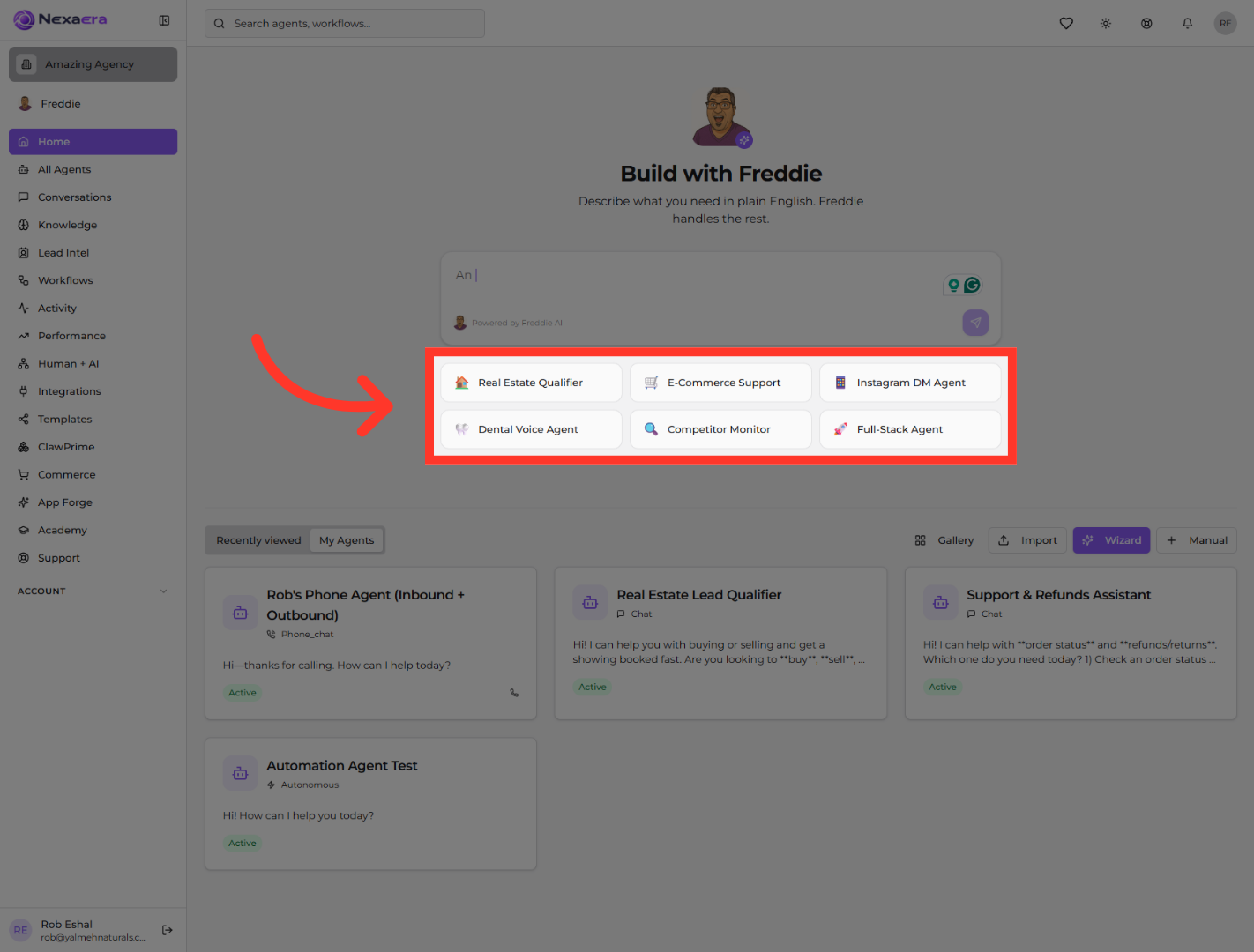
5. Select Agent Use Case Template
Click "🏠Real Estate Qualifier🛒E-Commerce Support📱Instagram DM Agent🦷Dental Voice Agent🔍Competitor Monitor🚀Full-Stack Agent" to choose the appropriate use case template for your agent.
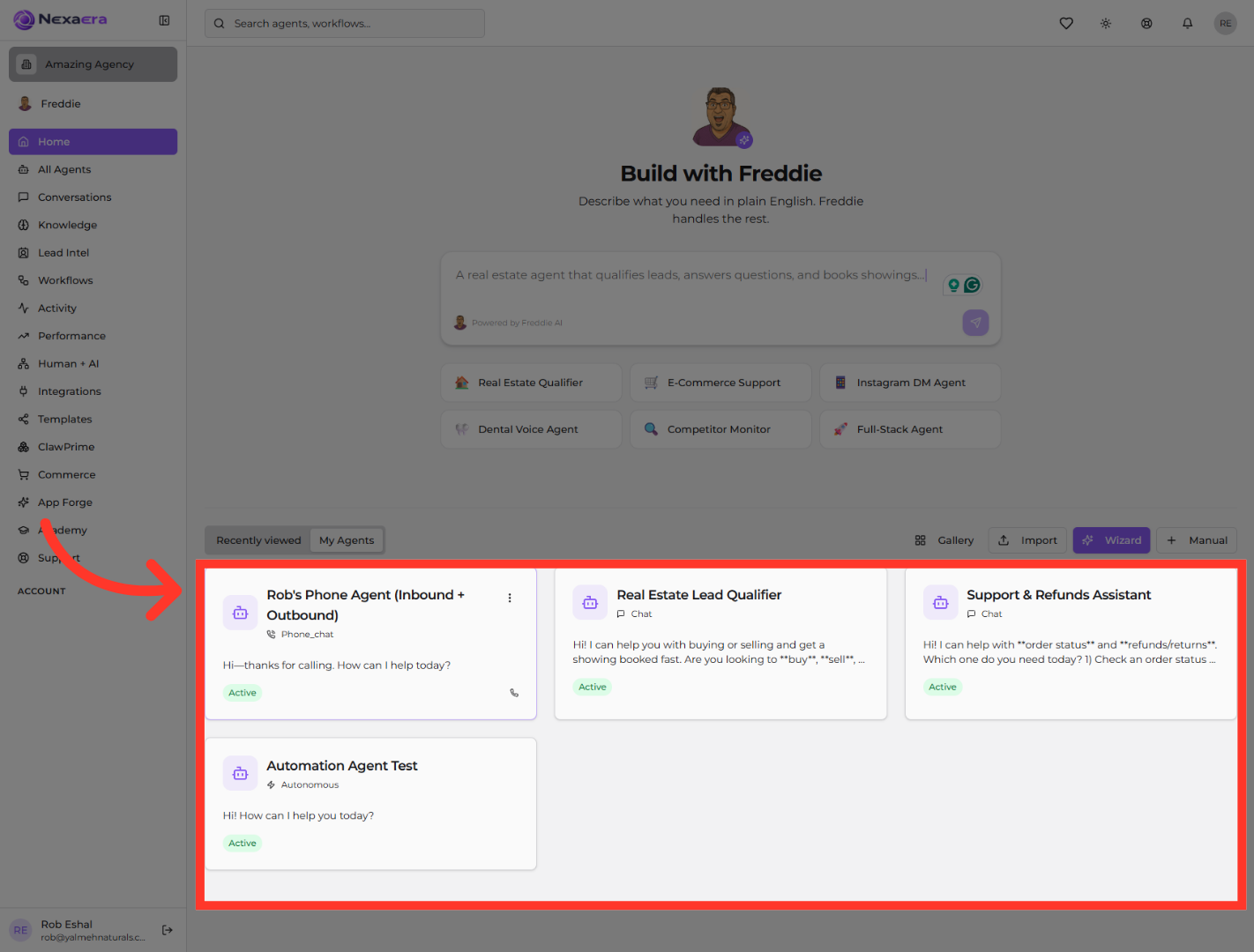
6. Open Rob's Phone Agent Details
Click "Phone Agent (Inbound + Outbound)" to view and configure the specific settings of this agent.
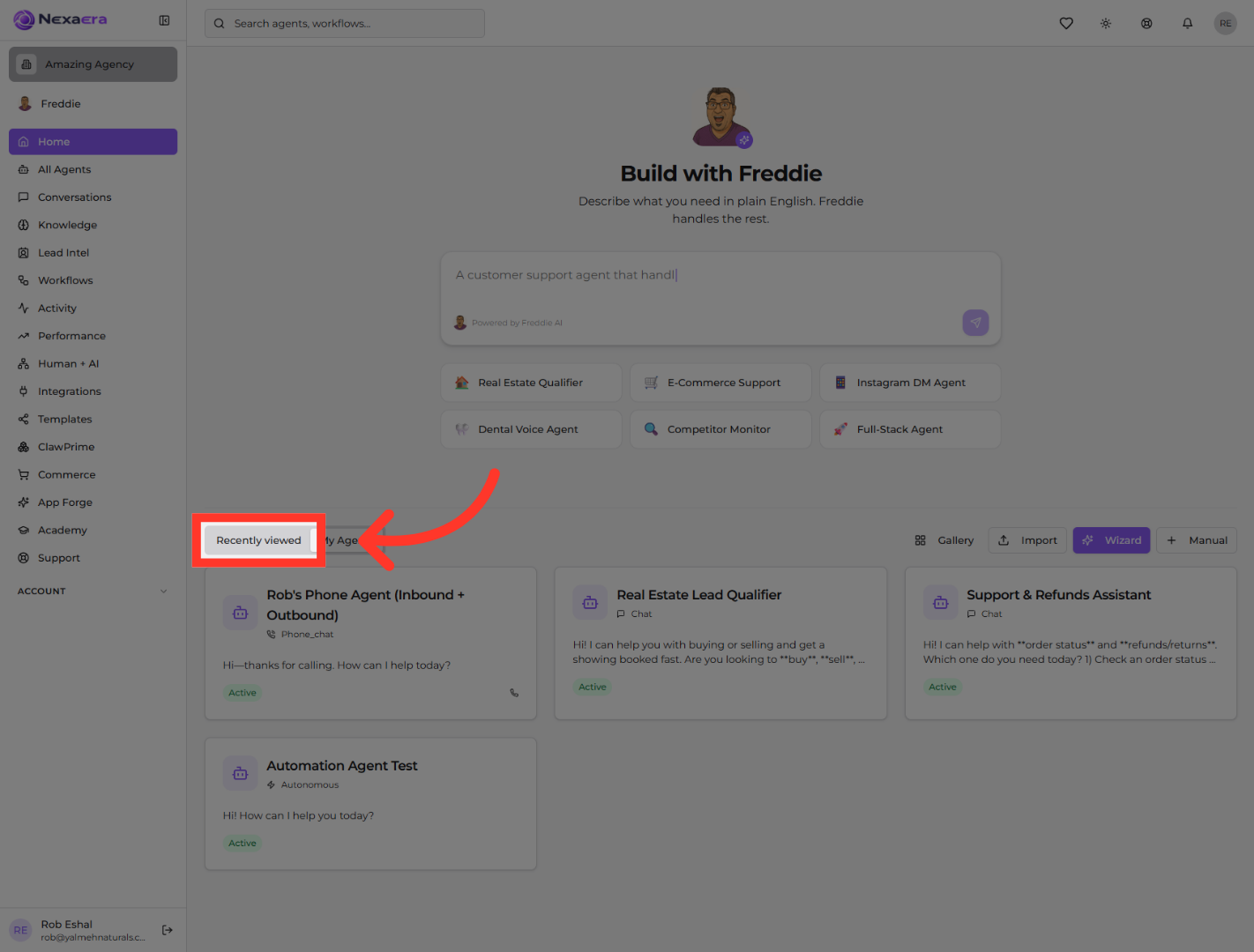
7. View Recently Accessed Items
Click "Recently viewed" to access your most recently used agents and configurations for quick reference.
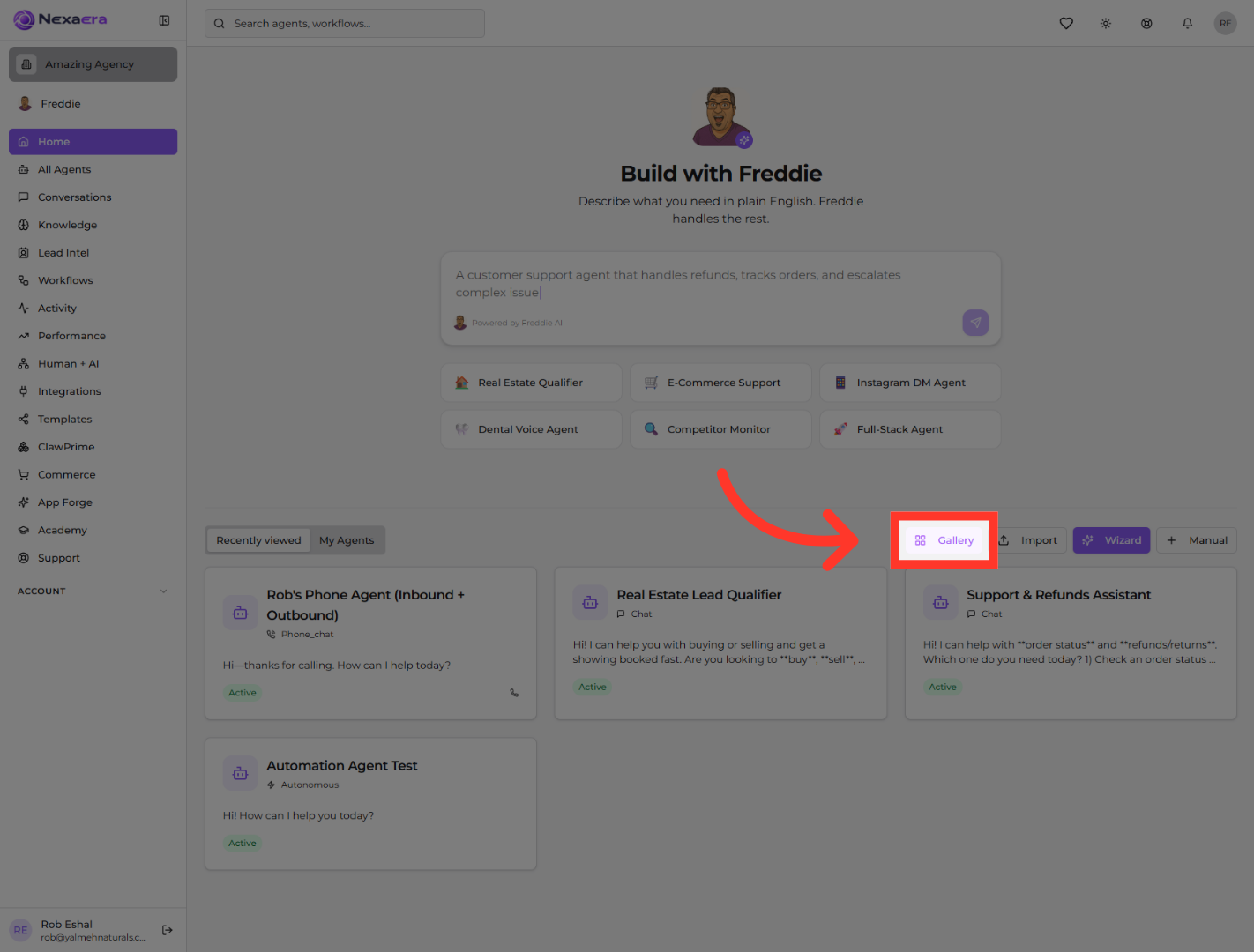
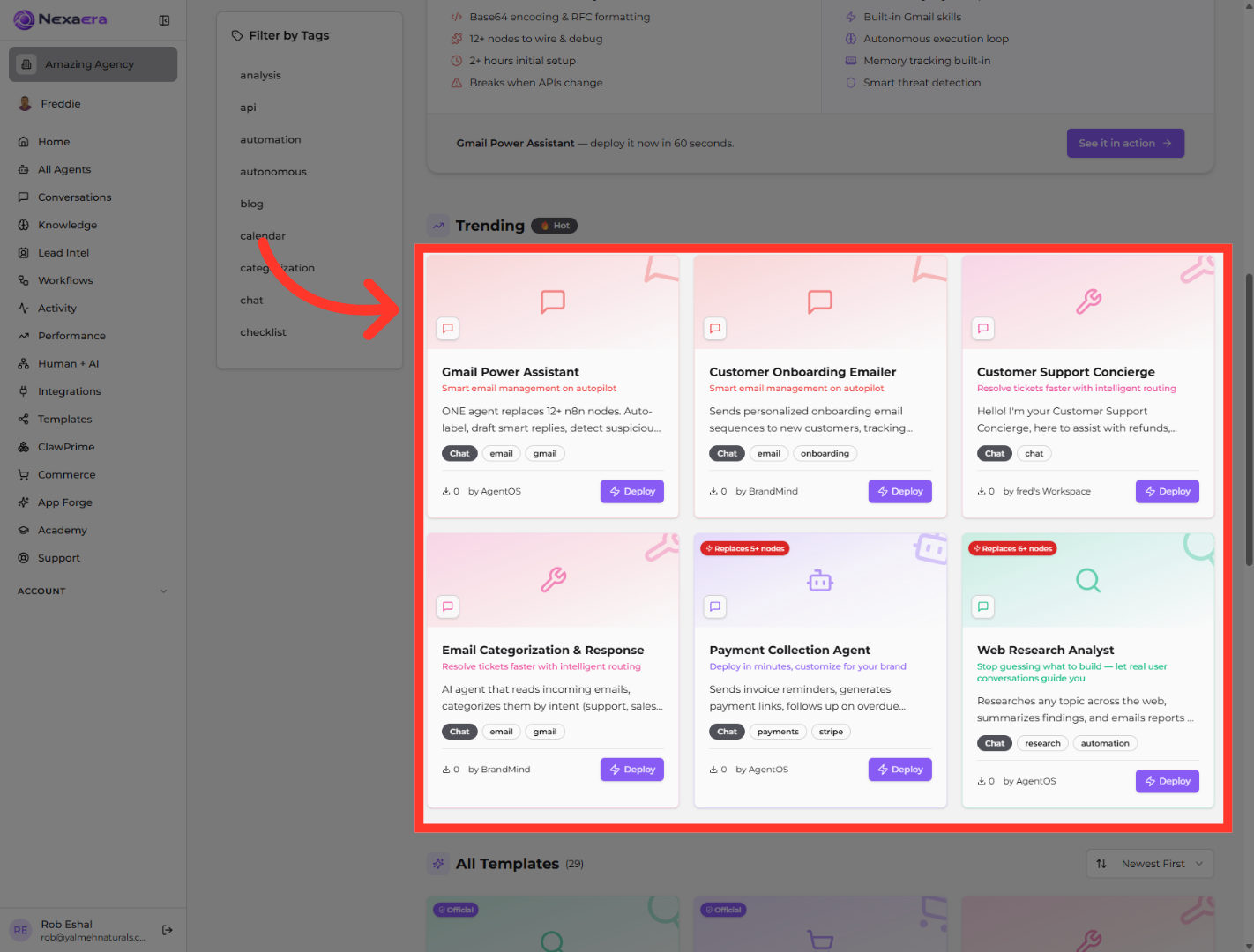
8. Open Gallery Section
Click "Gallery" to browse through available agent templates and resources within the Nexaera dashboard.
9. Apply Filters to Gallery
Click "Filter by..." to refine the gallery view and find specific agent templates or categories that match your needs.
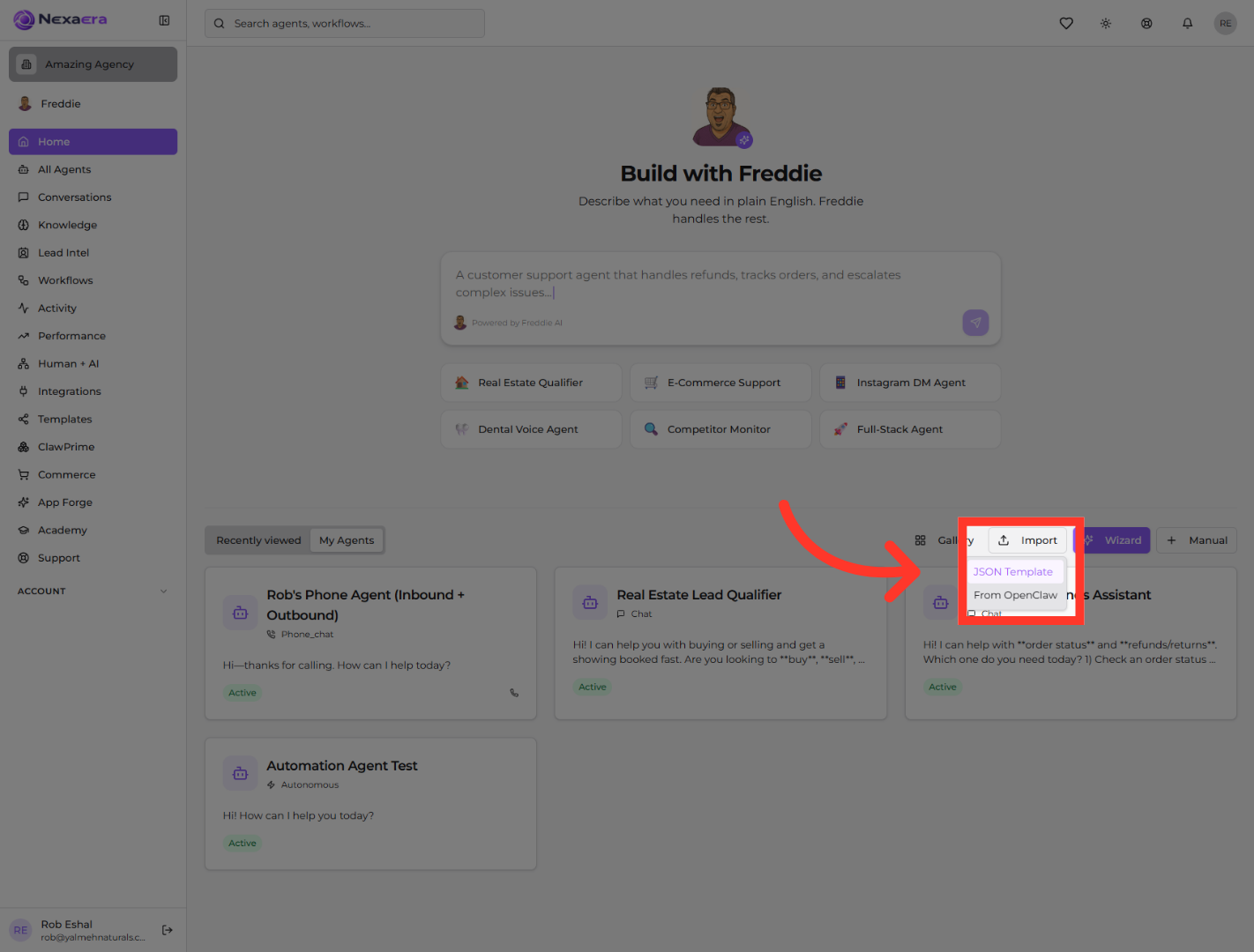
10. Select JSON Template Option
Click "JSON Template" to choose a template format that allows for advanced customization of your agent configuration.
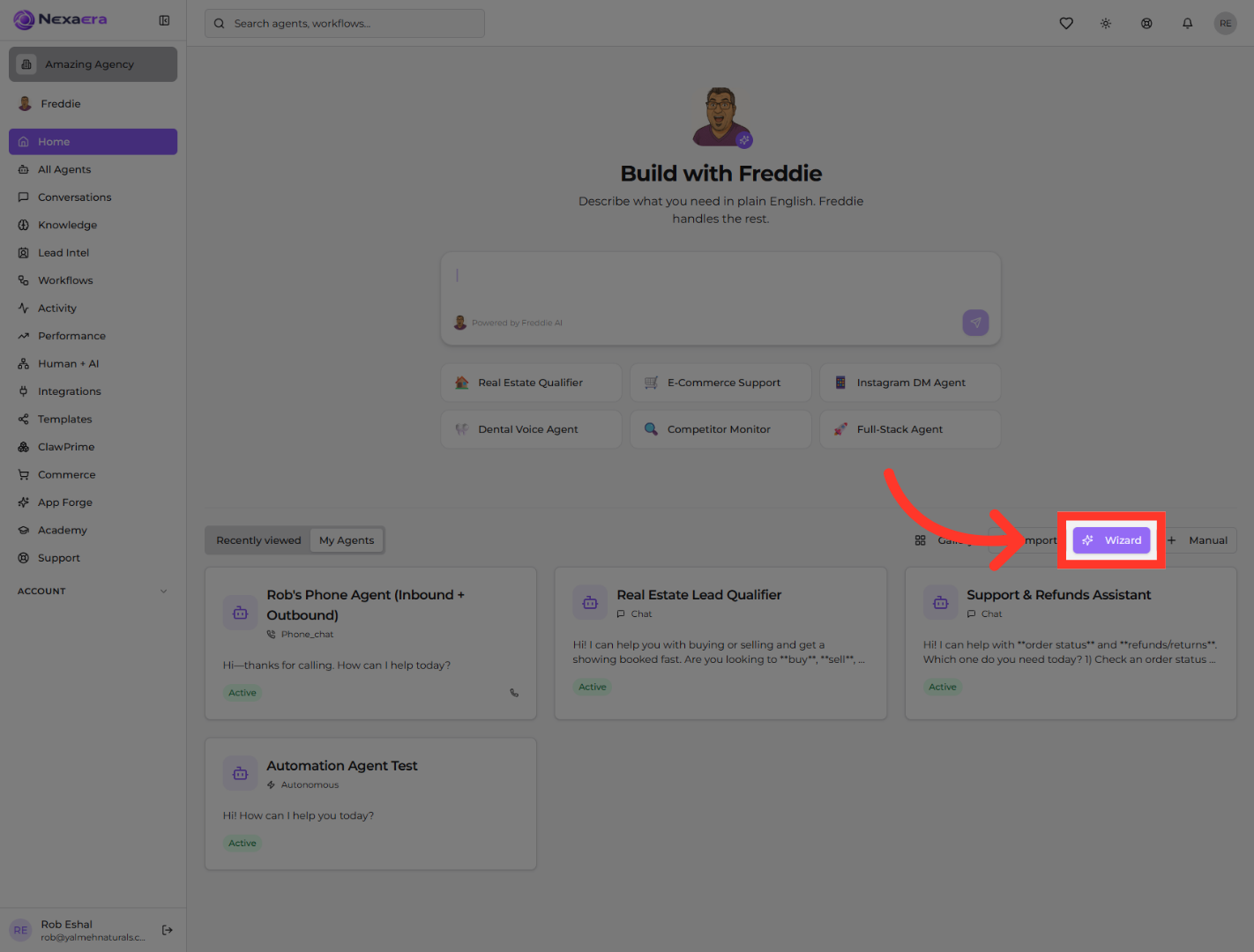
11. Access Agent Setup Wizard
Click "Wizard" to launch the step-by-step agent creation and configuration tool within Nexaera.
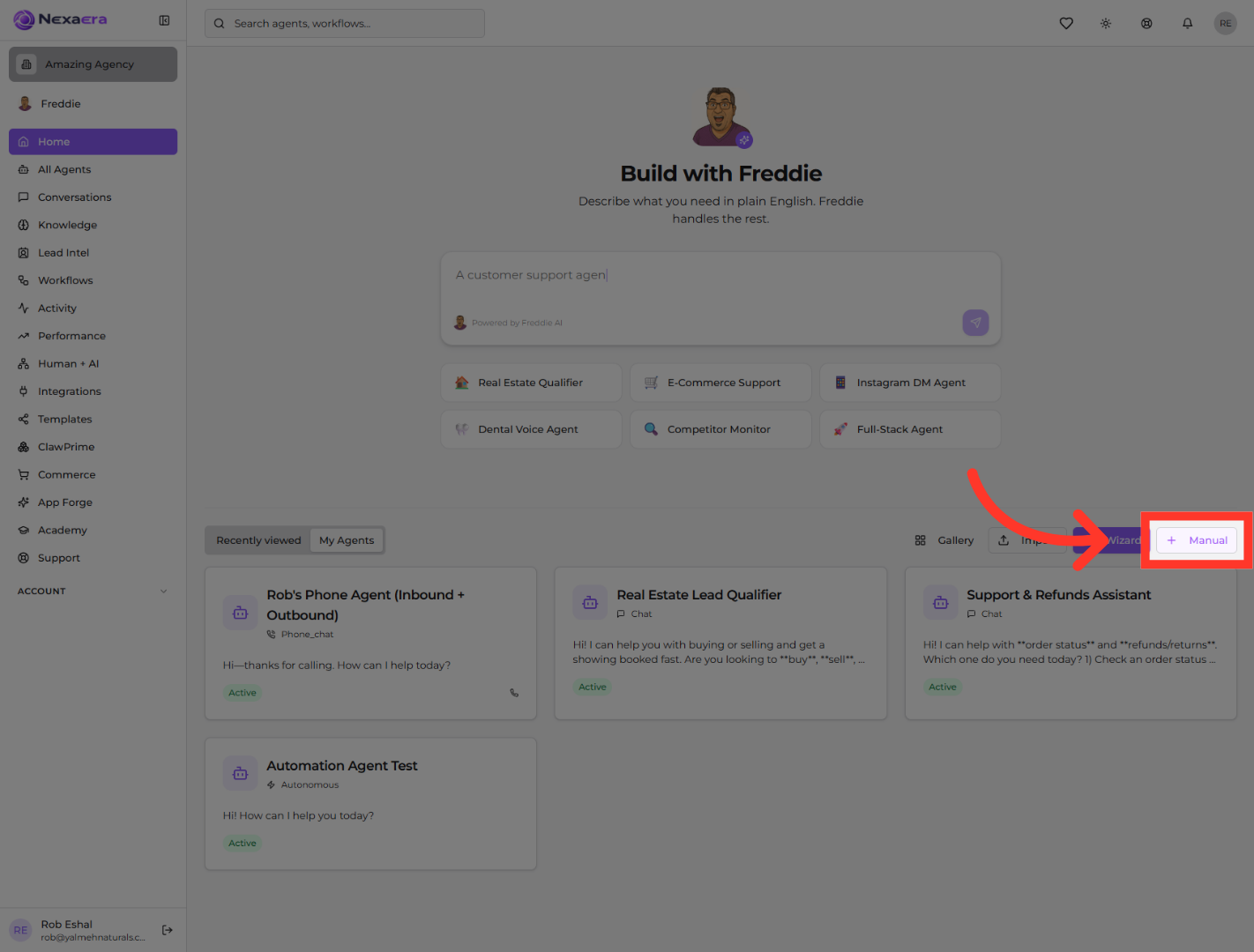
12. Choose Manual Configuration Mode
Click "Manual" to select manual setup for your agent, allowing for detailed customization of its features and behavior.
You have successfully navigated the Nexaera dashboard to configure and launch agents using various templates and setup options. This process enables tailored agent creation to meet your specific requirements.
Still need help? Ask the team