Upload And Manage Knowledge Base Content In NexaEra
Your AI agent is only as helpful as the answers it knows. In this quick walkthrough, you’ll load your own FAQs straight into NexaEra’s knowledge base — so your agent can answer real customer questions in your exact words. You’ll see both ways to do it: bulk-importing a spreadsheet, or typing your questions and answers in by hand. Let’s get your knowledge in there.
Written By Fred Yalmeh
Last updated About 2 months ago
Go to www.nexaera.com
1. Introduction
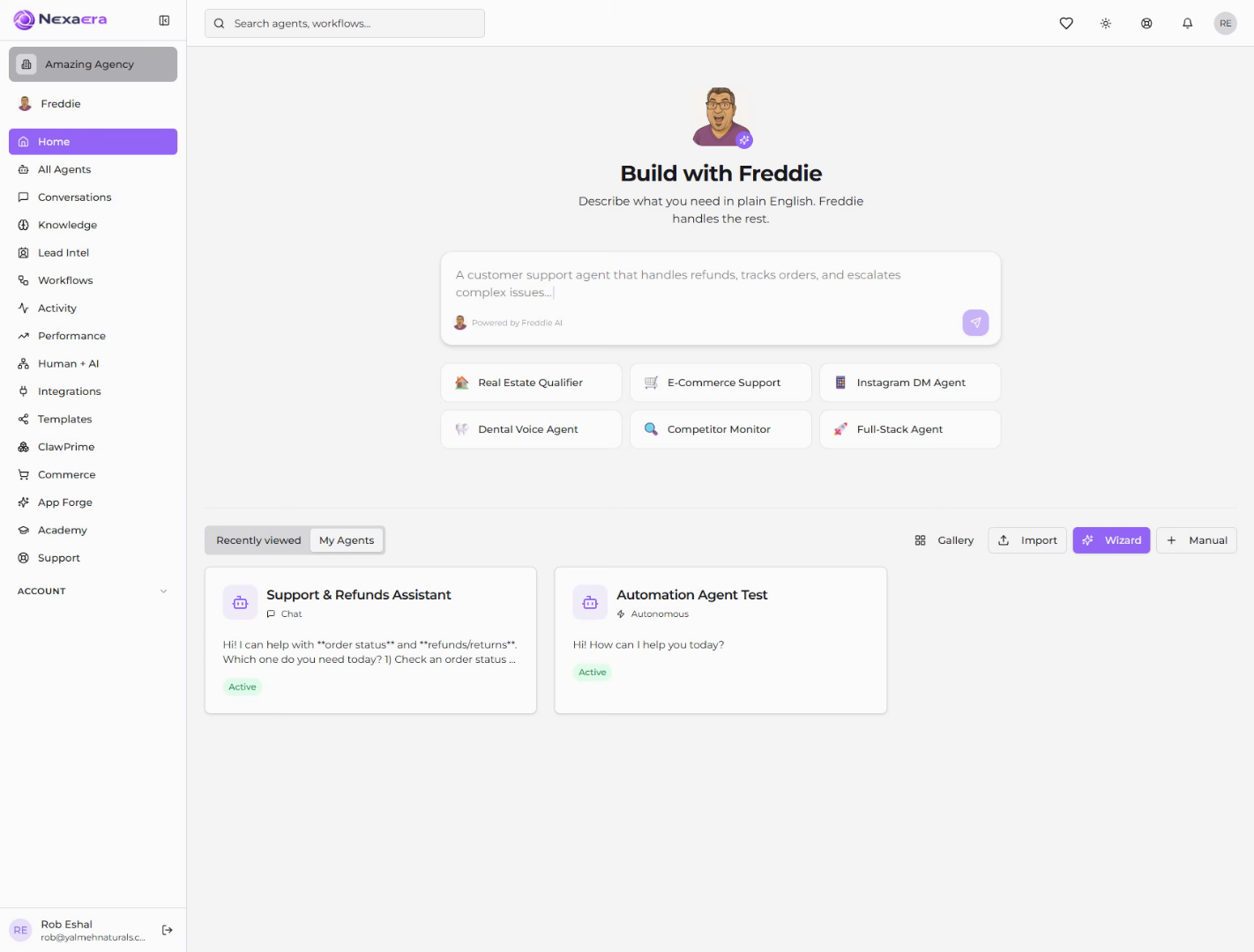
Start by logging in to NexaEra at nexaera.com. You’ll land on your main dashboard — home base for building and managing your agents. Today, we’re adding FAQ content your agents can pull from. Let’s dive in.
2. Access Knowledge Section
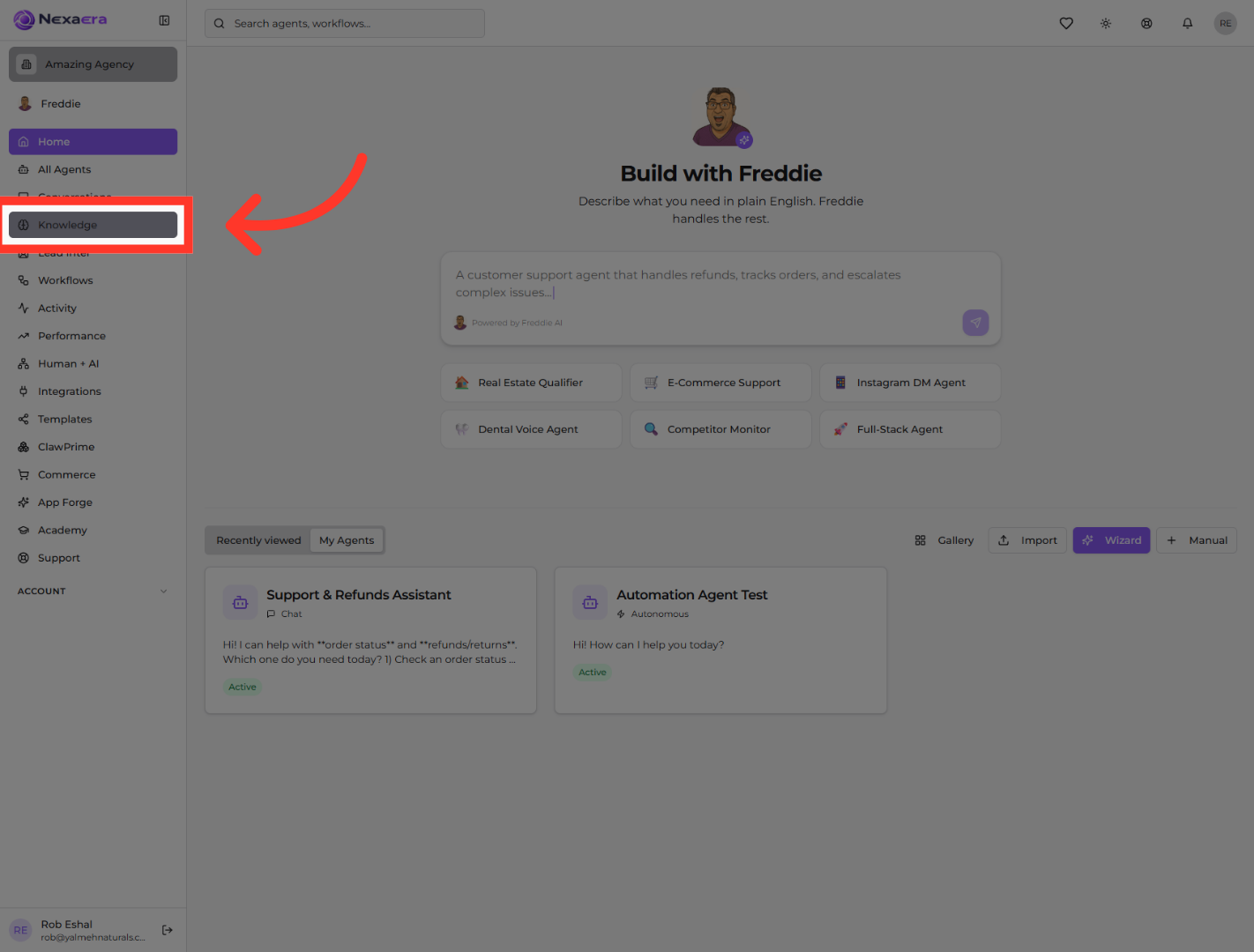
In the left sidebar, click “Knowledge.” This is your training hub — where all the information your agents rely on lives.
3. Open Text/FAQ Tab
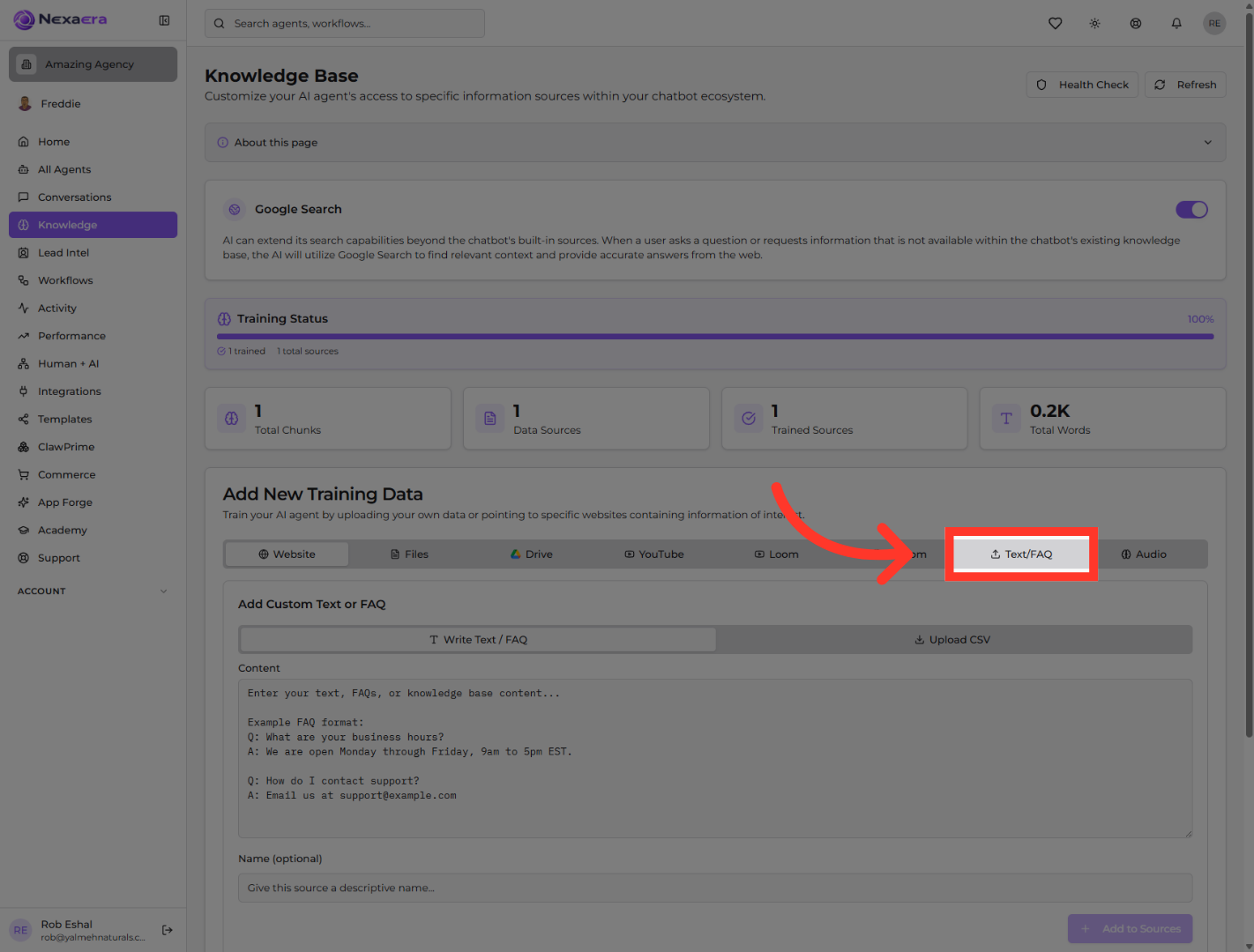
In the “Add New Training Data” section, find the row of tabs and click “Text/FAQ.” This is where you add plain text and question-and-answer content — either in bulk or by hand.
4. Initiate CSV Upload
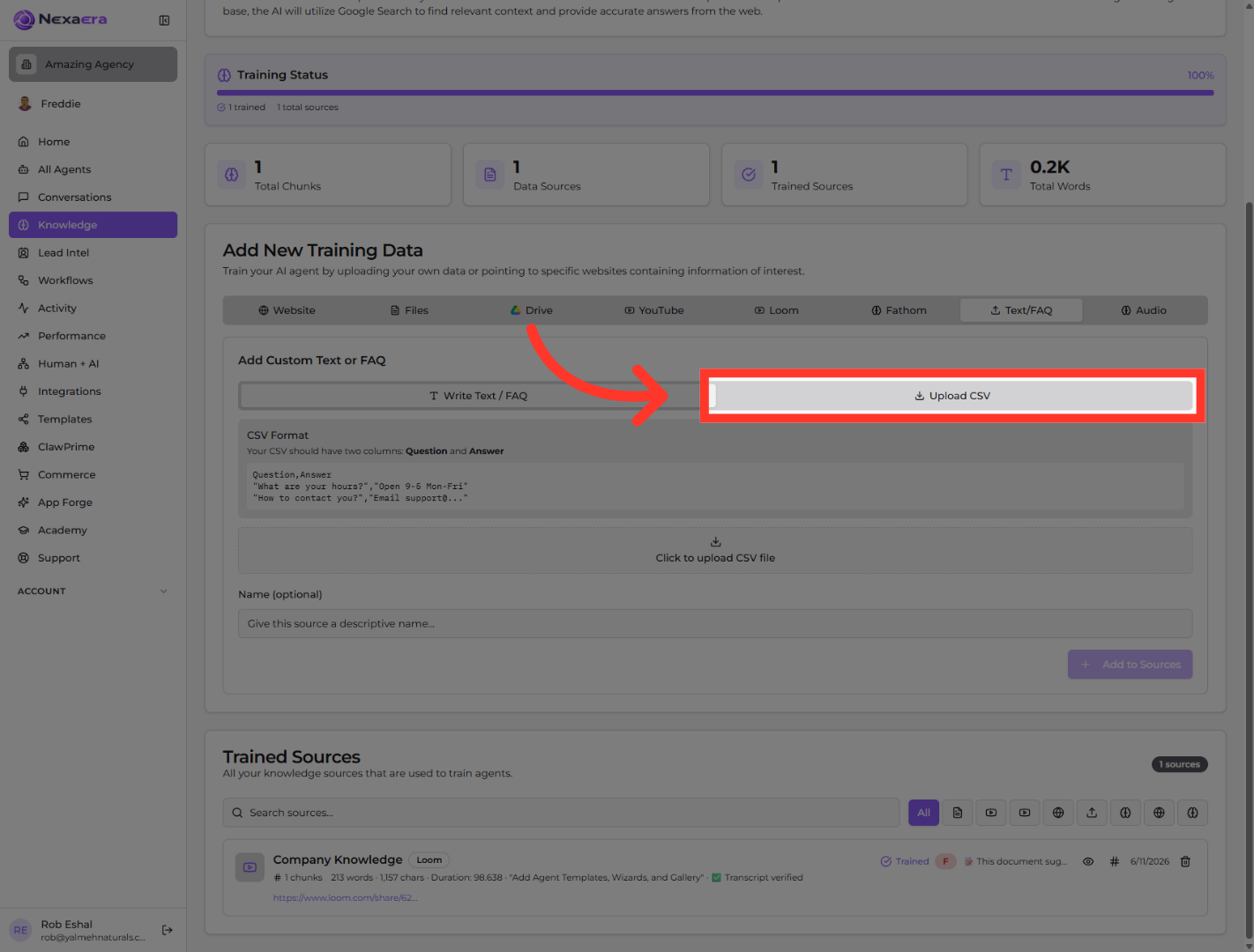
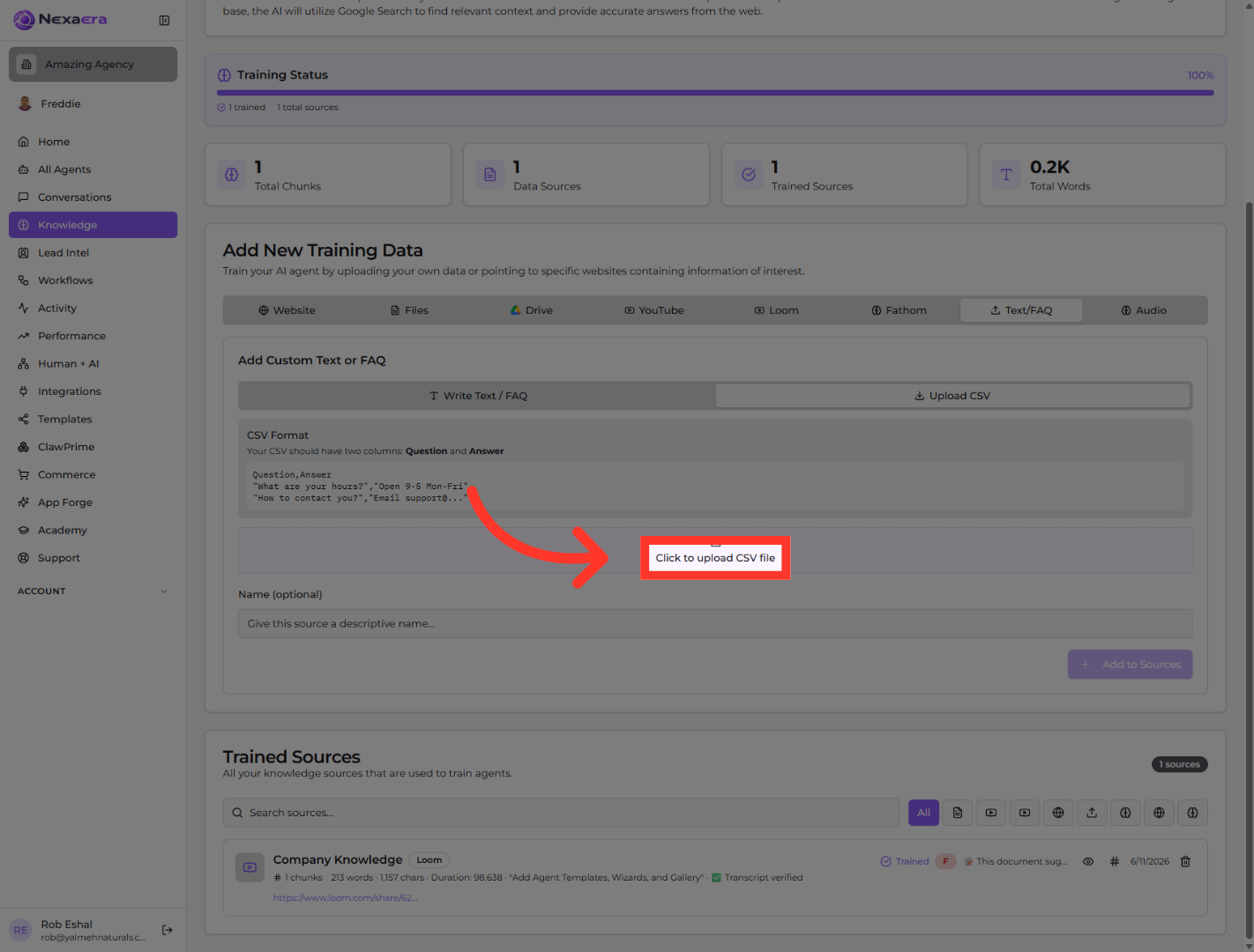
Already have a bunch of FAQs in a spreadsheet? Click “Upload CSV.” This lets you import them all at once, instead of typing each one in.
5. Select CSV File Upload
Now click “Click to upload CSV file.” That opens your file browser, so you can pick the CSV right off your computer.
6. Choose Write Text/FAQ Option
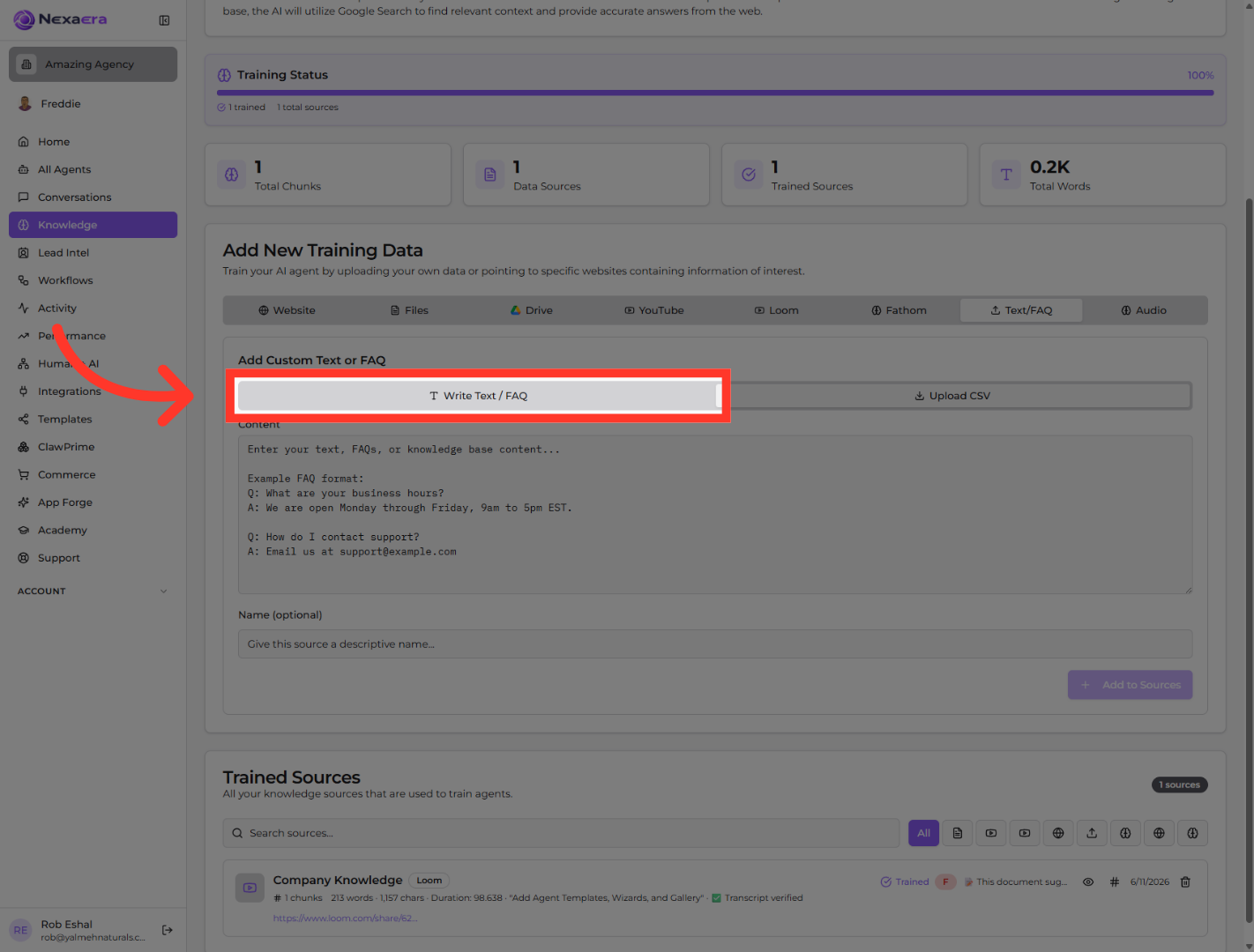
Prefer to type your FAQs in directly? Click “Write Text / FAQ” to switch back to manual entry. That’s the route we’ll take from here.
7. Open Text Entry Field
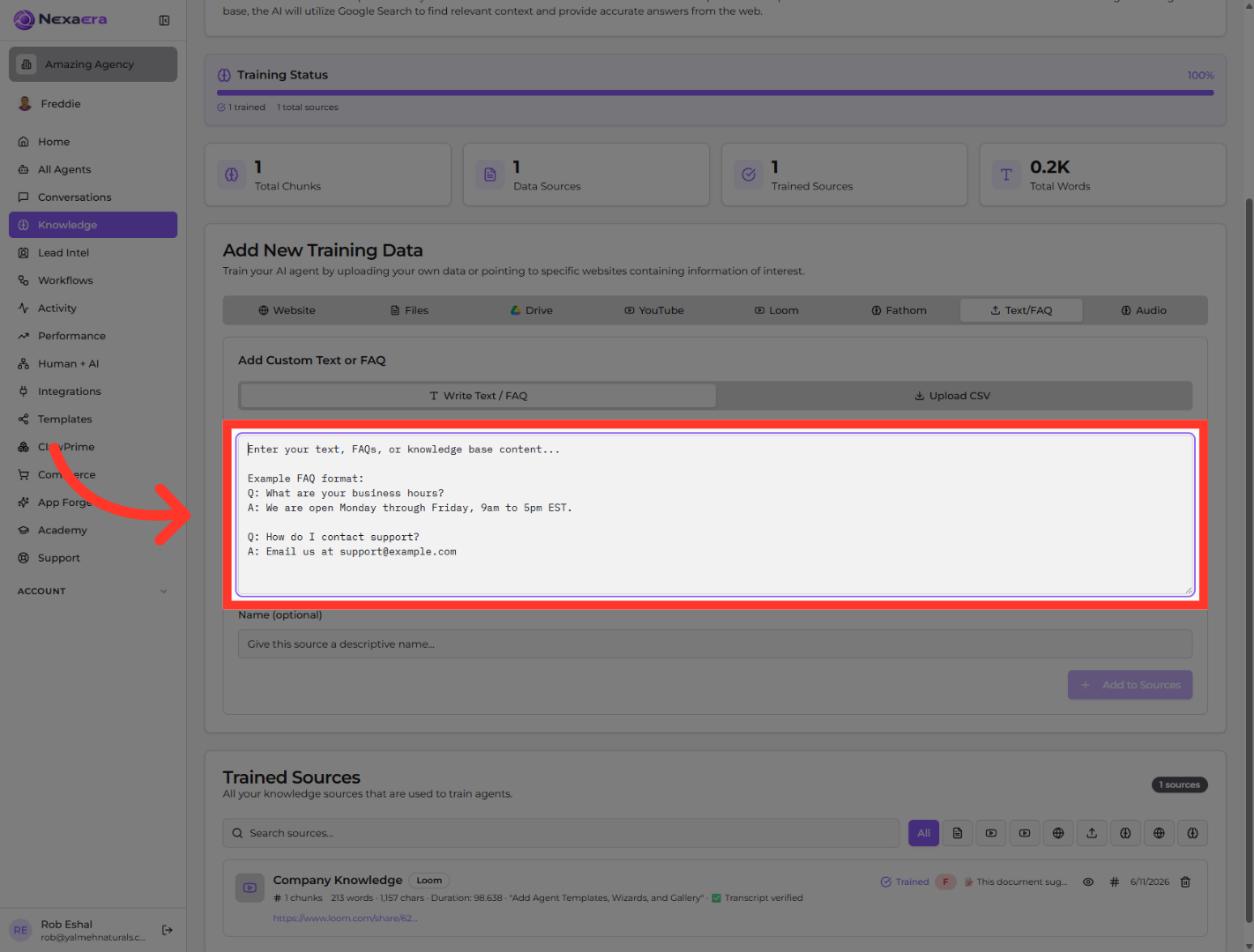
Click into the big content box, then add your questions and answers using the simple format shown — “Q:” for the question, “A:” for the answer. For example: “Q: What are your hours? A: We’re open Monday to Friday, 9 to 5.”
8. Name The Source
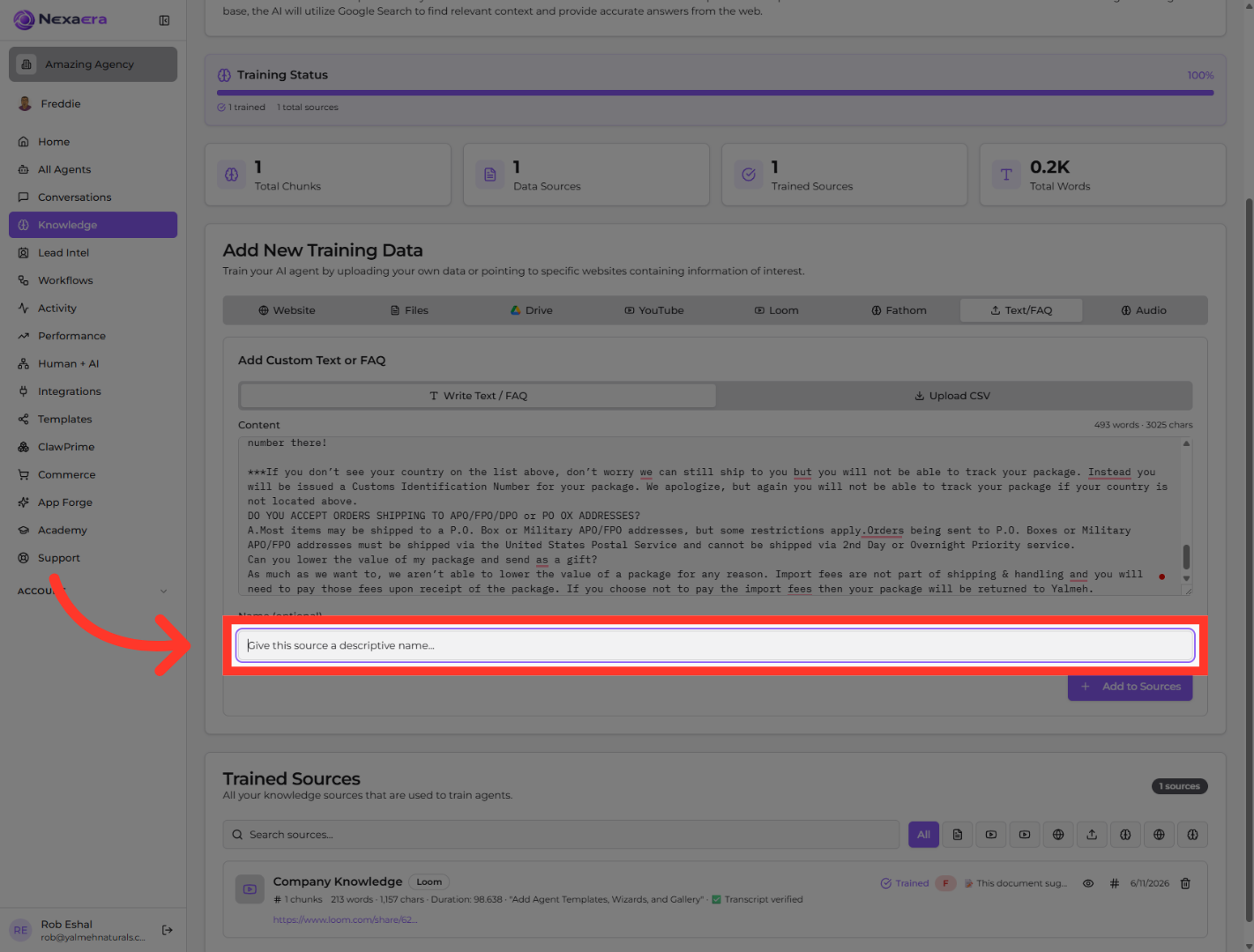
Scroll down and click the “Give this source a descriptive name” field. Give it a clear label so you can spot it later — something like “Shipping FAQs” or “Company Policies.”
9. Add Source To Knowledge Base
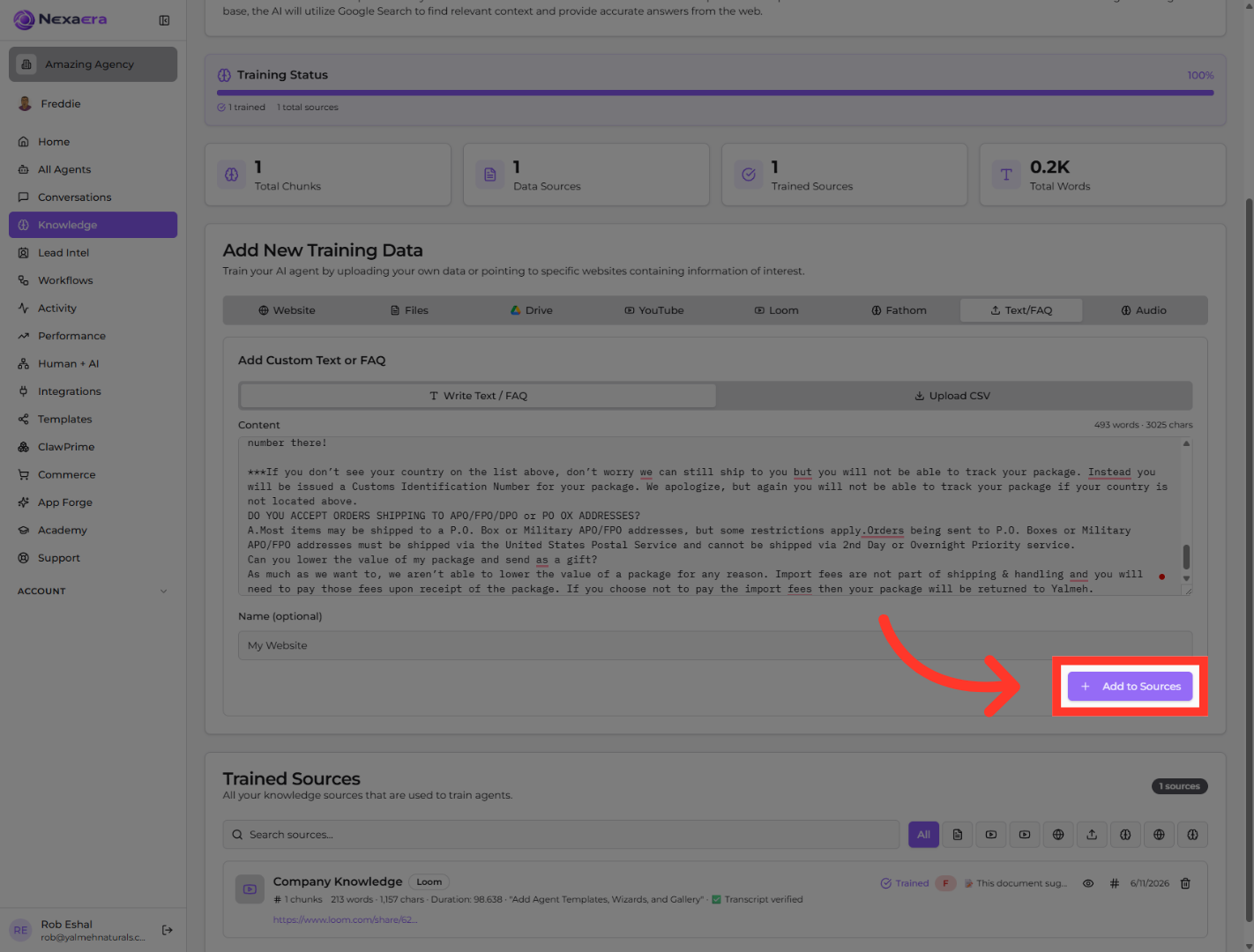
Last step — click “Add to Sources.” NexaEra saves your content and starts training your agents on it right away. And there it is — your FAQ knowledge, locked in.
That’s it — you’ve added your own FAQs to NexaEra and named the source so it’s easy to manage. Your agents can now answer these questions instantly, in your words. Add as many sources as you like — the more you train, the sharper your agents get.
Still need help? Ask the team