Navigate Manual Agent Settings In Nexaera Dashboard
"Love having full control? The Wizard is great for a quick launch, but sometimes you want to build an agent your way — every setting, exactly how you like it. That's what Manual mode is for. In this quick walkthrough, I'll show you how to open the manual builder and start configuring an agent from the ground up."
Written By Fred Yalmeh
Last updated About 2 months ago
Go to www.nexaera.com
1. Introduction
"Here's what you'll be able to do by the end: jump into the manual builder and start setting up an agent hands-on — its name, personality, response style, and communication channels, all in one place."
2. Access Nexaera Home Dashboard
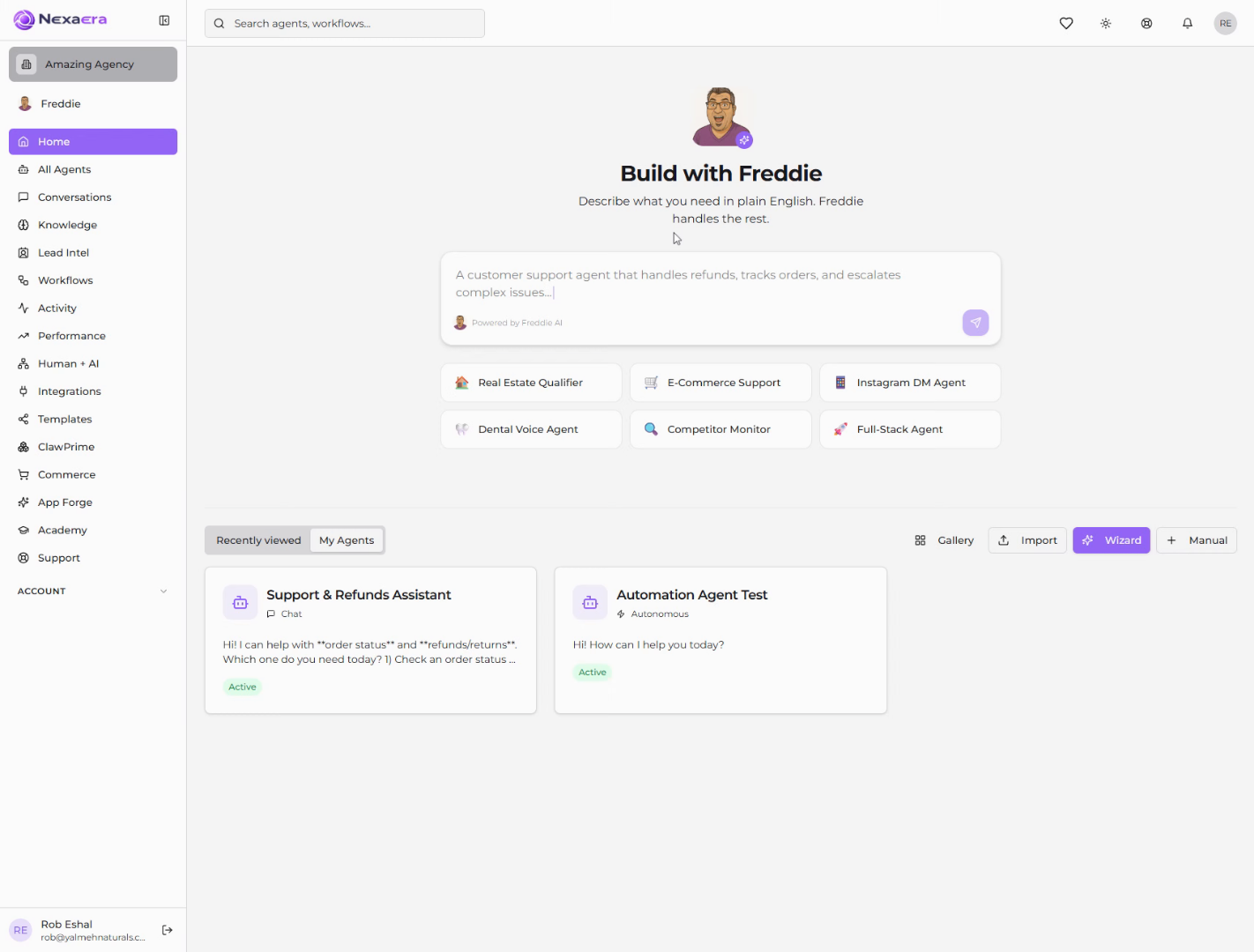
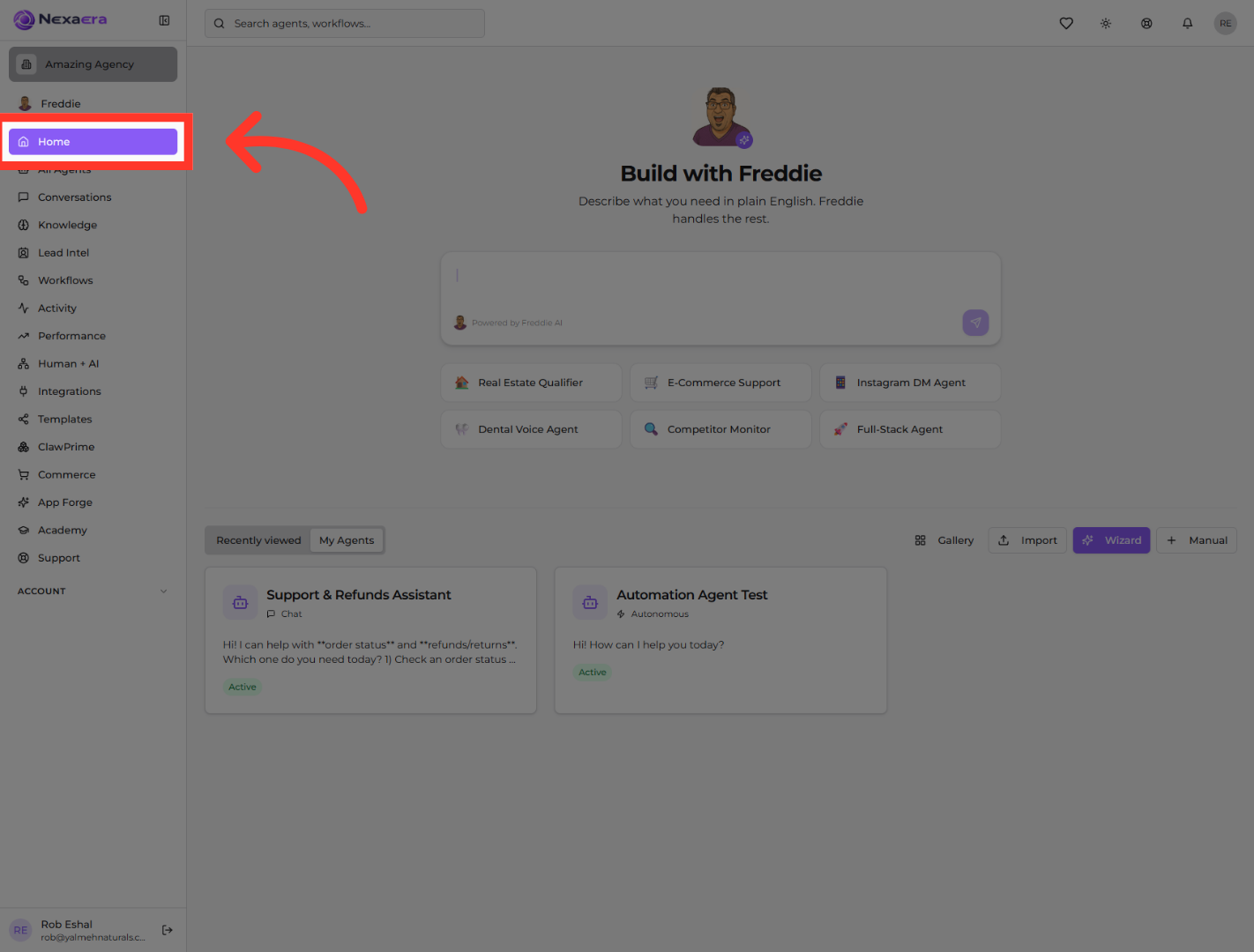
"Start by clicking Home in the left menu. This opens your main dashboard, where all your build and management options live."
3. Open Manual Section
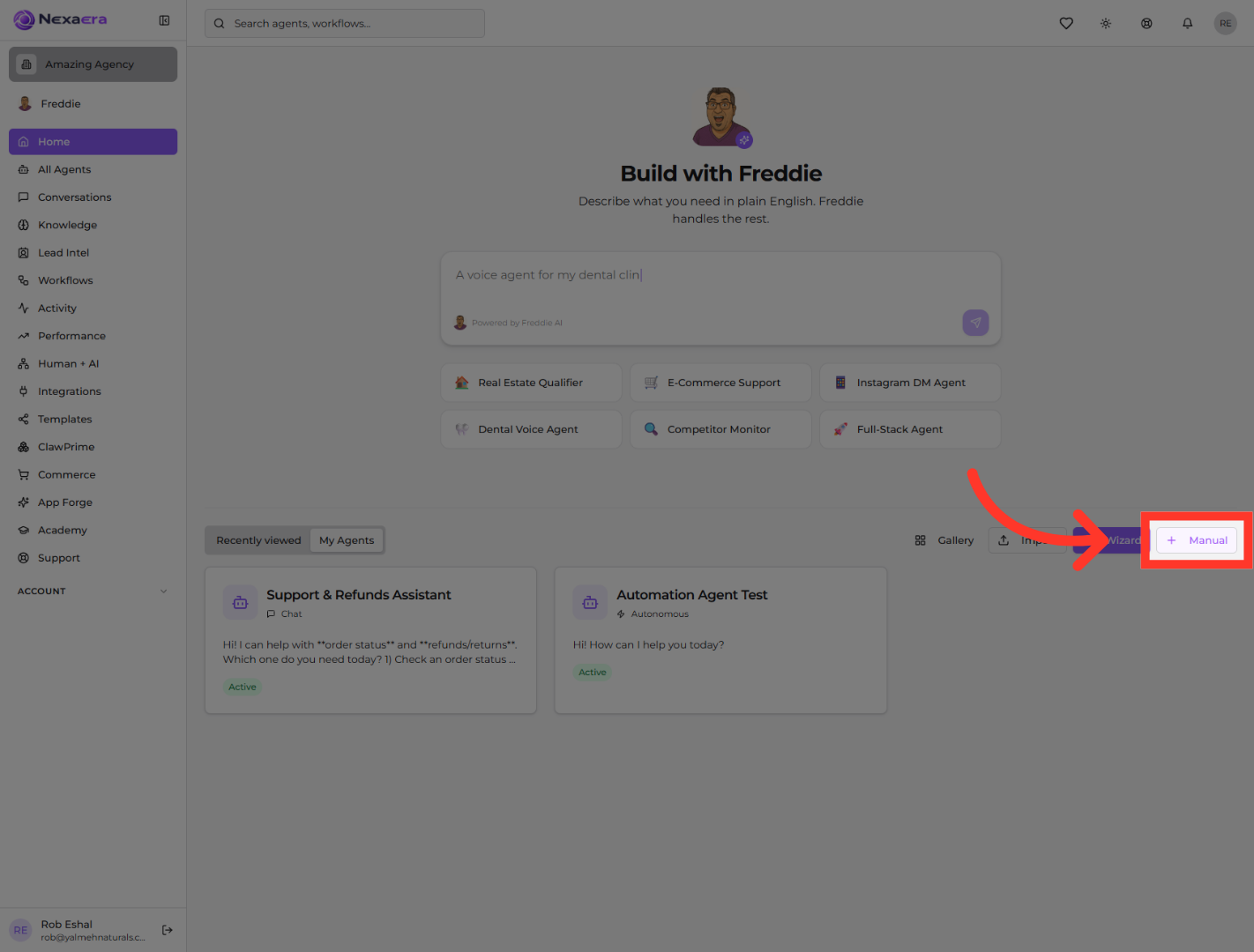
"On the right side of the panel, click Manual. Instead of the guided step-by-step Wizard, this drops you straight into the full agent builder, where every setting is right in front of you."
4. Select Specific Agent Name
"The agent configuration window opens on the Configure tab. From here you can set the Basic Information — like the agent's name, type, and welcome message — then shape its personality with a system prompt, creativity level, and response style. Tabs across the top let you dig into Skills, Memory, Resources, Delivery, and Security whenever you're ready. And the Live Preview on the right shows your changes as you make them."
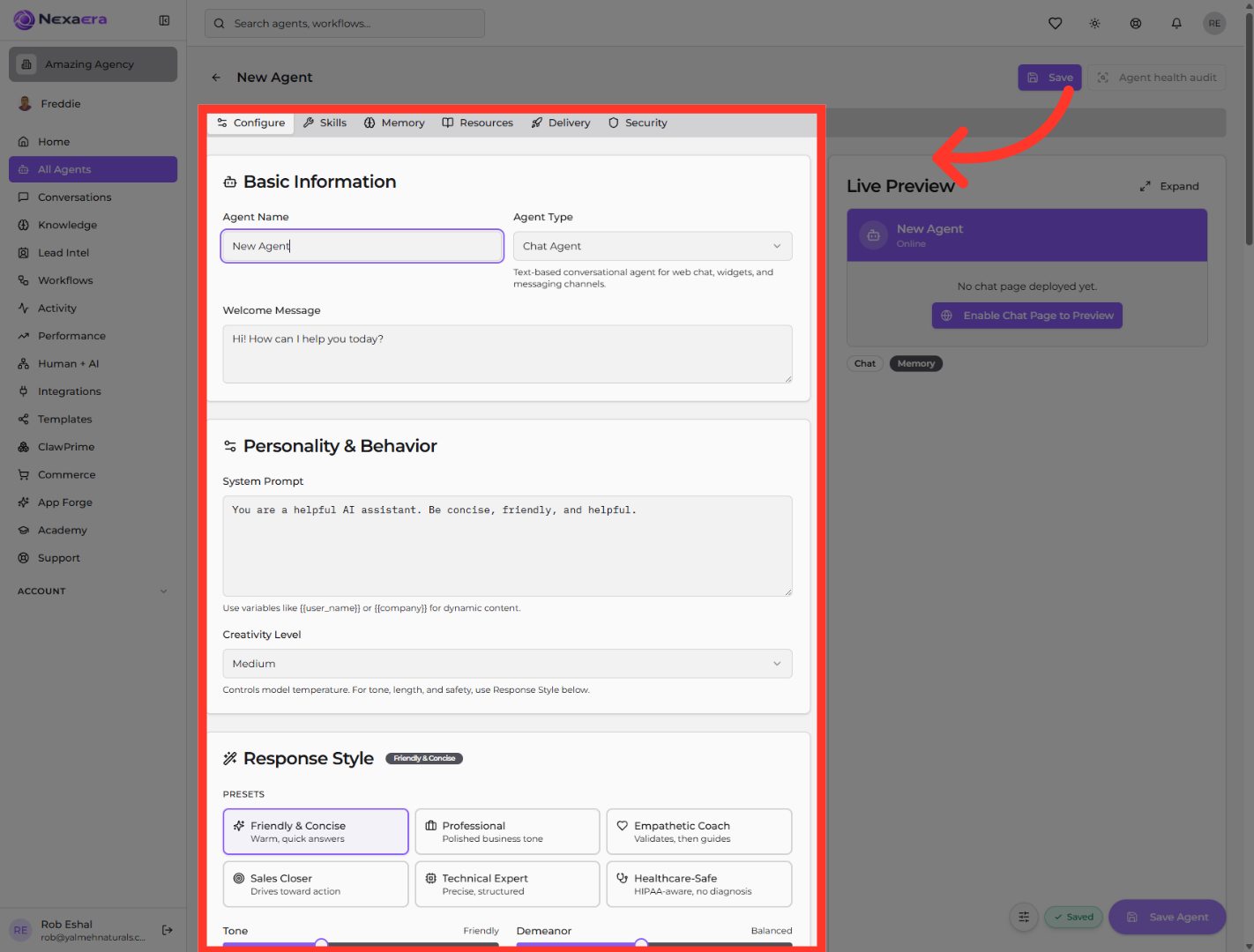
"And that's it. You're inside the manual builder with every setting at your fingertips. Take your time working through each tab, and when everything looks right, just hit Save. This is the way to go when you want your agent built exactly to your spec."
Still need help? Ask the team