Create and Manage Promo Codes in NexaEra Commerce
Nothing closes a sale like a well-timed discount. In this video, you'll create a promo code your agents can offer right inside a conversation — with your own rules for value, limits, and expiry. Let's build one.
Written By Fred Yalmeh
Last updated About 1 month ago
Go to nexaera.com
1. Introduction
In this walkthrough, you'll set up a discount coupon from scratch. You'll pick the code, the discount type and value, usage limits, an expiry date, and a minimum spend. It only takes a minute.
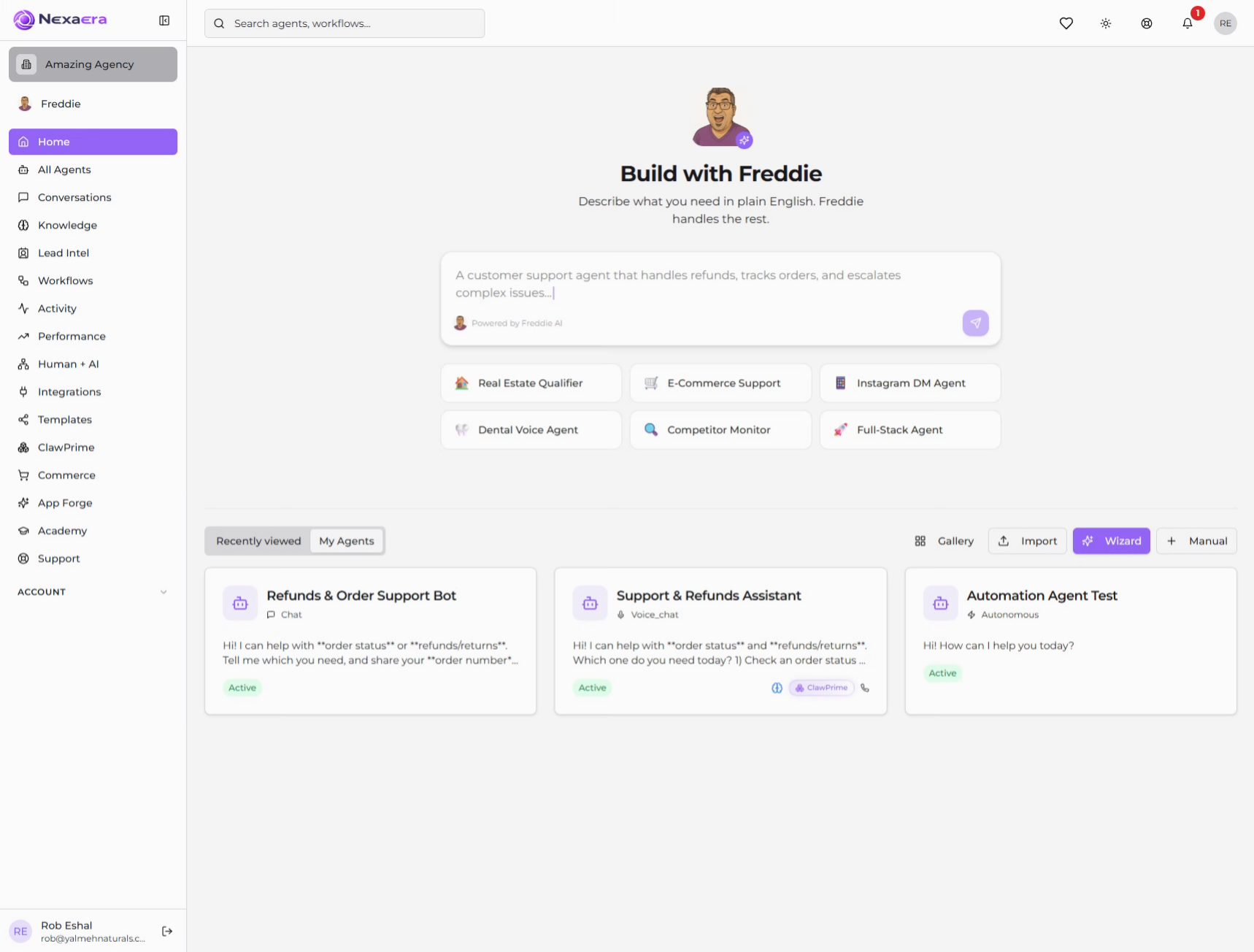
2. Access Commerce Section
On the left sidebar, click "Commerce." This opens your store management area.
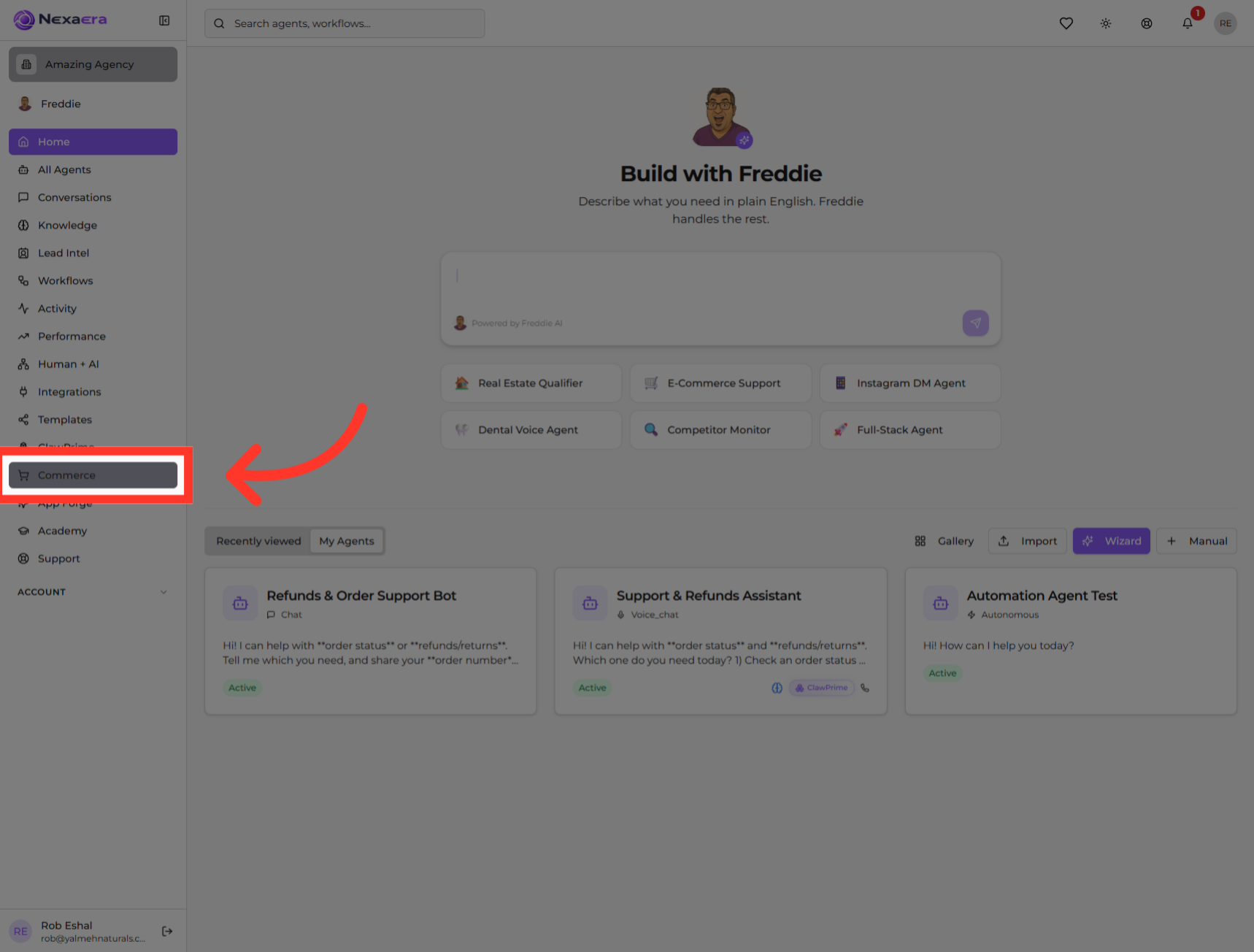
3. Open Coupons Page
Along the top, click the "Coupons" tab. This is where you create and manage all of your discount codes.
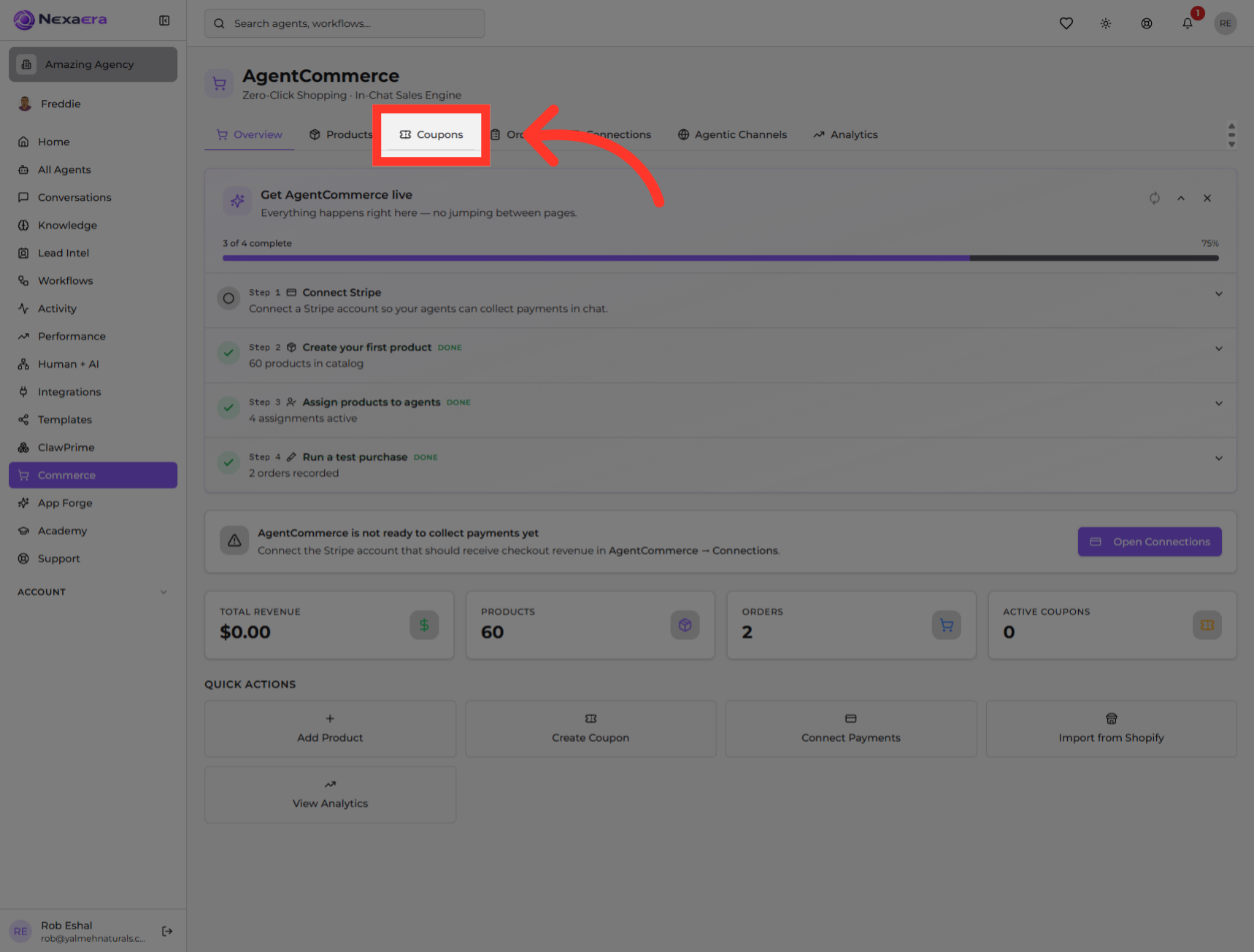
4. Add New Coupon
If you don't have any yet, you'll see an empty list. Click "Add Coupon" to open the new coupon form.
5. Type the Coupon Code
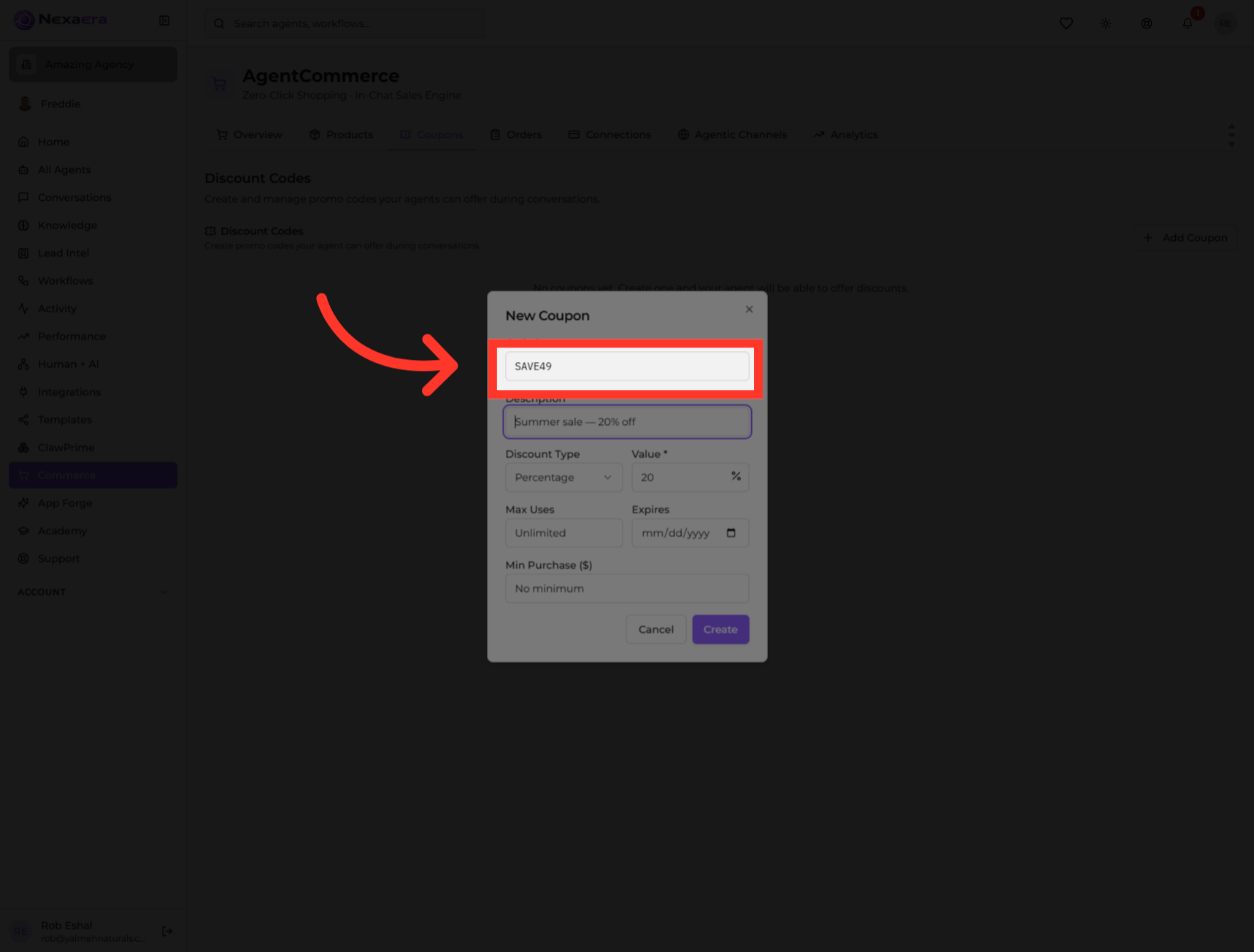
First, type the code your customers will enter — something short and memorable, like "SAVE49." This is what your agent will actually hand out.
6. Provide a Description
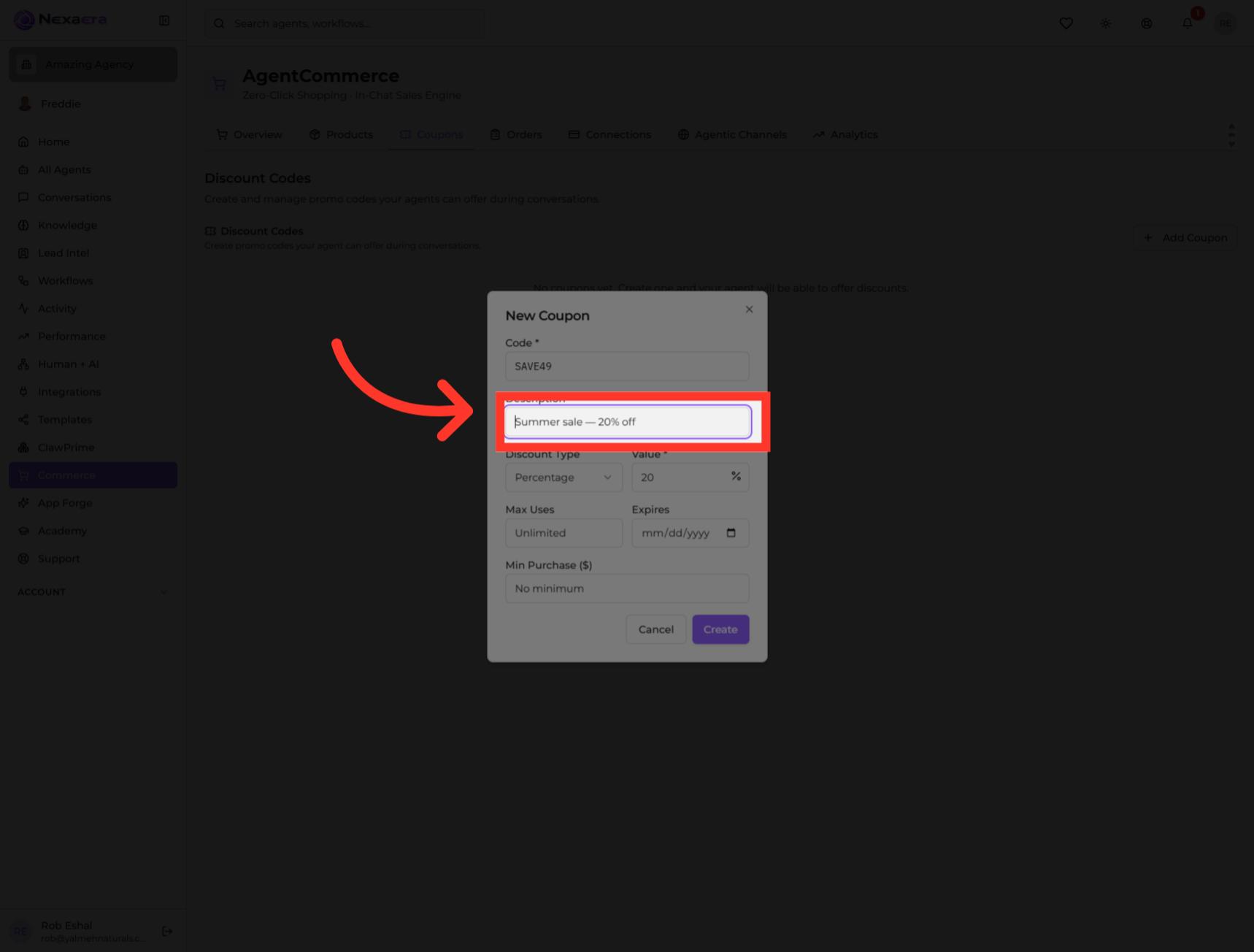
Next, add a short description just for you — like "Summer sale, twenty percent off." It helps you tell your coupons apart later.
7. Select Discount Type
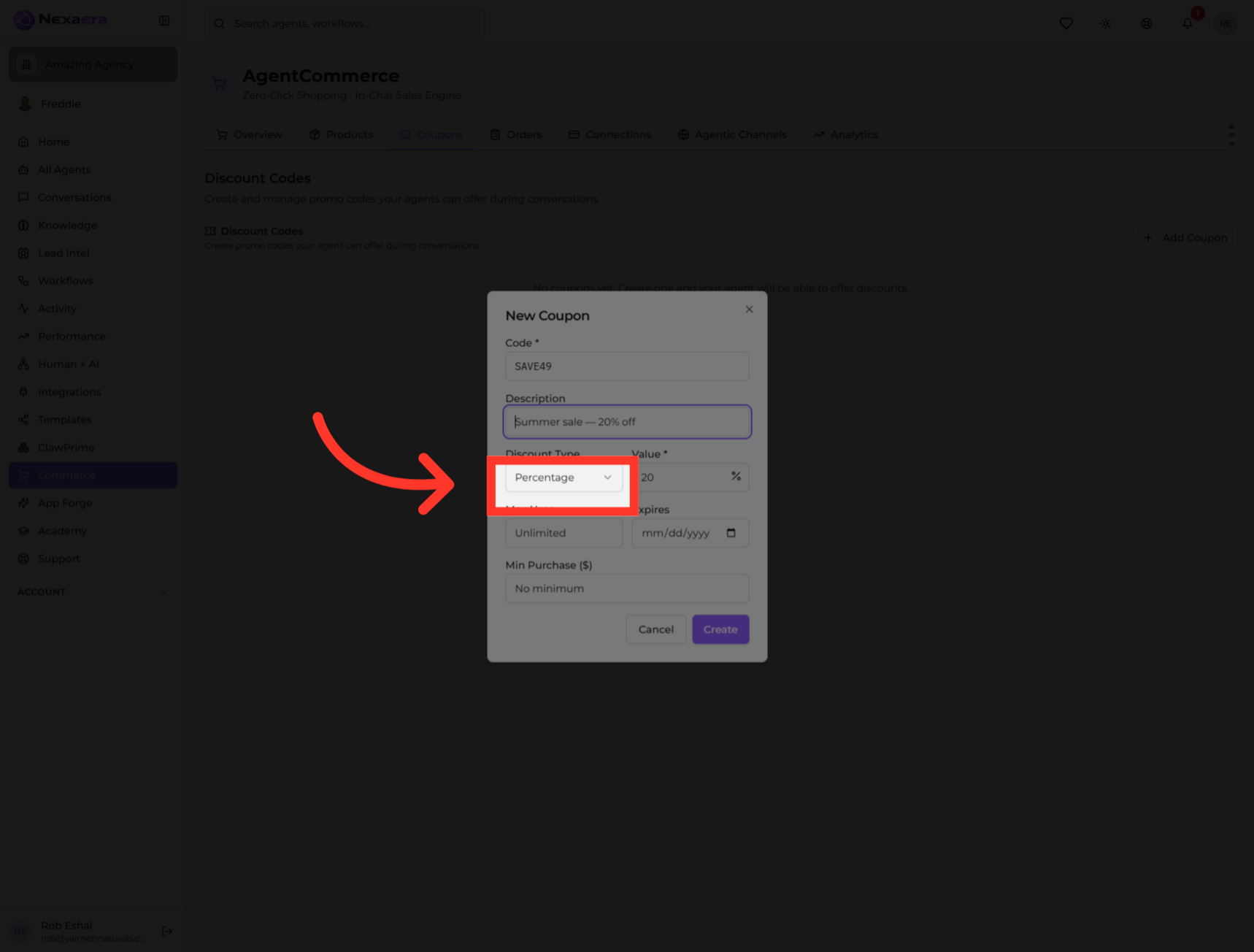
Now pick the discount type. Open the dropdown and choose "Percentage" for a percent off, or a fixed amount for a flat dollar discount.
8. Provide The Value
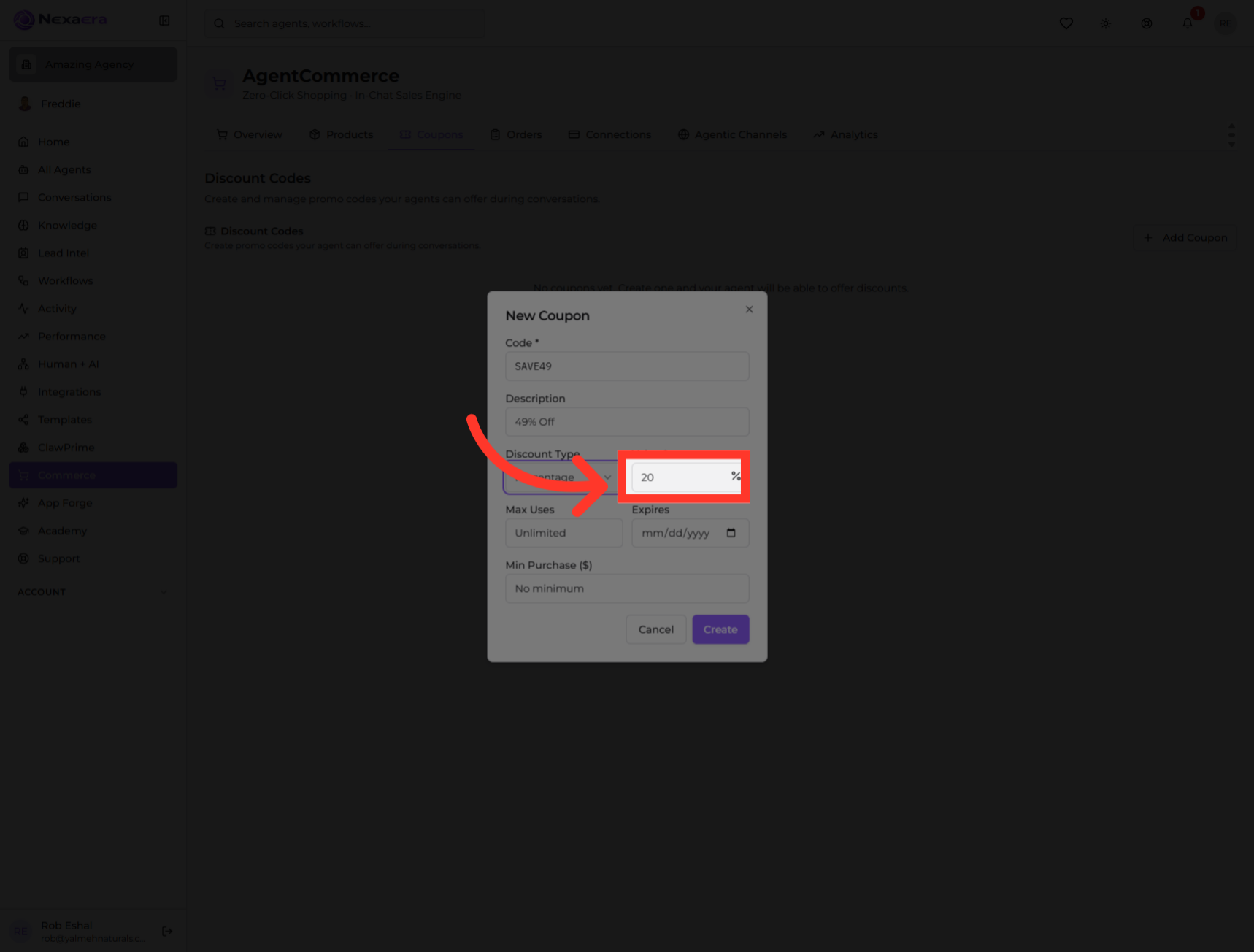
Then set the value. For a percentage, type the number — here, forty-nine percent off. This is how big the discount actually is.
9. Choose Usage Limit
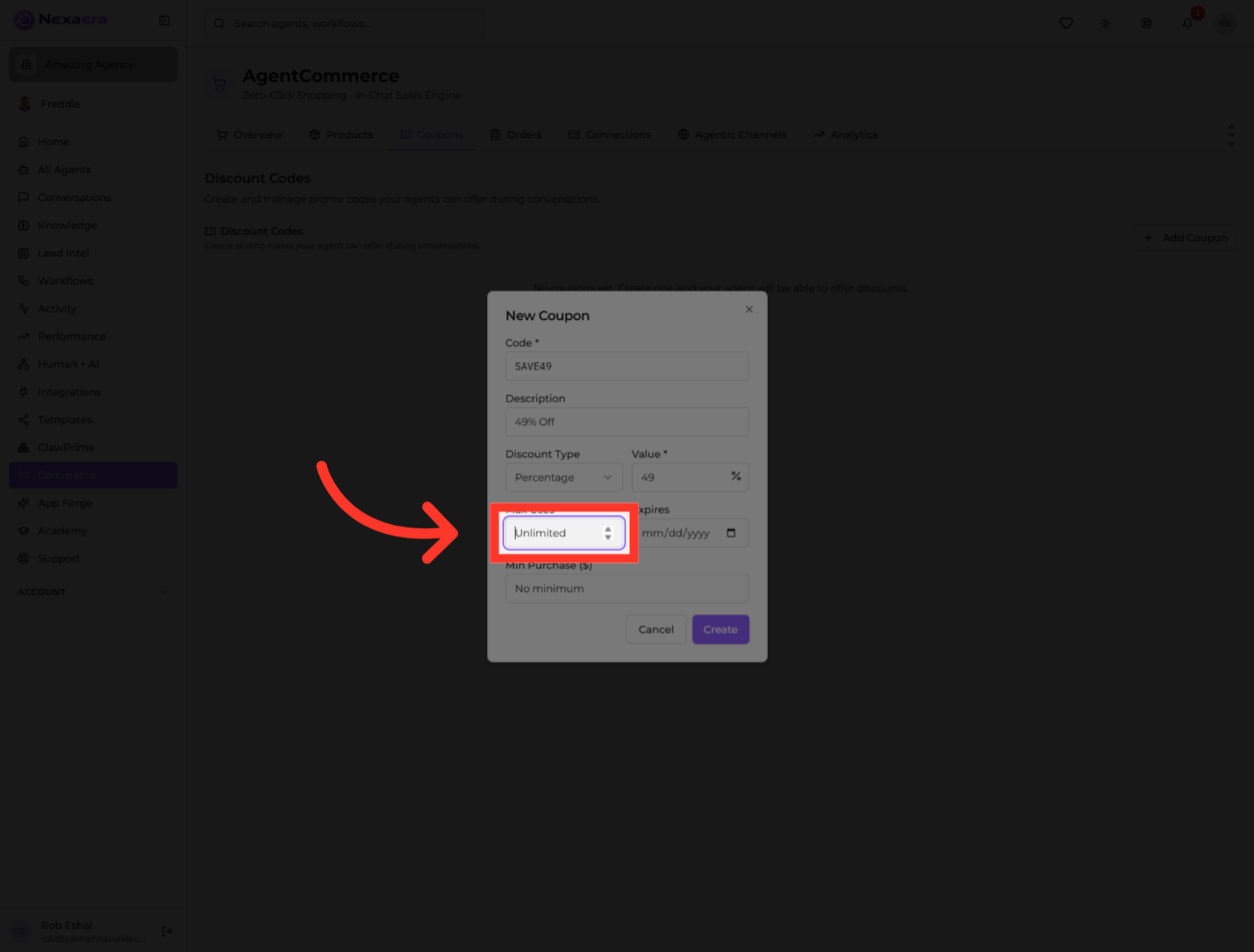
"Max Uses" controls how many times the code can be redeemed. Leave it "Unlimited," or set a cap — say, the first fifty customers.
10. Set an Expires Date
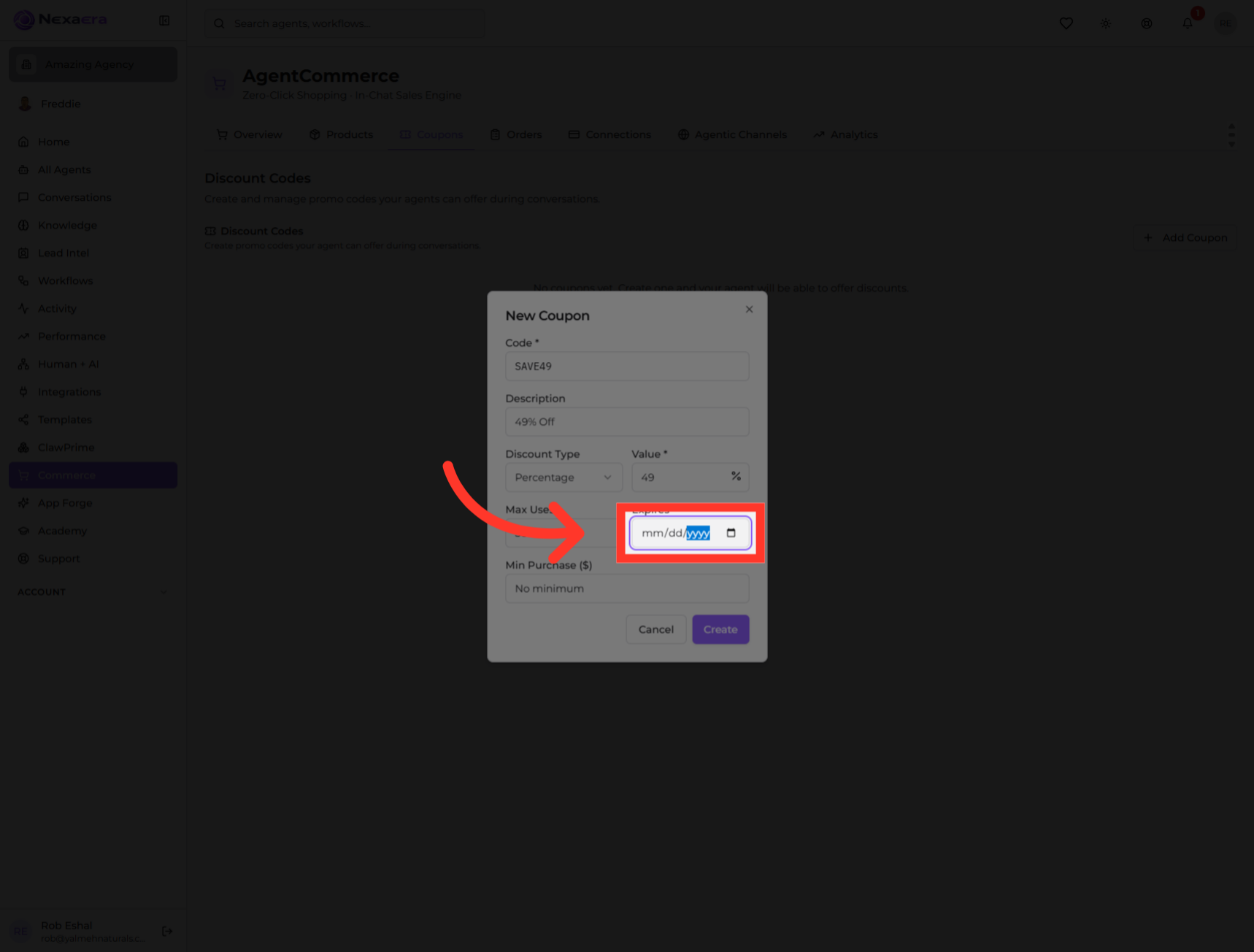
Give it a deadline with the "Expires" date. After that day, the code stops working automatically — perfect for limited-time offers.
11. Select Minimum Purchase
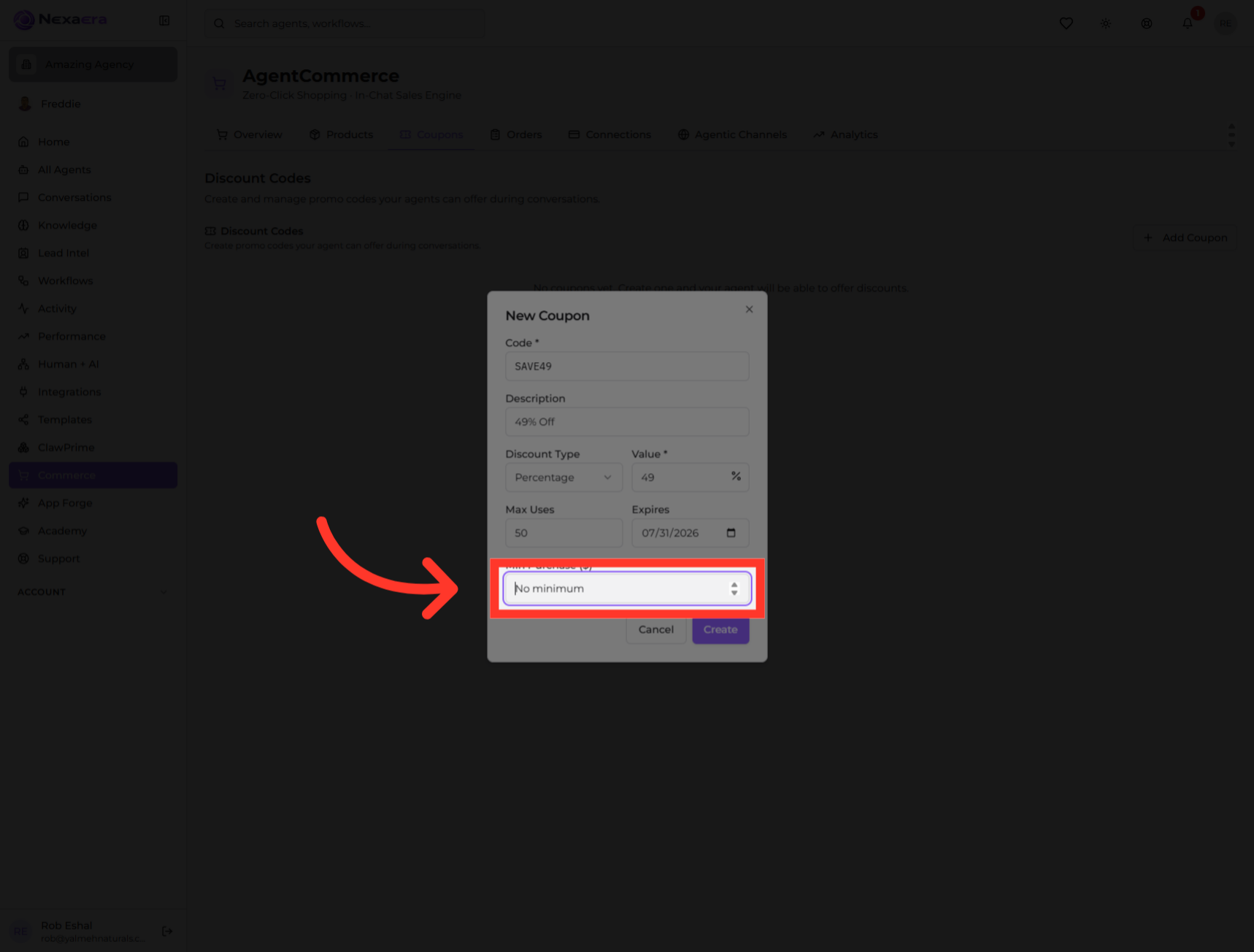
Finally, "Minimum Purchase." Leave it at "no minimum," or require a certain spend before the discount kicks in — a smart way to lift your average order.
12. Finalize Coupon Creation
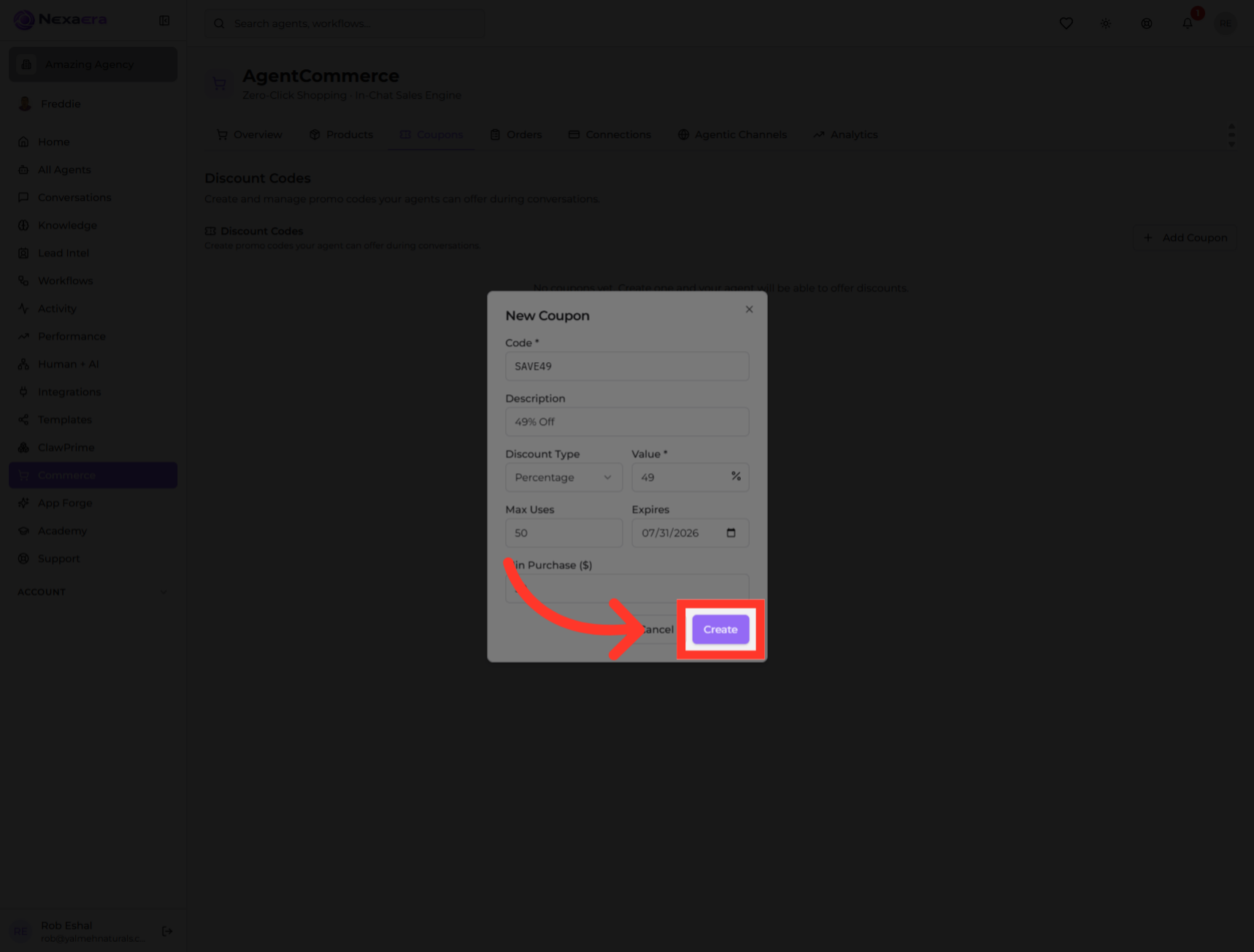
Everything's set. Click "Create" to save it. Your promo code is now live, and your agents can offer it during any conversation.
And that's a working promo code, done. You set the code, the discount, the limits, and the expiry — and now your agents can drop it into a chat to close the deal. See you in the next one.
Still need help? Ask the team