Access Your Freddie Chat History In Nexaera
"Ever wish you could go back and reread something Freddie told you last week? Good news — every conversation you've had with Freddie is saved automatically. In this quick walkthrough, I'll show you how to pull up your chat history and jump straight to any past conversation."
Written By Fred Yalmeh
Last updated About 2 months ago
Go to www.nexaera.com
1. Introduction
"Start on your dashboard and click Freddie in the left menu. His chat panel opens up, and you'll see his familiar greeting: 'I know everything about your portal — ask me anything.'"
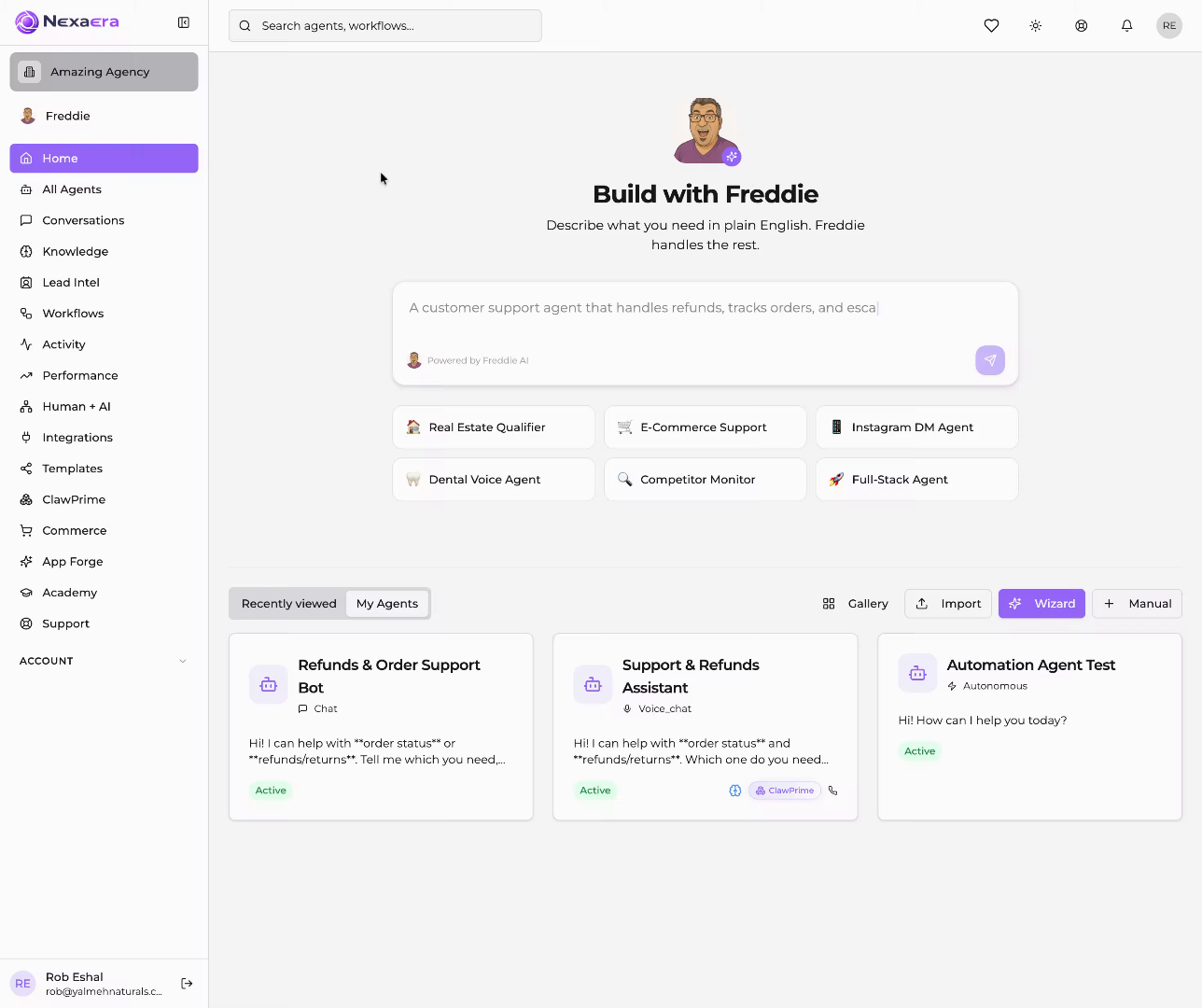
2. Select User Freddie
"At the top of the Freddie panel, click the history icon — the little clock symbol. This opens your Recent Conversations list, showing every chat you've had with Freddie."
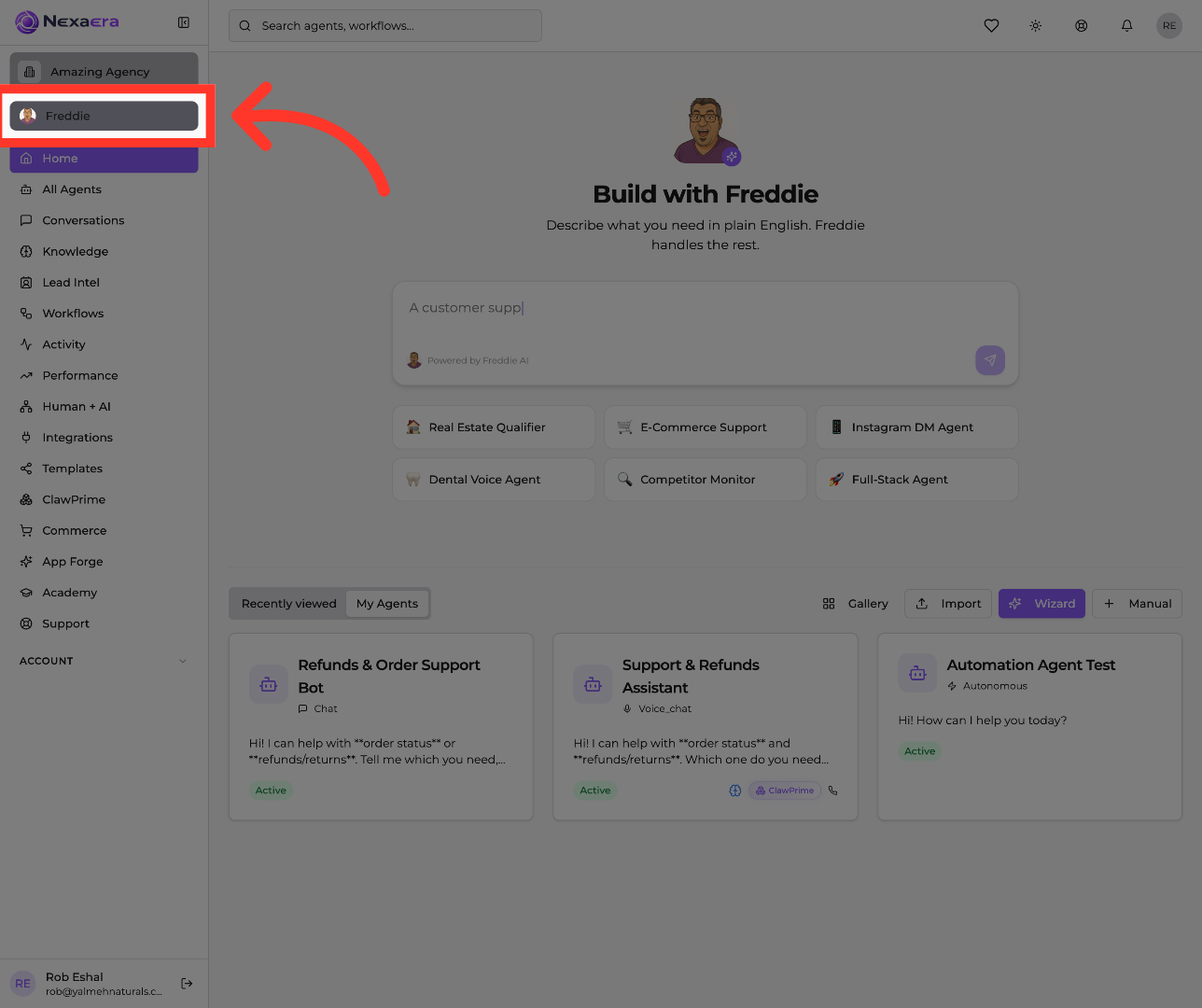
3. Open First Dashboard Link
"Now you can scroll through all your past conversations. Each one is labeled with a quick preview and a timestamp, so you can spot the exact chat you're looking for — whether it was a support bot you built or a question you asked days ago."
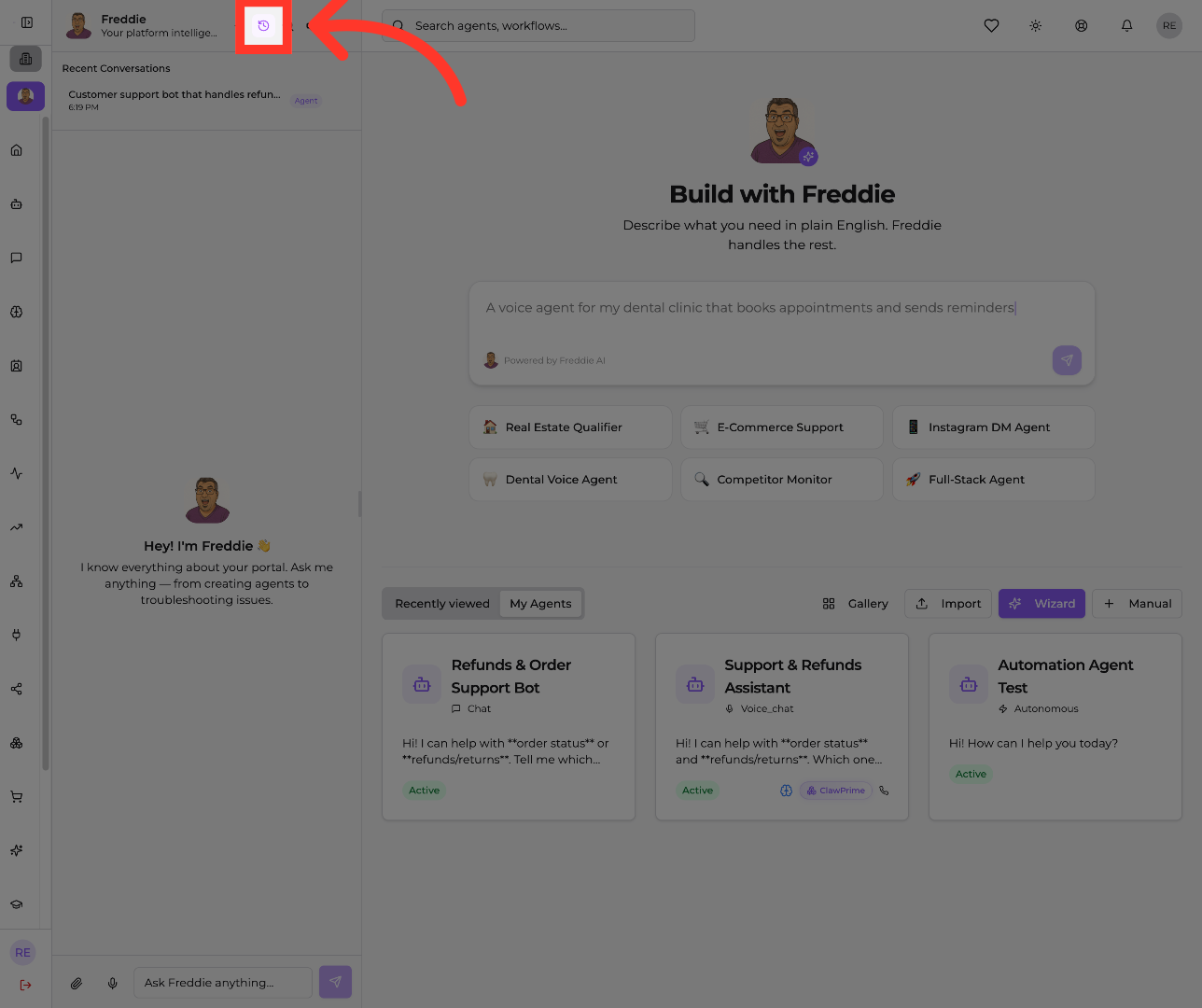
4. View Specific Timestamp Entry
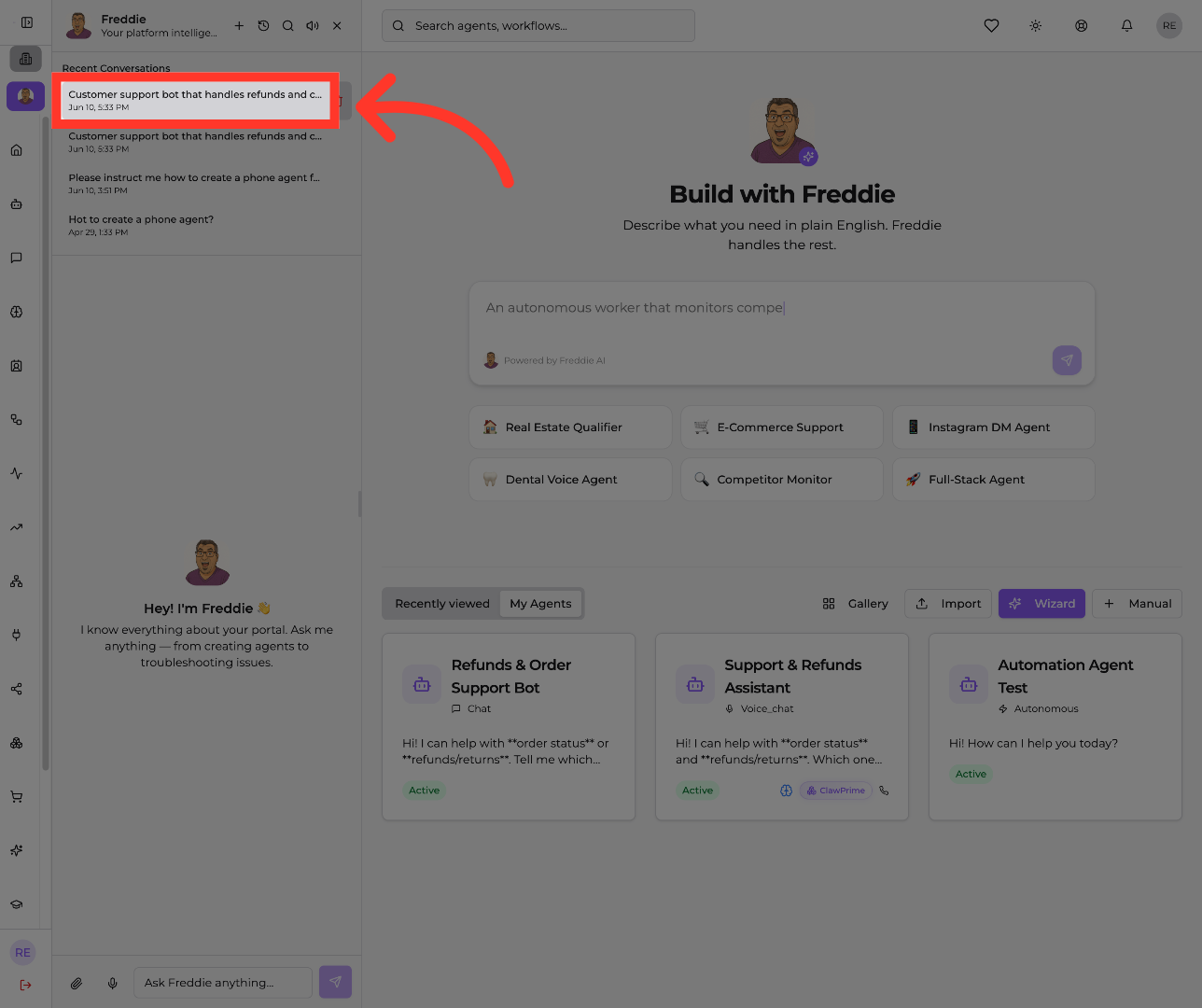
"Found the one you want? Just click it — for example, 'Jun 10, 5:33 PM.' Freddie reopens that full conversation exactly where you left off, so you can review it or pick the thread back up."
"And that's it. Your entire Freddie history is always a couple of clicks away, so nothing you've worked on ever gets lost. Next time you need to revisit an idea, you'll know right where to find it."
Still need help? Ask the team