Connect Gmail Account Using Nexaera Integrations
Want your AI agent to read, reply, and manage emails from your actual Gmail inbox? With NexaEra's one-click Gmail connect, you can hook up any Gmail account in under thirty seconds — no Google Cloud Console setup, no API keys, no headaches. Here's how it works.
Written By Fred Yalmeh
Last updated 2 months ago
Go to www.nexaera.com
1. Introduction
Once Gmail's connected, your agent can do everything you'd do in your inbox — read incoming messages, send replies, even archive or label emails. And you can connect a separate Gmail account for each agent, so your support bot and your sales bot can each have their own inbox.
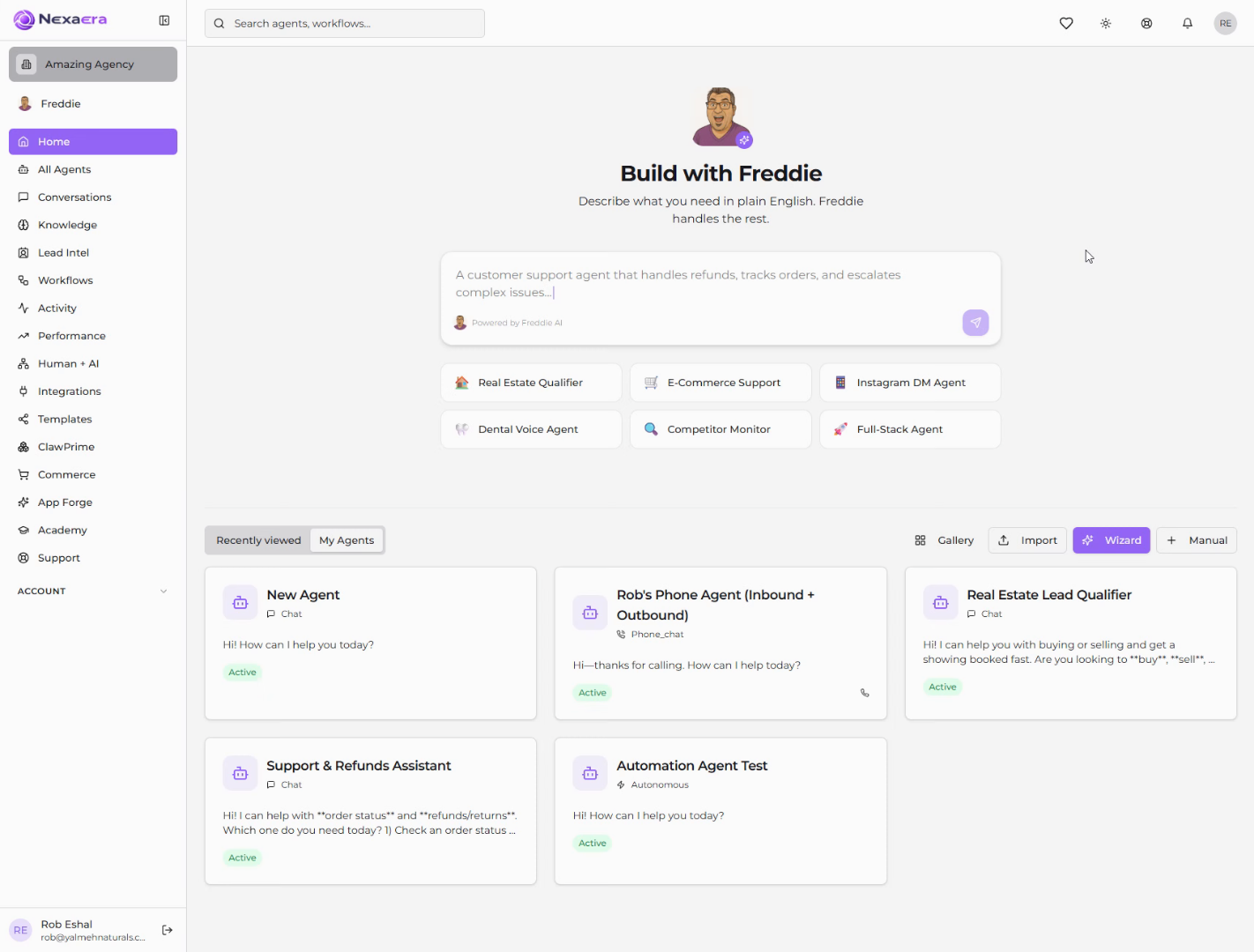
2. Access Integrations Section
From your NexaEra dashboard, look at the menu on the left and click "Integrations." This is your hub for connecting any outside service to your agents.
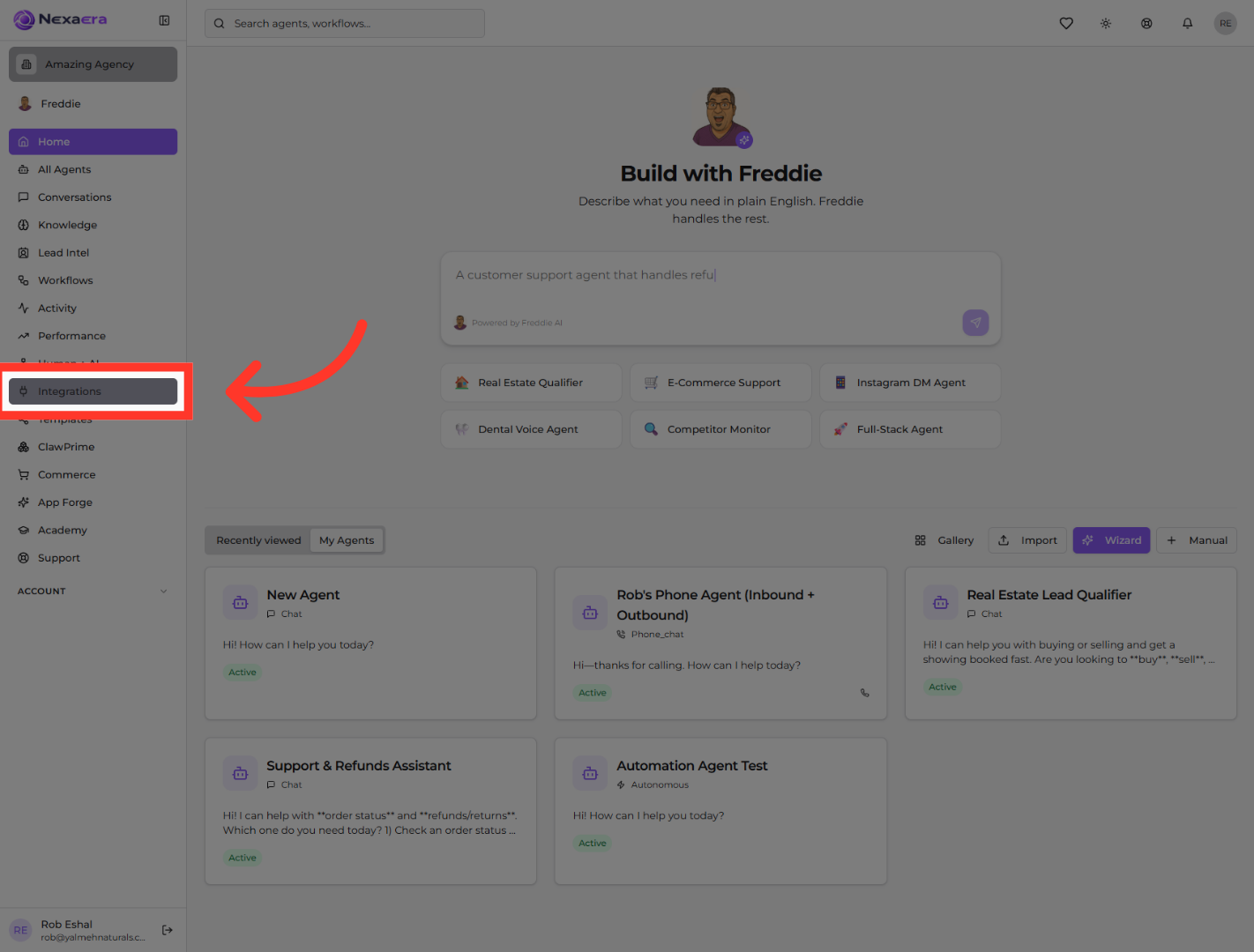
3. Open Connectors Tab
At the top of the page, make sure you're on the "Connectors" tab. That's where all your one-click integrations live — Apify, Gmail, YouTube, and a bunch more.
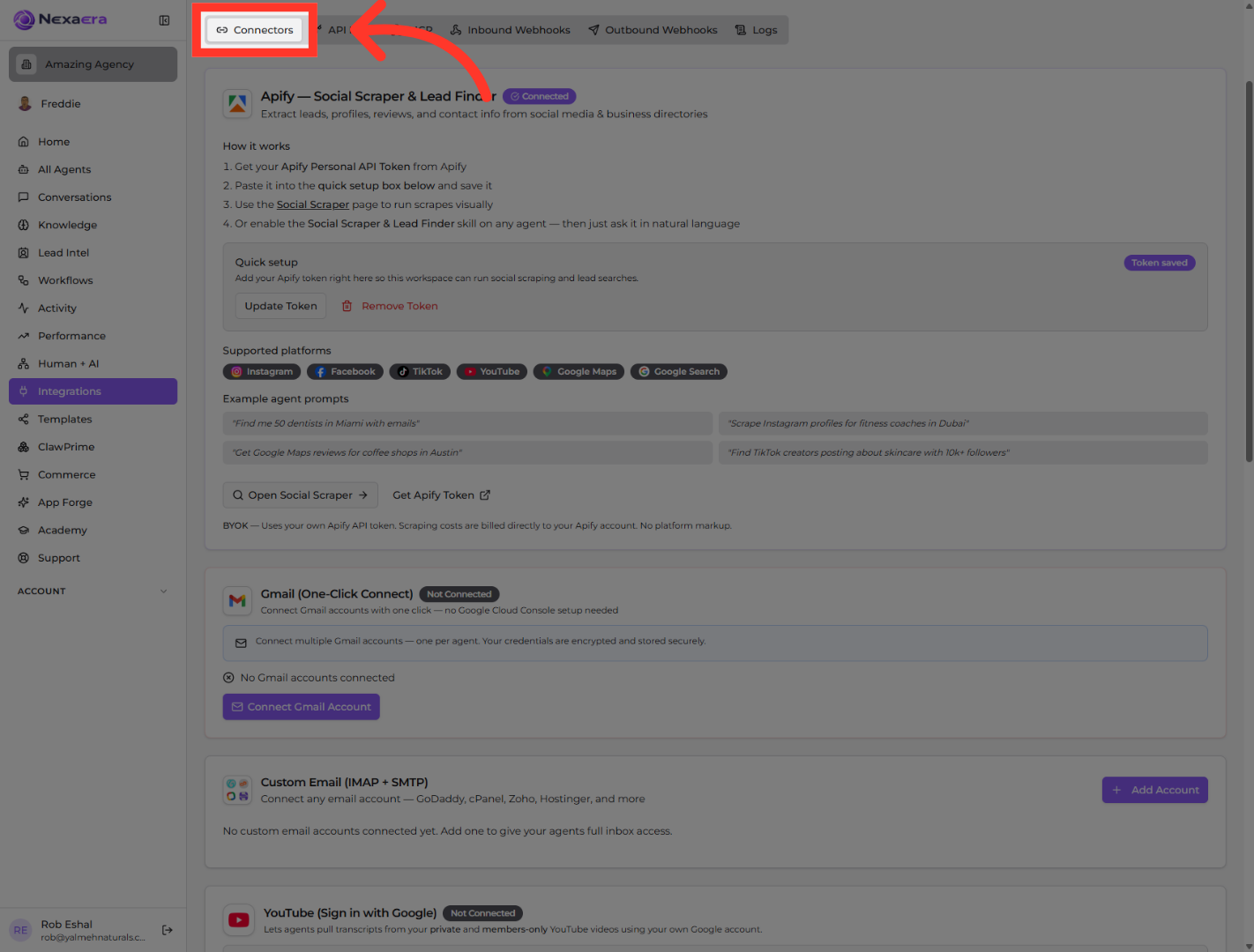
4. Initiate Gmail Connection
Scroll down a bit until you see the card labeled "Gmail — One-Click Connect." If it says "Not Connected," that's exactly what we expect. Go ahead and click the "Connect Gmail Account" button at the bottom of that card.
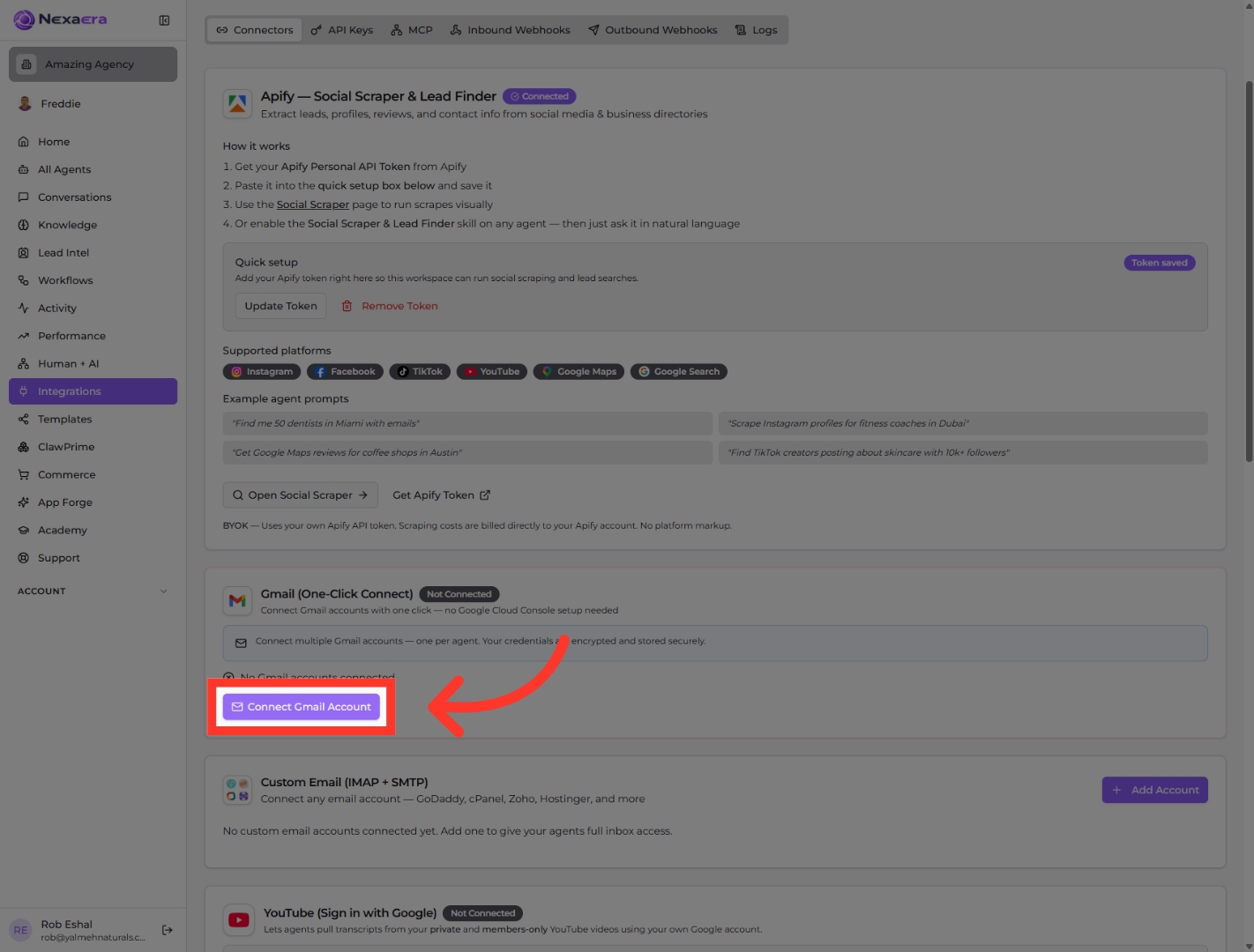
5. Select Gmail Account
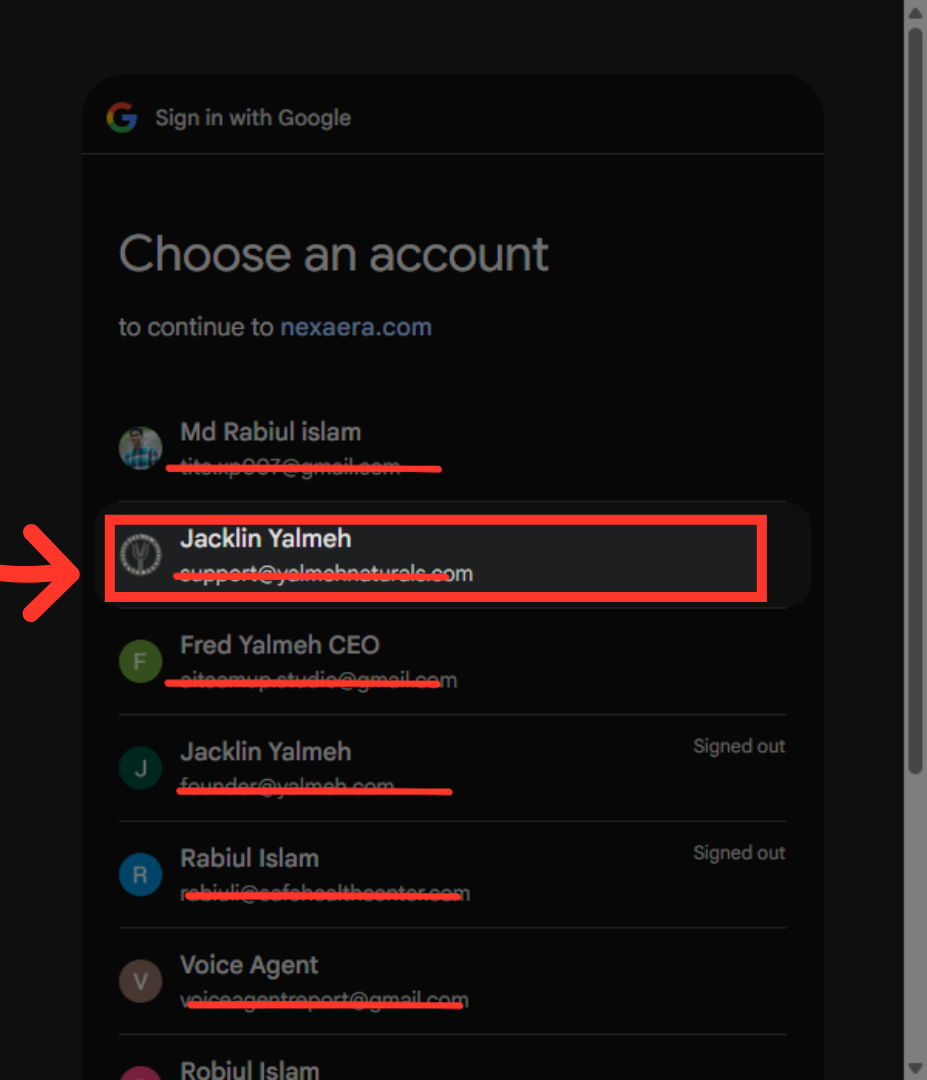
A Google sign-in window pops up showing every Google account you're signed into in this browser. Just click the Gmail address you want to give your agent access to.
6. Confirm Account Selection
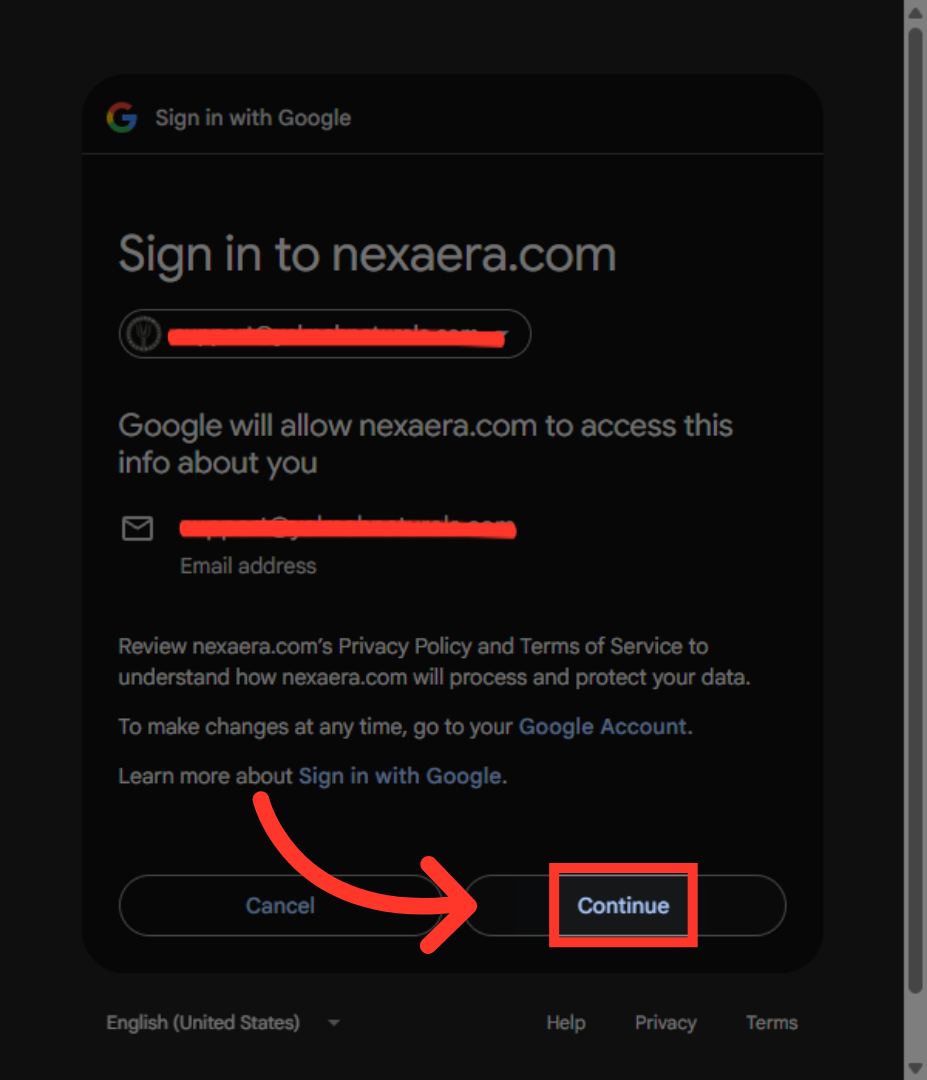
Google will show you a quick confirmation screen. This is just Google telling you that NexaEra is the platform asking for access — which is exactly right. Click "Continue" to keep going.
7. Complete Sign-In Process
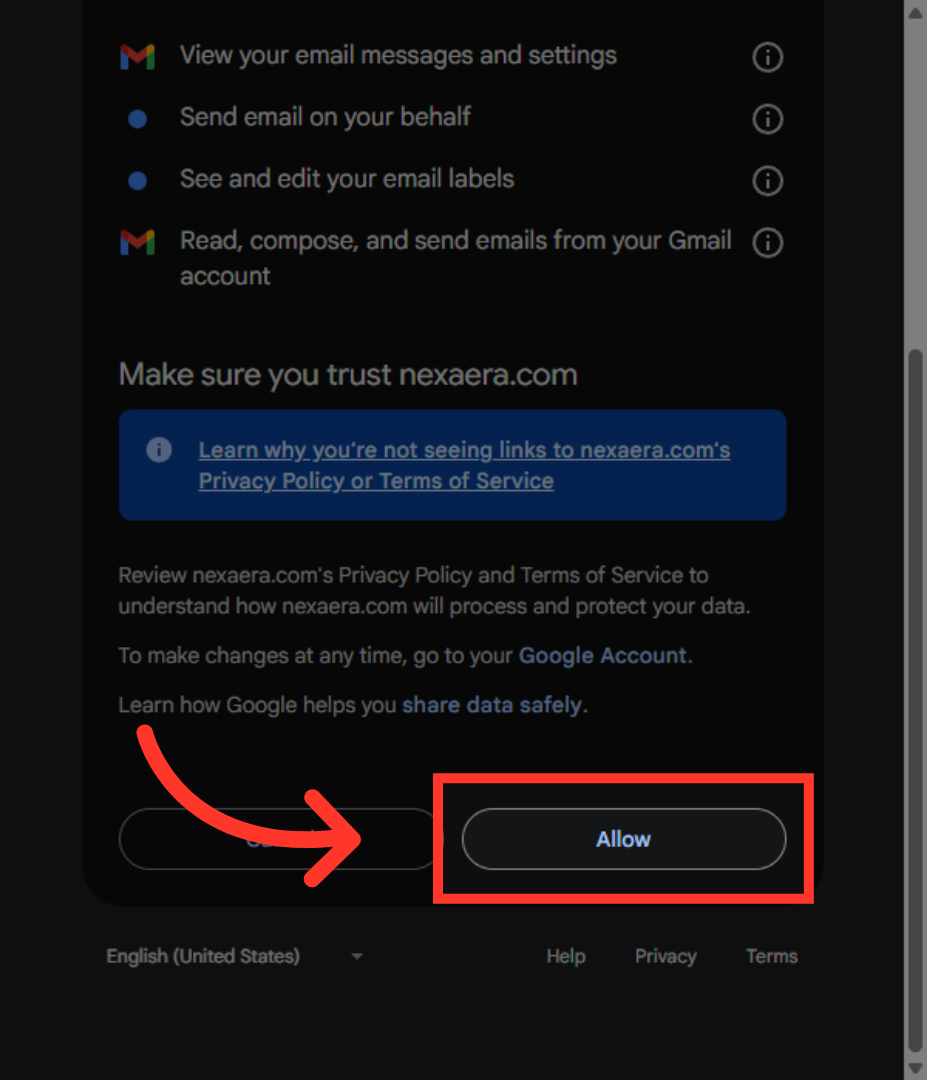
This last screen is the important one. Google's going to ask if you want NexaEra to view, send, and manage emails from this account. Your agent needs all of these to actually do its job, so go ahead and click "Allow."
And just like that, your Gmail is connected. You'll land back on the Integrations page with your account showing as connected and ready to use. From here, you can either jump into an agent's Delivery tab to set this inbox as their email channel, or enable the Gmail skill on the Skills tab so your agent can use it during conversations. See you in the next one.
Still need help? Ask the team