Manage Agent Deployments and Channel Status in NexaEra
"Once you've got a few agents live, you'll want one place to see where they're all running and which ones are active. That's exactly what the Deployments view gives you. In this walkthrough, I'll show you how to check your deployment counts and filter your agents by channel and status — so you always know what's live and where."
Written By Fred Yalmeh
Last updated About 2 months ago
Go to www.nexaera.com
1. Introduction
"Here's what you'll be able to do by the end: open your full agent list, see every deployment at a glance, and filter it down by channel — like Chat Page or Widget — and by status, whether that's active or disabled."

2. Access All Agents List
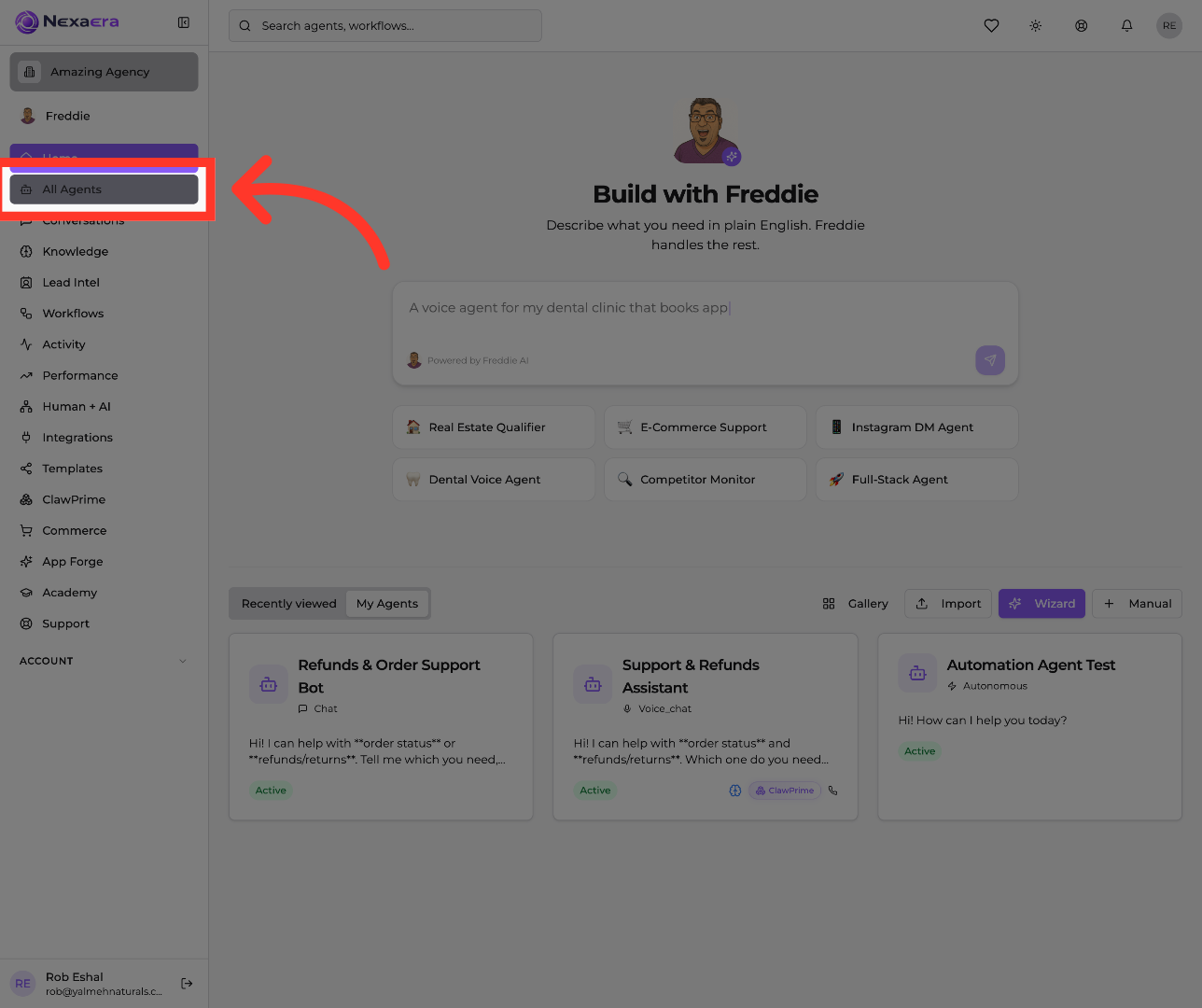
"Start by clicking 'All Agents' in the left menu. This opens the complete list of every agent in your workspace, all in one place."
3. Open Deployments Section
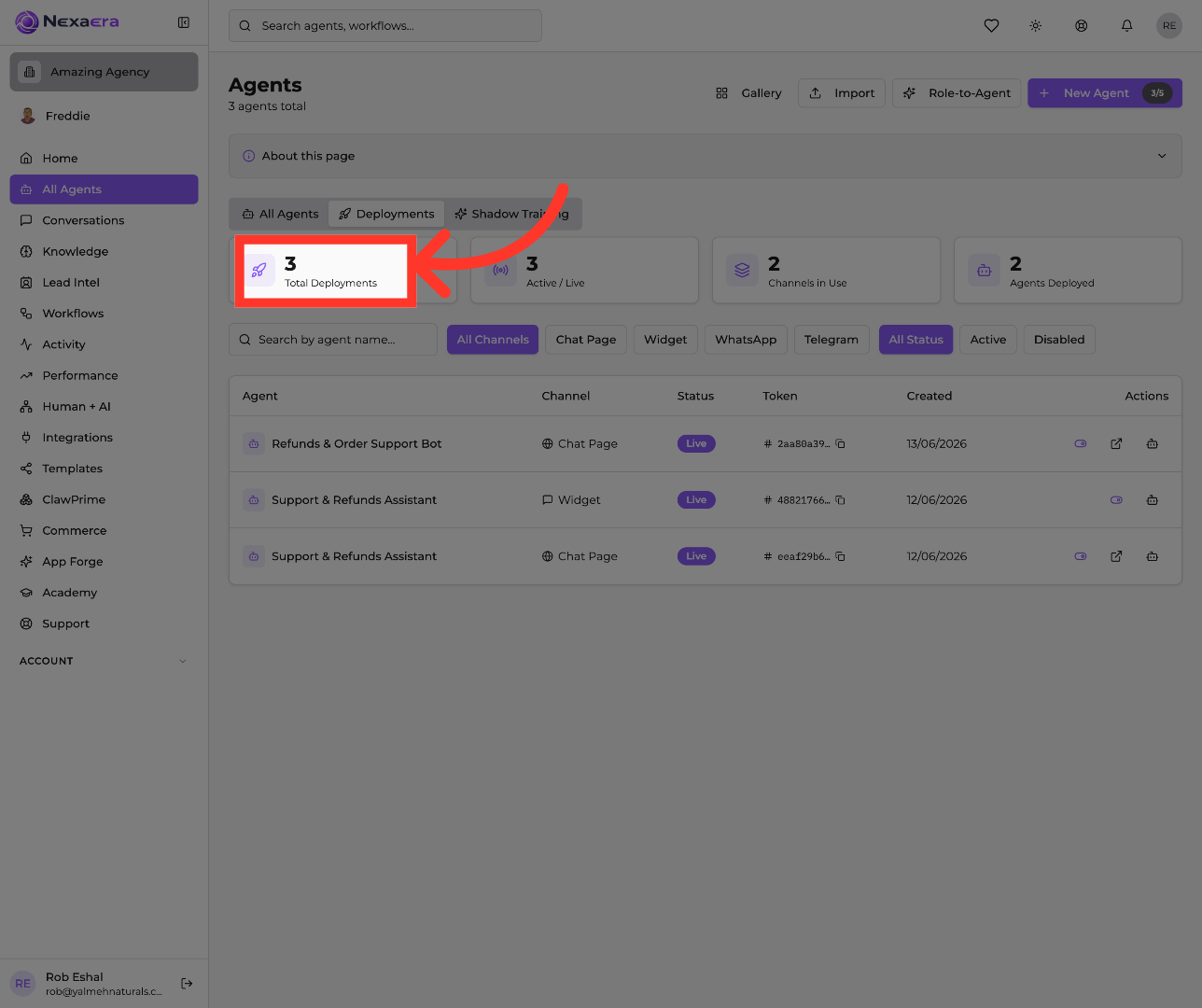
"At the top of the Agents page, click the 'Deployments' tab. This switches you from the agent cards to a detailed view of where each agent is actually deployed."

4. View Specific Deployment Count
"Right at the top you'll see summary cards. The first one, 'Total Deployments,' shows how many live deployments you have across all your agents. It's your quick health check for the whole workspace."
5. Filter Active or Live Deployments
"Next to it, click the 'Active / Live' card. This filters the list down to only the deployments that are currently up and running, so you can focus on what's actually serving customers."

6. Search Agents by Name
"Looking for one specific agent? Click the 'Search by agent name' box and start typing. The list filters instantly to match, so you can jump straight to the agent you need."

7. Filter by All Channels
"Below the search, there's a row of channel filters. Click 'All Channels' to clear any channel filter and see every agent across every communication channel at once."

8. Select Chat Page Channel
"Now let's narrow it down. Click 'Chat Page' to show only the agents deployed on your hosted chat page. Handy when you want to check just your web-facing agents."

9. Choose Widget Channel
"Click 'Widget' instead to see the agents running as the embeddable chat bubble on your websites. Each channel filter gives you a clean, focused view."

10. View Active Channel Status
"You can also filter by status. Click 'Active' to show only the channels that are currently switched on and taking conversations."

11. View Disabled Channel Status
"Need to spot what's turned off? Click 'Disabled' to see the channels that are currently inactive. This makes it easy to find deployments that need attention or cleanup."

12. Reset to All Statuses
"When you're done filtering, click 'All Status' to clear the status filter and bring your full list back. You're right back to seeing everything at once."

"And that's it. You can now monitor every deployment and slice your agents by channel and status in just a few clicks. It's the fastest way to keep tabs on what's live, what's paused, and where each agent is working. Nice job staying on top of it."
Still need help? Ask the team