Configure AI Agent Escalation Rules in Nexaera Dashboard
Your AI agents are great — until a conversation needs a real human. That's what escalation is for. The Human plus AI Workforce dashboard shows your agents and your team working together, and it's where escalation lives. Let me walk you through it.
Written By Fred Yalmeh
Last updated About 2 months ago
Go to www.nexaera.com
1. Introduction
In this video, you'll tour the workforce dashboard — where your AI agents hand off to humans. You'll see how to deploy agents, find your escalation rules, open conversations, and read every panel. Let's dive in.
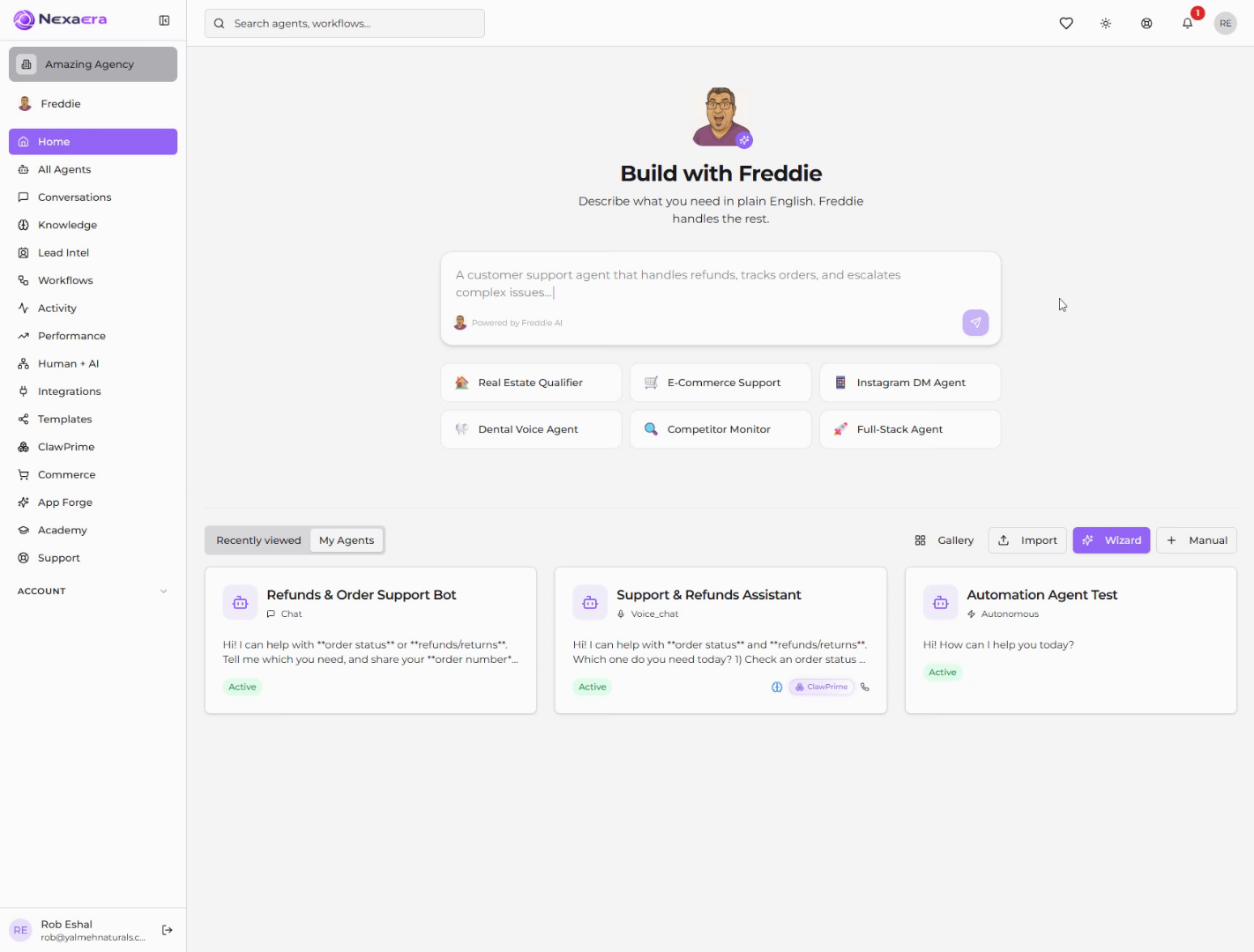
2. Access Human + AI Section
Start on the left sidebar and click "Human plus AI." This is your unified workforce view — every AI agent and human teammate, side by side.

3. Open Agent Chat Interface
At the top is a simple flow: Agent Chat, then Escalation, then Human Reply, then Resolution. It starts with "Agent Chat" — your AI handling the conversation. When it can't, that's when a handoff kicks in.
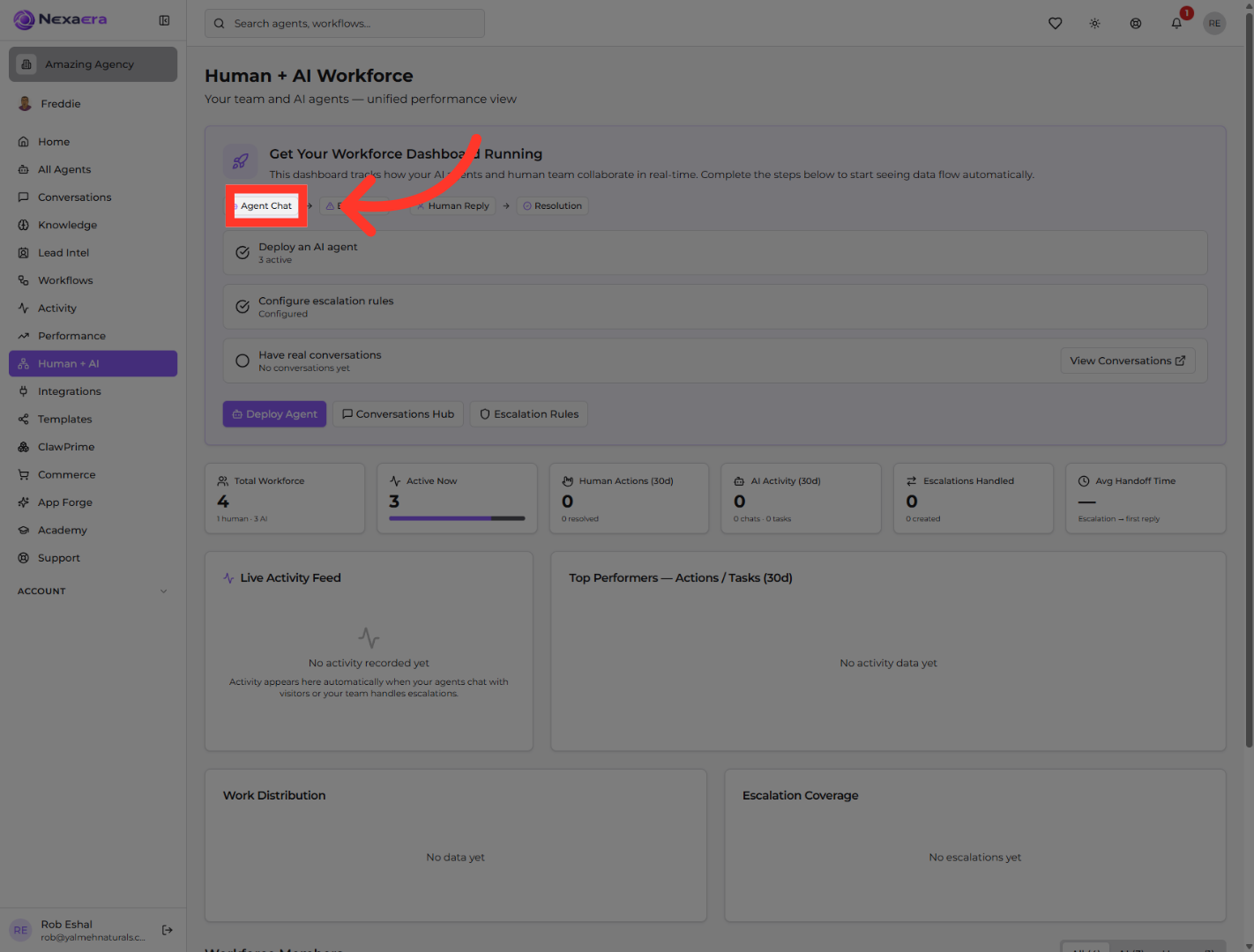
4. Deploy Active AI Agent
Below the flow is a quick setup checklist. The first item, "Deploy an AI agent," is already done — you can see three are active. Green checks mean that step's complete.

5. Configure Escalation Rules
The next item is the important one — "Configure escalation rules." It's marked "Configured," meaning your agents already know when to hand off to a human. We'll open the full editor in a moment.

6. View Conversation Records
The last checklist item tracks real conversations. Click "View Conversations" to jump into the full history of what your agents and team have handled.
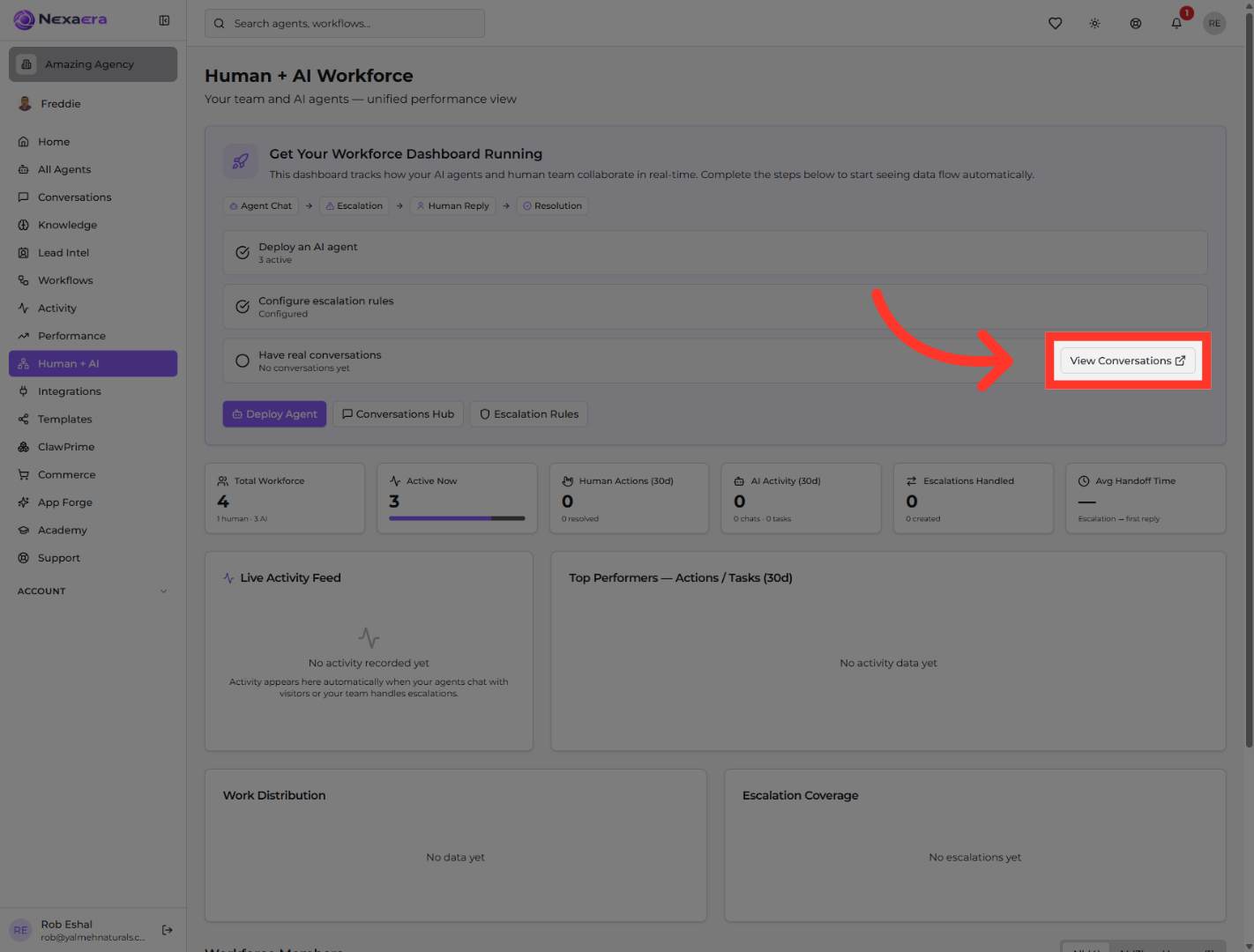
7. Deploy AI Agent
Just below are your quick actions. "Deploy Agent" lets you put a new AI agent to work whenever you're ready to add to your workforce.
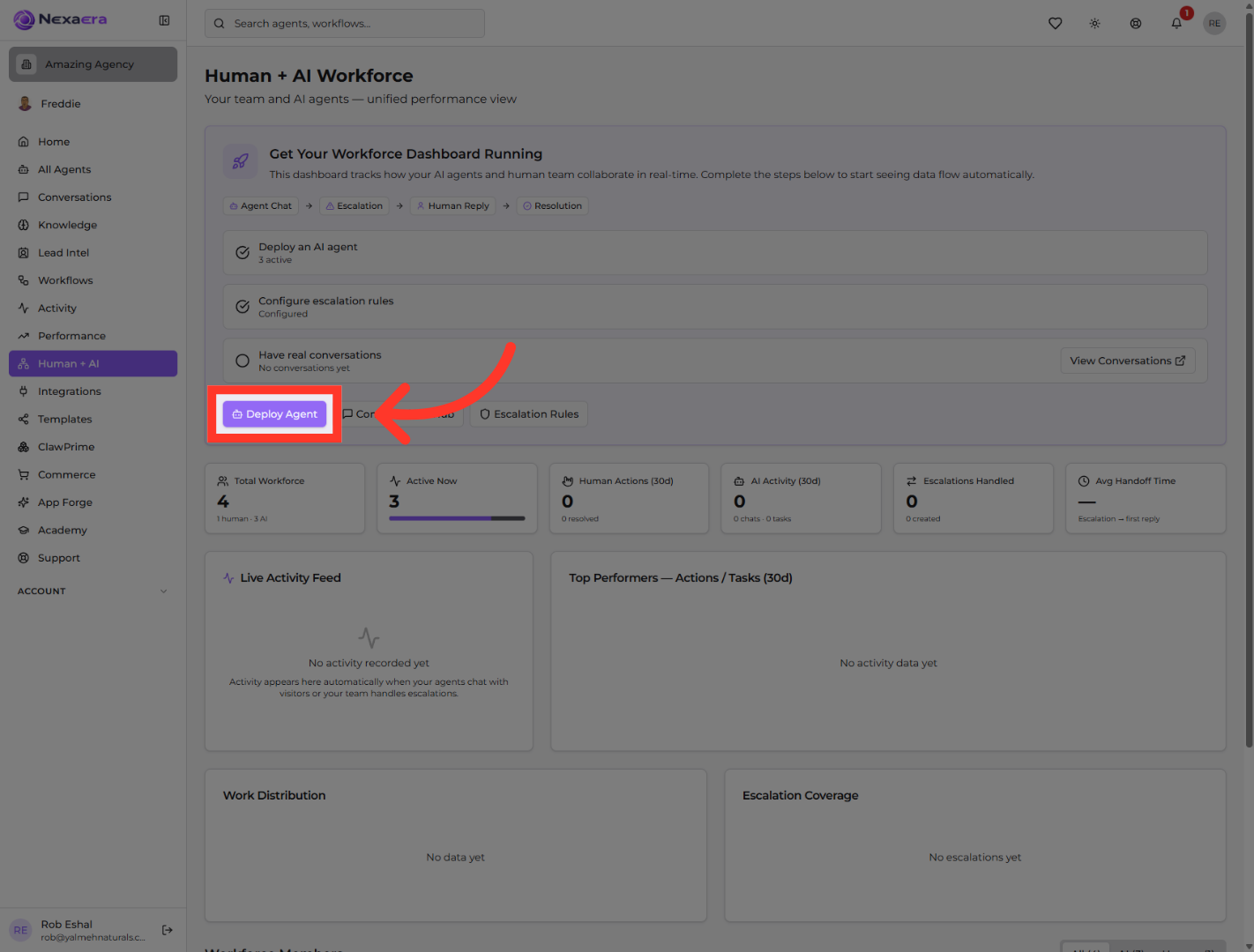
8. Open Conversations Hub
Next to it is the "Conversations Hub" — your central place to manage every agent conversation in one spot. Click it to dive in.

9. Access Escalation Rules
And here's the big one — the "Escalation Rules" button. This is where you actually view and edit the rules that govern when a conversation gets handed to a human. Click it whenever you want to fine-tune them.

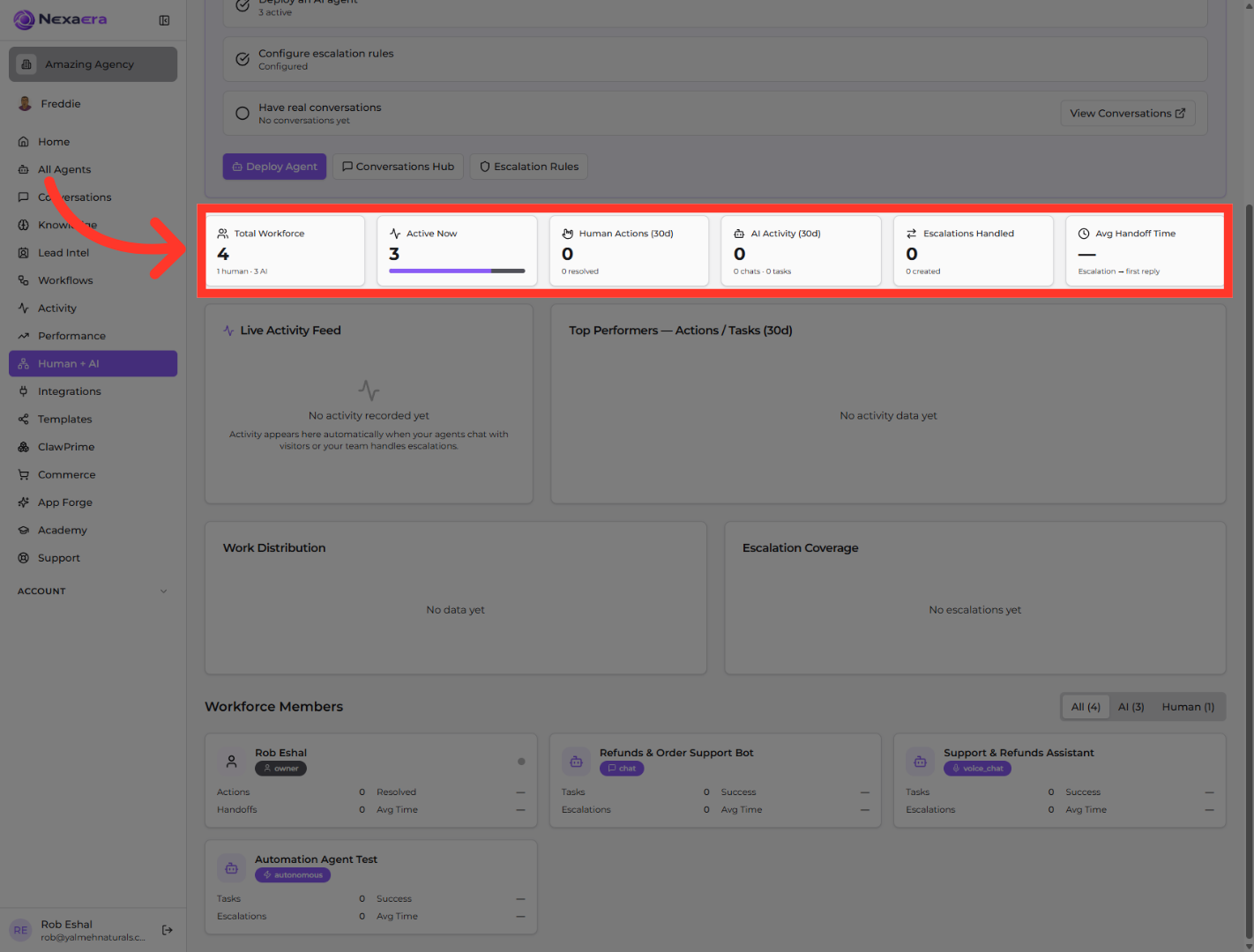
10. Stats
This row is your workforce at a glance. Total workforce, how many are active now, human versus AI activity over thirty days, escalations handled, and your average handoff time. It's the health check for the whole team.
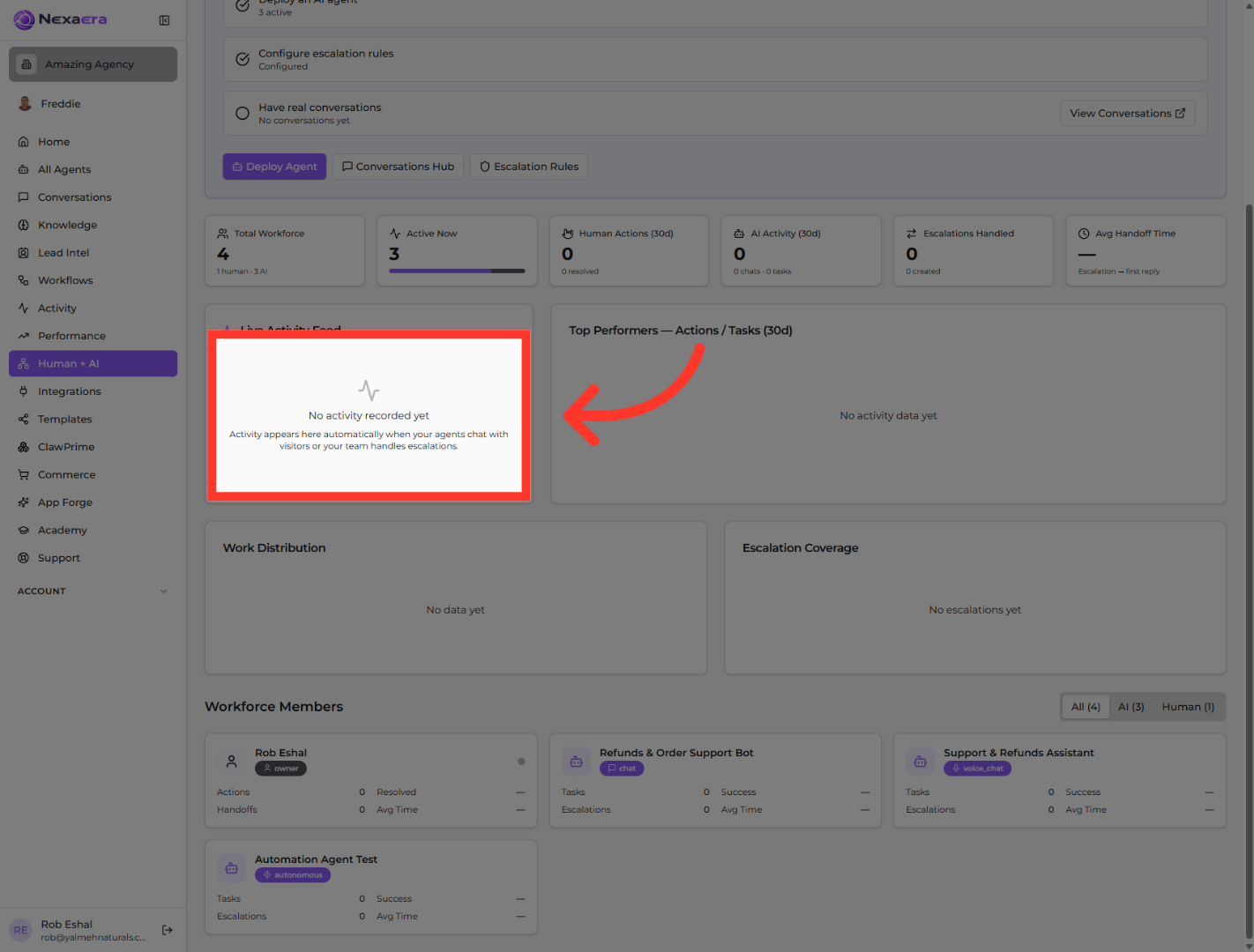
11. Check Activity Status
Below that is the "Live Activity Feed." Once your agents start chatting or your team handles an escalation, every action shows up here in real time. Right now it's quiet.
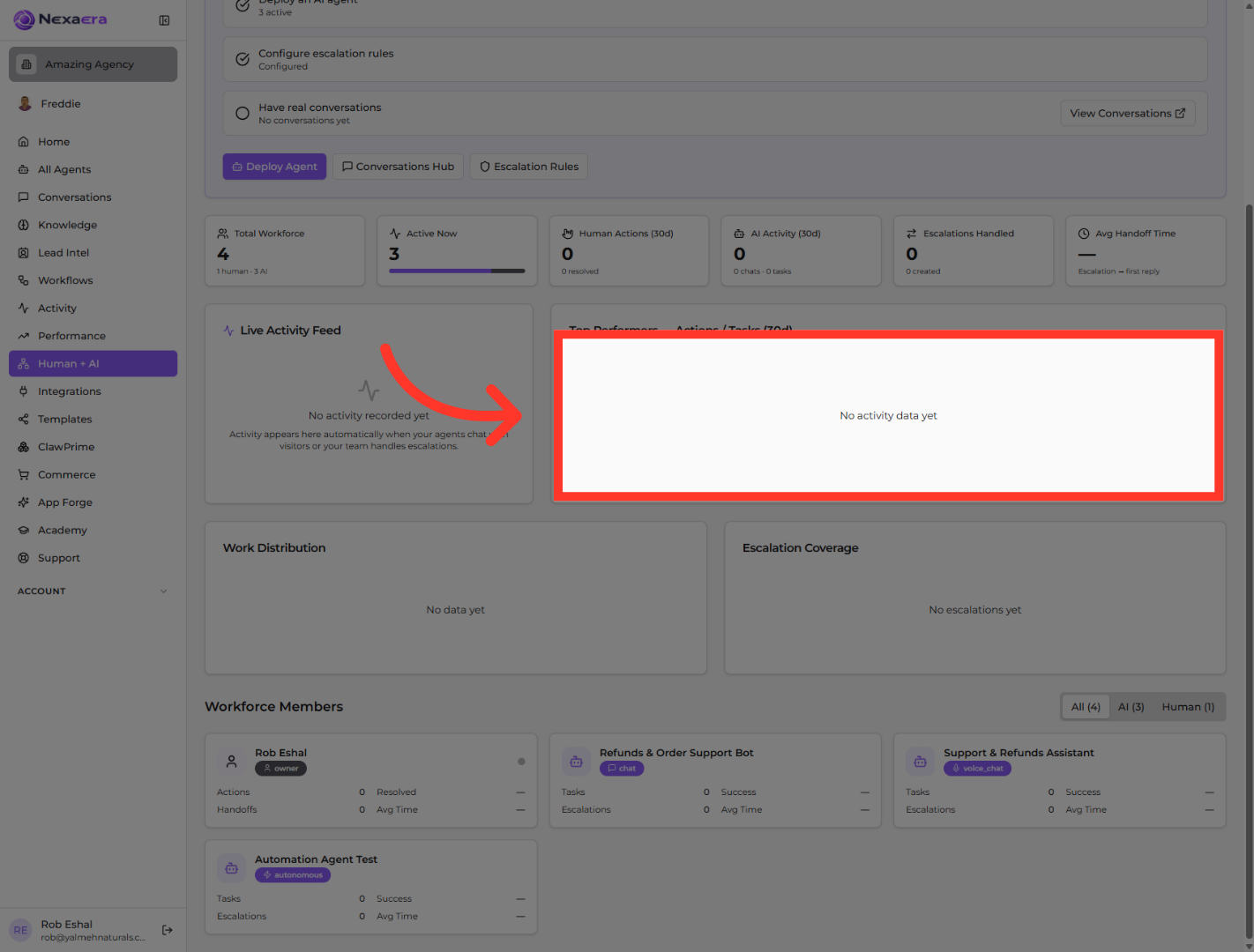
12. View Activity Data
Next to it, "Top Performers" ranks your agents and teammates by actions and tasks. As work rolls in, your standouts rise to the top here.
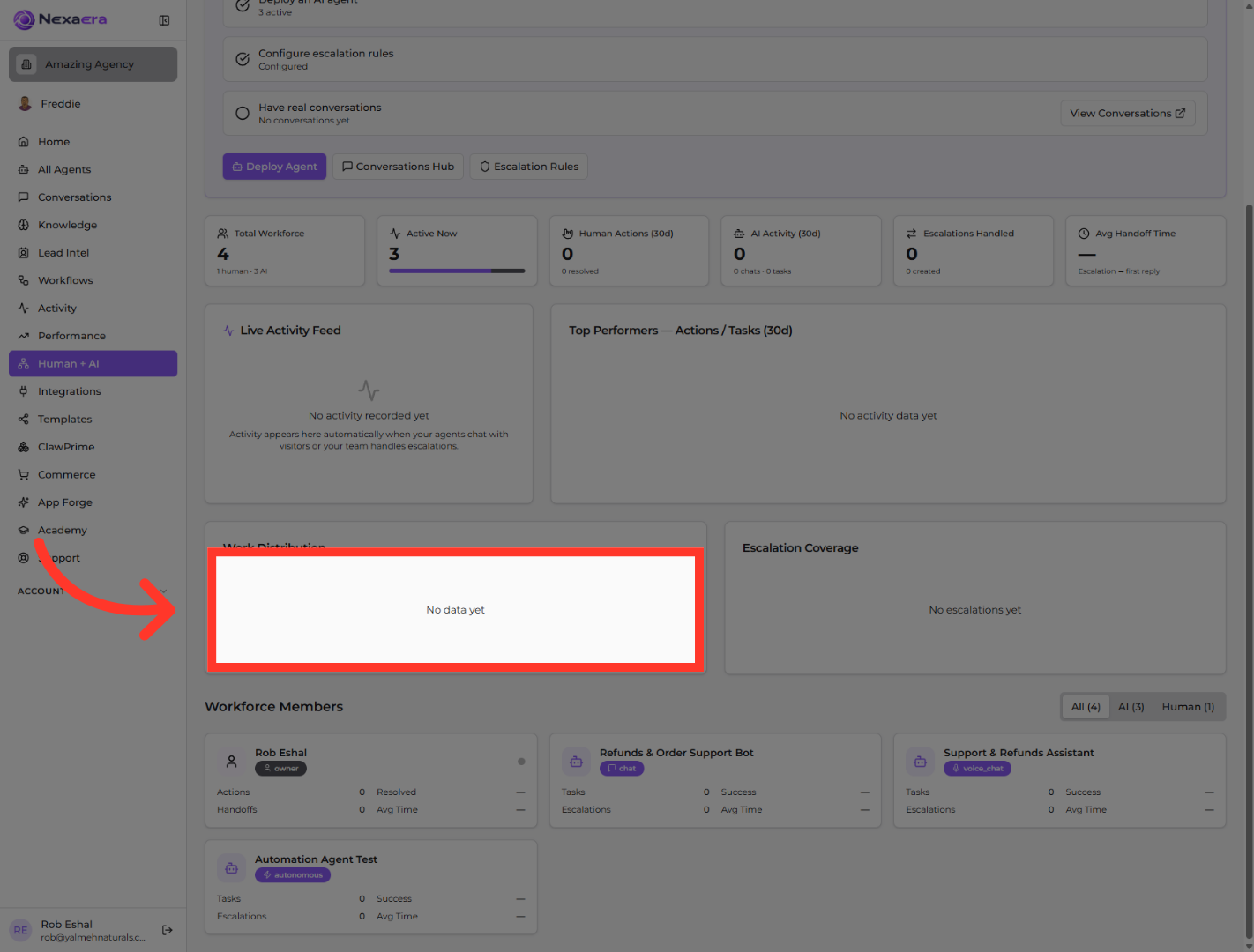
13. Check Data Availability
"Work Distribution" shows how the workload splits between your AI and your humans. It's a quick way to see if your agents are carrying their share.
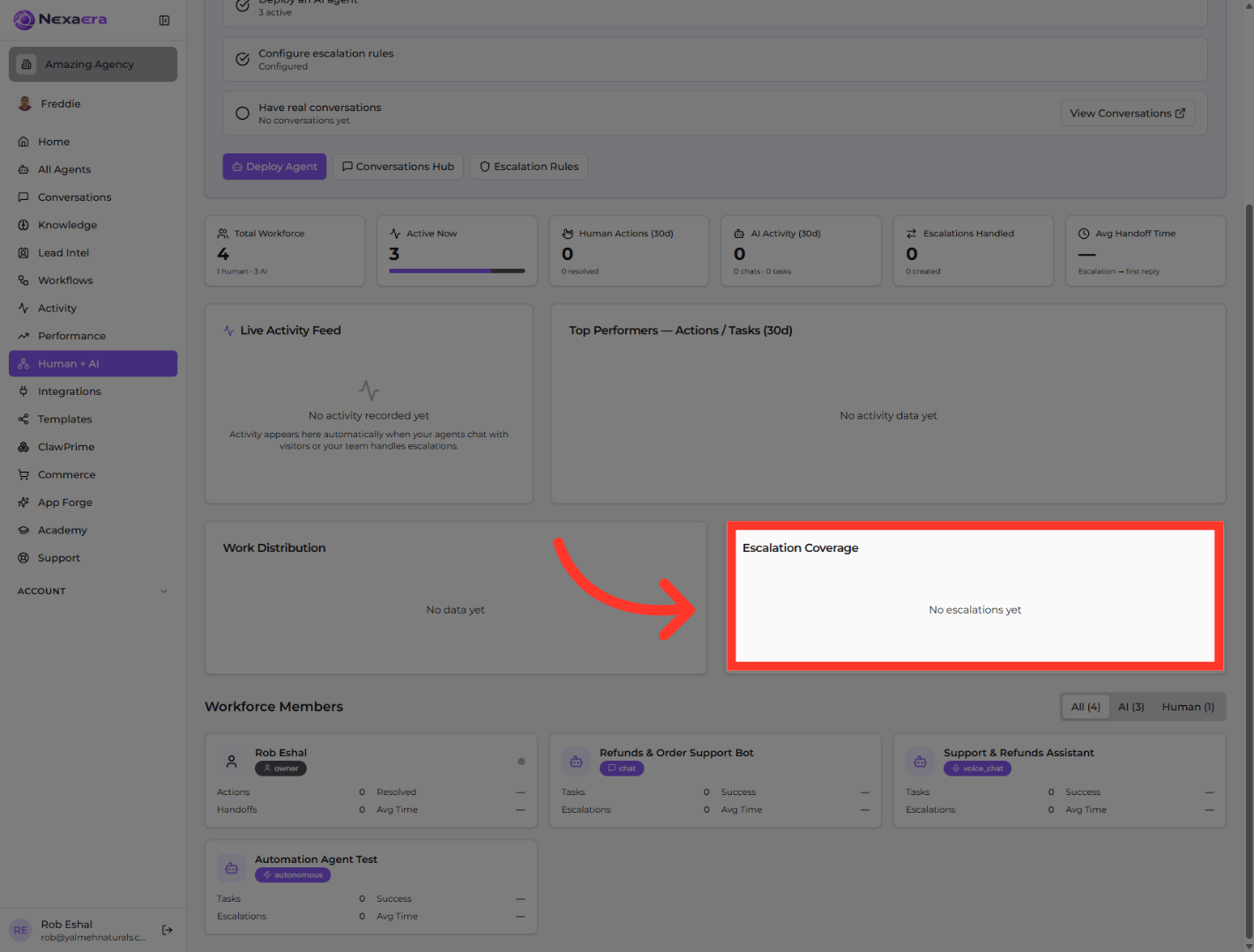
14. Escalations Data
And "Escalation Coverage" tracks how well escalations are being caught and handled. Empty for now, but this is where you'll confirm no customer is left waiting.
15. Workforce Members
Scroll down to "Workforce Members." Here's every member of your team — humans and AI — each with their own tasks, success rate, and escalations. It's your full roster in one view.
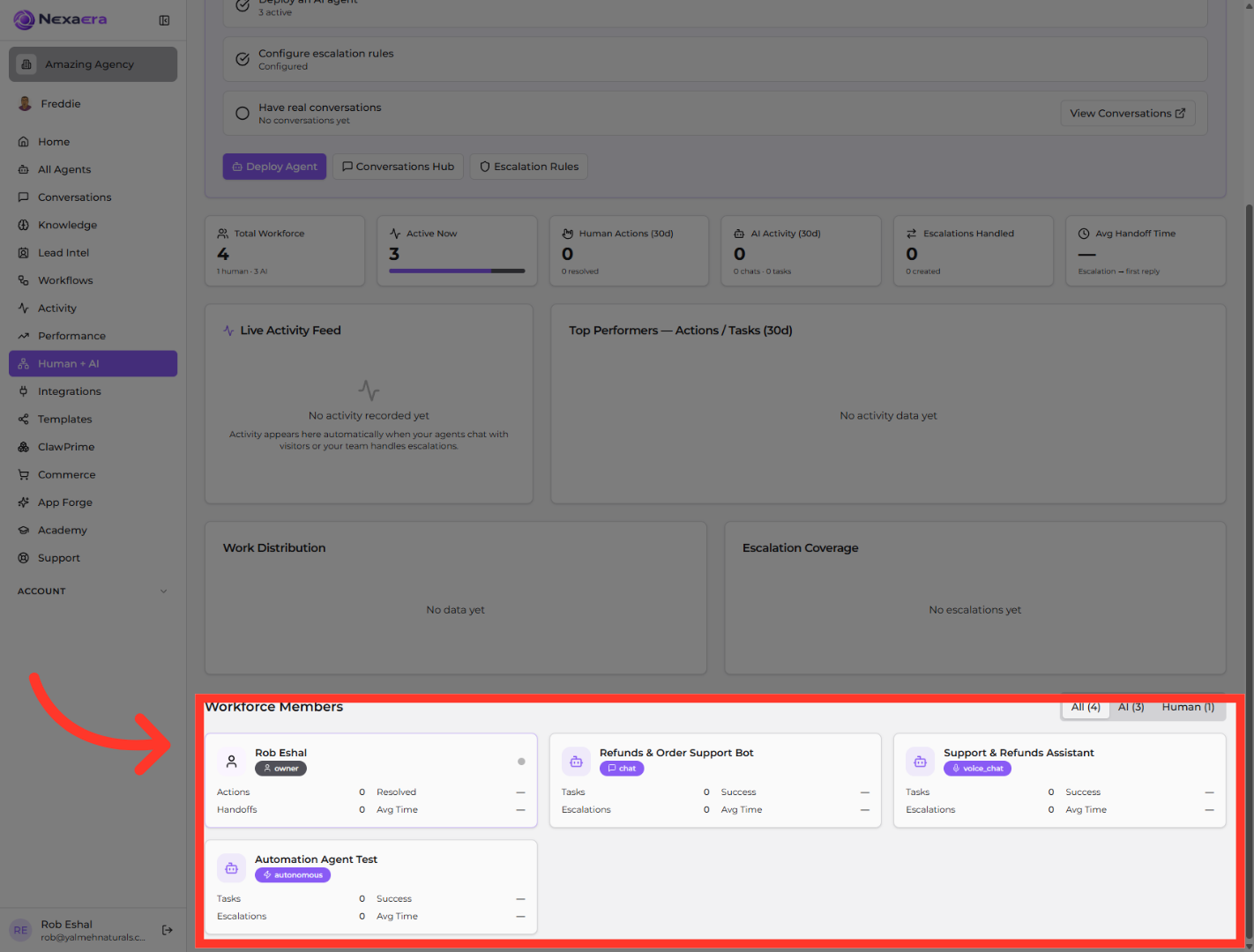
16. Filter AI Conversations
Use the filters at the top right to narrow the list. Click "AI" to see just your AI agents — here, three of them. It's the fastest way to focus on your automated workforce.

And that's your Human plus AI Workforce dashboard. You've seen the escalation flow, where to edit your rules, and every panel that tracks how your agents and team work together. When you're ready, open Escalation Rules to fine-tune exactly when a human steps in. See you in the next one.
Still need help? Ask the team