Upload And Transcribe Audio Files In NexaEra Dashboard
"Got a podcast, a recorded webinar, or a training call packed with useful info? NexaEra can transcribe it and turn it straight into knowledge your agent uses. In this walkthrough, I'll show you how to upload an audio file, set its language, and add the transcription to your Knowledge Base."
Written By Fred Yalmeh
Last updated About 2 months ago
Go to www.nexaera.com
1. Introduction
"Here's what you'll be able to do by the end: upload an audio file, give it a clear name, tell NexaEra what language it's in, and transcribe it into training your agent can pull answers from."
2. Access Knowledge Section
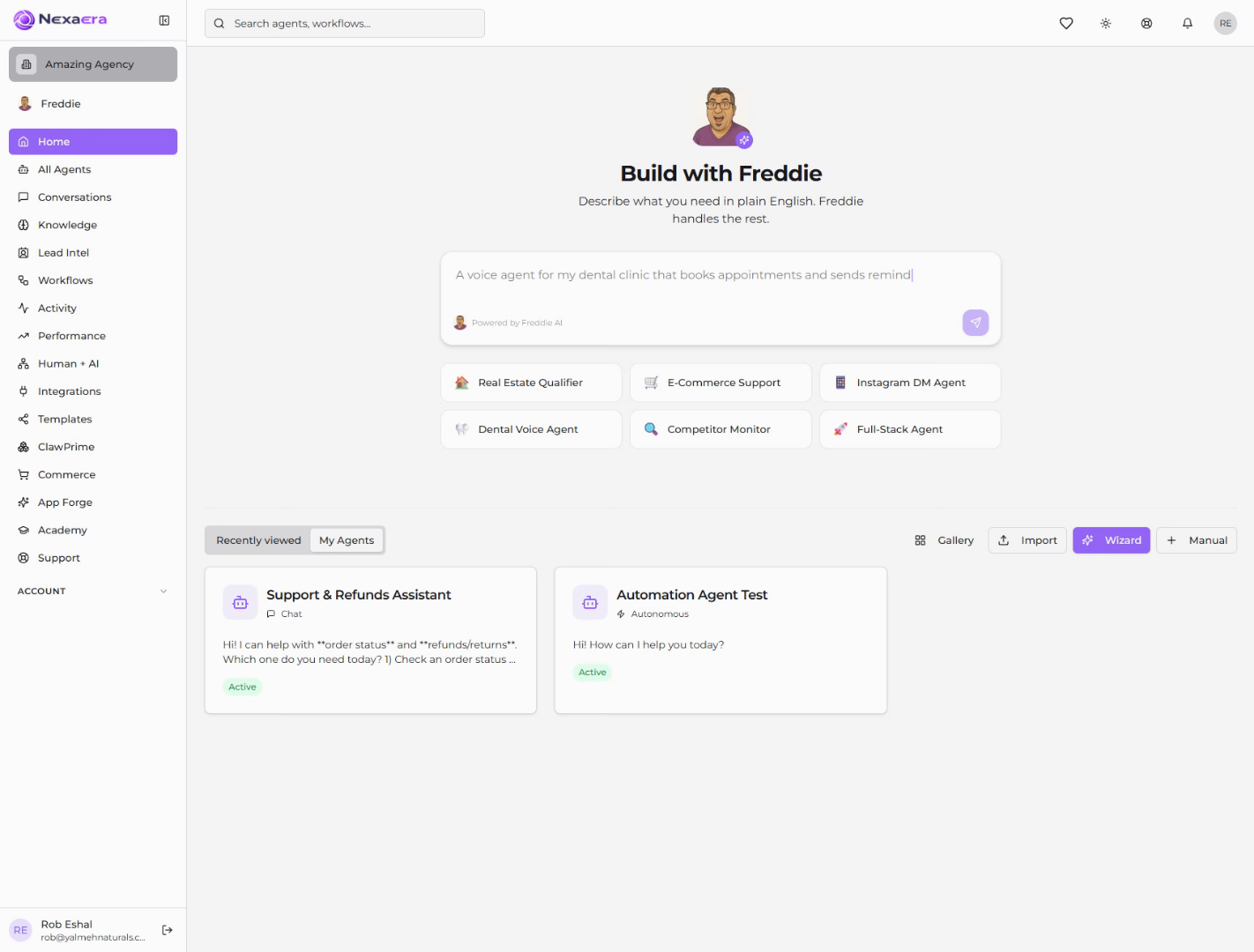
"Start by clicking 'Knowledge' in the left menu. This opens your Knowledge Base, the central hub where you train your agents on your own content."

3. Open Audio Tab
"Under 'Add New Training Data,' click the 'Audio' tab. This is where you upload recordings for transcription. It supports common formats like MP3, WAV, M4A, and more — files up to 100 megabytes run through Google Gemini, and files under 25 megabytes can also use your OpenAI key."

4. Initiate Audio Upload
"Click 'Click to upload audio file' and pick your recording from your computer. NexaEra loads it up and gets it ready to transcribe — you'll see the file name and size appear."

5. Name Audio Source
"Click the 'Give this source a descriptive name' field and type a clear name — something like 'WSJ Money Management' or 'Q3 Training Call.' This is how you'll spot it later in your knowledge list."

6. Open Language Field
"Now click the 'Language hint' field. This one's optional, but helpful. Enter the language code for your audio — like 'en' for English, 'fa' for Farsi, or 'ar' for Arabic. If you set it, transcription will prioritize that language and script for better accuracy."

7. Start Transcription
"Everything set? Click 'Transcribe & Add.' NexaEra transcribes your audio, breaks it into searchable chunks, and adds it to your Knowledge Base. Once it's done, it shows up in Trained Sources, ready to power your agent's answers."

"And that's it — your audio is now working knowledge for your agent. It's a powerful way to turn recordings you already have into accurate, on-brand answers. Upload as many as you like, any time. Nicely done."
Still need help? Ask the team