Navigate and Utilize ClawPrime Marketplace Features
The ClawPrime Marketplace is like an app store for your AI agents — a library of community skills, one click to import. In this video, you'll learn to browse, search, filter, and bring in exactly the skills you need. Let's explore.
Written By Fred Yalmeh
Last updated 27 days ago
Go to nexaera.com
1. Introduction
In this walkthrough, you'll learn to navigate the Marketplace — browsing trending and staff-pick skills, searching and filtering, and importing or even creating your own. Let's dive in.
2. Access ClawPrime Dashboard
On the left sidebar, click "ClawPrime." This is your skill management engine.

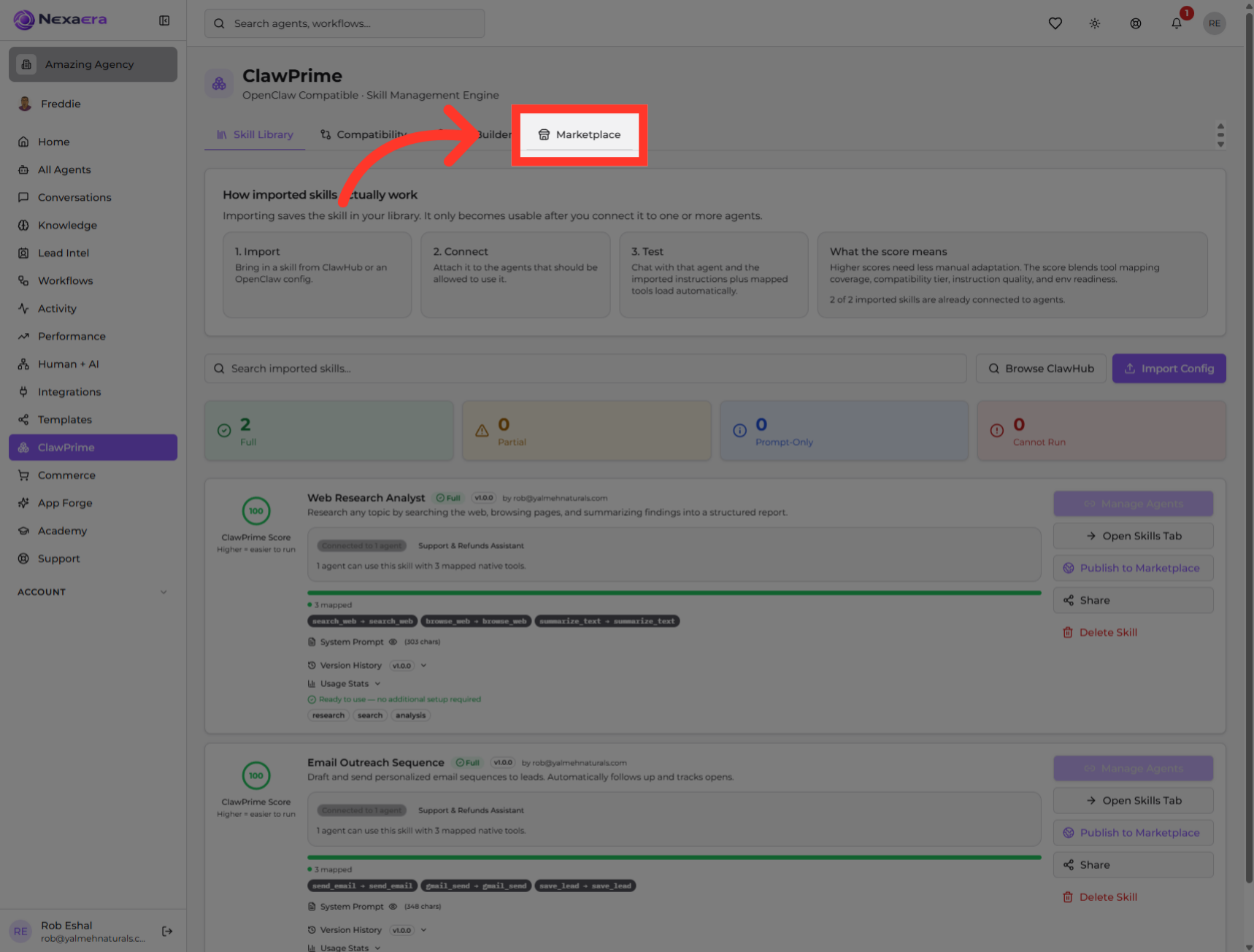
3. Open Marketplace Section
At the top, click the "Marketplace" tab. This is where all the community-built skills live, ready to import.
4. View Trending Skills
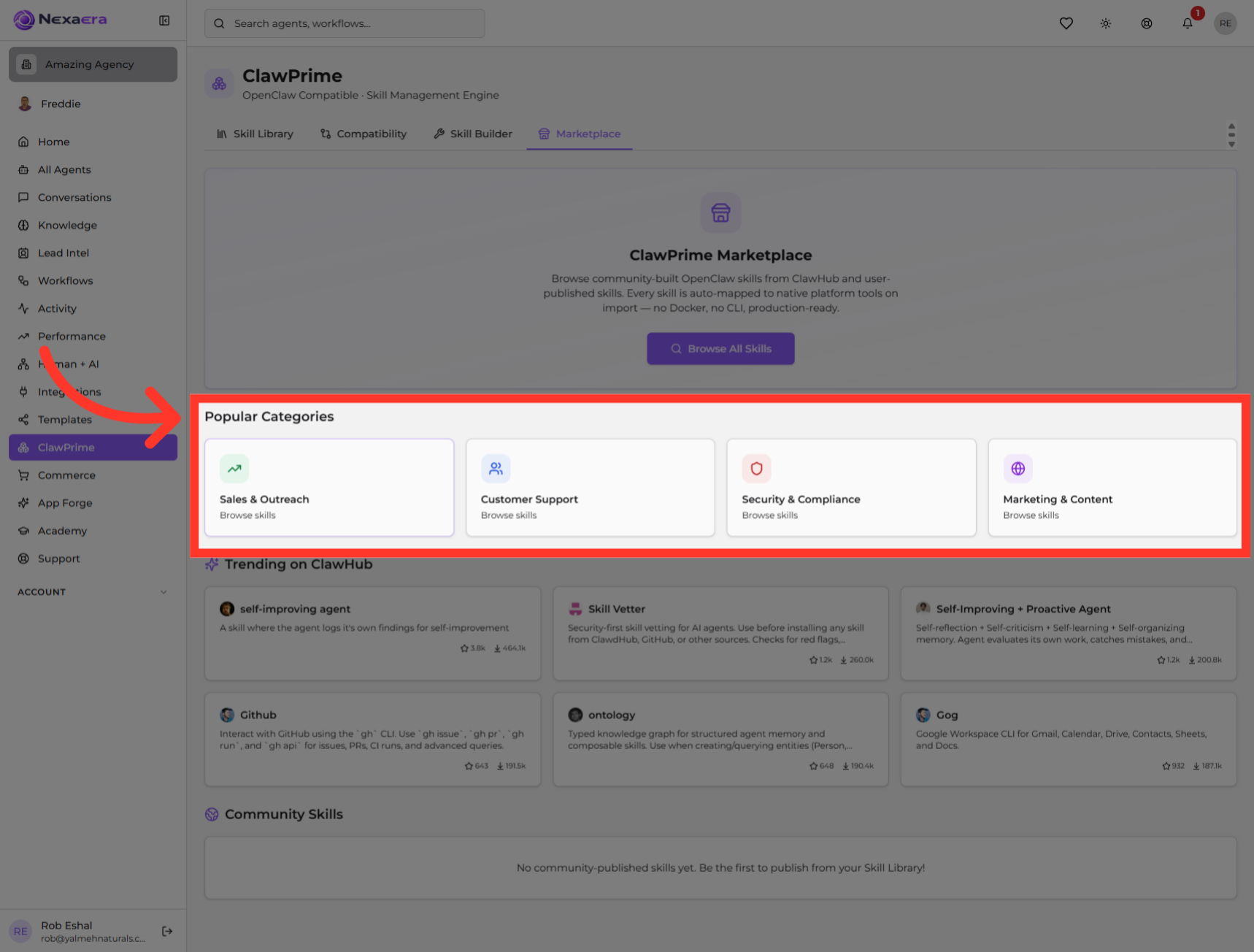
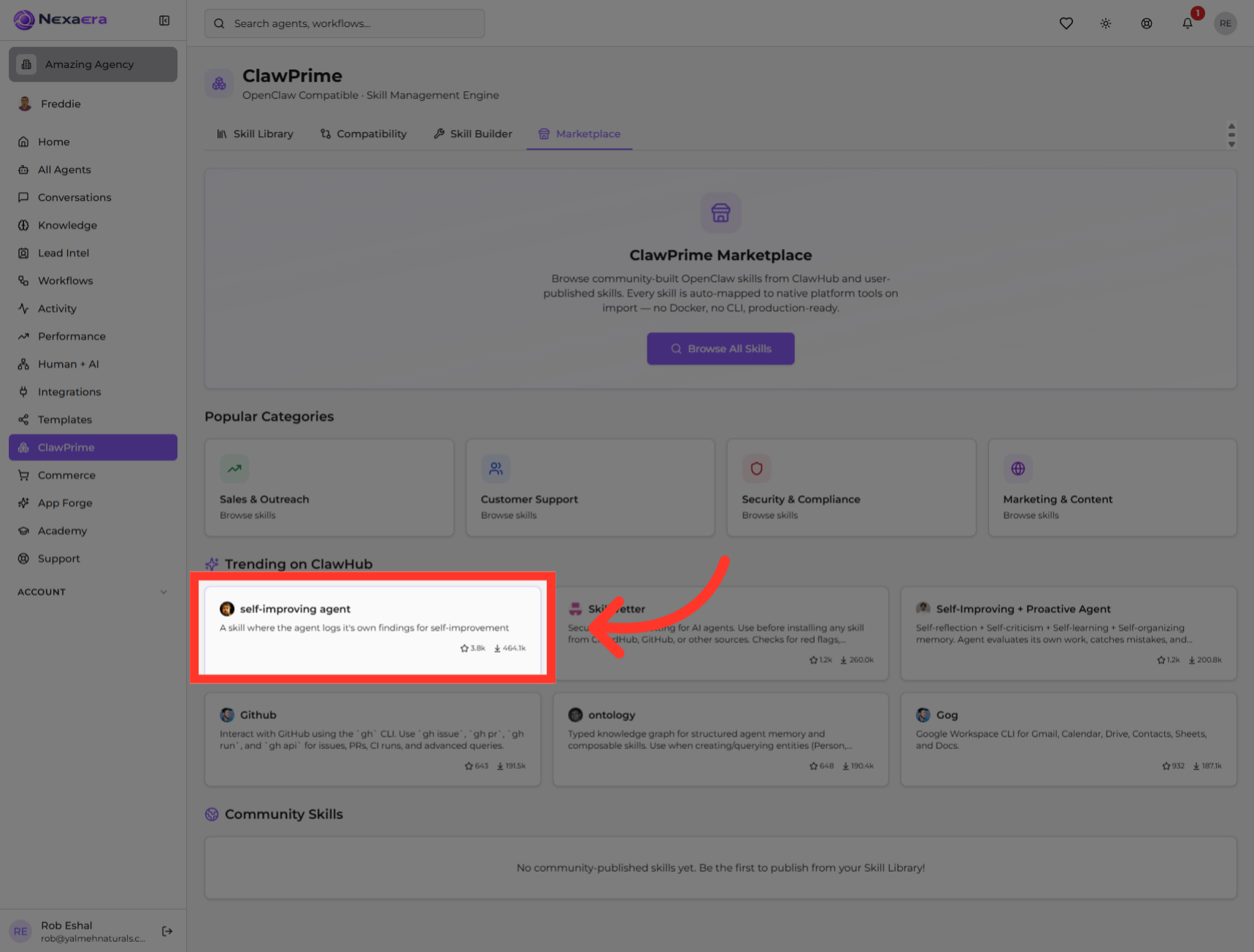
Scroll to "Trending on ClawHub" to see the most popular skills right now. It's a great shortcut to what other agencies are actually using and loving.

5. Explore By Category
Prefer to browse by need? Check "Popular Categories" — Sales and Outreach, Customer Support, Security, Marketing, and more. Click any category to see just those skills.
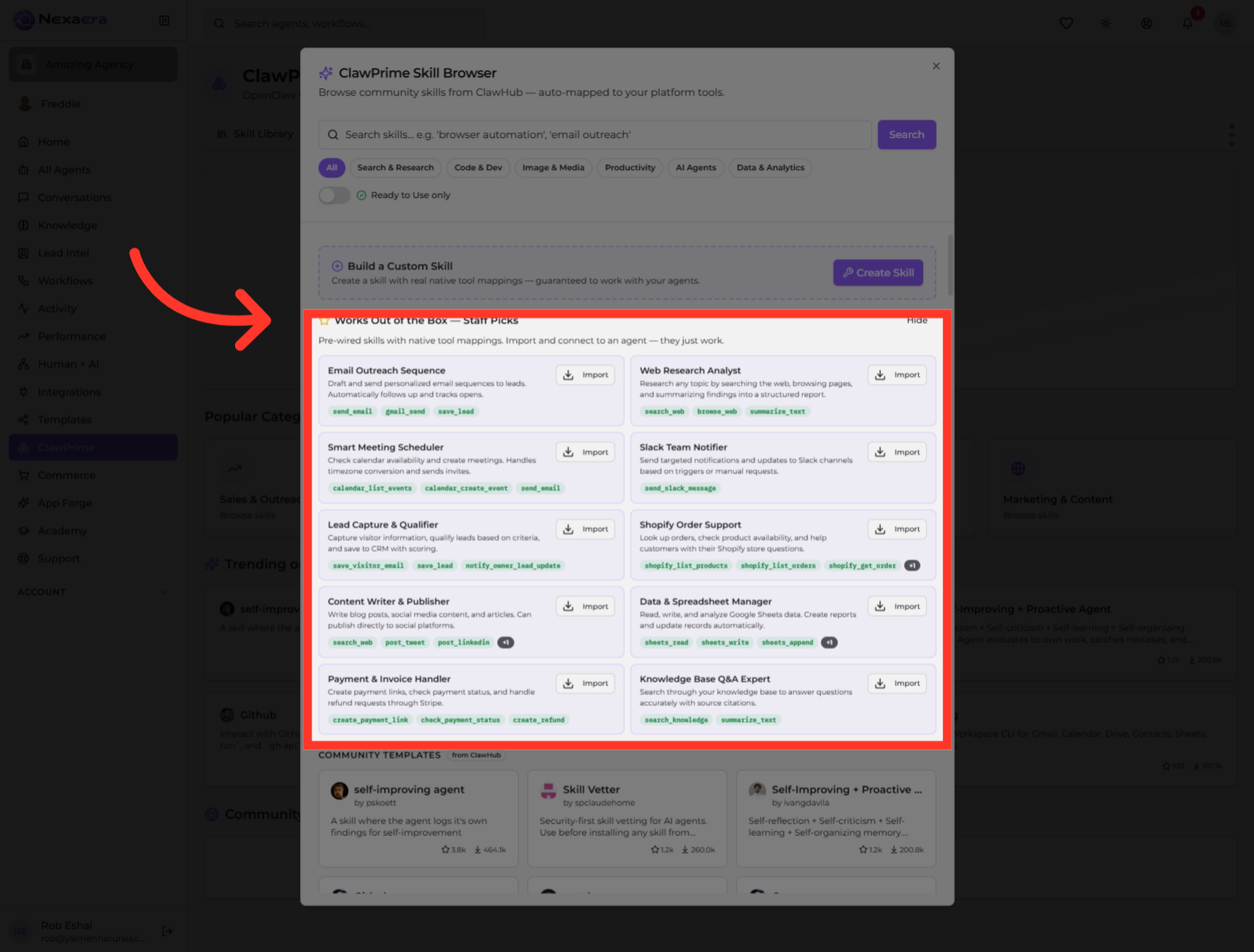
6. Explore Staff Picks Skills
Now open "Works Out of the Box — Staff Picks." These are hand-picked skills that are ready to use immediately — things like Email Outreach, Smart Meeting Scheduler, and Shopify Order Support.
7. Initiate Skill Search
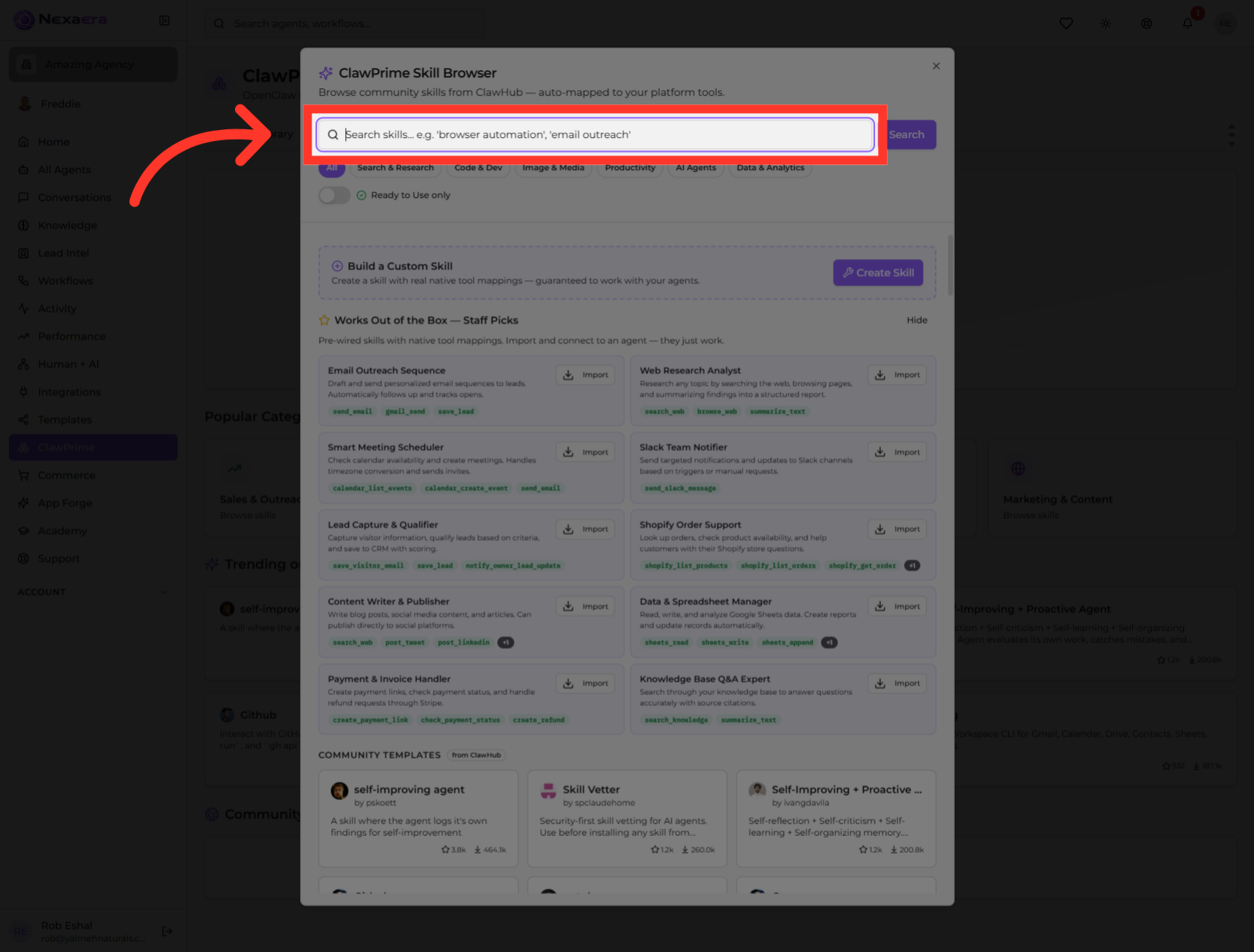
To find something specific, click the search field. Type what you're after — like "browser automation" or "email outreach" — and it'll surface matching skills.
8. Access Search Filters
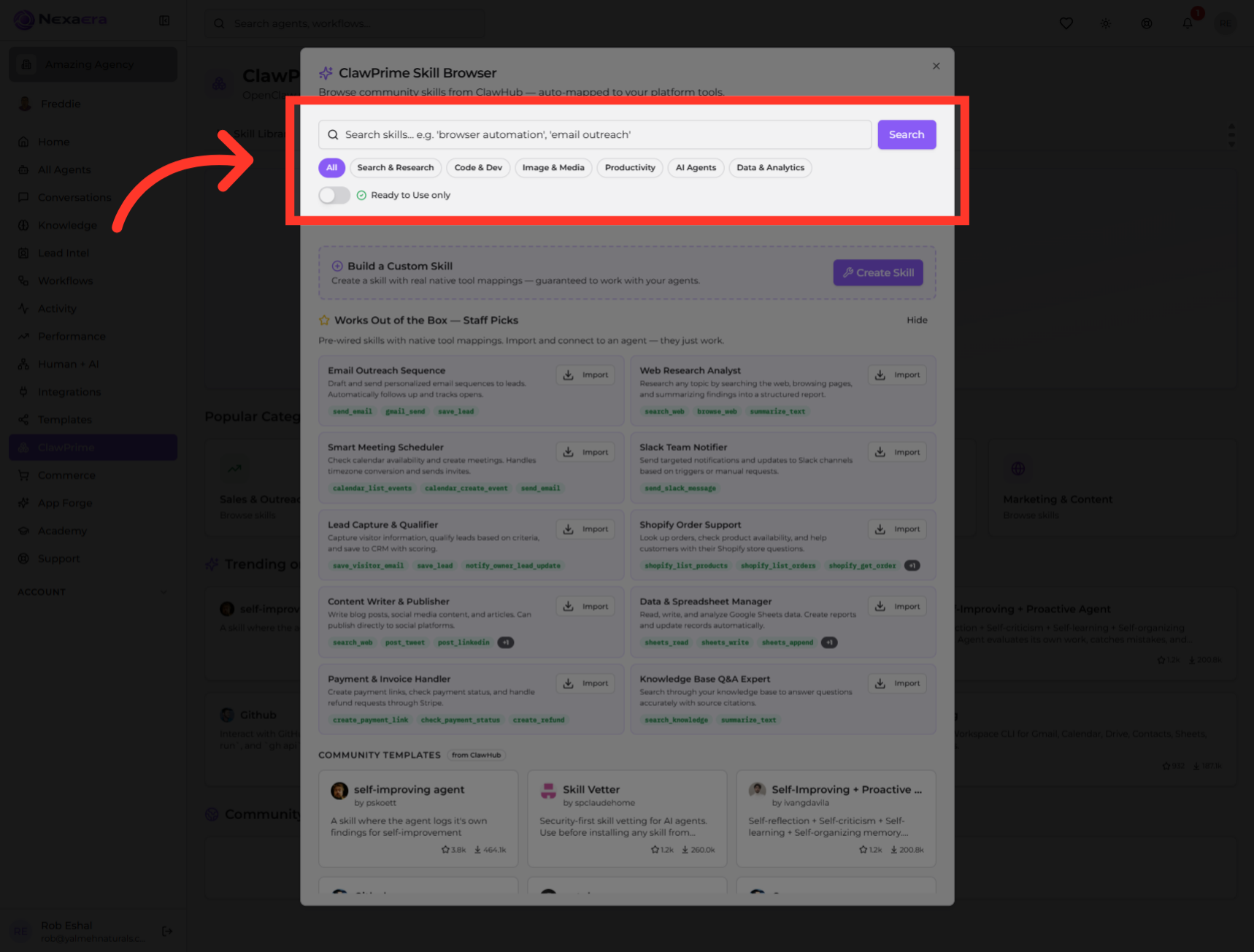
Just below are quick filter chips — Search and Research, Code and Dev, Productivity, AI Agents, and more. Tap one to narrow the results to that type of skill.
9. Filter Ready-to-Use Skills
There's also a "Ready to Use only" toggle. Flip it on to hide anything that needs extra setup, so you only see skills you can deploy right now.

10. Import Skills
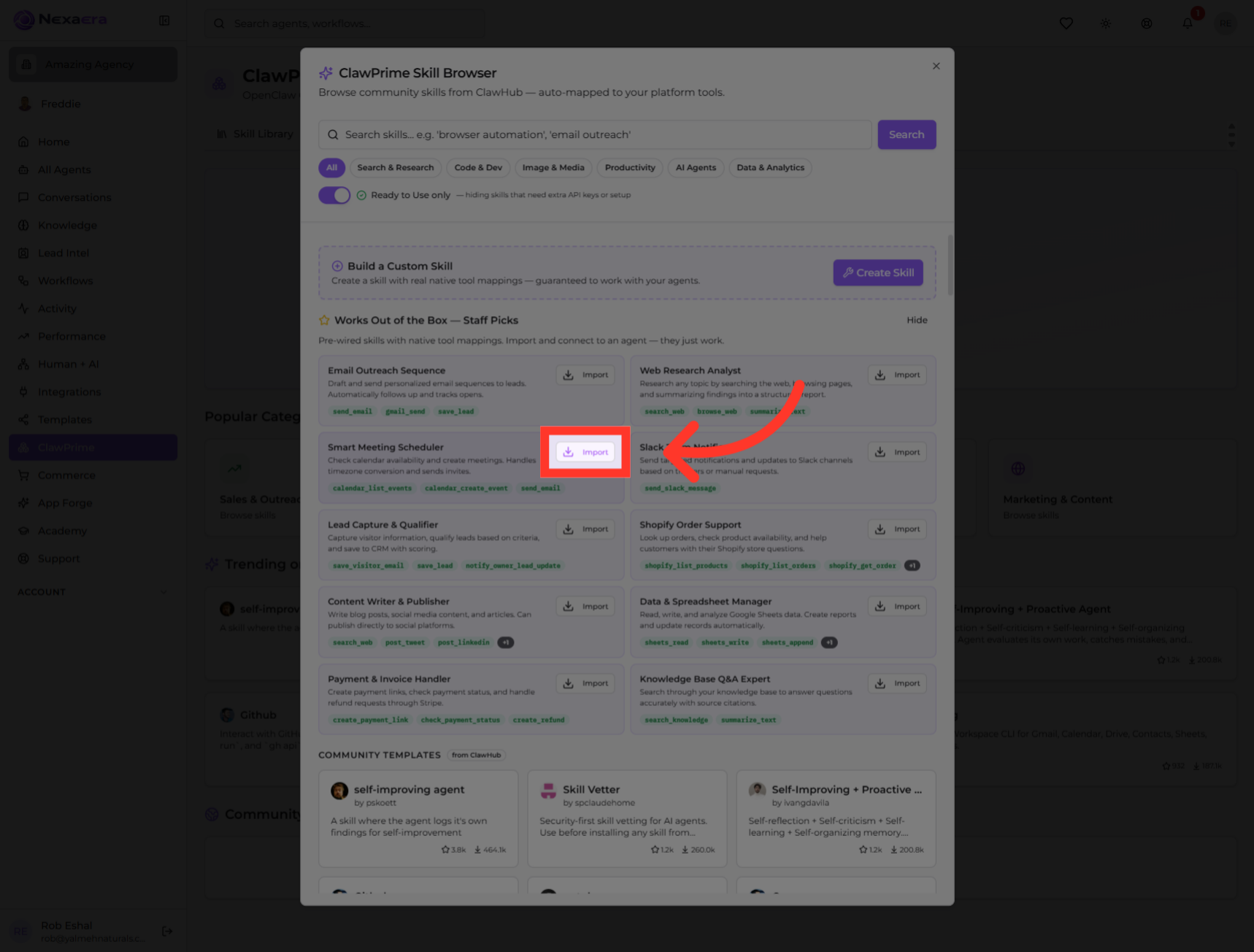
Found a keeper? Click its "Import" button. That pulls the skill into your library, auto-mapped to your platform's tools and ready to connect to an agent.
11. Create New Skill
If nothing fits, click "Create Skill" to build your own from scratch — with real, native tool mappings that are guaranteed to work with your agents.

12. Browse All Available Skills
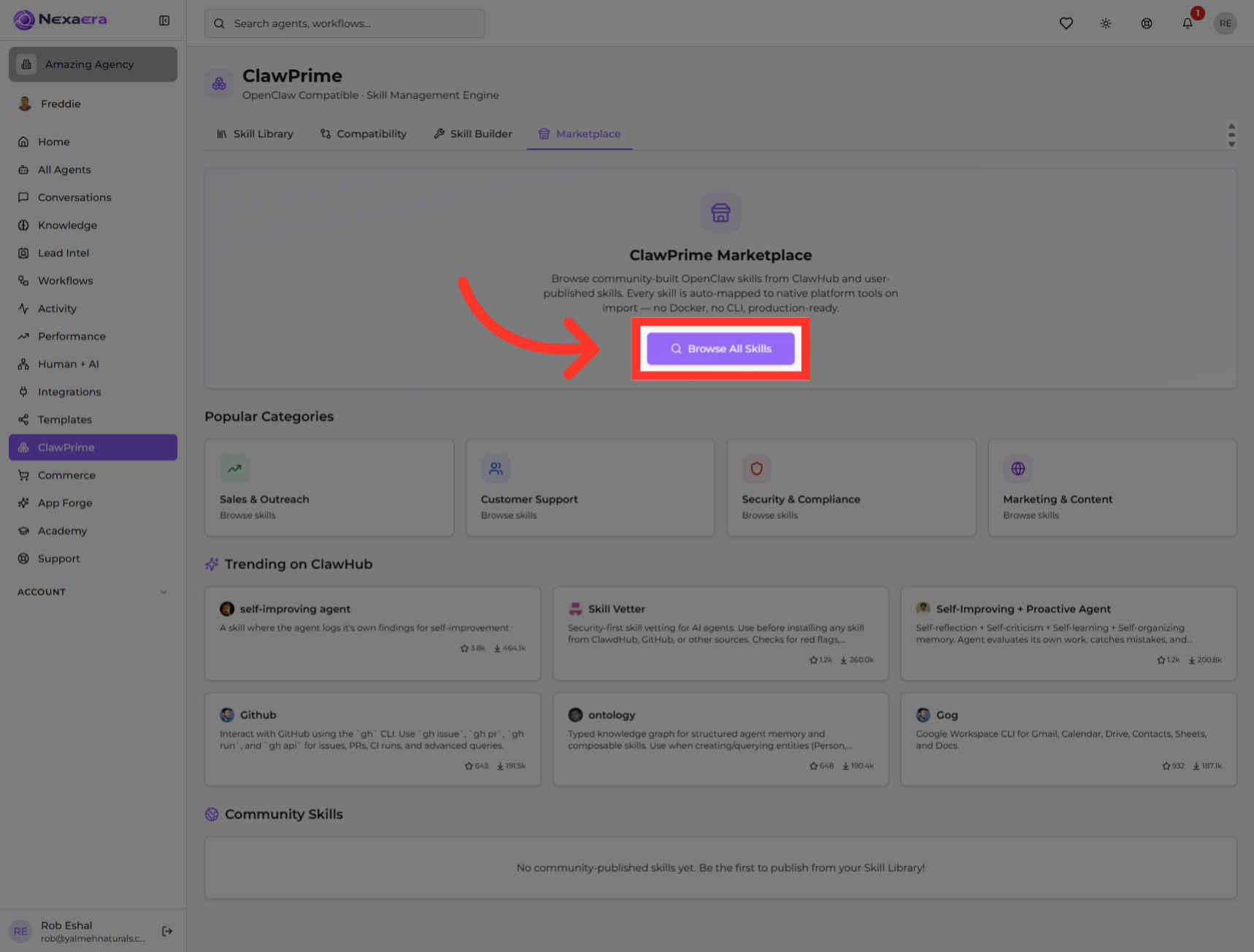
Want the full catalog? Click "Browse All Skills" to see every skill available, beyond just the trending and staff-pick highlights.
13. Select Self-Improving Agent Skill
And to learn about any skill before importing, just click its card. Here we open the "self-improving agent," which lets an agent log its own findings and get better over time. You'll see its full details, tools, and stats.
And that's the ClawPrime Marketplace. You can now browse by trend or category, search and filter, import ready-to-use skills, or build your own. It's your one-stop shop for making your agents more capable. See you in the next one.
Still need help? Ask the team