Navigate and Manage Leads in Nexaera Dashboard
Leads are the lifeblood of your business — but only if you can actually find and track them. In the next couple of minutes, you'll learn how to open your lead dashboard, check your numbers at a glance, and search for any lead in seconds. Let's dive in.
Written By Fred Yalmeh
Last updated About 2 months ago
Go to www.nexaera.com
1. Introduction
Here's what we'll cover. You'll learn how to open your lead tracking area, read your funnel numbers, search for specific people, and refresh your data so it stays current. Simple habits that keep you on top of every opportunity.

2. Access Lead Intel Section
Start on the left sidebar and click "Lead Intel." This is your built-in CRM. It's where every lead lands, so you can track each one from first contact all the way to a closed deal.

3. Open Leads Page
Up top you'll see a row of tabs. Click the "Leads" tab. This is your main list — every lead shows up right here. If it looks empty, that just means no one's submitted a form yet.

4. View Total Leads
Right above your list is a row of quick stats. "Total Leads" shows your overall count at a glance. Next to it, you can track each stage of your funnel — Open, Completed, Enrolled, Converted, and Lost. It's your whole pipeline in one view.
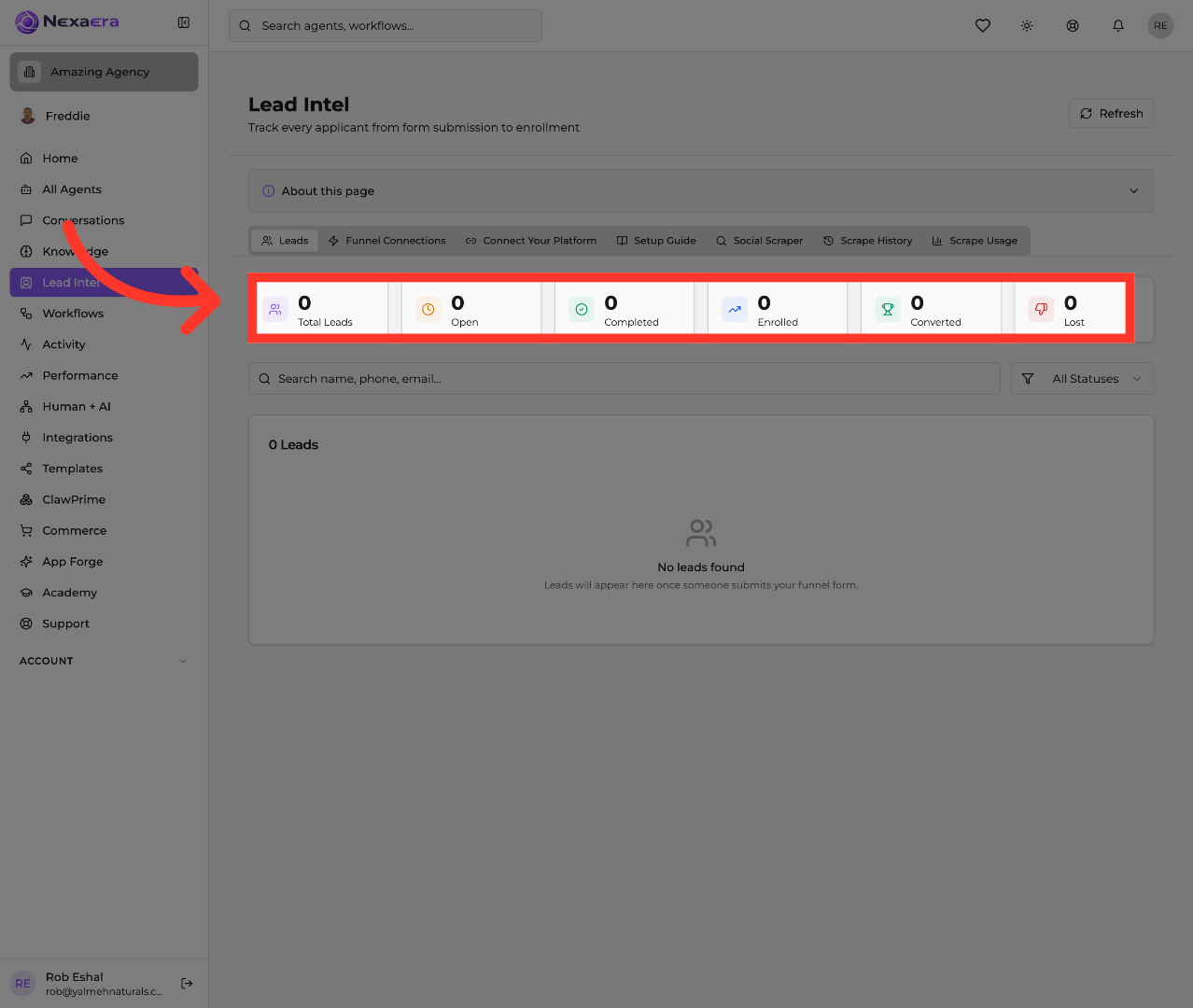
5. Search Leads by Details
Got a long list of leads? Use the search bar. Just click it and type a name, a phone number, or an email. It instantly filters the list down to the person you're looking for — no scrolling required.

6. Interact with Dashboard Content
One last handy button. Up in the top-right corner, click "Refresh." This pulls in your very latest leads and updates the numbers on the spot. Perfect for when you know a new form just came in.

And that's the tour. You now know how to open your lead dashboard, read your funnel at a glance, search for anyone in seconds, and refresh for the latest data. That's everything you need to stay on top of your pipeline. Catch you in the next one.
Still need help? Ask the team