How to use Freddie to build your Agent.
"What if you could build a fully working AI support agent just by describing it in plain English? No settings to hunt for, no code to write. Freddie is your built-in NexaEra assistant — he lives right on your dashboard, knows the whole platform, and builds what you ask for. Today we'll spin up an E-Commerce Support agent that answers order-status questions and handles returns."
Written By Fred Yalmeh
Last updated About 2 months ago
Go to www.nexaera.com
1. Introduction
"First, head over to nexaera.com and log in. This drops you straight into your agency workspace, where all your agents and tools live."
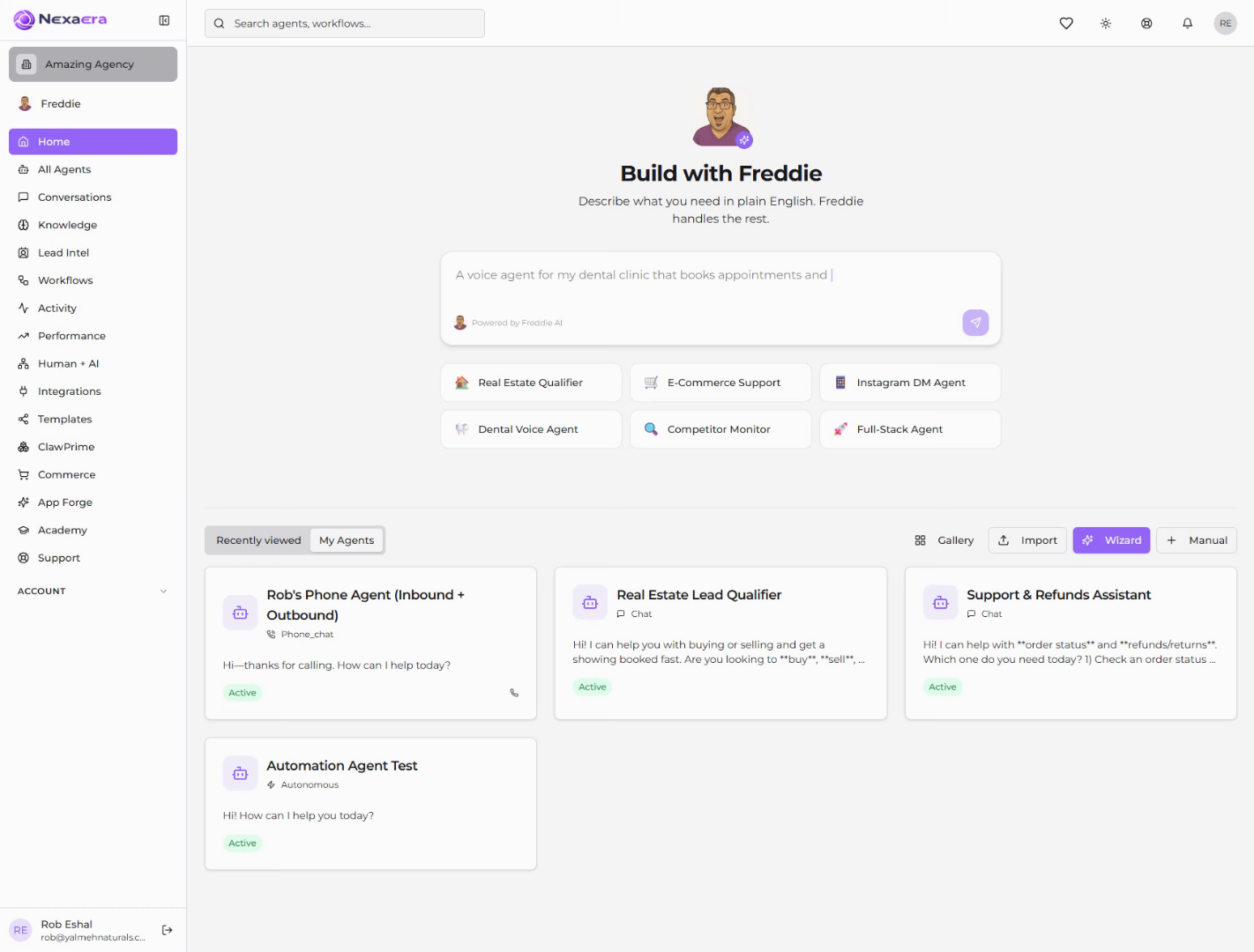
2. Access Nexaera Home Dashboard
"On the left menu, click Home. This is your command center, and the 'Build with Freddie' panel sits right in the middle of the screen."
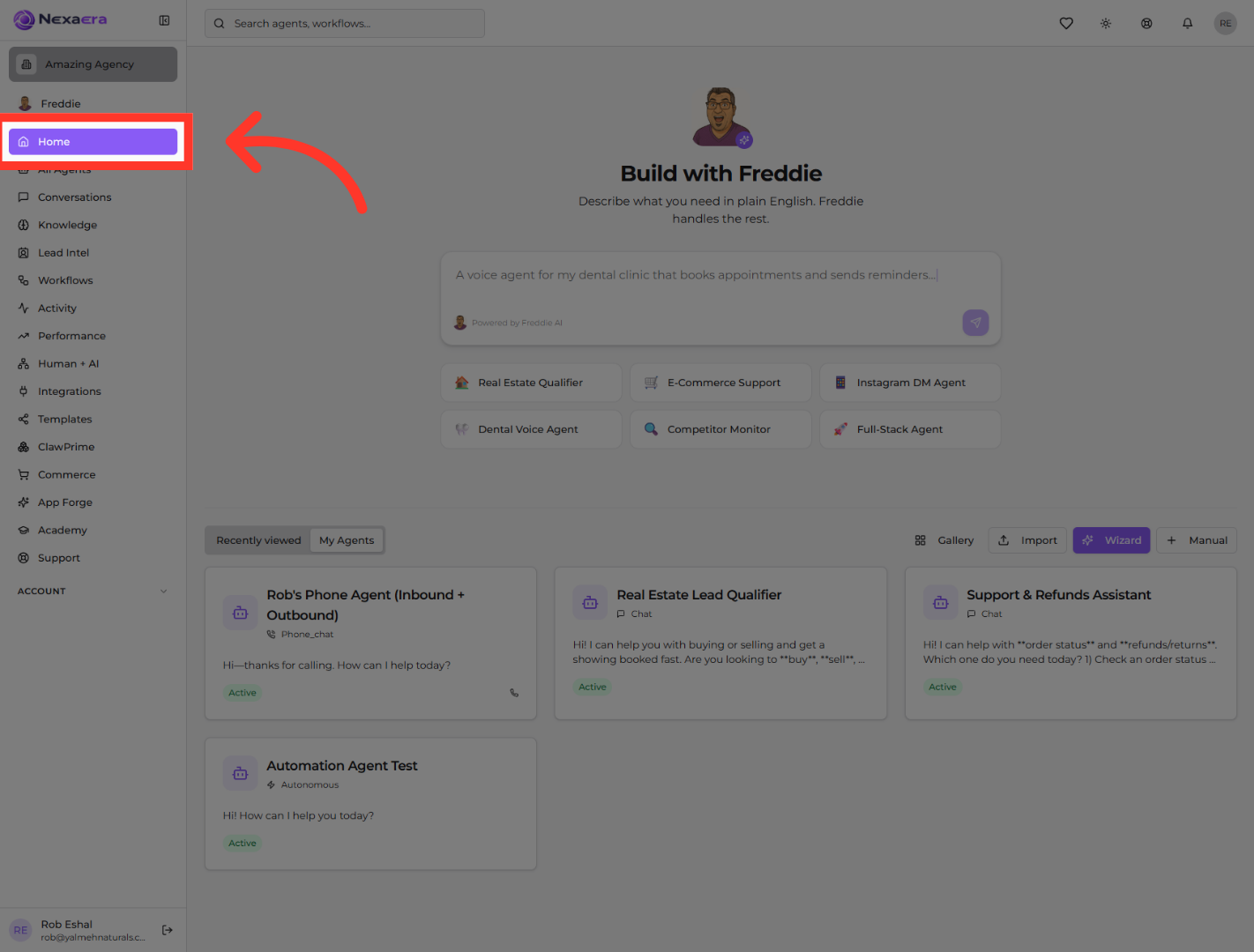
3. Navigate Dashboard Options
"Now here's where it gets good. Click into the Freddie chat box and describe your agent in everyday language. Something like: 'An e-commerce support agent that checks order status and handles returns.' The more detail you give, the better Freddie builds it."
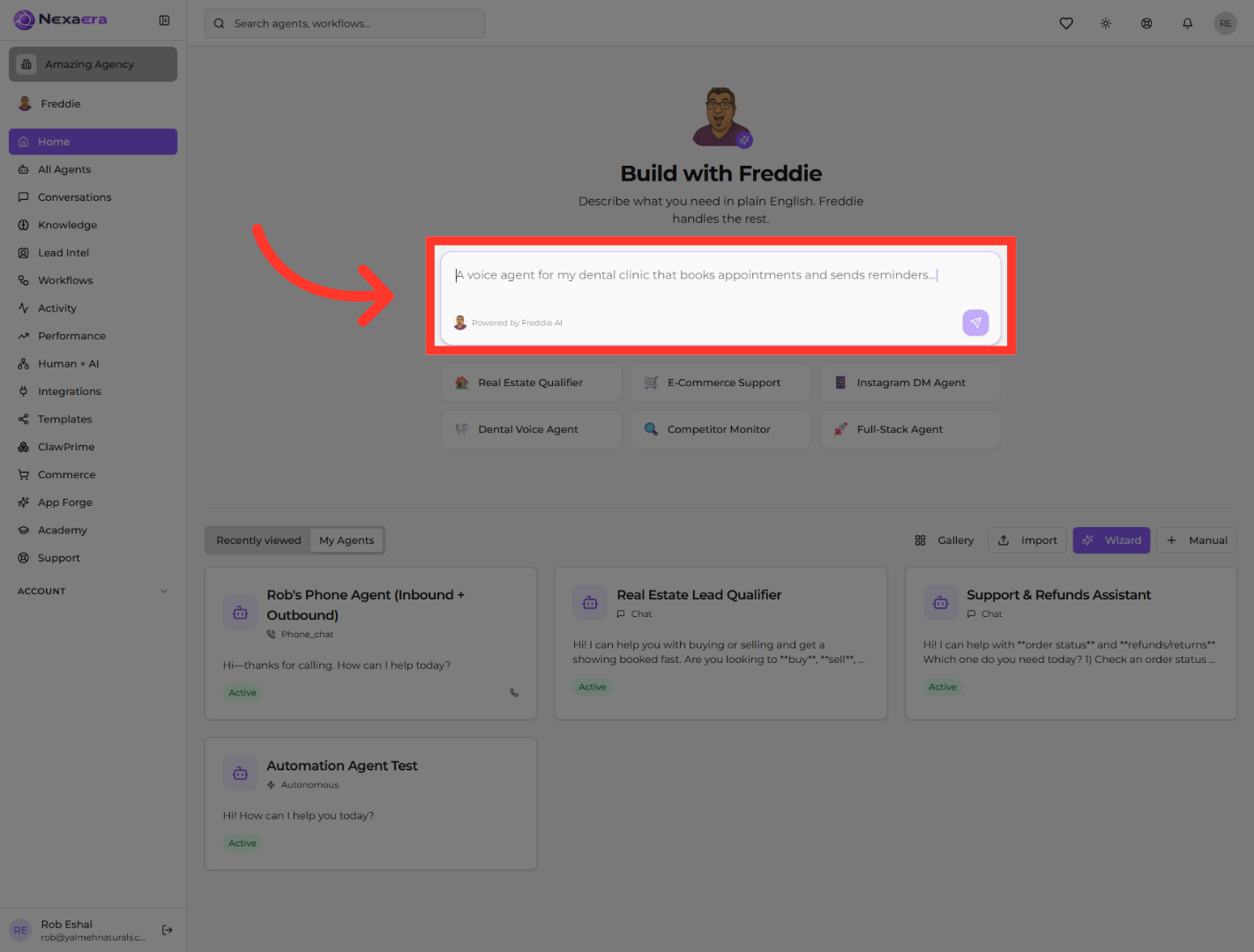
4. Open Agent Selection Menu
"Not sure where to start? You don't have to type a thing. Just pick a ready-made template. Since we're building support for an online store, click 'E-Commerce Support,' and Freddie loads it up with the right setup already in place."

"Once your agent is created, Freddie opens it up so you can polish it. In the Configure tab, tweak the basics like its name and welcome message. Jump to Skills to switch on tools like Stripe or email. And under Memory, let it remember details across conversations so it feels genuinely helpful." "And that's it. You just built an E-Commerce Support agent with Freddie and tuned its basics, skills, and memory. From here you can test it live or keep customizing. Nice work — you're officially building with AI."
Still need help? Ask the team