Upload Files to Knowledge Dashboard in NexaEra
"Got a stack of PDFs, docs, or text files packed with the info your agent needs? You can drop them straight into NexaEra and turn them into training in seconds. In this quick walkthrough, I'll show you how to upload files to your Knowledge Base — no formatting, no fuss."
Written By Fred Yalmeh
Last updated About 2 months ago
Go to www.nexaera.com
1. Access Knowledge Section
"Start by clicking 'Knowledge' in the left menu. This opens your Knowledge Base — the central hub where all your agents get trained on your own content."

2. Open Files Tab
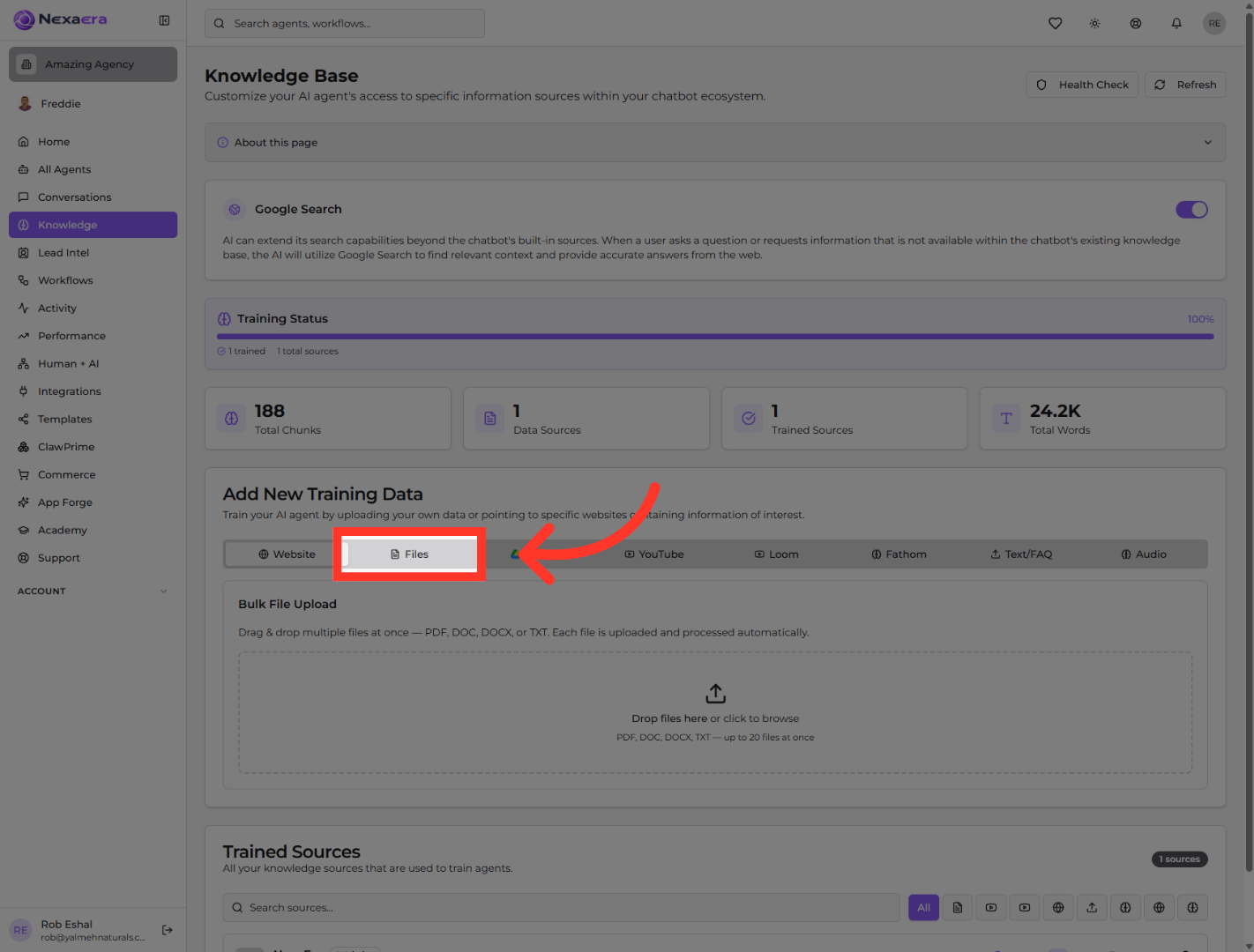
"Under 'Add New Training Data,' click the 'Files' tab. This is your Bulk File Upload area, where you can drop in documents and NexaEra processes each one automatically."
3. Initiate File Upload
"Click the upload box that says 'Drop files here or click to browse.' Pick your files from your computer — you can add PDF, DOC, DOCX, or TXT, up to 20 at once. Drag-and-drop works too."

4. Upload Selected Files
"Once your files are staged, click 'Upload All.' NexaEra uploads and processes each one, breaking it into searchable chunks your agent can pull answers from. When it's done, your file shows up in Trained Sources with a 'Trained' badge."

"And that's it — your documents are now part of your agent's knowledge. It's the fastest way to load in everything from product sheets to policy docs. Upload as many as you need, any time your info changes. Nicely done."
Still need help? Ask the team