Navigate and Filter Conversations in Nexaera Dashboard
"Every chat, call, and email your agents handle lands in one place — your Conversations inbox. But when the volume picks up, you need to find the right thread fast. In this walkthrough, I'll show you how to filter your conversations by channel and search your collected contacts in seconds."
Written By Fred Yalmeh
Last updated About 2 months ago
Go to www.nexaera.com
1. Introduction
"Here's what you'll be able to do by the end: open your unified inbox, filter it down to any channel — chat, email, or calls — and search through the contacts your agents have collected."

2. Access Conversations Section
"Start by clicking 'Conversations' in the left menu. This opens your unified inbox, where every conversation across every channel lives together in one view."

3. View All Conversations
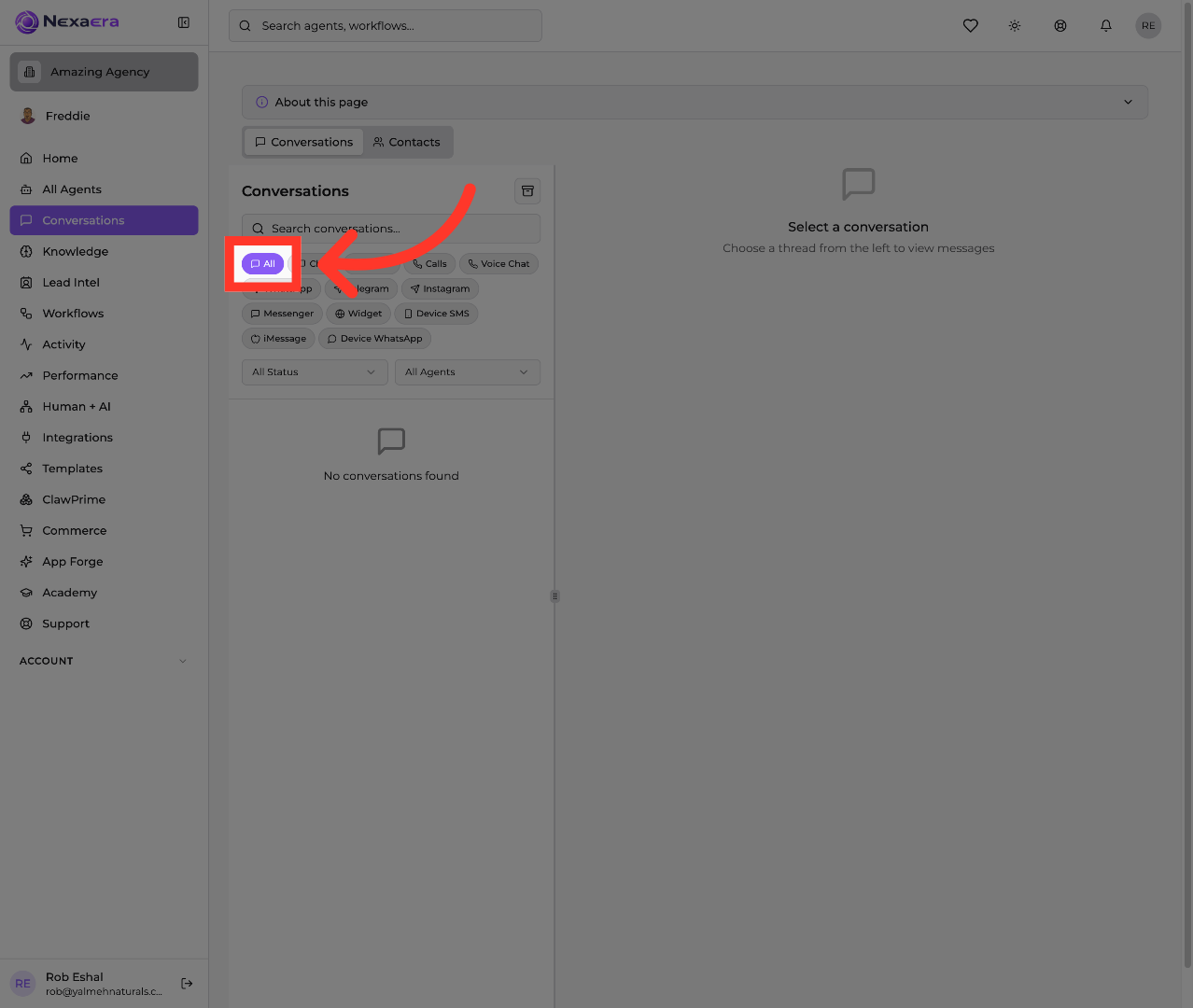
"At the top of the inbox, you'll see channel filters. Click 'All' to show everything at once — chat, email, calls, WhatsApp, Telegram, Instagram, Messenger, and more, all in a single list."
4. Open Conversation Search
"Need a specific thread? Click the 'Search conversations' box at the top and start typing. The list filters instantly to match, so you can jump straight to the conversation you're after."

5. Filter by Chat Conversations
"Now let's narrow by channel. Click 'Chat' to show only your web chat conversations. This is the fastest way to focus on one type of interaction without the noise of the others."

6. Filter by Email Conversations
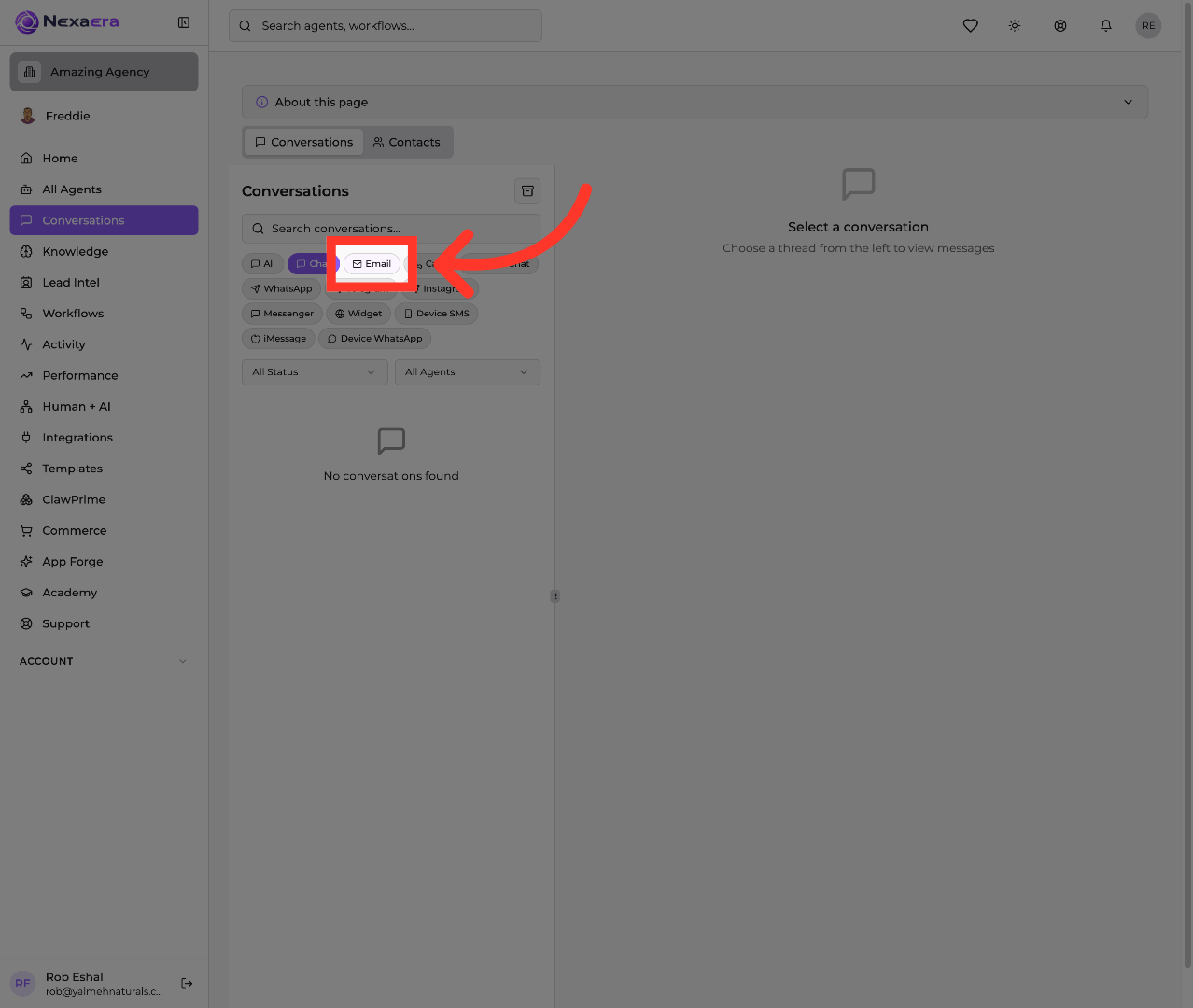
"Click 'Email' instead to see just your email-based conversations. Each channel filter gives you a clean, focused view of that one communication type."
7. Filter by Call Conversations
"Click 'Calls' to pull up only your phone conversations. Handy when you want to review what your voice agents have been handling. You've also got filters for WhatsApp, Telegram, Instagram, and the rest whenever you need them."

8. Access Contacts Section
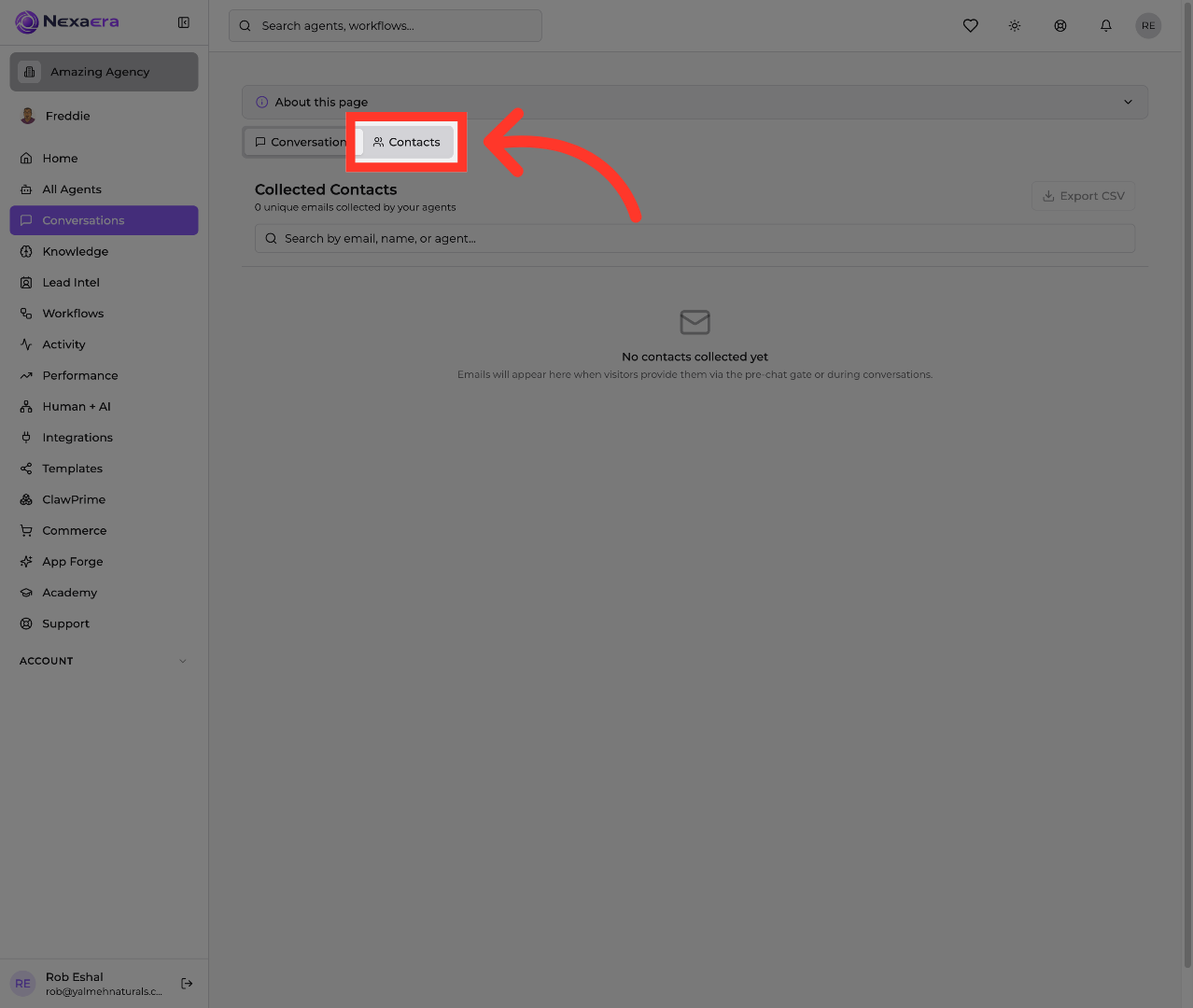
"Now let's look at the people behind the conversations. Near the top, click the 'Contacts' tab. This opens your Collected Contacts — every lead your agents have gathered, all in one place."
9. Search Contacts
"Click the 'Search by email, name, or agent' box to find a specific person. You can search by their email, their name, or even which agent collected them — great for quickly pulling up a lead."

10. View Contact Collection Status
"If you see 'No contacts collected yet,' that's just because none have come in on this view. Emails show up here automatically when visitors provide them — through the pre-chat gate or naturally during a conversation. And when you're ready, you can export the whole list with 'Export CSV.'"

"And that's your inbox mastered. You can filter conversations by any channel, search threads instantly, and manage every contact your agents collect. It's how you stay on top of all your communication without the clutter. Nicely done."
Still need help? Ask the team