Navigate and Analyze Compatibility Dashboard in NexaEra
How well do your imported skills actually work with your platform? The Compatibility dashboard scores every one — showing what maps perfectly and what needs a tweak. In this video, you'll learn to read it. Let's dive in.
Written By Fred Yalmeh
Last updated 27 days ago
Go to nexaera.com
1. Introduction
In this walkthrough, you'll open the Compatibility dashboard and learn to read its key metrics — your skill scores, coverage, mapped tools, tier distribution, and a per-skill breakdown. Let's get started.
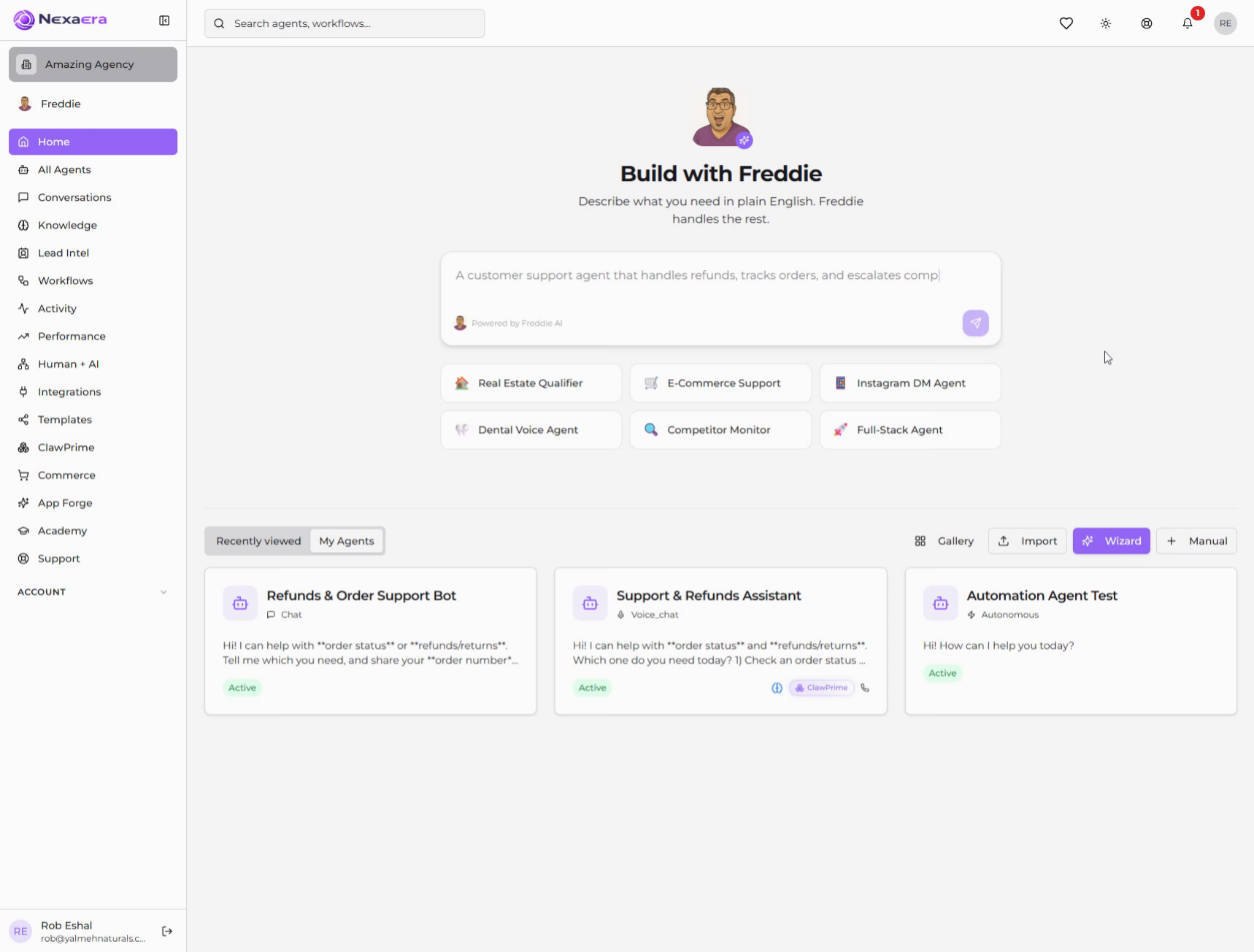
2. Access ClawPrime Dashboard
On the left sidebar, click "ClawPrime." This is your skill management engine, and it's home to your compatibility data.
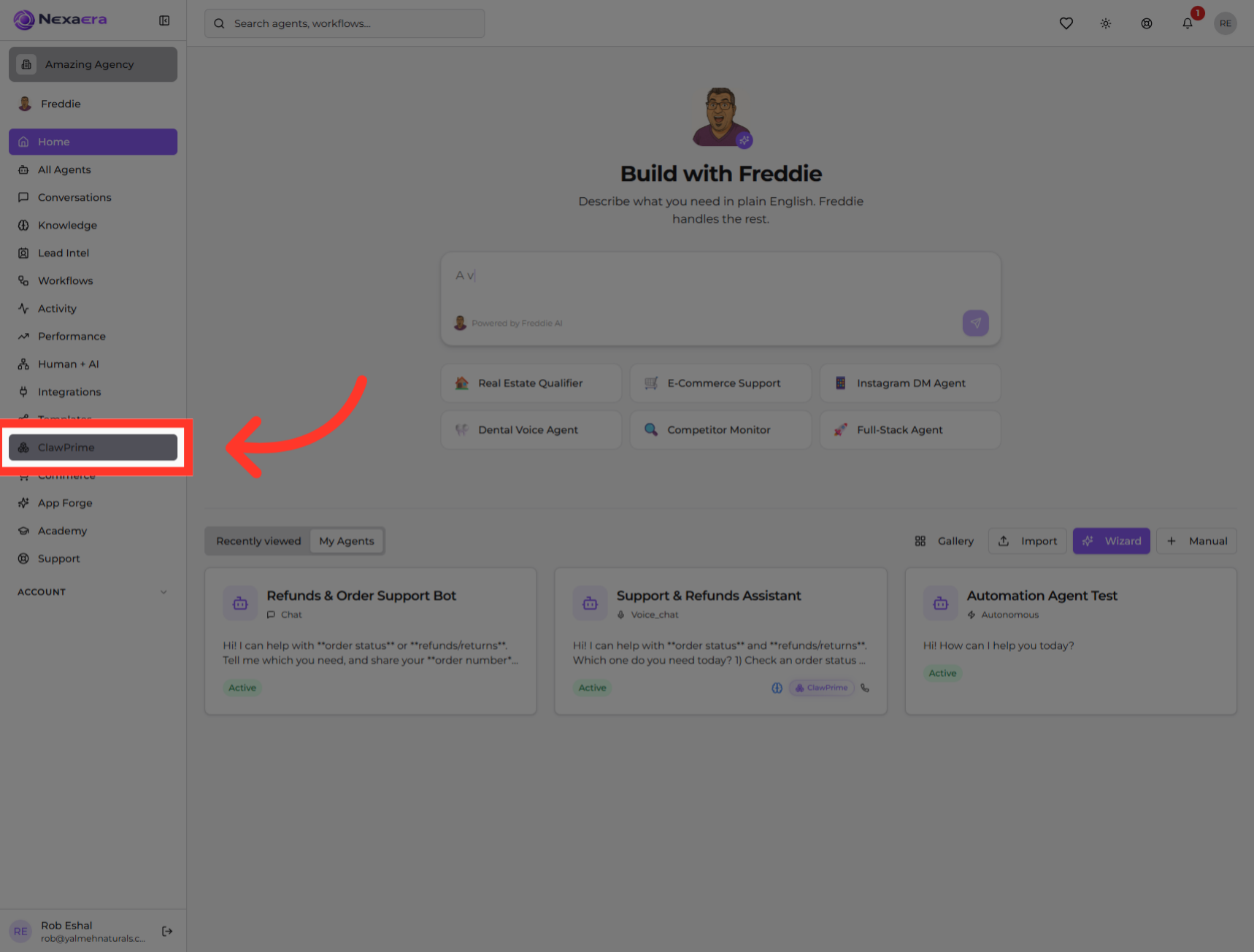
3. Open Compatibility Section
At the top, click the "Compatibility" tab. This dashboard shows how well each of your imported skills fits with your platform's native tools.
4. Select Compatibility Item
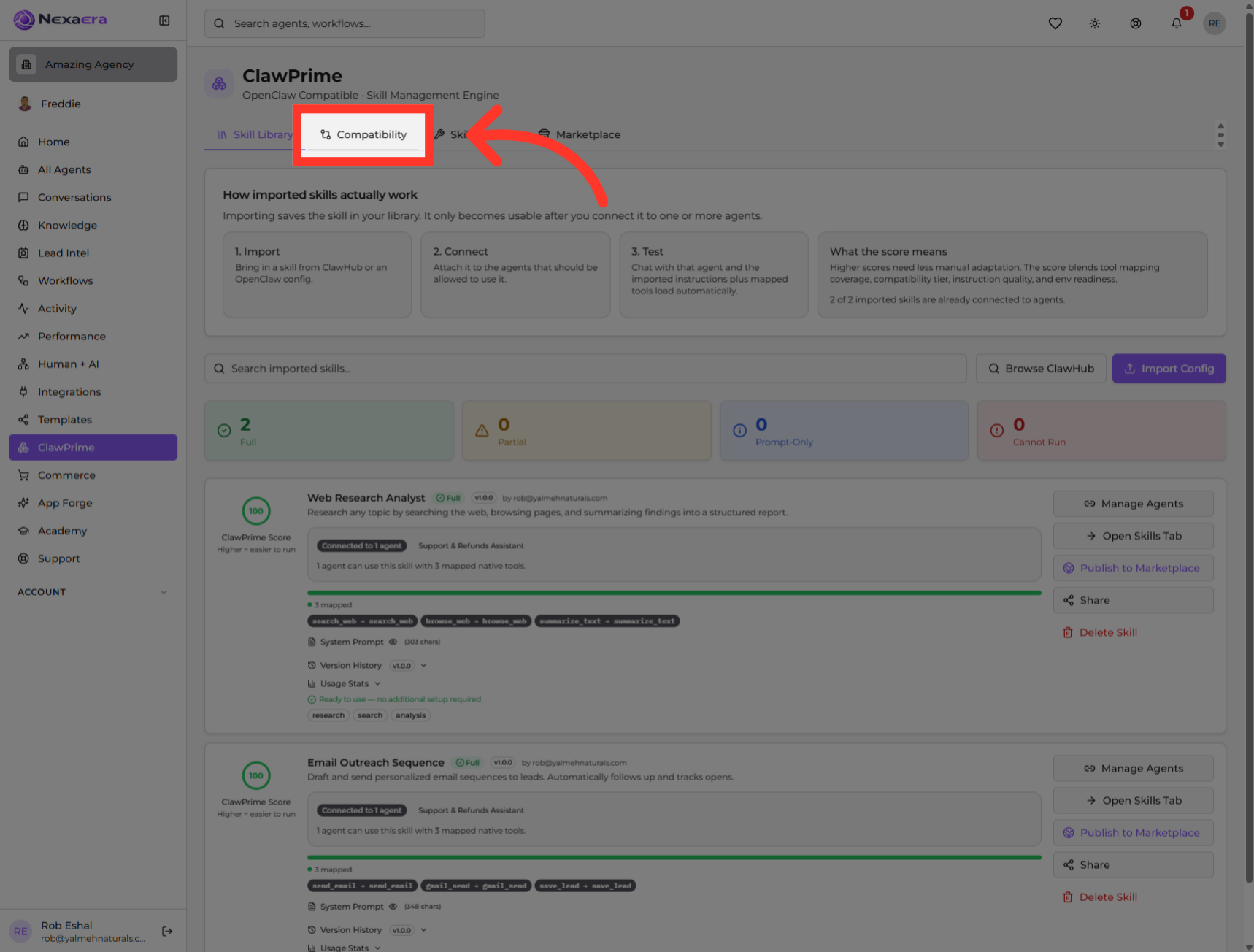
Let's read the metrics up top. "Total Skills" shows how many skills are being analyzed here — your whole imported toolkit at a glance.

5. View Average Score
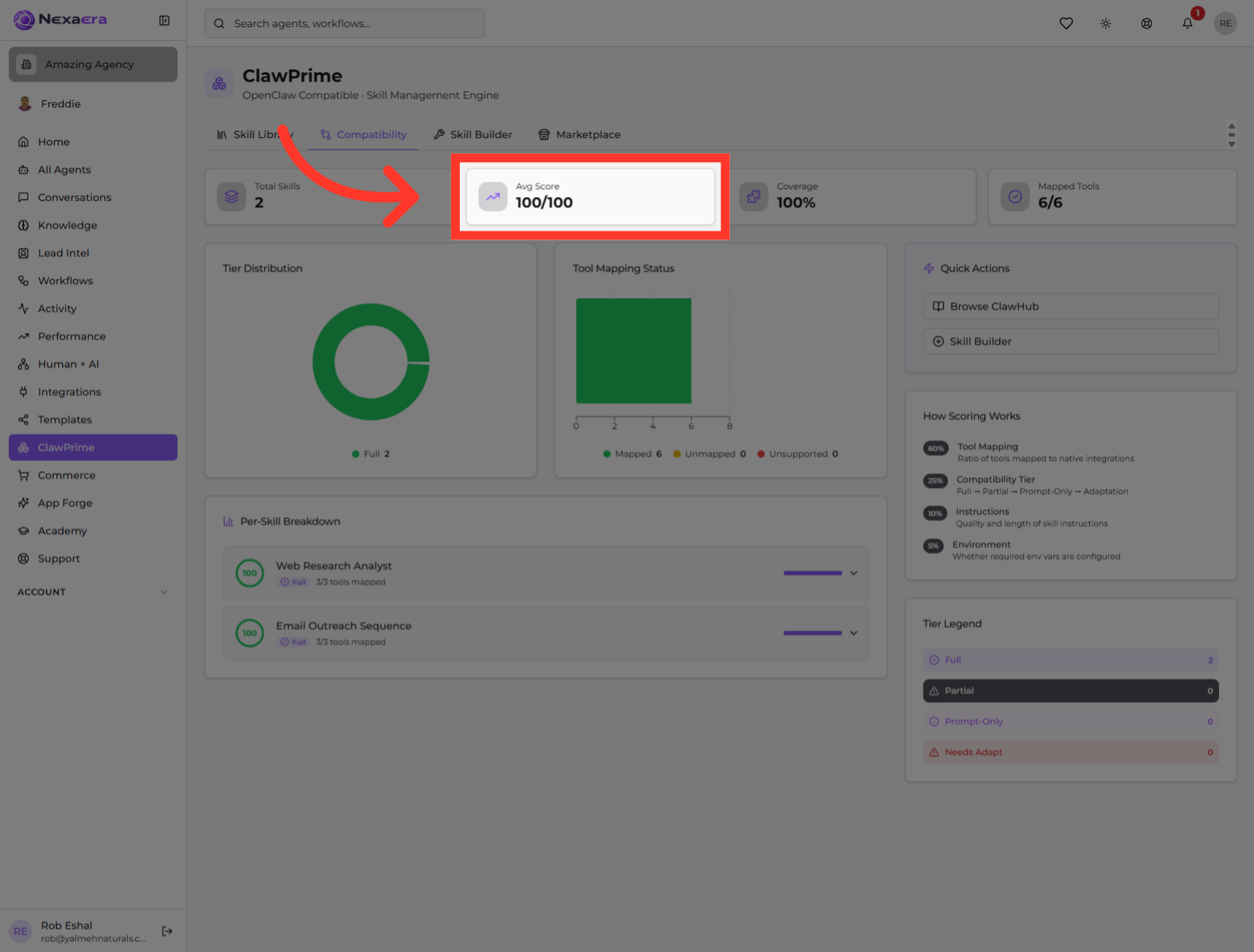
Next is "Average Score," out of a hundred. It's the single best number for overall health — the higher it is, the less manual tweaking your skills need.
6. Check Coverage Percentage
"Coverage" tells you what share of your skills' tools are actually supported. At a hundred percent, everything your skills need is available and connected.

7. Review Mapped Tools
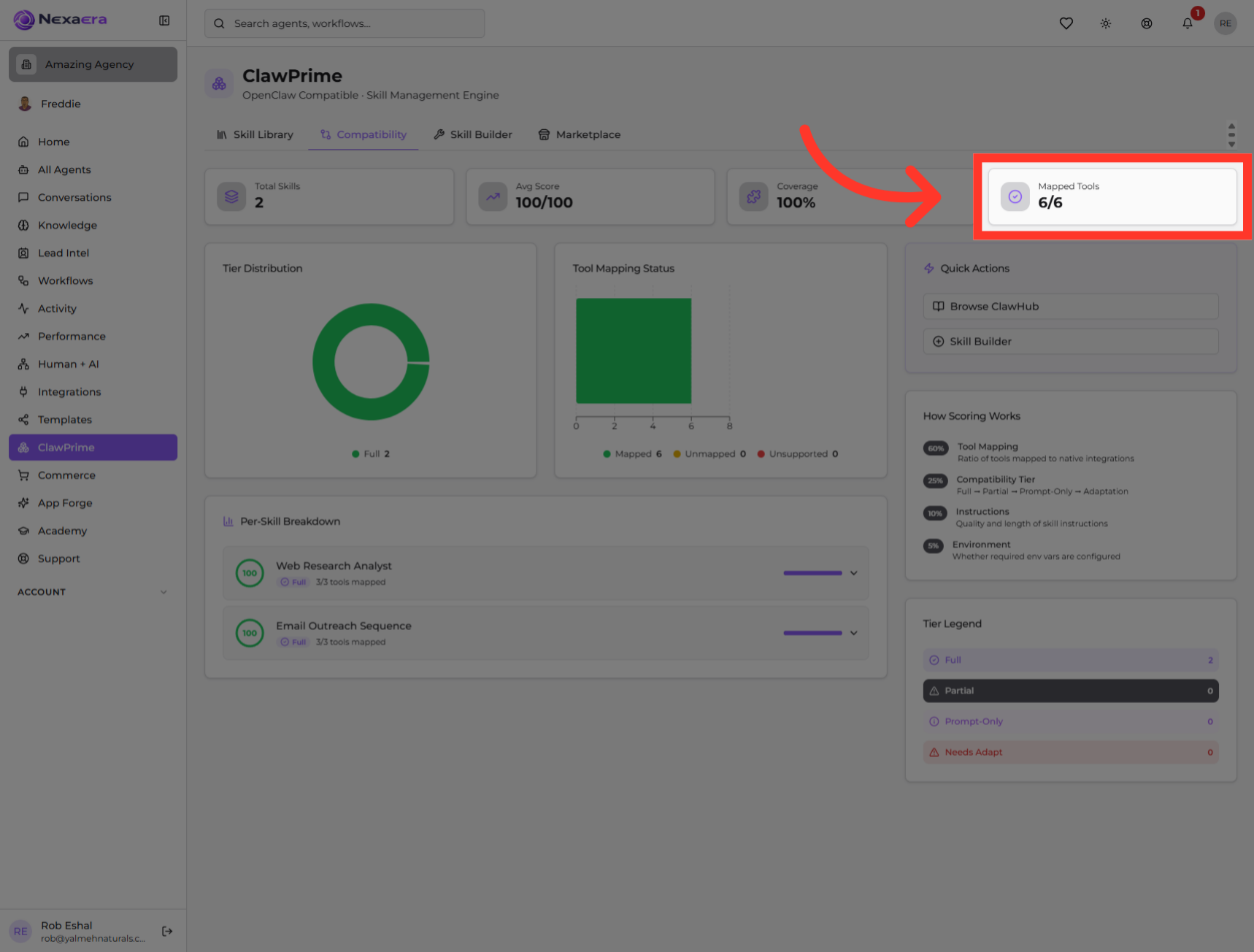
"Mapped Tools" shows how many tool connections are wired up — like six out of six. When both numbers match, nothing's left unmapped.
8. Tier Distributions
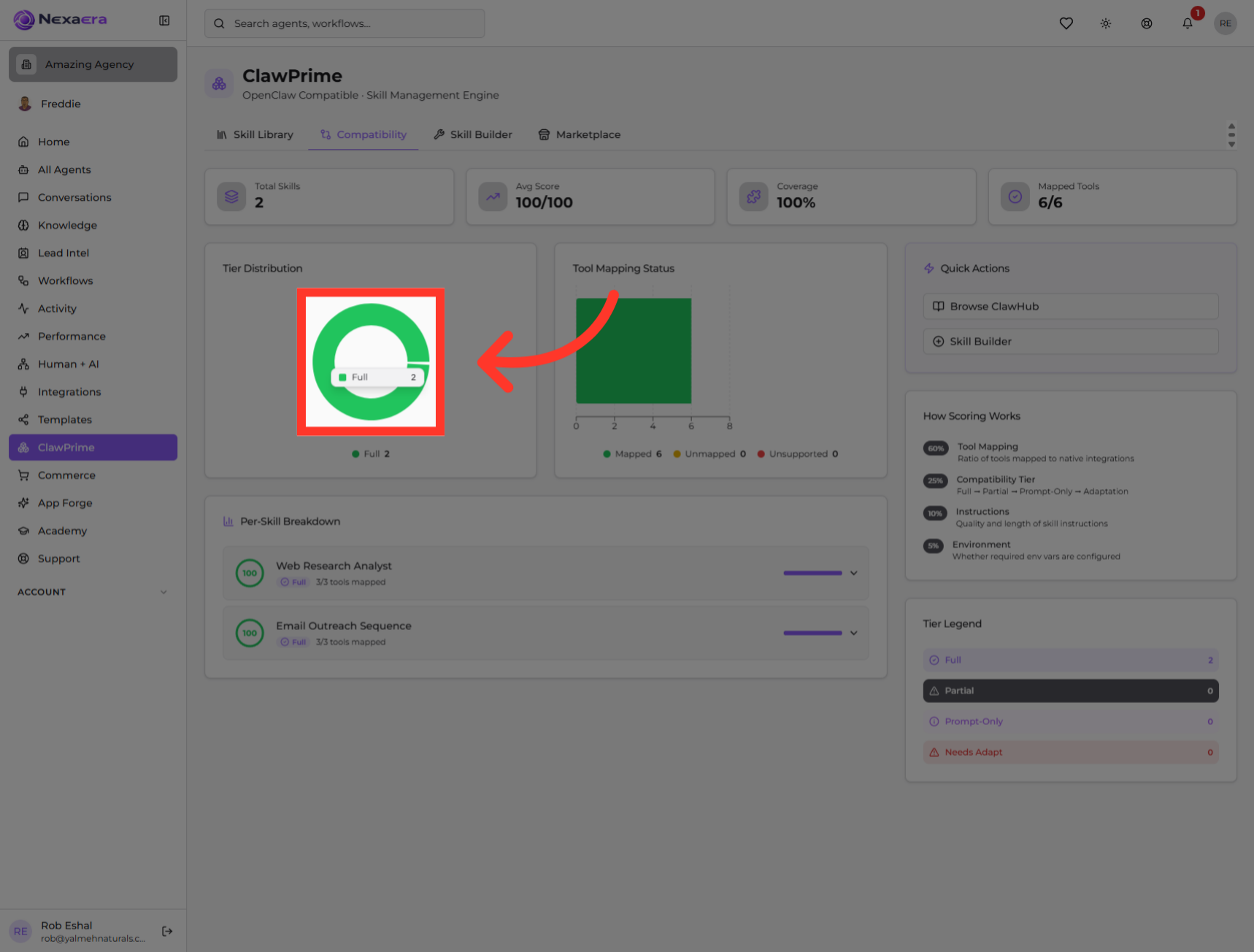
Below that is the "Tier Distribution" donut. It groups your skills by compatibility tier — Full, Partial, Prompt-Only, or Needs Adapt — so you can see the mix at a glance.
9. Browse ClawHub Marketplace
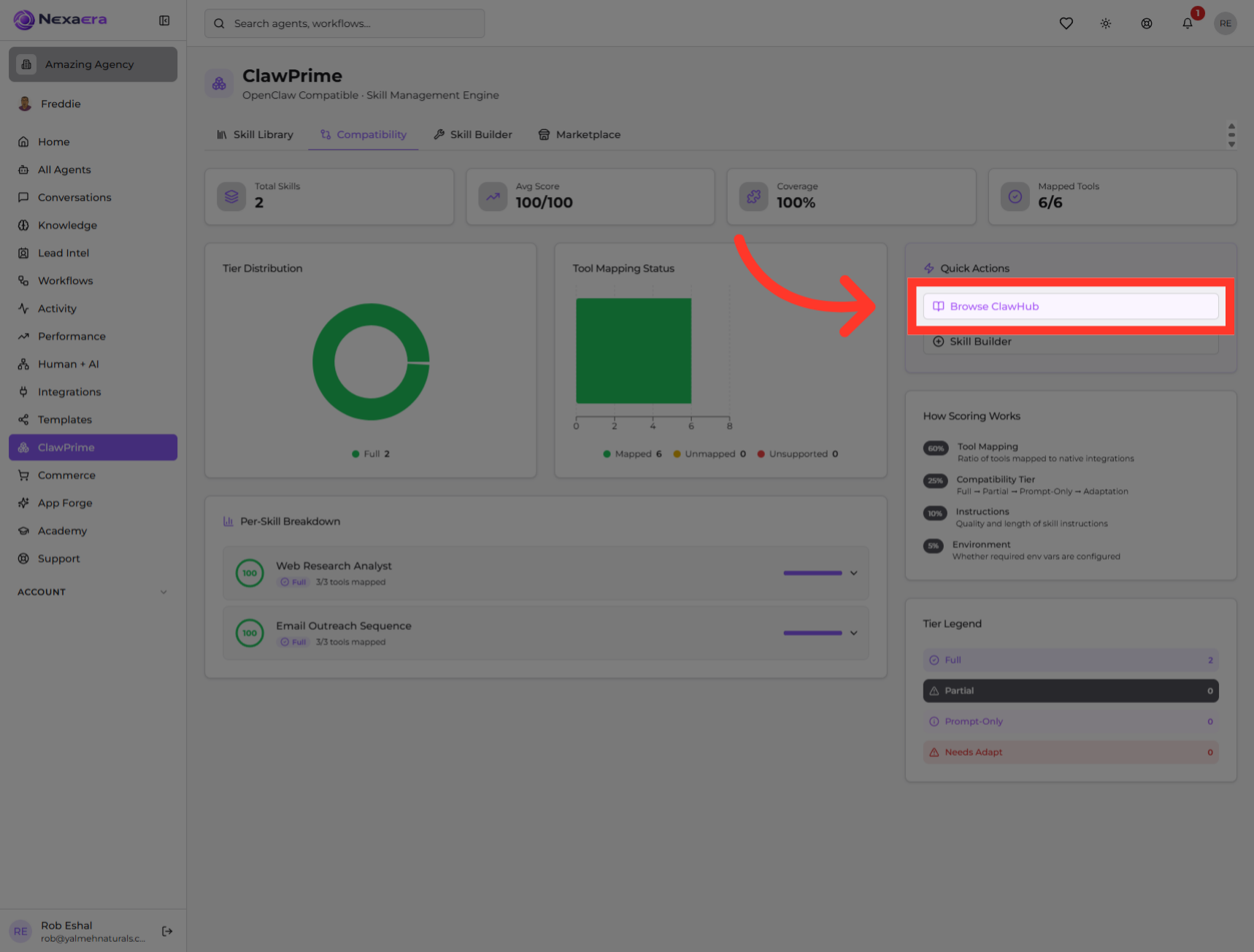
On the right are your Quick Actions. Click "Browse ClawHub" to explore the community marketplace and add more skills to the mix.
10. Select Skill Builder Feature
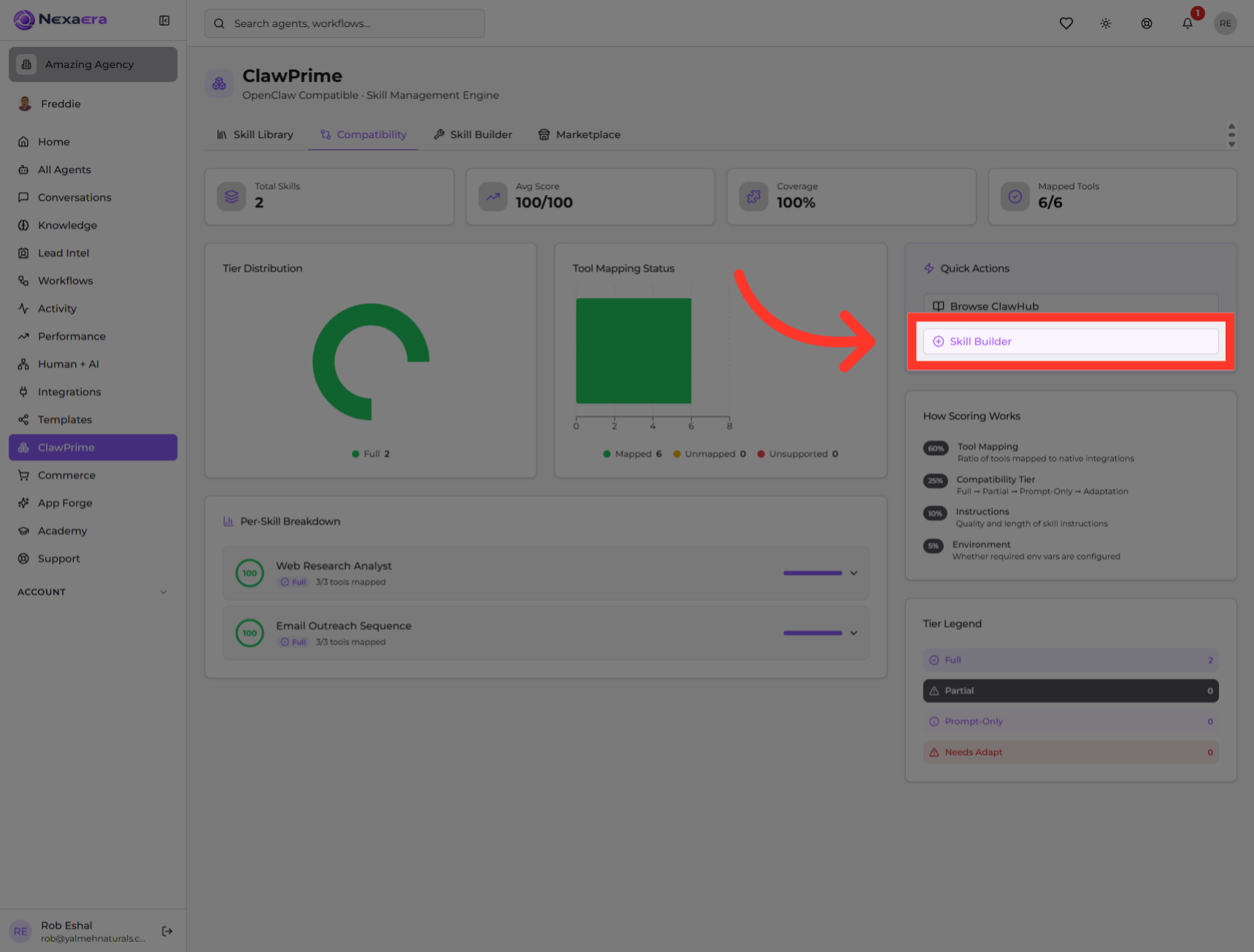
Right below it, "Skill Builder" lets you create your own custom skill with native tool mappings — built to score well from the start.
11. Expand the First Skill's Breakdown
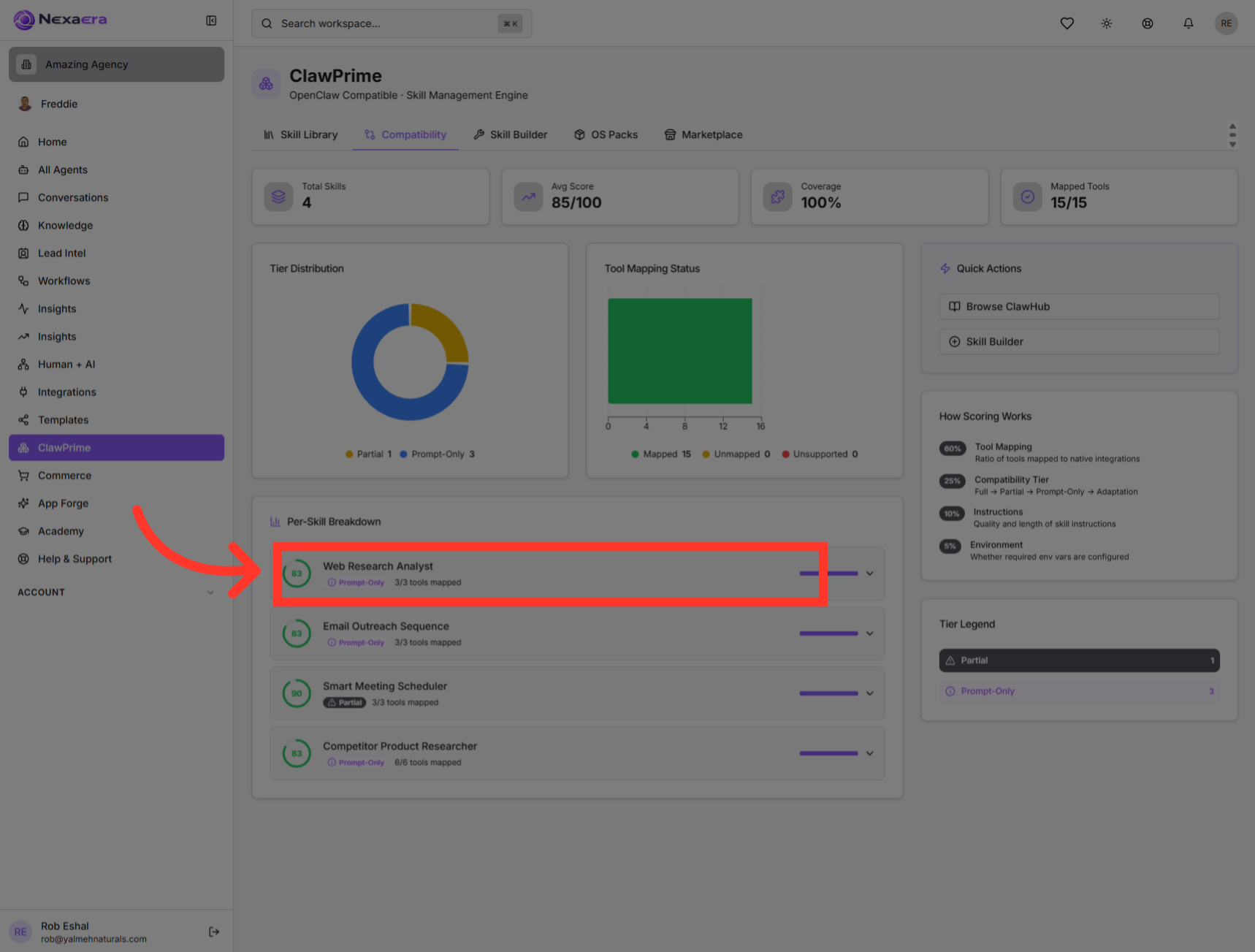
Now scroll to the "Per-Skill Breakdown." Each skill gets its own row. The first, "Web Research Analyst," shows its tier and how many of its tools are mapped.
12. Review the Next Skill
Next is the "Email Outreach Sequence." Same idea — a quick read on its compatibility tier and its tool mapping.

13. Review the Meeting Skill
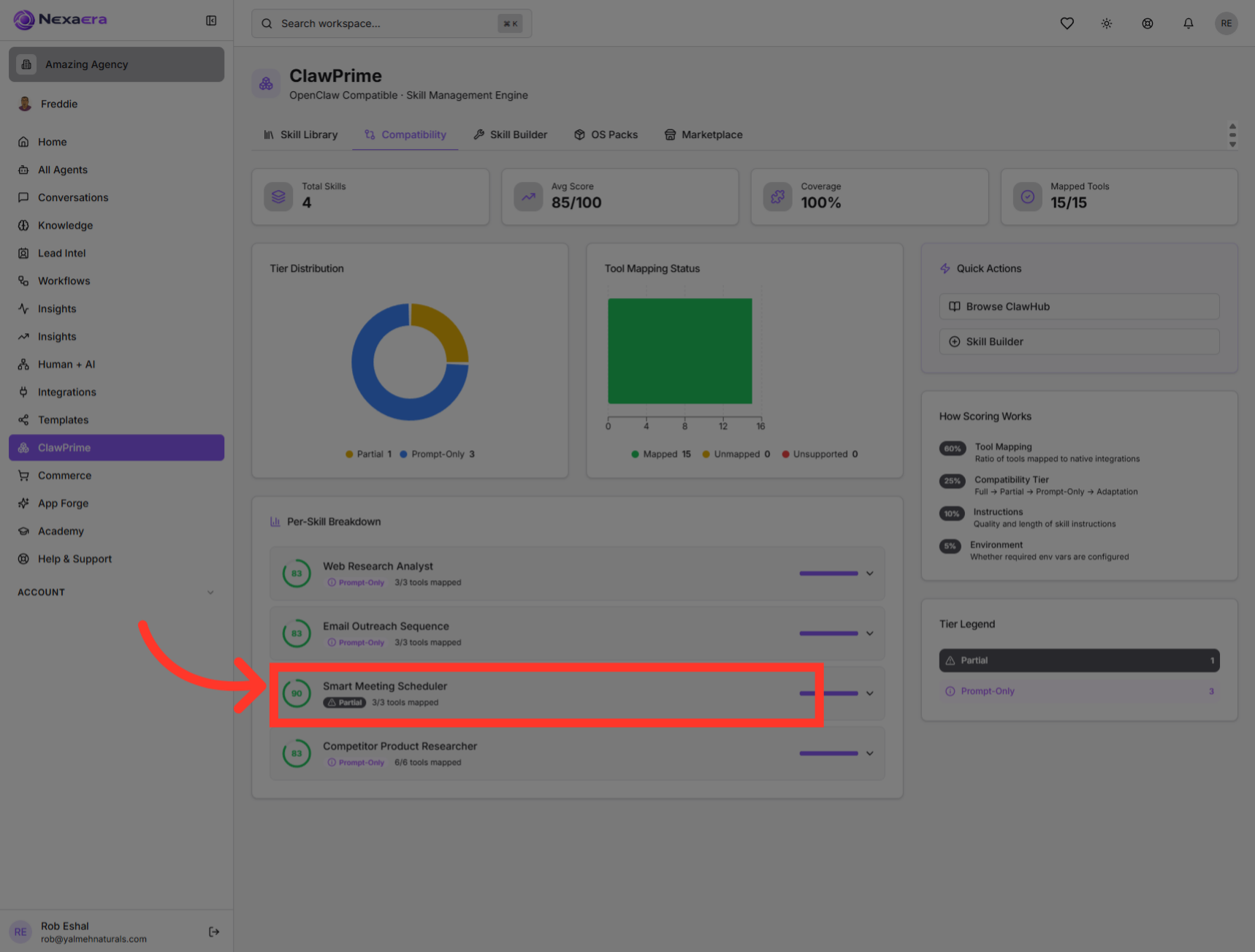
Then the "Smart Meeting Scheduler." Scanning down this list is the fastest way to spot any skill that isn't fully mapped.
14. Review the Meeting Skill
And the "Competitor Product Researcher" rounds out the list. Together, these rows give you a complete health check, skill by skill.

15. Access Tier Legend
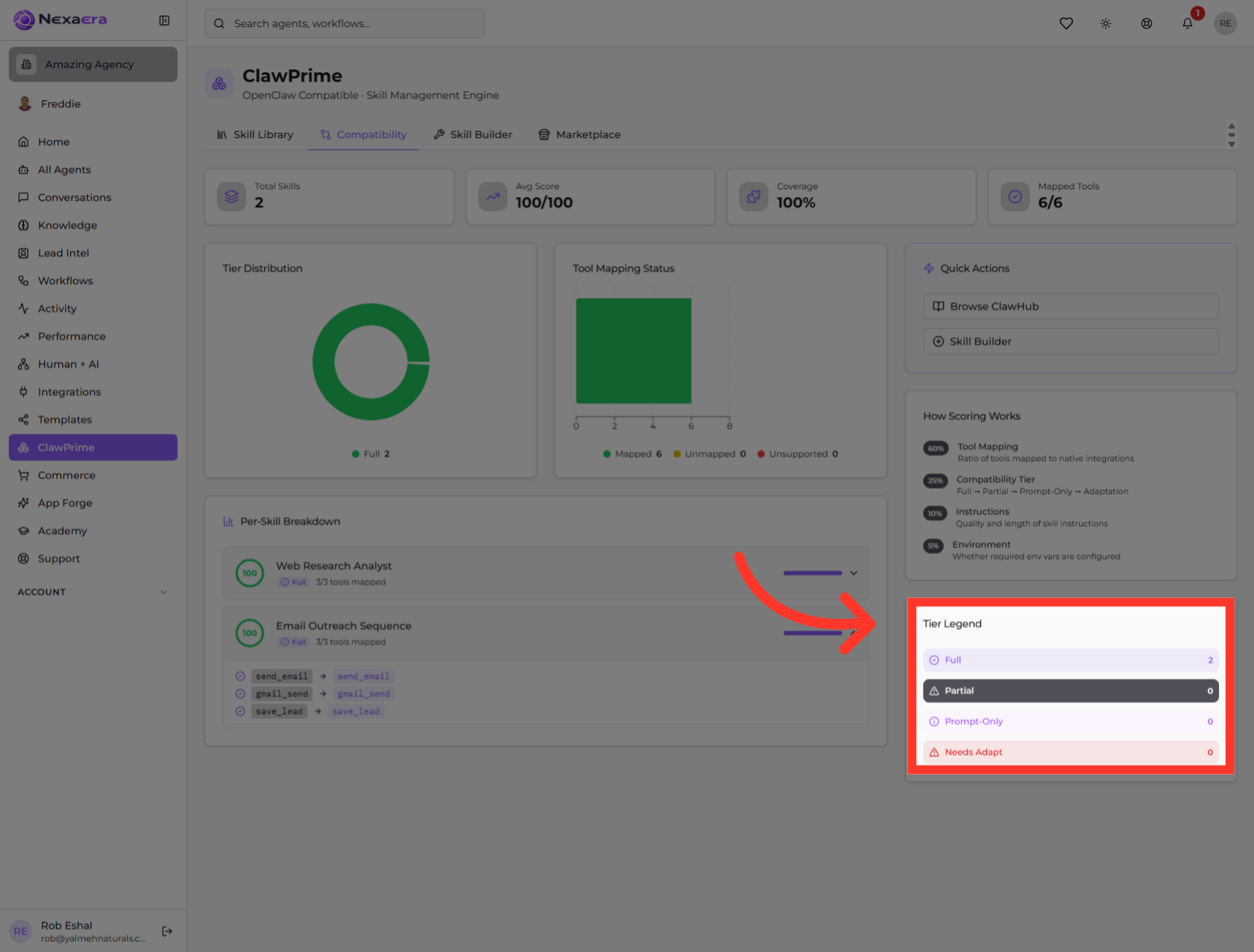
Finally, check the "Tier Legend" on the right. It explains each tier — Full, Partial, Prompt-Only, and Needs Adapt — and shows how many of your skills fall into each. It's your key to reading the whole dashboard.
And that's the Compatibility dashboard. You can now read your scores, coverage, and mapped tools, break it down skill by skill, and know exactly what each tier means. It's how you keep your agents' skills running smoothly. See you in the next one.
Still need help? Ask the team