Access Revenue Insights in NexaEra Dashboard Agents
"Your agent is selling — but how much is it actually bringing in? The Revenue tab gives you the whole picture: total sales, conversion rate, and which products are performing. In this quick walkthrough, I'll show you where to find it and how to read it."
Written By Fred Yalmeh
Last updated About 2 months ago
Go to www.nexaera.com
1. Introduction
"Here's what you'll be able to do by the end: open your agent's revenue dashboard and review its sales, conversion rates, and product performance — so you know exactly what's working."

2. Access All Agents Section
"Start by clicking 'All Agents' in the left menu. This opens the list of every agent in your workspace, along with an overview of their configurations and statuses."

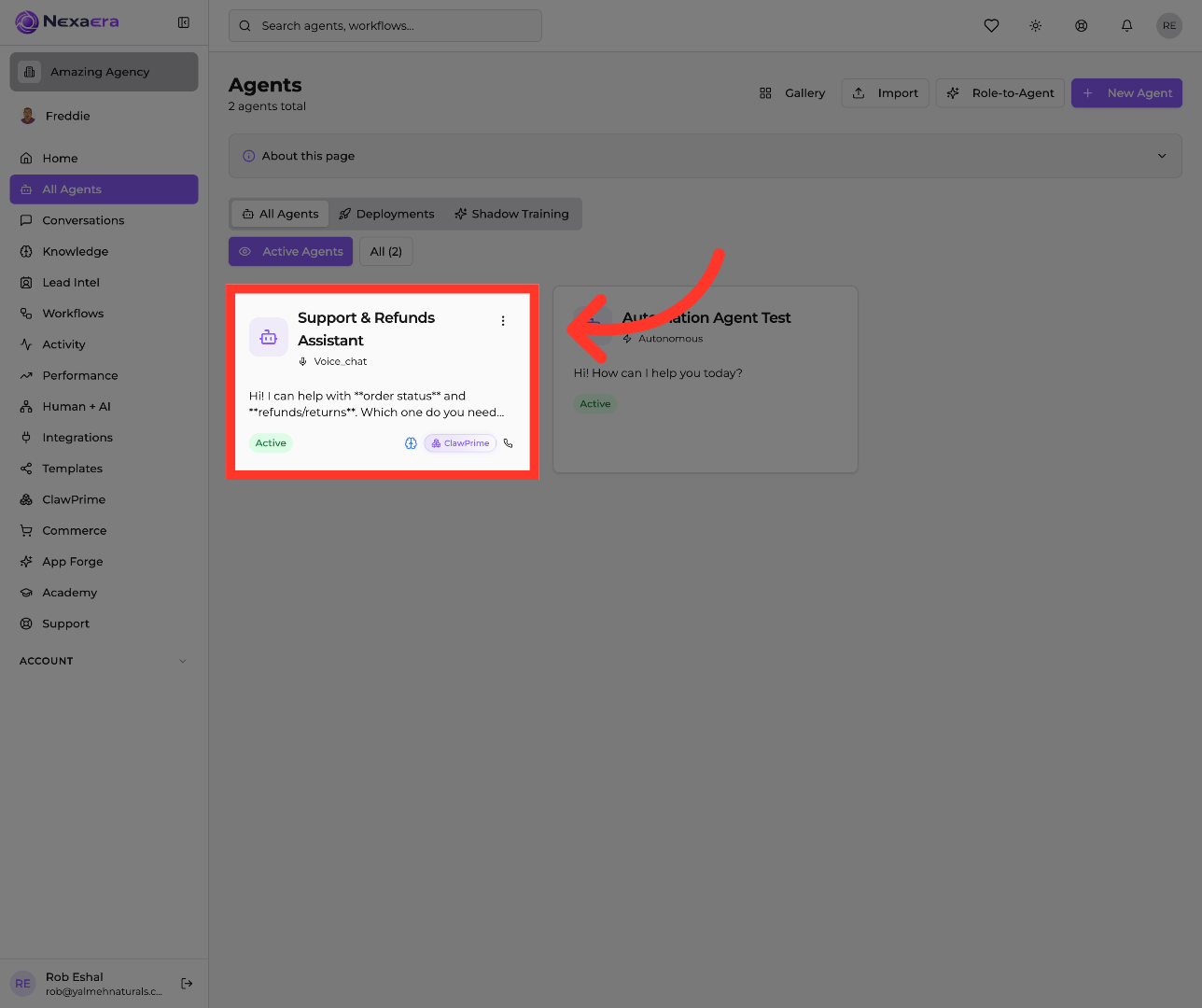
3. Open Support & Refunds Assistant
"Click the agent you want to check — here it's the Support & Refunds Assistant. Pick an existing agent, or create a new one if you're starting fresh."
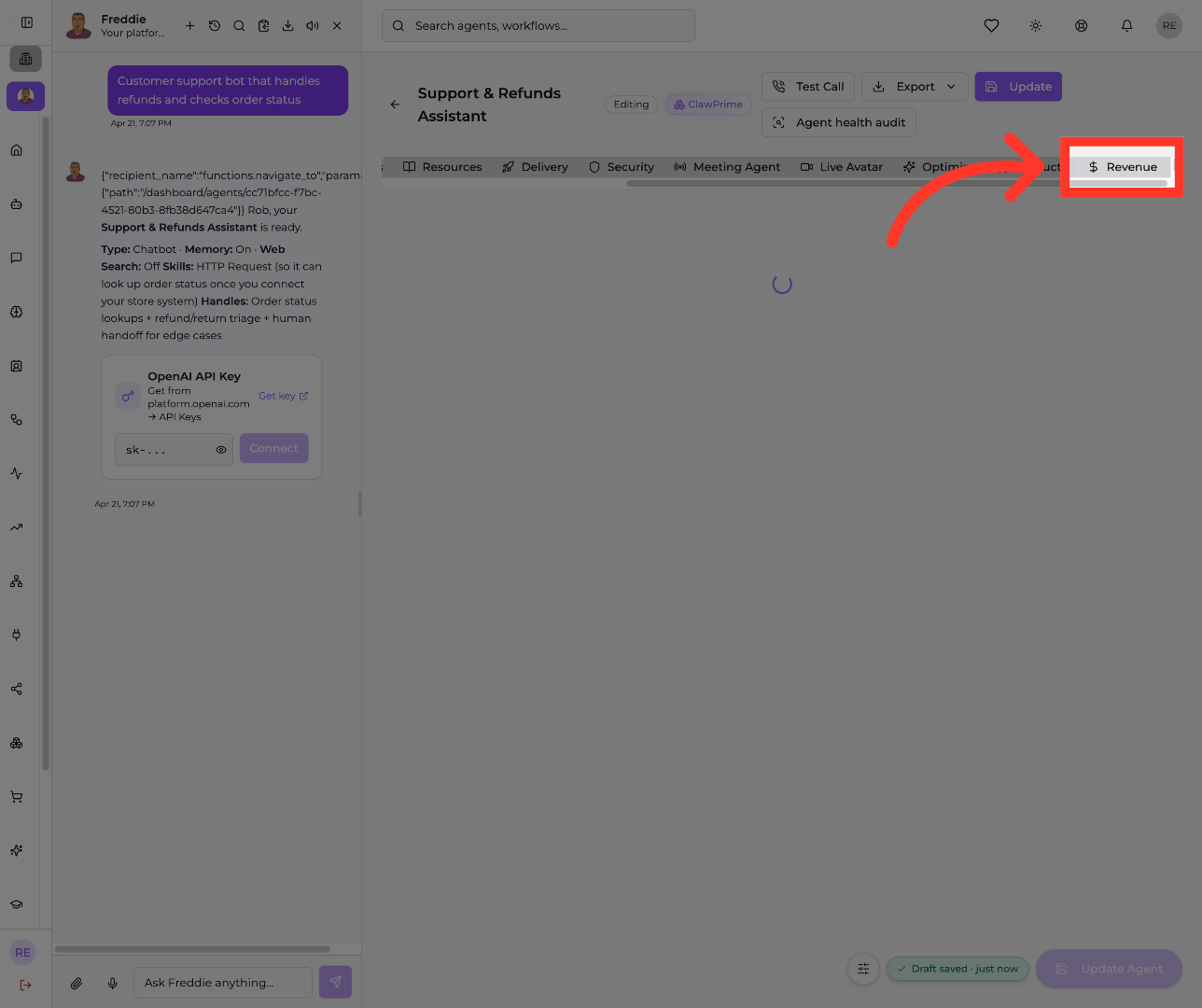
4. Select Revenue Tab
"Along the top of the agent editor, click 'Revenue.' This opens the financial side of your agent — everything it's earned through in-chat purchases."
5. View Revenue Analytics Overview
"Now you're looking at your Zero-Click Revenue dashboard, set to the last 30 days by default. Four numbers up top tell you the story: Total Revenue, Completed Sales, Conversion Rate, and Active Products. Below that, the Daily Revenue chart shows your trend over time, and Revenue by Product shows which items are actually selling. Scroll down for Recent Transactions to see individual purchases. Seeing zeros? That just means no sales in this window yet — check that your products are assigned to the agent."

"And that's your revenue picture in one place. Check in here regularly to see which products are converting and where you're leaving money on the table. Numbers like these make your next decision an easy one. Nice work."
Still need help? Ask the team