Configure Support Agent Settings In NexaEra Dashboard Using Operator Corrections.
"Most AI platforms hand you the same agent on day one and day one hundred. NexaEra is different. Every time a human steps in and corrects your agent, that moment gets captured and baked right back in. No retraining, no fine-tuning bills. In this walkthrough, I'll show you how to turn on Operator Corrections and let your agent teach itself."
Written By Fred Yalmeh
Last updated About 2 months ago
Go to www.nexaera.com
1. Introduction
"Here's what you'll be able to do by the end: open the Corrections tab, switch on auto-capture so every human handover becomes training data, add your own corrections manually, and save it all. This is your agent's self-learning loop."
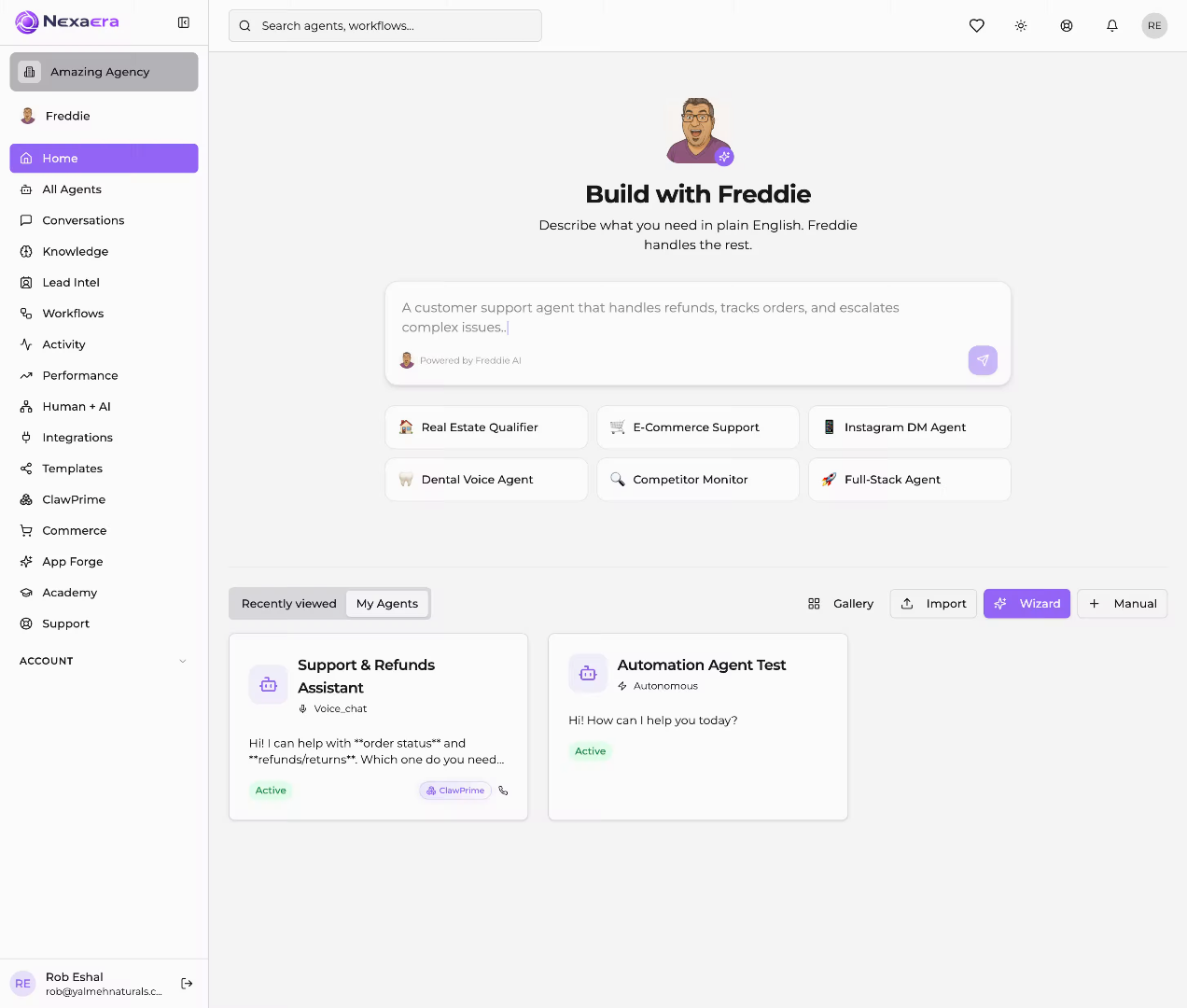
2. Access All Agents Section
"Start by clicking 'All Agents' in the left menu. This opens the list of every agent in your workspace."
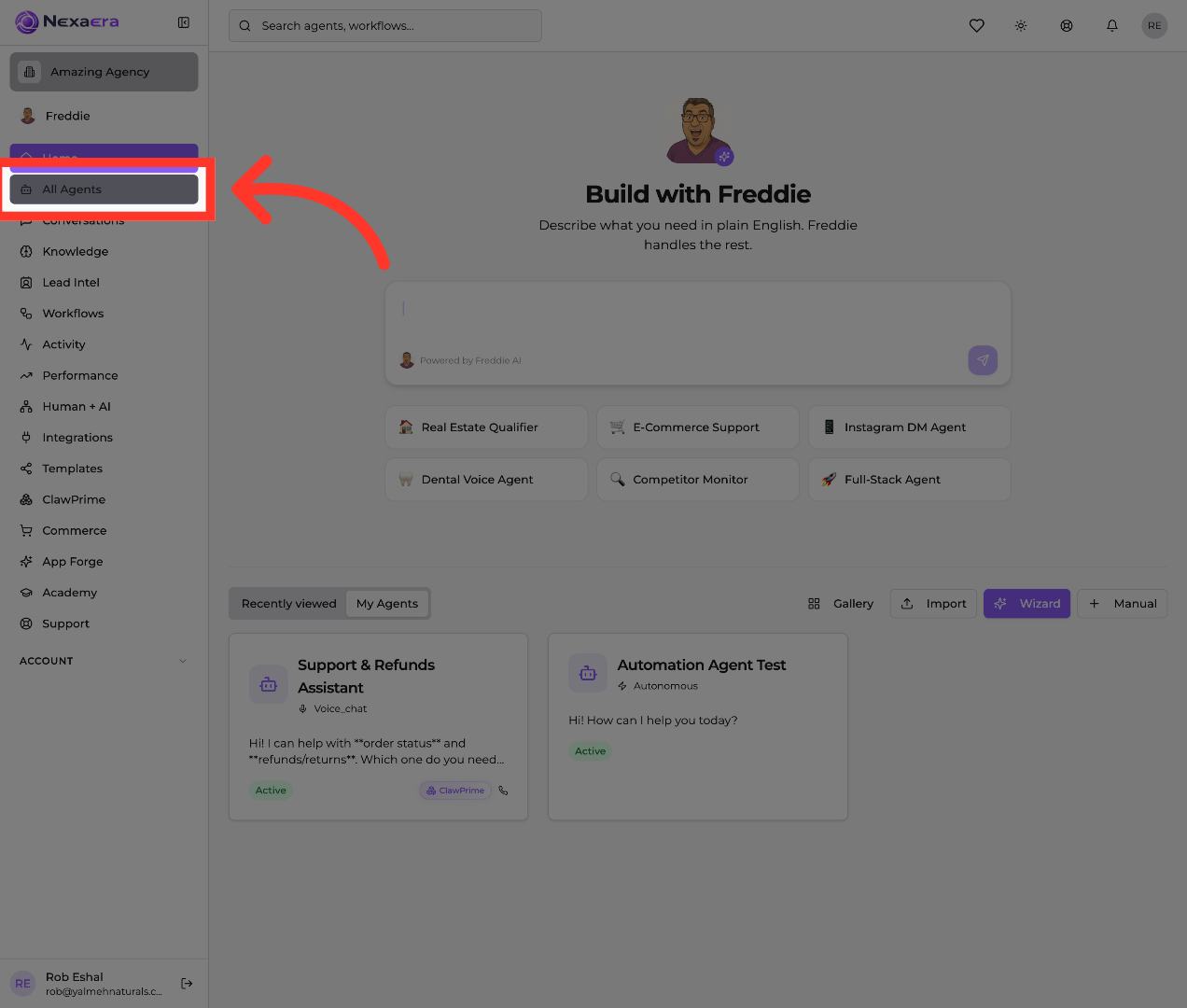
3. Open Support & Refunds Assistant
"Click the agent you want to work on — here it's the Support & Refunds Assistant. Select an existing agent to edit, or create a new one if you're starting fresh."

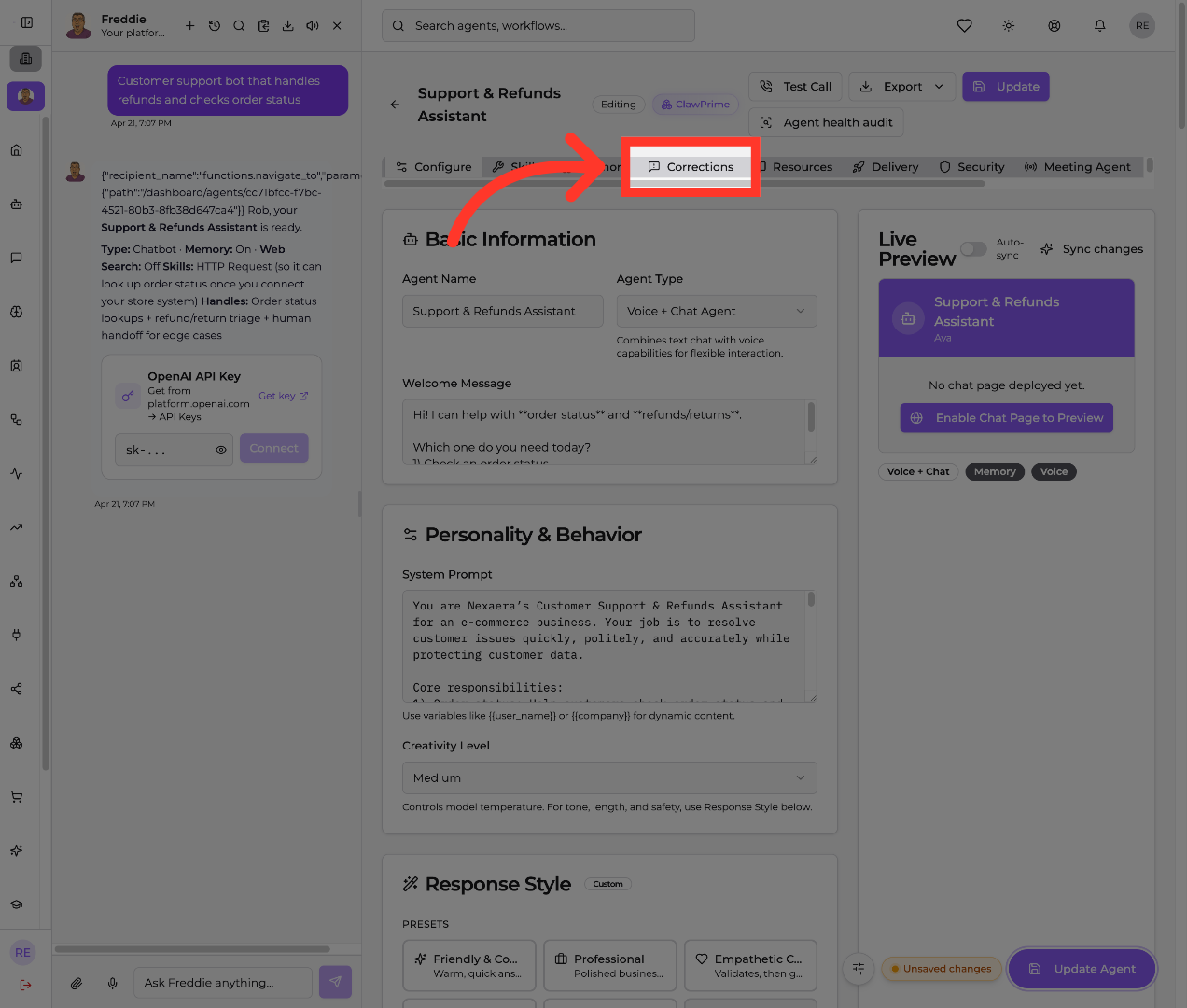
4. Navigate to Corrections Tab
"Along the top of the agent editor, click the 'Corrections' tab. This opens the Self-Learning Loop — where your agent gets smarter every conversation without you lifting a finger. It works in three stages: Capture, Distill, and Deploy."
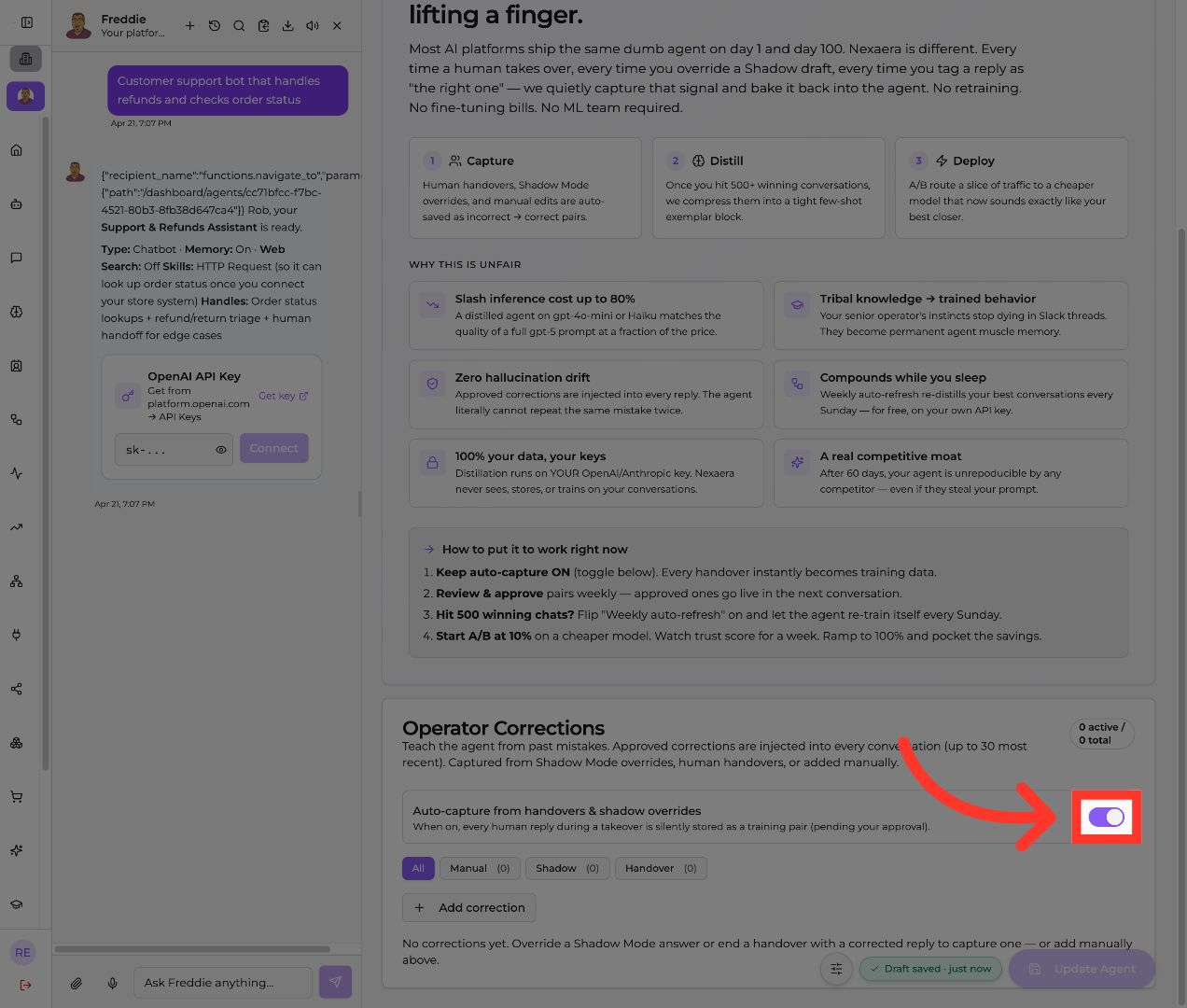
5. Enable Feature Option One
"Scroll down to 'Operator Corrections' and flip on 'Auto-capture from handovers & shadow overrides.' Now every time a human takes over a conversation or overrides a Shadow Mode draft, that reply is quietly saved as a training pair — pending your approval, so nothing goes live without you."
6. Enable Feature Option Two
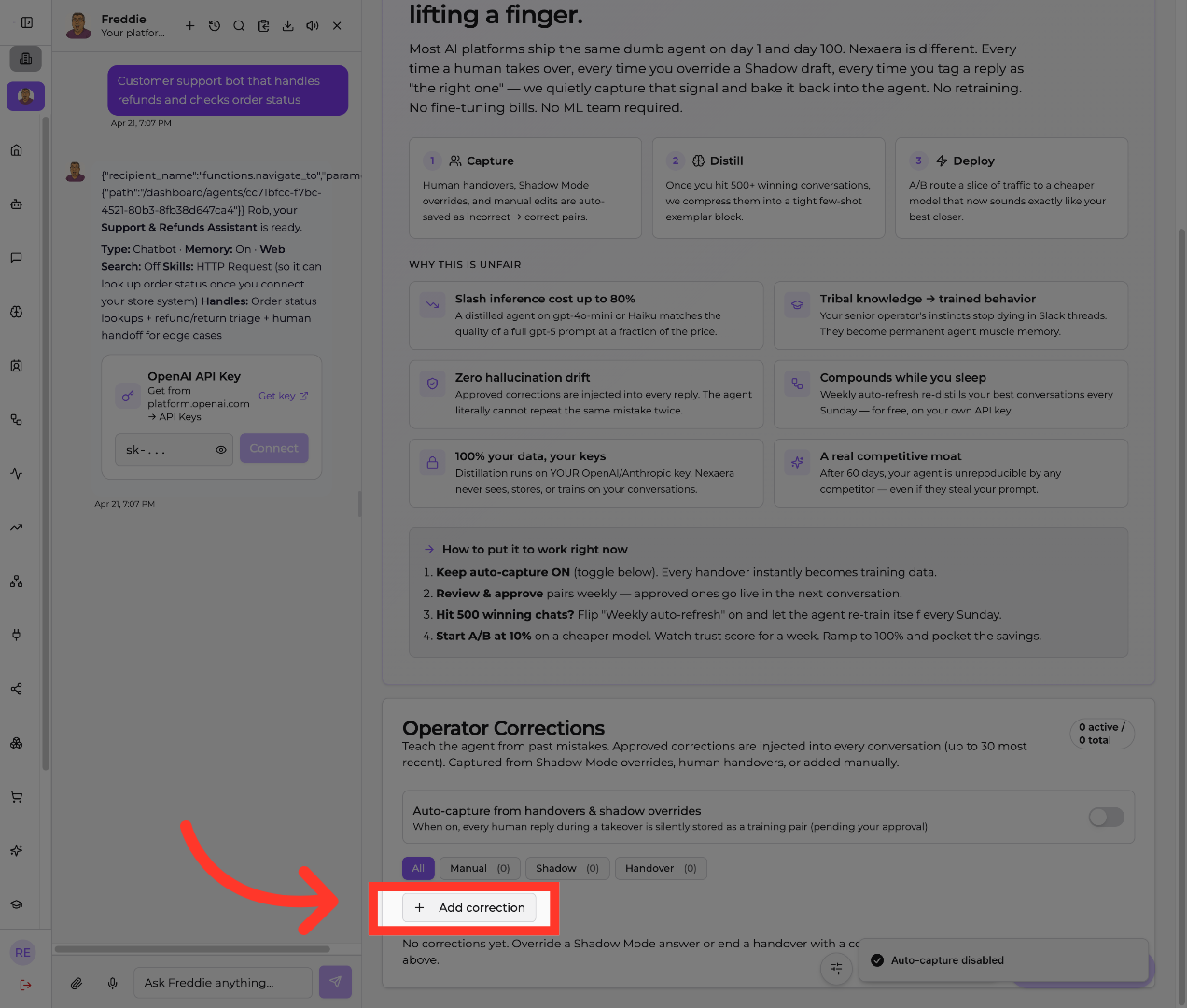
"You can also teach it directly. Click '+ Add correction' to enter a corrected reply yourself. Use the tabs above — All, Manual, Shadow, and Handover — to filter and review what's been captured. Approved corrections get injected into every future conversation."
7. Save Configuration Updates
"When you're set, click the 'Update' button in the top right. This saves your corrections settings and applies them to your agent. You'll see the confirmation that auto-capture is enabled."

"And that's the self-learning loop switched on. From here, review and approve your correction pairs weekly, and your agent keeps sharpening itself — cutting hallucinations and locking in your team's best answers. The longer it runs, the better it gets. Great work."
Still need help? Ask the team