Configure Resources And Trigger Rules In NexaEra Dashboard
"Imagine your agent handing a customer exactly the right guide, video, or FAQ page at exactly the right moment — without you doing a thing. That's what Resources and Trigger Rules do. In this walkthrough, I'll show you how to upload your company knowledge and set the rules for when your agent shares it."
Written By Fred Yalmeh
Last updated About 2 months ago
Go to www.nexaera.com
1. Introduction
"Here's what you'll be able to do by the end: add company knowledge as a resource, upload files or link to external content, and set smart trigger rules that control exactly when your agent offers it up."
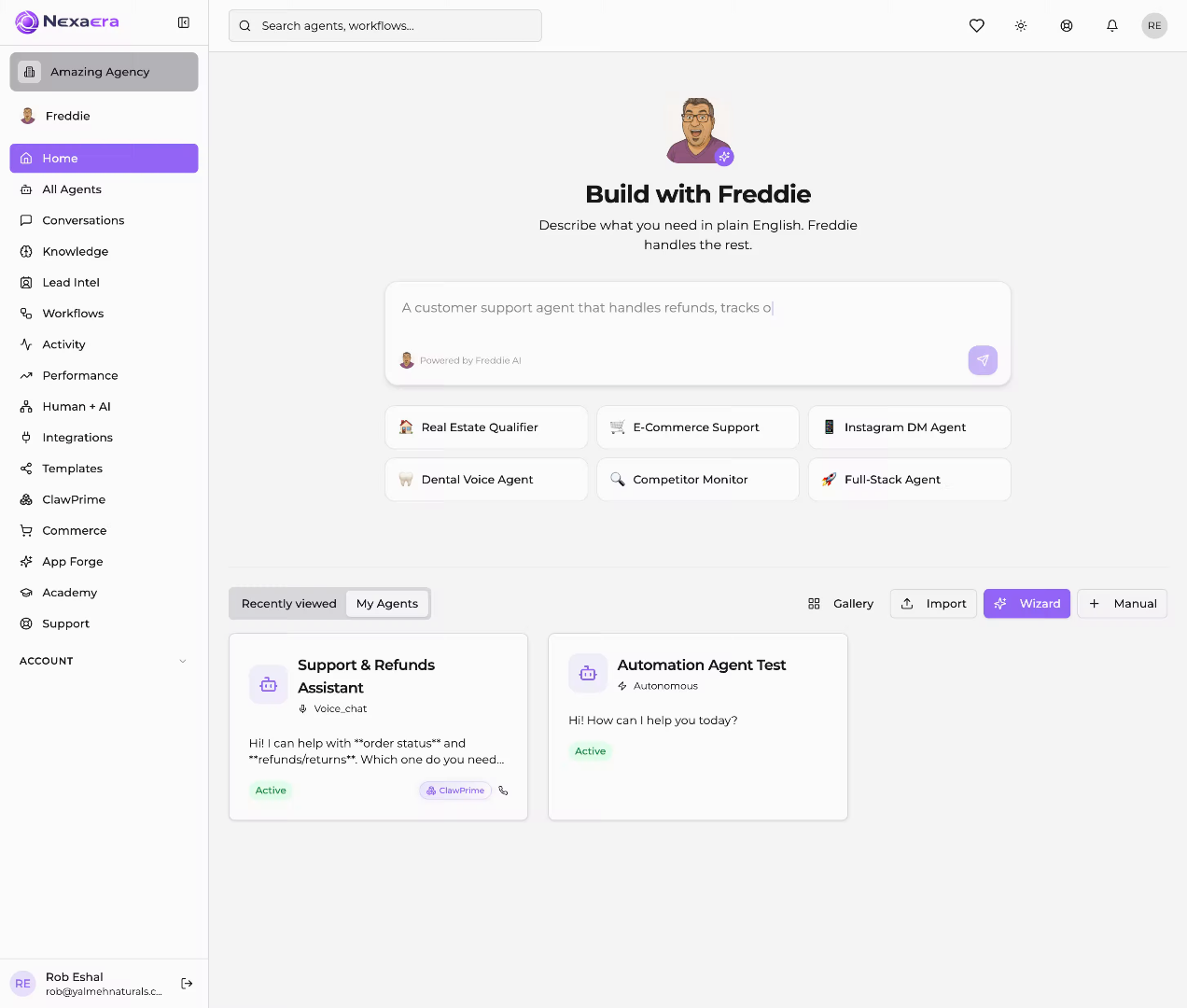
2. Access All Agents Section
"Start by clicking 'All Agents' in the left menu, then open the agent you want to work on — here it's the Support & Refunds Assistant."

3. Open Resources Tab
"Along the top of the agent editor, click the 'Resources' tab. This is where you upload videos, PDFs, ebooks, and links that your agent can share with customers during conversations. It'll offer them up proactively whenever they're relevant."

4. Select Getting Started Guide
"Under 'Add New Resource,' click the Title field and name your resource. Something clear and descriptive works best — like 'Company Knowledge' or 'Getting Started Guide.' This is how you'll recognize it in your list."

5. Describe Resource Content
"Next, click the 'Description / Content' box and explain what's inside. This isn't just for you — your agent reads this to understand when the resource is actually useful. The better the description, the smarter the sharing."

6. Upload Resource File
"Now let's add the actual content. Click 'Choose File' to upload from your computer. NexaEra supports a lot here — videos, audio, PDFs, Word, PowerPoint, Excel, CSV, TXT, JSON, and ePub. Pick whatever fits."

7. Add External Resource Link
"Don't have a file? Use a link instead. Click the 'Resource URL' field and paste in a YouTube video, a docs page, or any web link — like your FAQ page. Your agent will share that URL directly in the conversation."
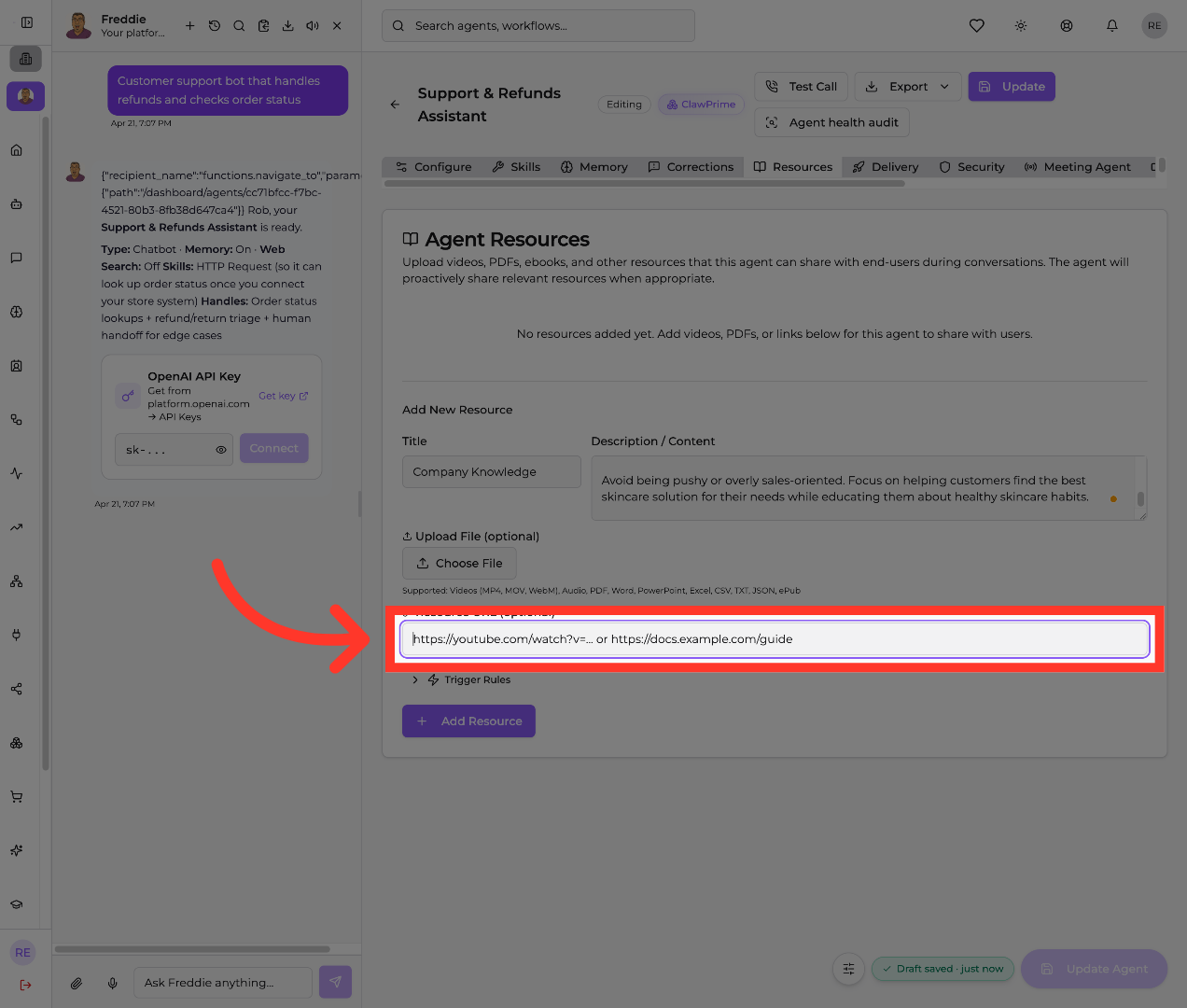
8. Add Resource To Agent
"When your title, description, and content are set, click '+ Add Resource.' It's now saved and attached to your agent — you'll see it appear in the list at the top."

9. Access Trigger Rules
"Here's where it gets smart. Click 'Trigger Rules' to expand the settings that control when your agent shares this resource. Without rules, it's just a file sitting there. With them, it becomes a well-timed answer."

10. Select Asking For Help Rule
"First, click the 'Type keyword and press Enter' box and add words or phrases that should trigger this resource. Type one, hit Enter, and repeat. These are the terms that tell your agent 'now's the moment.'"

11. Choose Troubleshooting Rule
"Next, look at 'Intent Match.' Instead of exact keywords, these check what the customer is actually trying to do. Check the ones that fit — like 'Asking for help,' 'Troubleshooting,' or 'Onboarding.' There's also 'Requesting a tutorial,' 'Exploring features,' and 'Pricing / buying.'"

12. Set Trigger To Only When Asked
"Now choose when to offer it, under 'When to Offer.' 'Proactively' lets your agent decide using keywords and intent. 'Only when asked' shares it only on explicit request. 'Always in welcome' offers it in the very first message. Or use 'After N messages' to wait until the conversation warms up."

13. Enable Proactive Trigger
"Finally, click the 'Description for Agent' box and write a plain-English instruction — something like 'Show this when someone asks about getting started.' This gives your agent the extra nudge it needs to share at just the right moment."

14. Update Trigger Settings
"When everything's set, click the 'Update' button in the top right. This saves both your resource and its trigger rules and pushes them live to your agent."

"And that's it. Your agent now has real company knowledge on hand and knows exactly when to share it — no awkward info dumps, no missed opportunities. Add as many resources as you like, each with its own rules. Nicely done."
Still need help? Ask the team