Configure Anthropic API Integration
"Need an Anthropic API key so you can build with Claude? In about a minute, I'll walk you through creating one, copying it, and saving it — straight from the Claude Console."
Written By Fred Yalmeh
Last updated 2 months ago
Go to platform.claude.com
1. Switch To Claude Platform
"Your API key is what tells Anthropic, 'Hey, this request is really me.' You'll need it any time you call Claude from your code, your app, or any tool that talks to the Anthropic API. Let's go grab one." "First, head over to platform.claude.com and sign in to your Anthropic account. You'll land on the Claude Console — this is the home base for everything API-related, including your keys."

2. Create New API Key
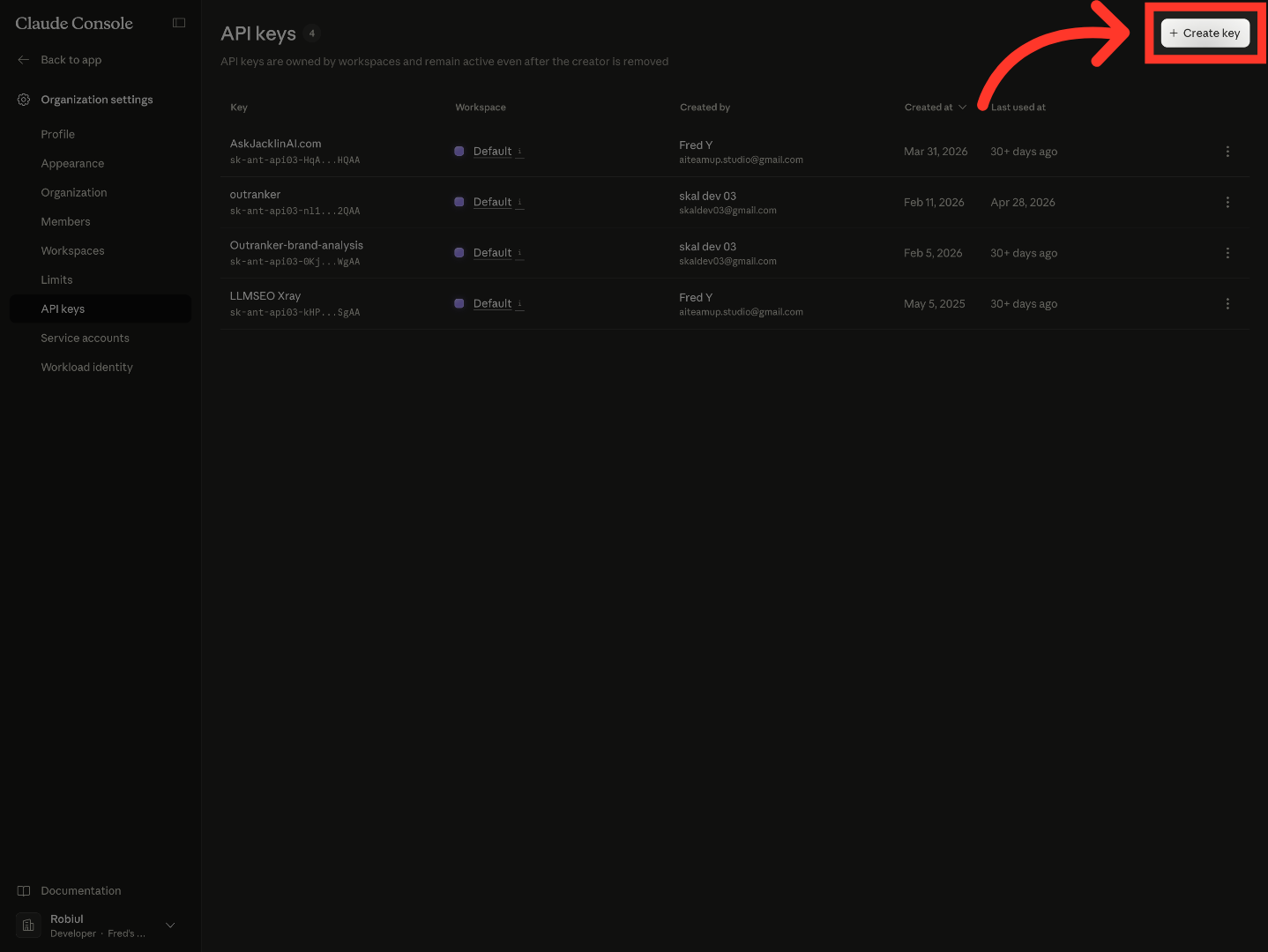
"On the left sidebar, look under 'Organization settings' and click 'API keys.' This is where every key on your account lives." "In the top-right corner, you'll see a button that says '+ Create key.' Go ahead and click it — that opens a small popup where we'll set things up."
3. Name Your API Key
"Now let's give your key a name — anything that helps you remember what it's for. I'll just type in 'My App Key' here. Six months from now, when you're staring at a list of keys, you'll be glad you labeled it."

4. Add API Key
"Once you're happy with the name, hit 'Add.' Anthropic generates your key on the spot."

5. Copy API Key
"And here's the big moment — your full API key. Pay close attention to the warning right above it: 'You won't be able to view it again.' Anthropic means it. Click 'Copy key' to grab the full key, then paste it somewhere safe right now — a password manager is perfect." "Once you've safely stored your key, click 'Close.' That's it — your new key is locked in and ready to use."

"And that's a wrap — you've created your Anthropic API key, copied it, and saved it somewhere safe. You're ready to start building with Claude. Happy shipping, and I'll catch you in the next one."
Still need help? Ask the team