Create And Manage API Keys In MiniMax Platform
Think of your API key as the password your code uses to talk to MiniMax. Every request carries it, so the platform knows it's really you. We'll generate one, name it, and copy it somewhere safe — because MiniMax only shows you the full key one time.
Written By Fred Yalmeh
Last updated 2 months ago
Go to platform.minimax.io
1. Introduction
First, head over to platform dot minimax dot io. This is the MiniMax developer hub — it's where you'll find the docs for every model they offer. Take a quick look around if you like, but what we're really here to do today is generate the secret key that unlocks all of it. So let's go grab one.
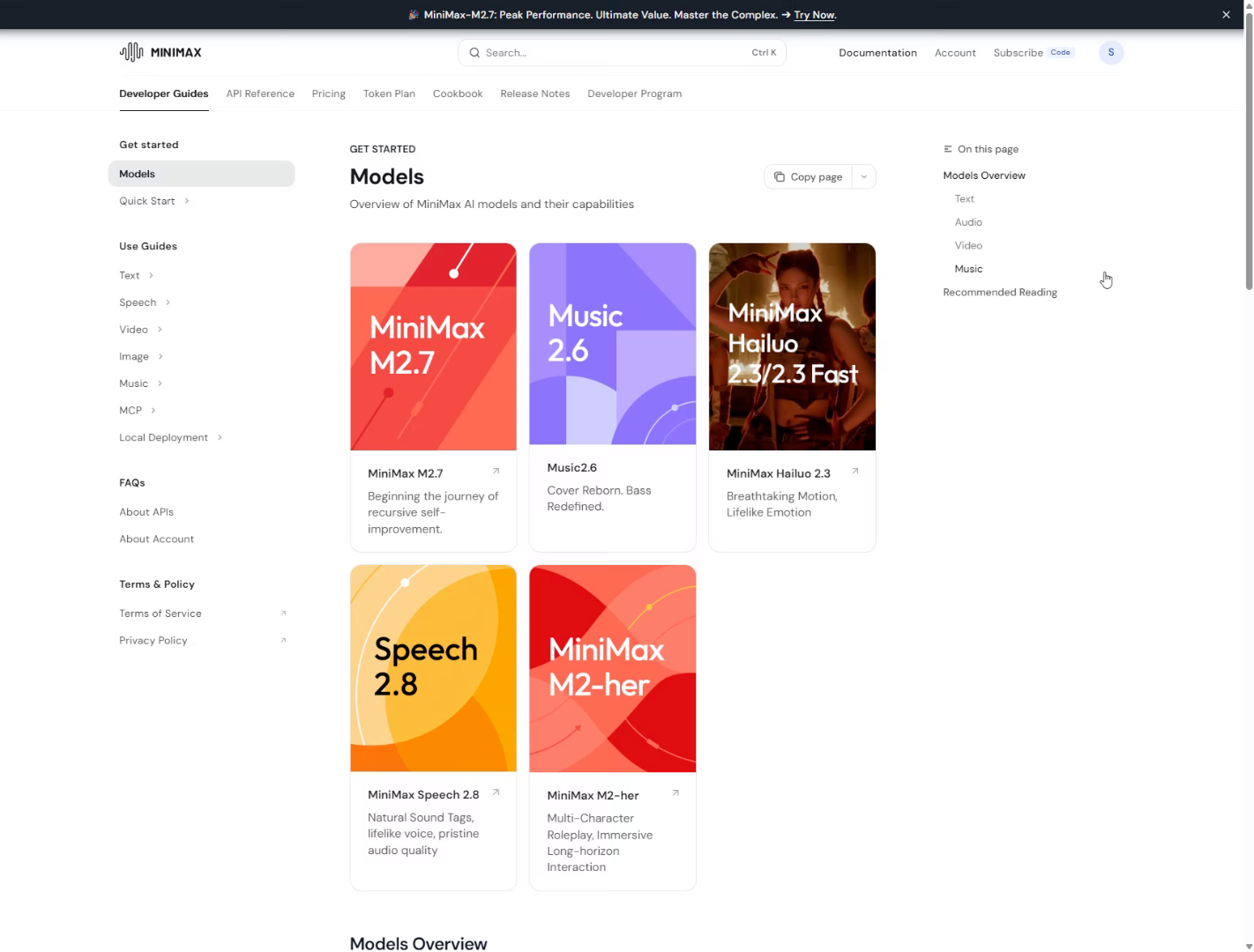
2. Access MiniMax Models Section
Now look up to the top-right corner of the screen. See that little circle with your initial in it? That's your profile button. Go ahead and click it — that opens up your account settings, which is exactly where your API keys live.

3. Open API Keys Settings
Once you're in your account, look at the menu on the left and click "API Keys." This is your control center for every key on your account — where you create new ones, see when they were last used, and remove the ones you don't need anymore

4. Initiate New Secret Key Creation
If this is your first time here, the list will be empty — that's totally normal. Click "Create new secret key" to get started. A small pop-up window will appear where we'll set everything up.

5. Select Key Name Field
Click inside the name field and give your key something you'll actually recognize later — like the name of the project or app it's for. If you end up running a few different integrations, good names will save you a real headache down the road.

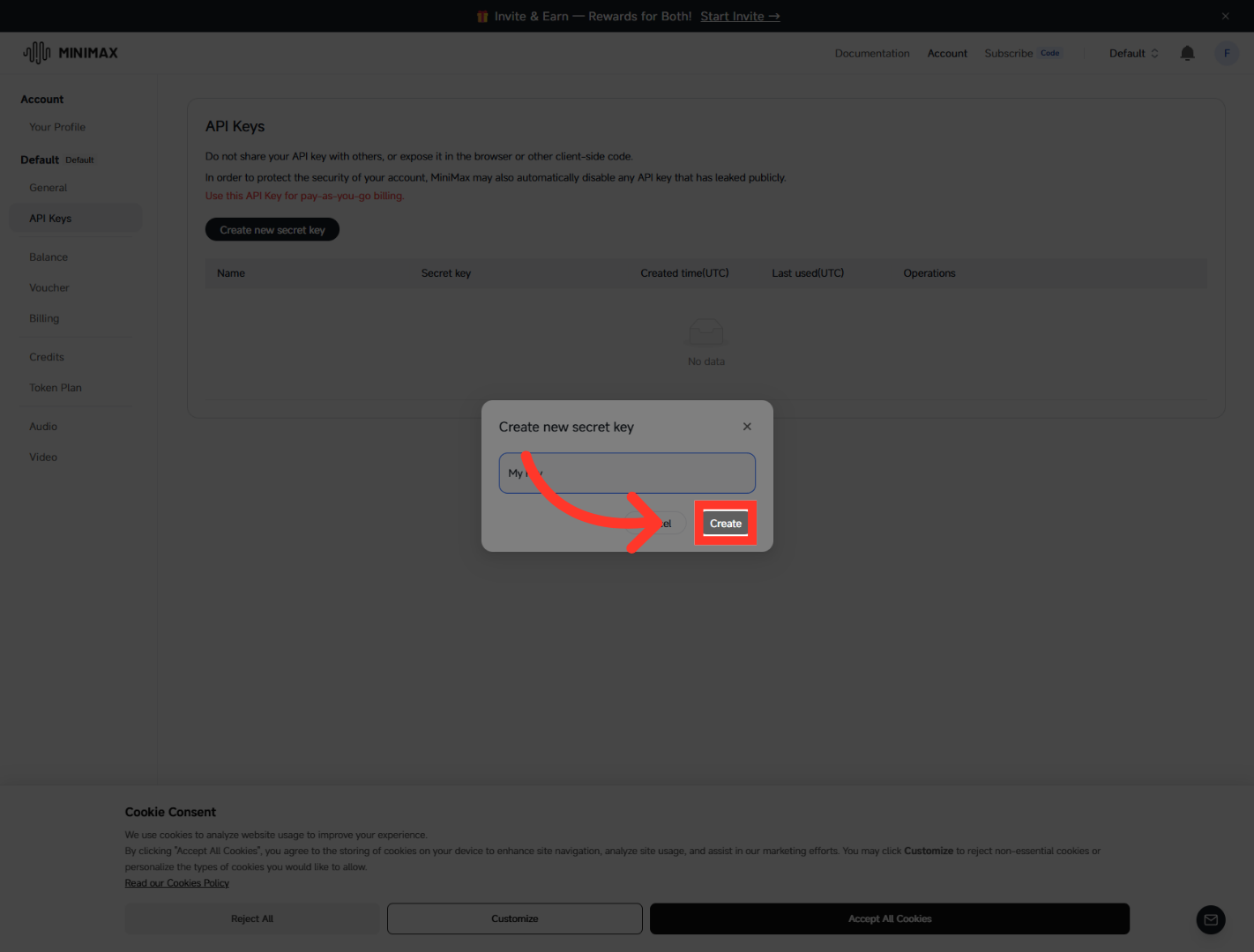
6. Create The API Key
With your name in there, click "Create." And just like that, MiniMax generates your brand-new secret key.
7. Access Key Details
Here's the most important moment in the whole process. Your full key is now on screen, but only for right now. Click the copy icon next to it, then paste it somewhere safe — a password manager is perfect. For security reasons, MiniMax will never show you this full key again. Lose it, and you won't recover it — you'll just have to make a new one.

8. Confirm API Key Creation
Once you've safely copied it, click "Confirm." That closes the window out, and your new key now shows up right there in your API Keys list — ready to use.

And that's it — you've got a live MiniMax API key. Drop it into your app's authorization header, and you're ready to start making calls to any MiniMax model. Whenever you need to rotate a key or shut one down, you just come right back to this same API Keys page. Happy building!
Still need help? Ask the team