Create And Manage API Keys In Weaviate Cloud
Want to connect Weaviate to your own app, an automation, or an AI agent? You'll need an API key — and in about two minutes, I'll walk you through creating one, assigning its role, and saving it. Quick context: Weaviate is a vector database that powers search and memory for AI apps, and an API key is the secure password your software uses to connect to your cluster. You also choose what the key can do, so you stay in control. Let's log in and set one up.
Written By Fred Yalmeh
Last updated About 2 months ago
Go to console.weaviate.cloud
1. Access Team Section
Start by signing in over at console.weaviate.cloud. Once you're in, you'll land in the console, with your menu down the left side and your cluster details in the main area.
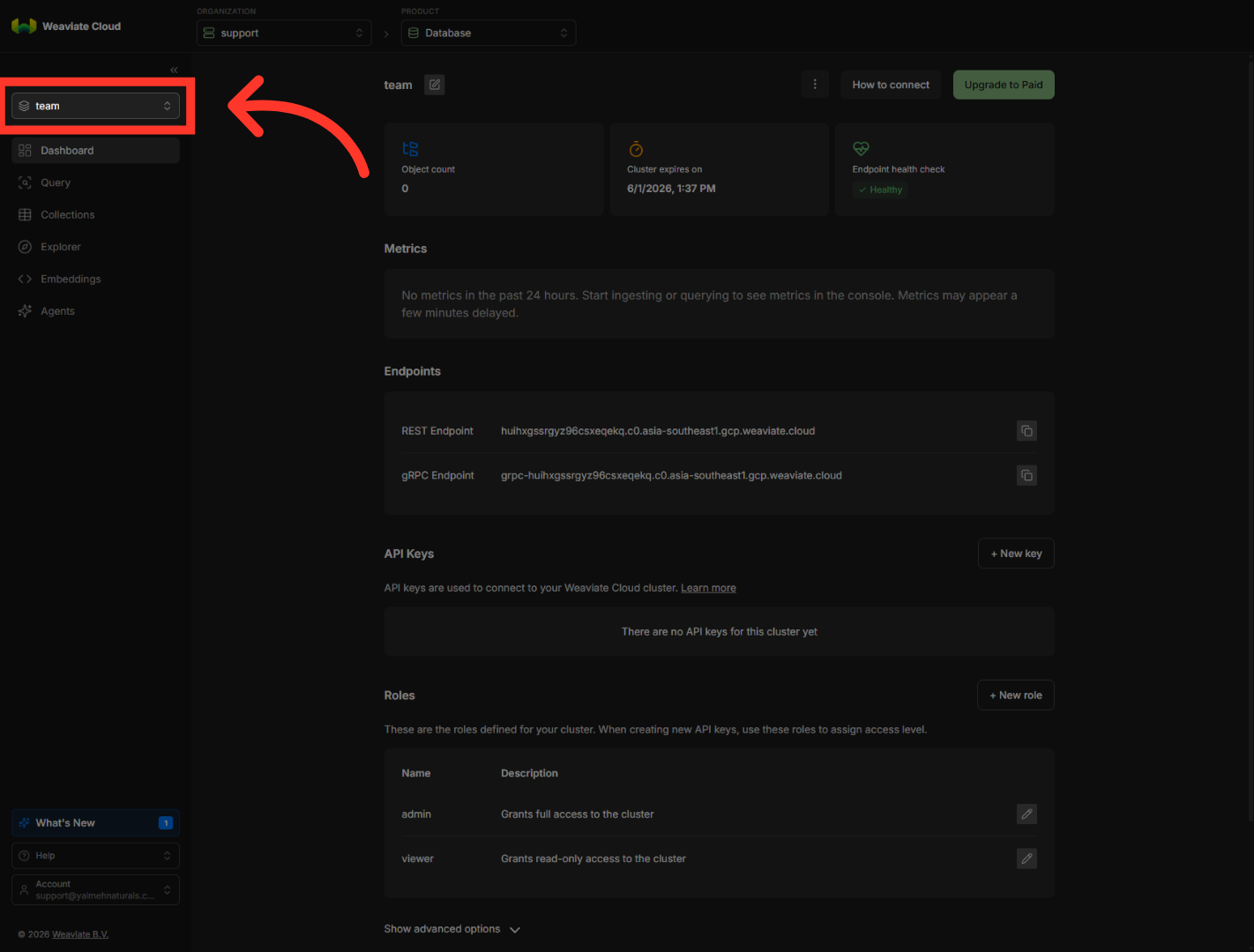
2. Open Sandbox Team
In the sidebar, click your cluster to open it. If you're on the free tier, this is your sandbox cluster. This brings up all its details, including where we manage keys.
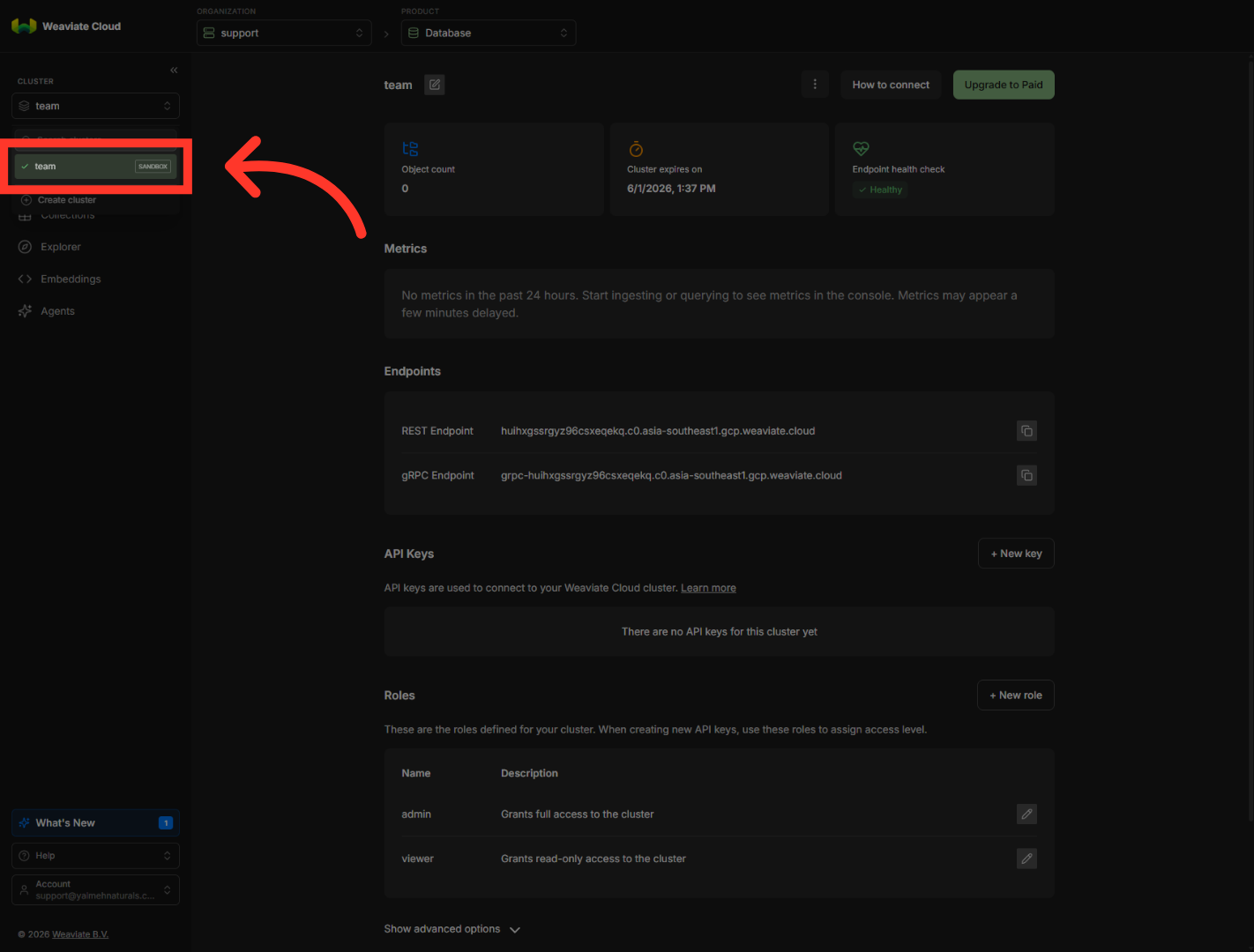
3. Initiate New Key Creation
Scroll to the "API Keys" section. If you don't have any keys yet, it'll say so. To make one, click "Plus New key" on the right. A "Create API Key" window will open.

4. Enter API Key Name
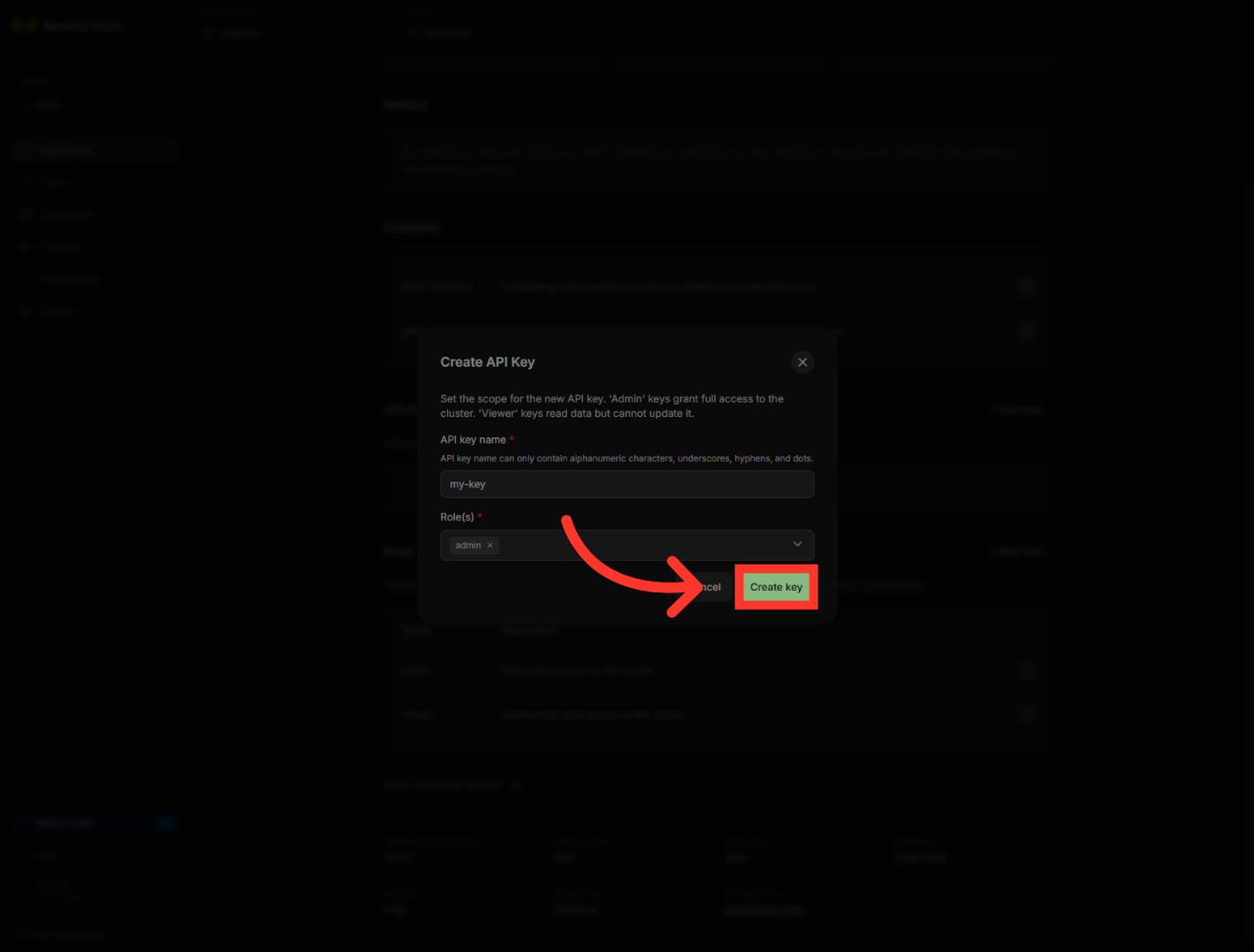
In the name field, type a label for your key — something that reminds you what it's for, like "my-key." Just keep it to letters, numbers, underscores, hyphens, and dots.
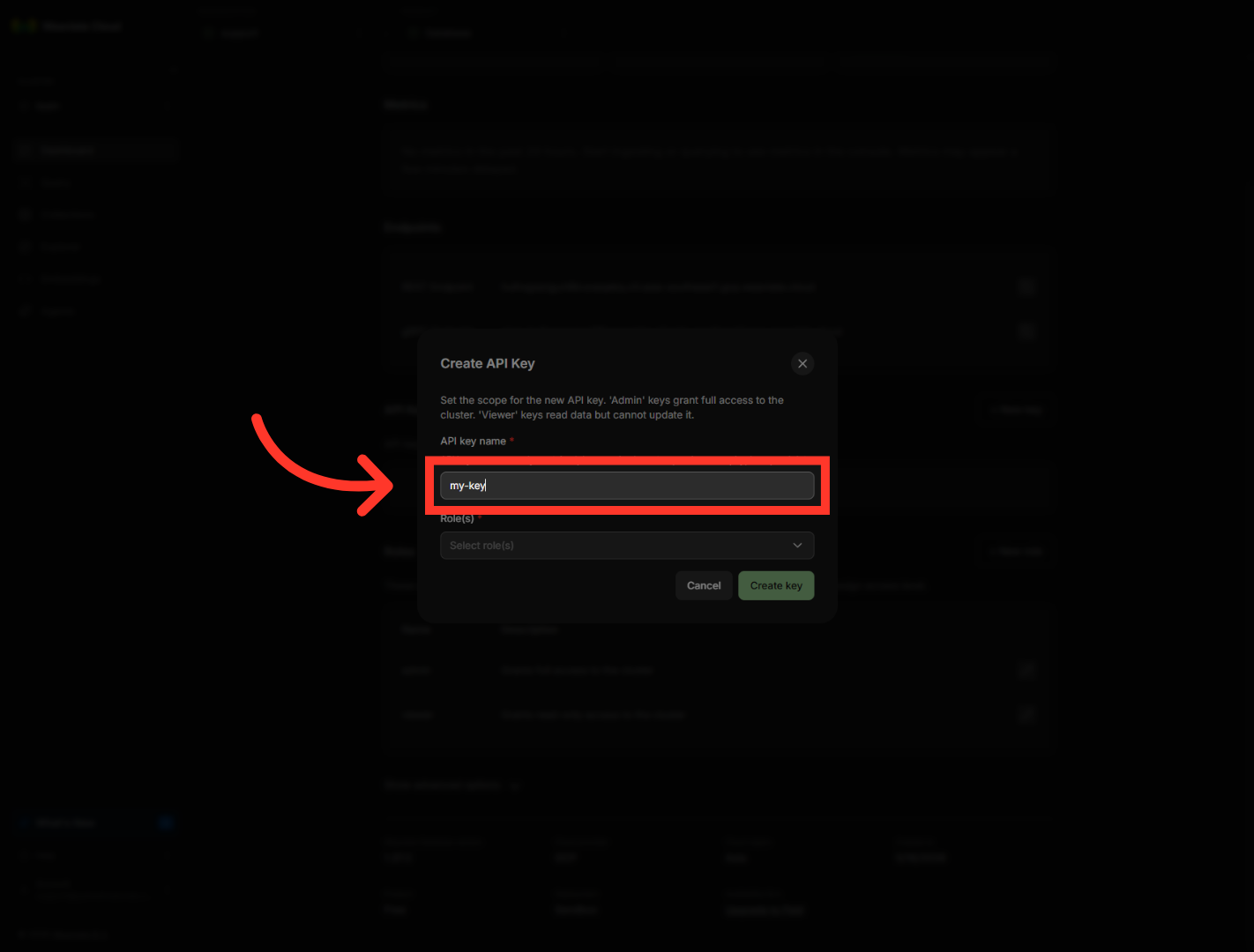
5. Select Roles For Key
Next, click the Role dropdown to set what this key can do. "Admin" grants full access to the cluster, while "viewer" can read data but not change it. Pick whichever matches what your integration actually needs.
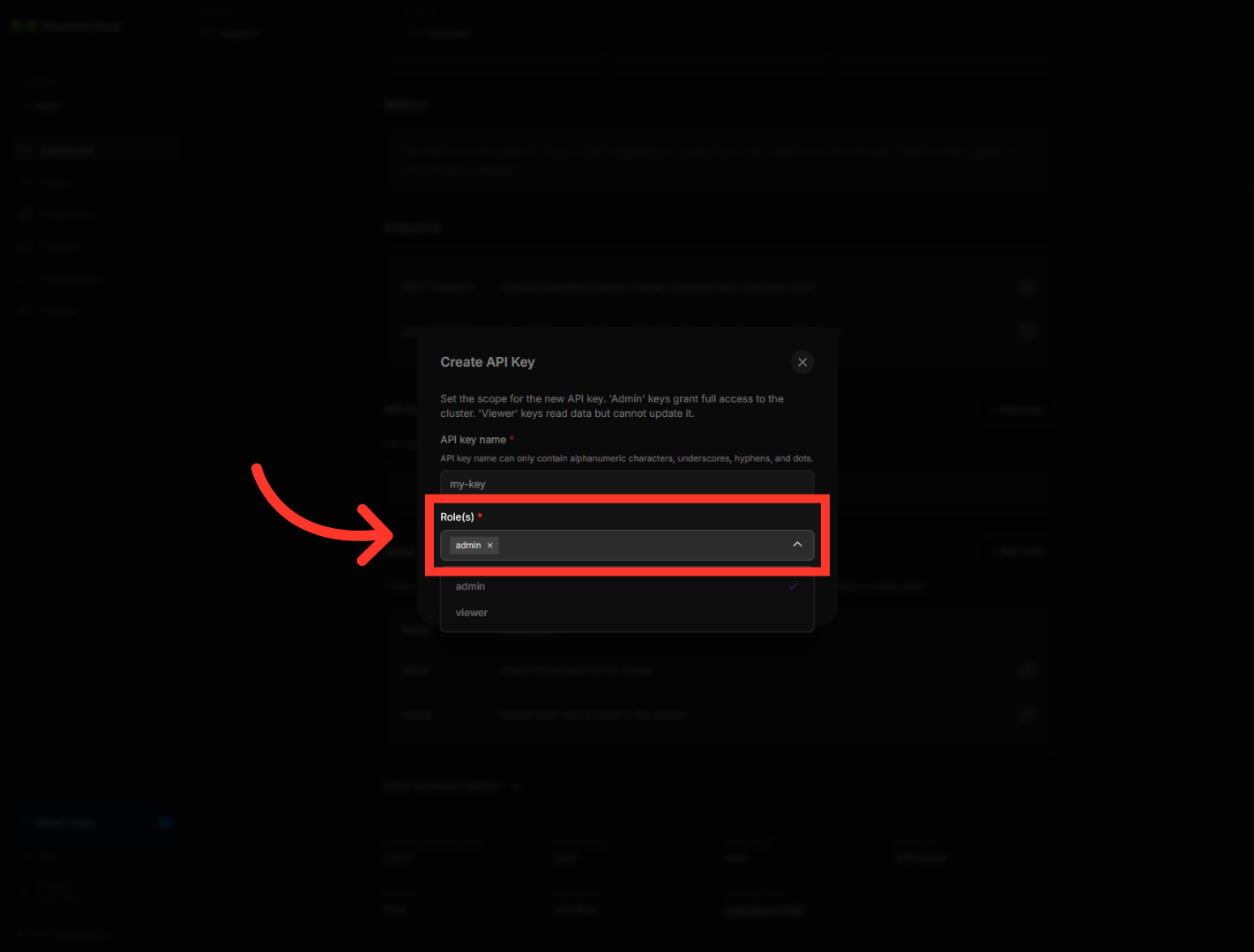
6. Create The API Key
When everything looks right, click "Create key." Weaviate generates it instantly and shows you the new key.
7. Access Key Options
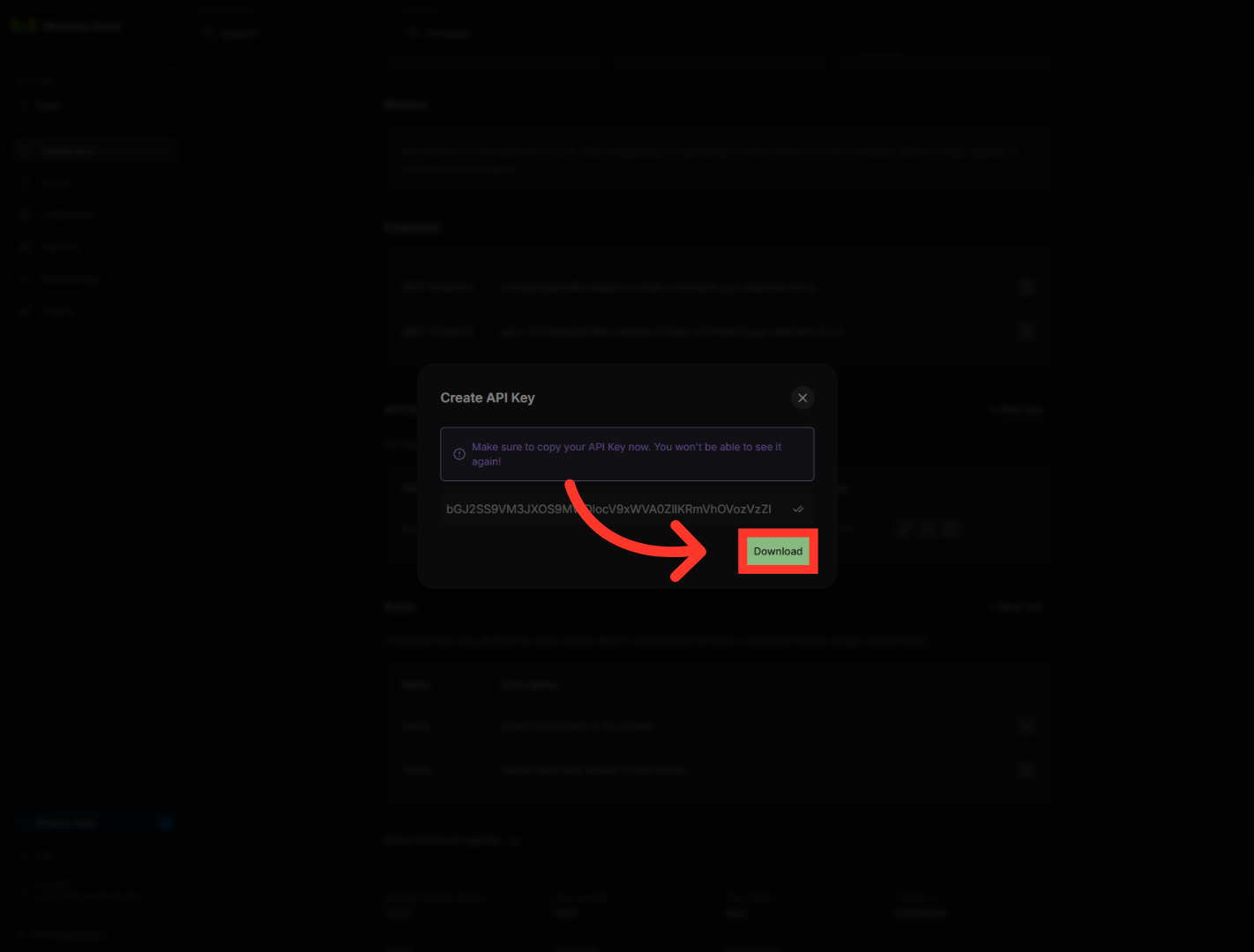
Here's your new key. Click the copy icon to grab it, and paste it straight into whatever tool you're connecting. Do this now — because this is the only time Weaviate will show it to you.

8. Download API Key
For an extra safety net, click "Download" to save the key as a file on your device. It's a handy backup, just make sure you store that file somewhere secure, like a password manager — not loose in your downloads folder.
9. Complete Key Setup
Once you've safely copied or downloaded your key, click the X to close the window. You'll return to your cluster details, with the new key now active.

And that's it. You've created an API key in Weaviate Cloud, assigned its role, and saved it somewhere safe. You're now ready to connect Weaviate to your apps and power search and memory for your AI projects. Thanks for watching, and I'll catch you in the next one.
Still need help? Ask the team