Access and Navigate API Keys Section in DeepInfra Dashboard
Here's what makes this one easy. Unlike a lot of platforms, DeepInfra creates a default key for you the moment you sign up — so there's nothing to generate. We're just going to navigate to it and grab it. One quick note: if you see a "finish billing setup" banner at the top, you'll want to sort that out so your key actually works once it's connected.
Written By Fred Yalmeh
Last updated 2 months ago
Go to deepinfra.com
1. Introduction
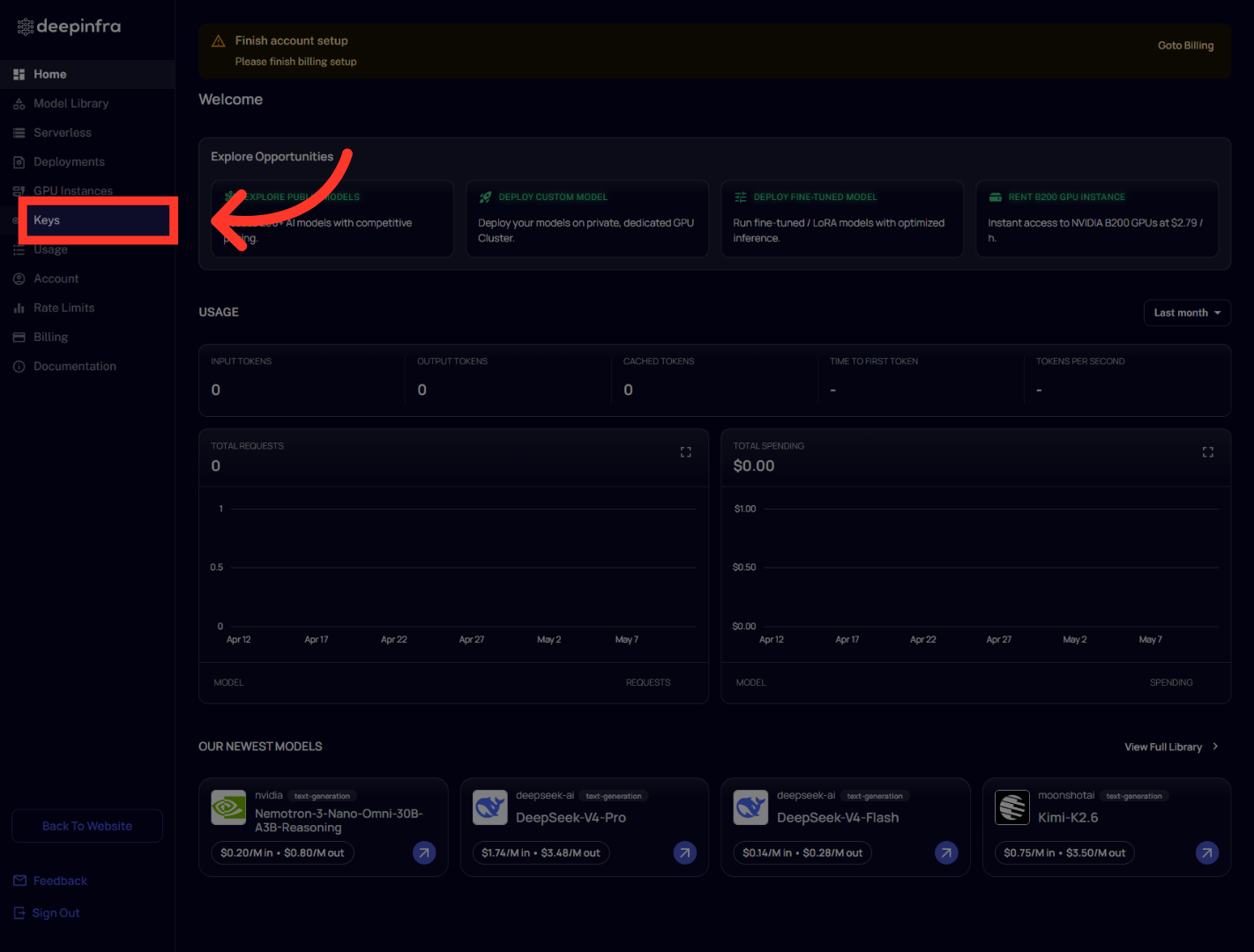
Start by heading to deepinfra.com and signing in. You'll land on your dashboard, where you can see your usage and the newest available models.

2. Access Keys Section
In the left sidebar, click "Keys." This opens the page where you manage all your API and SSH keys.
3. Navigate Within Dashboard
You'll see your default key already sitting here — it's named "auto," and DeepInfra made it for you. The key itself is hidden for security, but you don't need to read it. Just look over to the "Actions" column on the right and click the copy icon. That puts your key straight onto your clipboard.

And that's it — your DeepInfra key is copied and ready. Head back to wherever you're connecting it, paste it into the API key field, and save. From there, your agent can run any of DeepInfra's open-source models. See you in the next one.
Still need help? Ask the team