Access And Copy API Keys In Supabase Projects
Want to connect Supabase to your own app, an automation, or an AI agent? You'll need two things from your project: a secret API key, and your project's API URL. In the next couple of minutes, I'll show you exactly where to find both and how to copy them safely. Quick context: Supabase is an open-source backend with a database, auth, and APIs. The key proves who's making the request, and the URL is the address your app talks to. Let's log in and grab them.
Written By Fred Yalmeh
Last updated About 2 months ago
Go to supabase.com
1. Introduction
Start by signing in over at supabase.com and opening your dashboard. You'll see your organization up top and your projects laid out in the main area.

2. Open Projects Section
If you're not already there, click "Projects" to see all the projects in your organization. This is your jumping-off point for managing any one of them.

3. Access Project Settings
Find the project you want and open its "Settings." This takes you into all the configuration options for that specific project, including where your keys live.

4. Navigate To API Keys
In the settings menu on the left, click "API Keys." This is the area where Supabase manages all the keys that control access to your project.
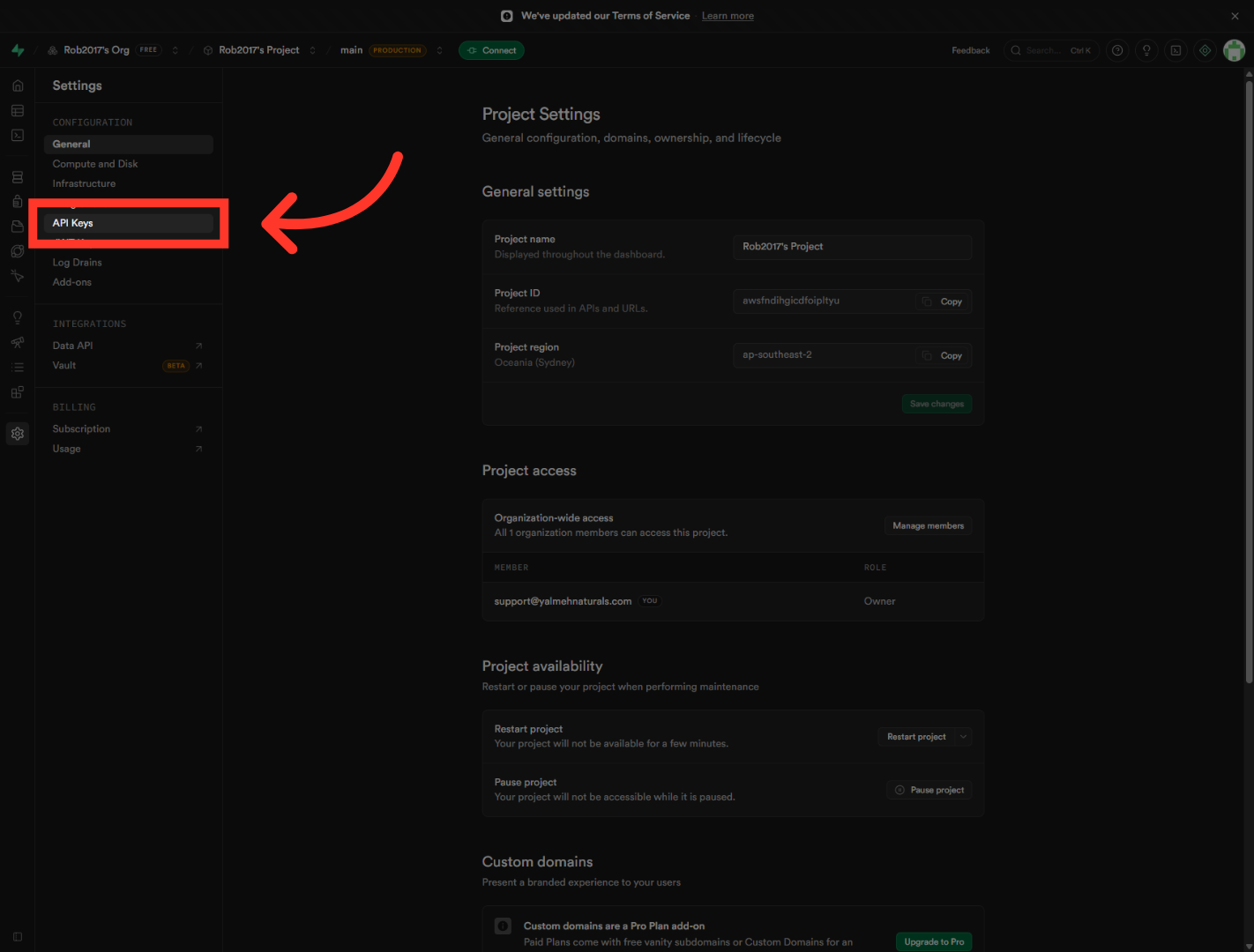
5. Open Legacy API Keys
You'll notice Supabase now has a newer key system, but many integrations still use the classic keys. To find those, click the "Legacy anon, service_role API keys" tab.

6. Select Service Role Key
Here you'll see two keys. The "anon" key is the public one, safe for browser use when row-level security is on. The "service_role" key is the powerful one we want here — locate that row to work with it.

7. Reveal Service Role Key
The key is hidden by default for safety. Click "Reveal" to display it in full so you can grab it.

8. Copy Service Role Key
Now click "Copy" to grab the key, and paste it into your server-side configuration or secrets manager. With Supabase, you can come back and reveal this again later, so you're not locked out if you misplace it.

9. Access Data API Section
Next we need your project's API address. In the sidebar, click "Data API." This is where Supabase auto-generates a REST endpoint straight from your database.

10. Copy Data API Key
Here you'll see your API URL — the base web address your app uses to reach your database. Click "Copy" to grab it, and pair it with the key you copied earlier. Together, those two are what your integration needs to connect.

And that's it. You've grabbed your service role key and your project's API URL from Supabase, and you know which one to keep secret. You're now ready to securely connect your project to your apps and services. Thanks for watching, and I'll catch you in the next one.
Still need help? Ask the team