Create And Manage API Keys In Anyscale Platform
This key lets your platform tap into your Anyscale account to run models on demand. Two things to keep in mind. First, like most platforms, Anyscale shows you the key only once — so we'll copy it right away. And second — here's the quirk — Anyscale keys actually expire, by default after 30 days. I'll show you where to set that, and what it means for you.
Written By Fred Yalmeh
Last updated 2 months ago
Go to console.anyscale.com
1. Introduction
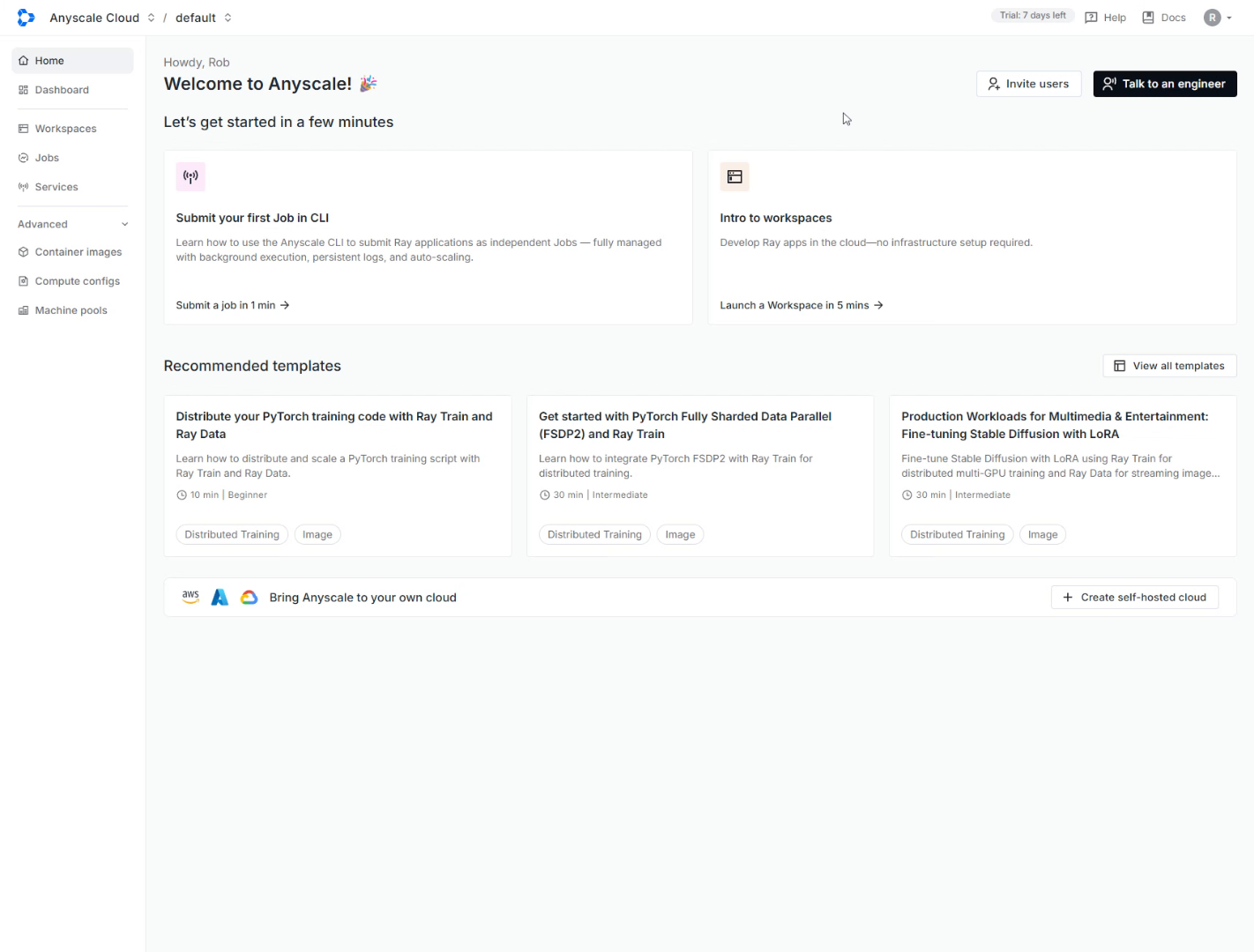
Head to console.anyscale.com and sign in. You'll land on your dashboard.
2. Access Anyscale Main Menu
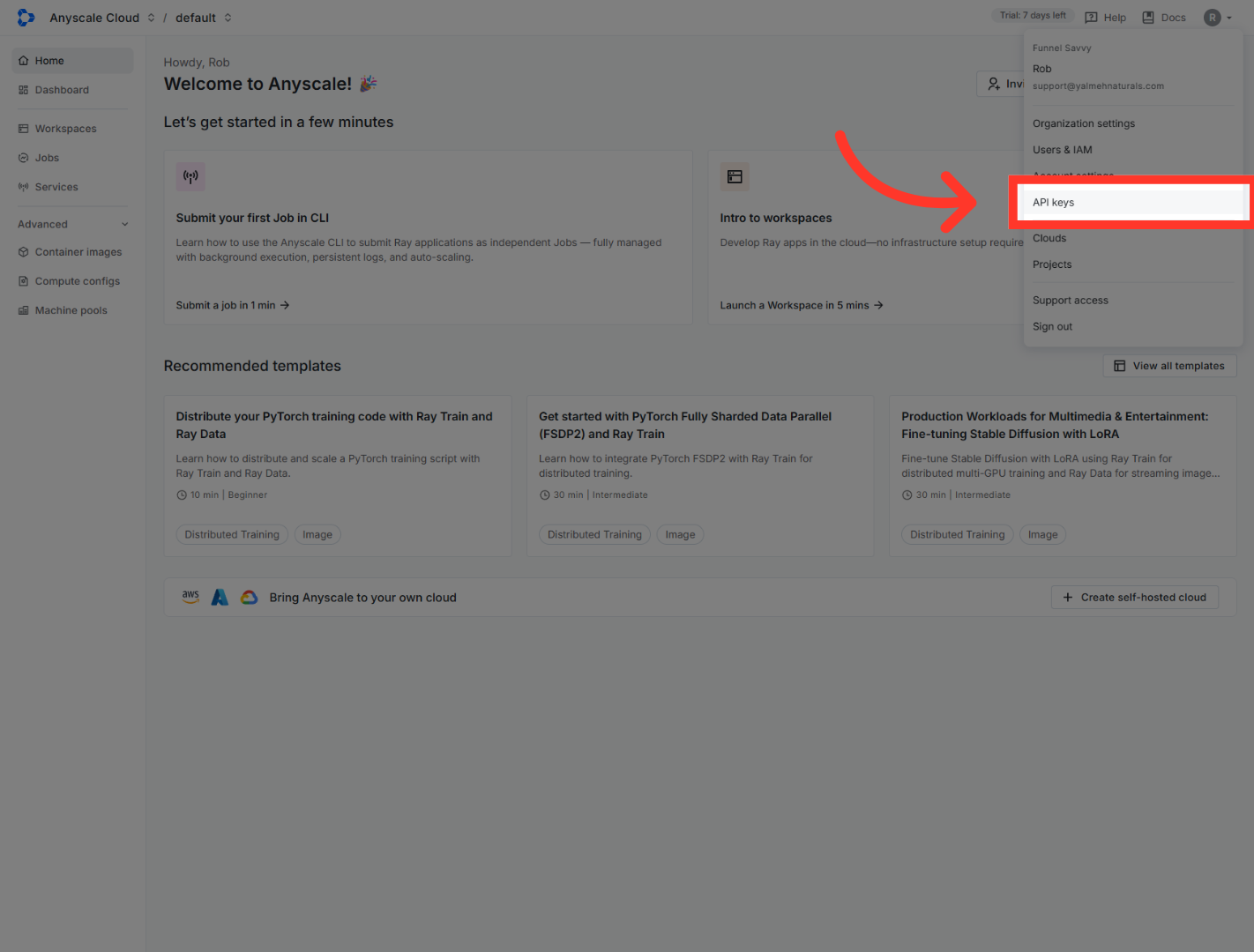
Up in the top-right corner, click your account avatar — the little circle with your initial. A menu drops down. From that menu, click "API keys.

3. Open API Keys Section
From that menu, click "API keys.
4. Initiate API Key Creation
On the API keys page, click the "Create" button. A dialog opens where we'll set it up.

5. Select Name Field
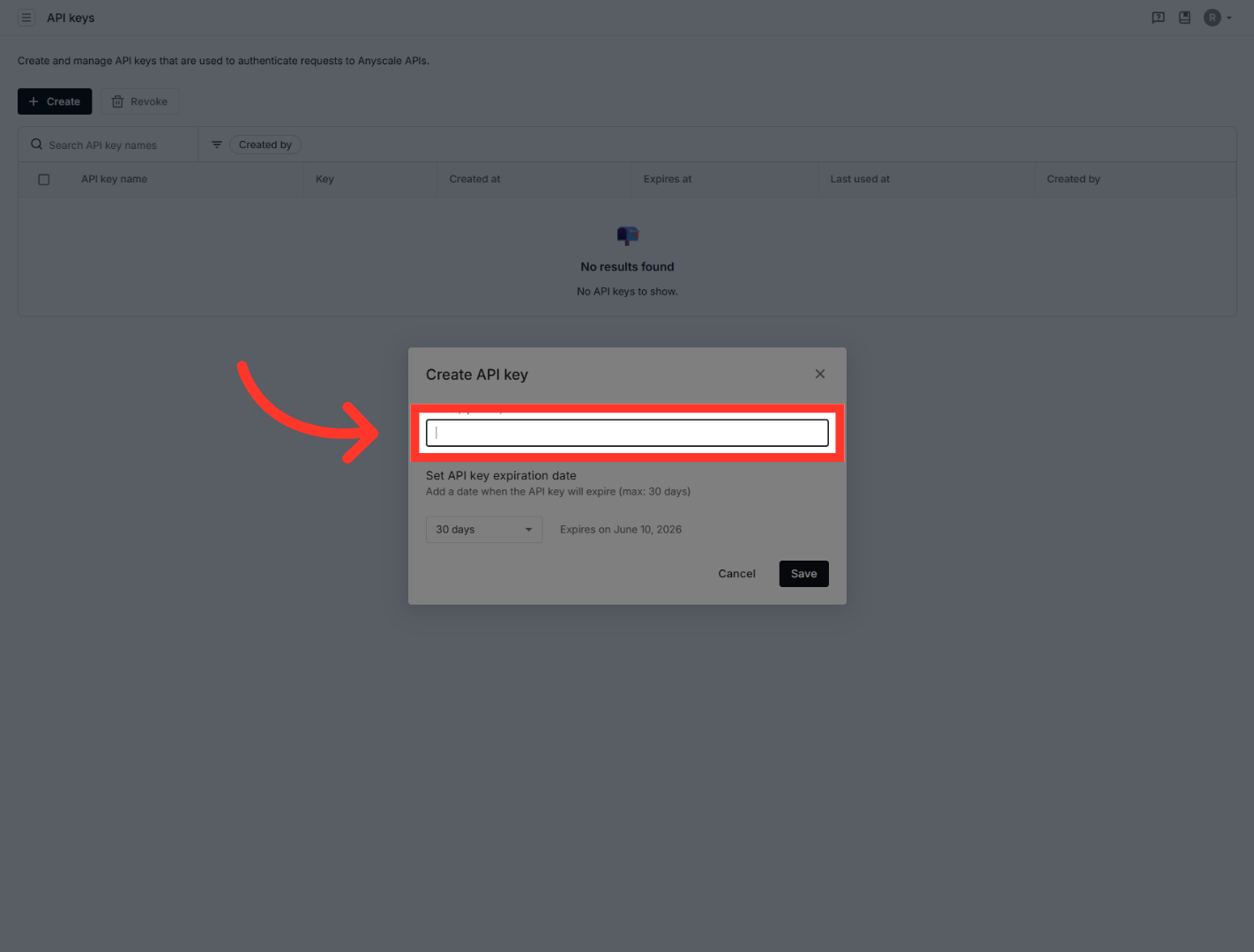
First, click the "Name" field and give it a label you'll recognize later — something like the name of the platform you're connecting it to. The name's optional, but it really helps down the road. Just below that, you'll see the expiration setting. This is the quirk I mentioned — your key will expire, and 30 days is the default. Pick whatever window works for you.
6. Save New API Key
Once your name and expiration look good, click "Save." Anyscale generates the key instantly.

7. Access API Key Details
Here's the moment that matters. The dialog shows your new key, and notice the warning — this is the only time you'll see it. So before you close anything, click the copy icon to grab it. You can ignore the environment-variable section below — that's for developers setting things up manually, and you don't need it here.

And that's it — your Anyscale key is created and copied. Head back to wherever you're connecting it, paste it into the API key field, and save. And don't forget that expiration date — when it gets close, just pop back here and make a fresh one. See you in the next one.
Still need help? Ask the team