Configure API Integration In Cartesia
"Cartesia is the developer platform behind Sonic — one of the fastest, most natural-sounding text-to-speech engines around. Your API key is what tells Cartesia that voice requests are coming from you. Once you have it, you can use it in any app or workflow that supports the Cartesia API."
Written By Fred Yalmeh
Last updated 2 months ago
Go to play.cartesia.ai
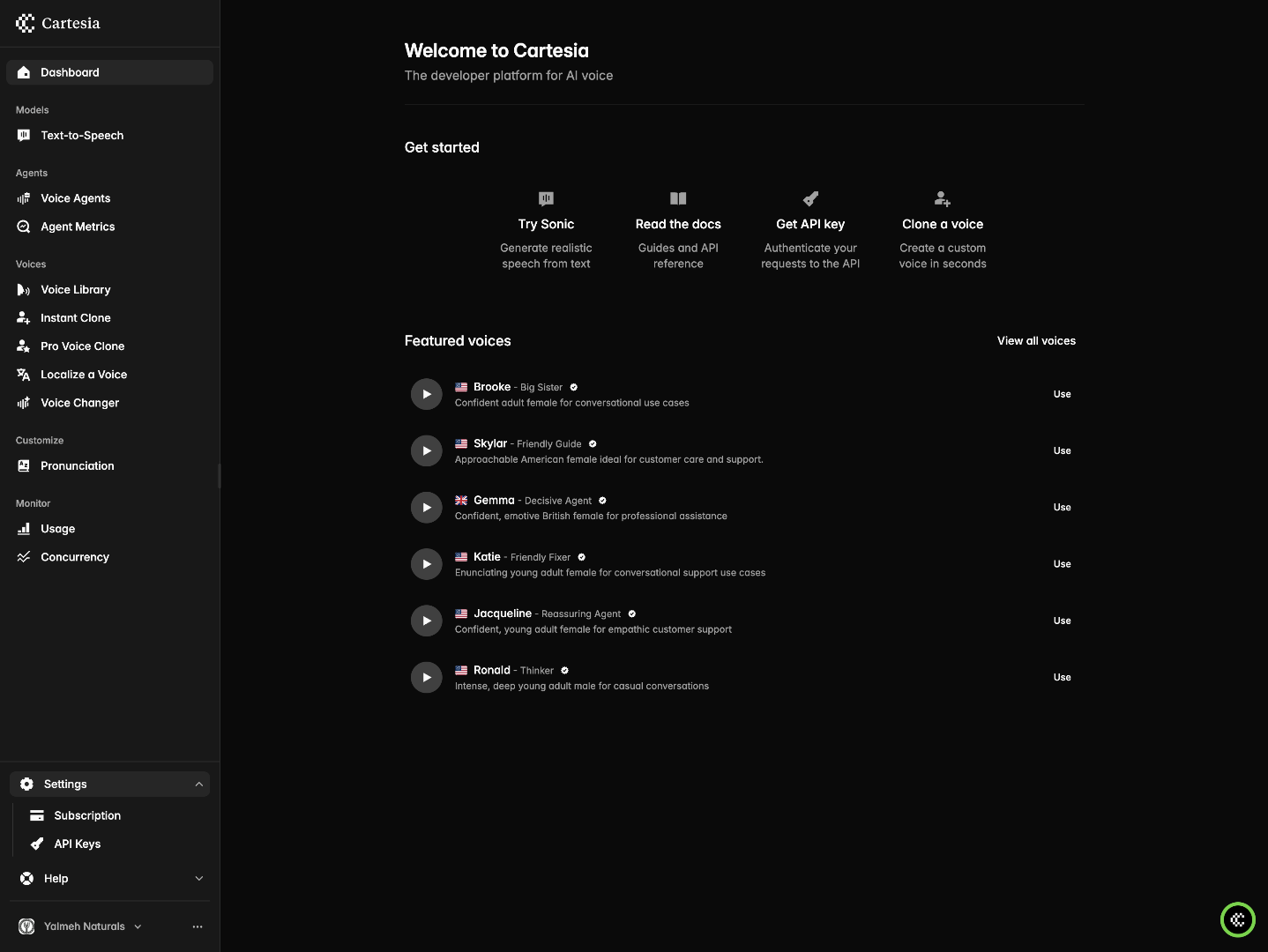
1. Switch To Cartesia Platform
"First, head over to play.cartesia.ai and sign in to your account. You'll land on the 'Welcome to Cartesia' dashboard — this is your home base for everything voice-related."
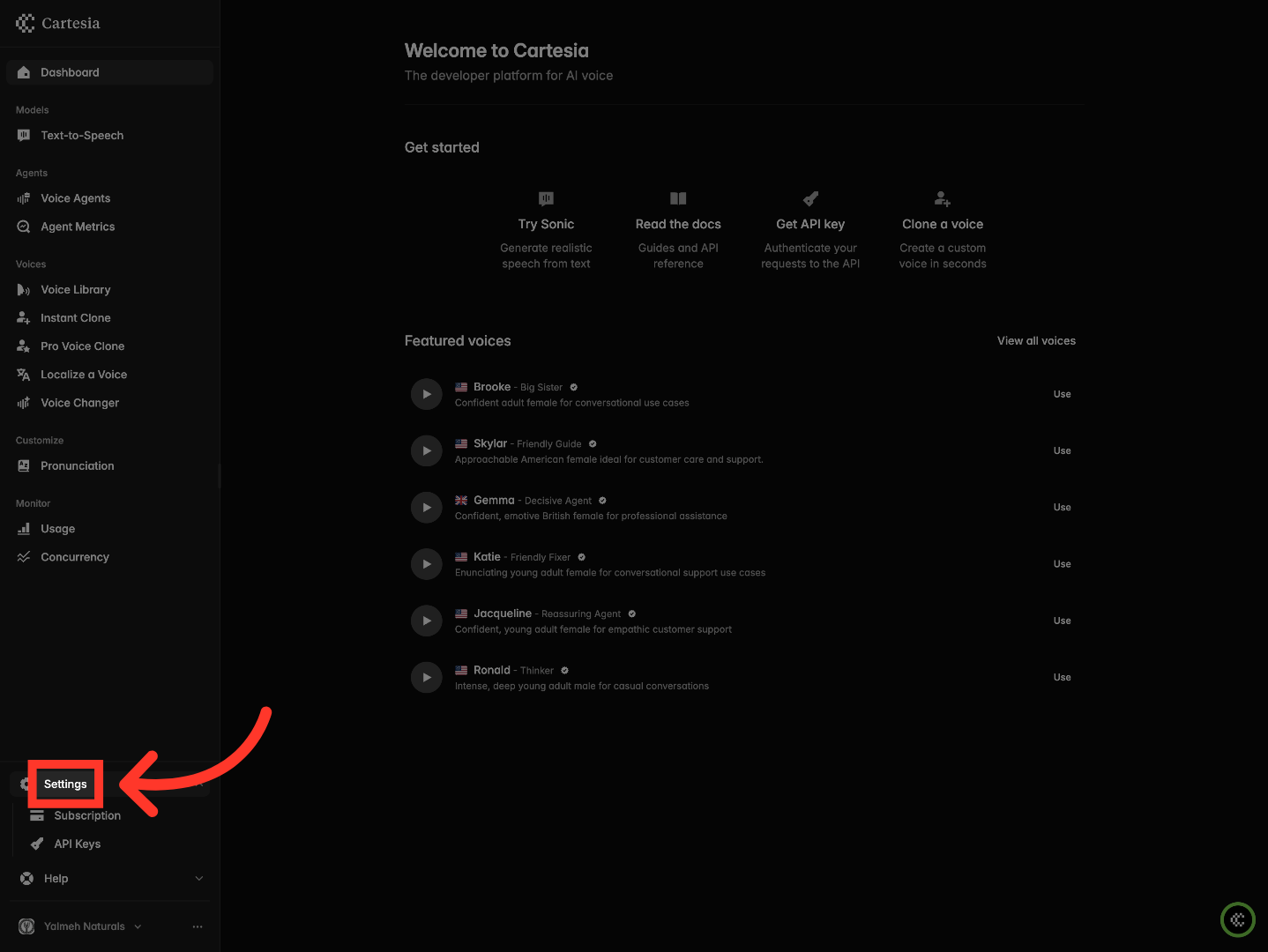
2. Open Cartesia Settings
"Look at the bottom of the left sidebar and click 'Settings.' That expands a small sub-menu where all your account configuration lives."
3. Navigate To API Keys
"Inside the Settings menu, click 'API Keys.' This is where Cartesia lets you create and manage every key on your account."

4. Add New API Key
"If this is your first time here, the list will be empty — that's totally normal. Click the '+ New API key' button in the top-right corner to start a new one."

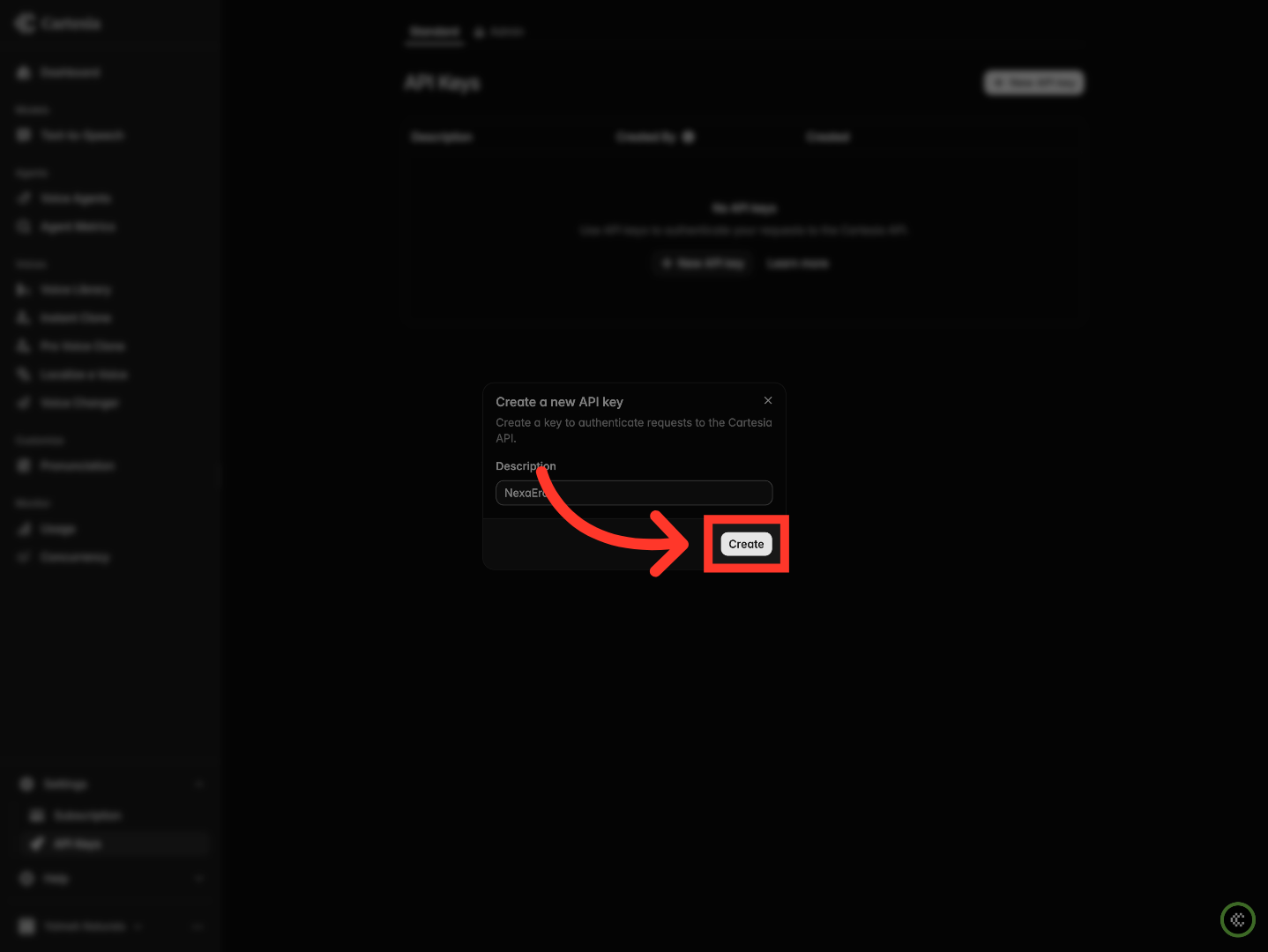
5. Enter API Key Description
"A small popup opens asking you to describe your key. Type in something descriptive — I'll just use 'My Voice Key' here. Six months from now, when you're staring at a list of keys, you'll be glad you labeled it."

6. Create API Key
"Once you're happy with the description, hit 'Create.' Cartesia generates your API key on the spot."
7. Copy API Key
"And here's the big moment — your full Cartesia API key. Pay close attention to the warning right at the top: 'This will only be shown once.' Cartesia means it. Click the 'Copy' button to grab the full key, then paste it somewhere safe right now — a password manager is perfect."

"And that's a wrap — you've created your Cartesia API key, copied it, and saved it somewhere safe. You're ready to start building with Sonic and the rest of Cartesia's voice models. Happy shipping, and I'll catch you in the next one."
Still need help? Ask the team