Create And Manage API Keys In GroqCloud
Groq gives you access to popular open models — like Llama, Qwen, and Whisper — with a generous free tier to start. As we go, you'll name your key and create it. And like most platforms, Groq shows you the key only once, so the moment it appears, we'll copy it right away.
Written By Fred Yalmeh
Last updated 2 months ago
Go to console.groq.com
1. Introduction
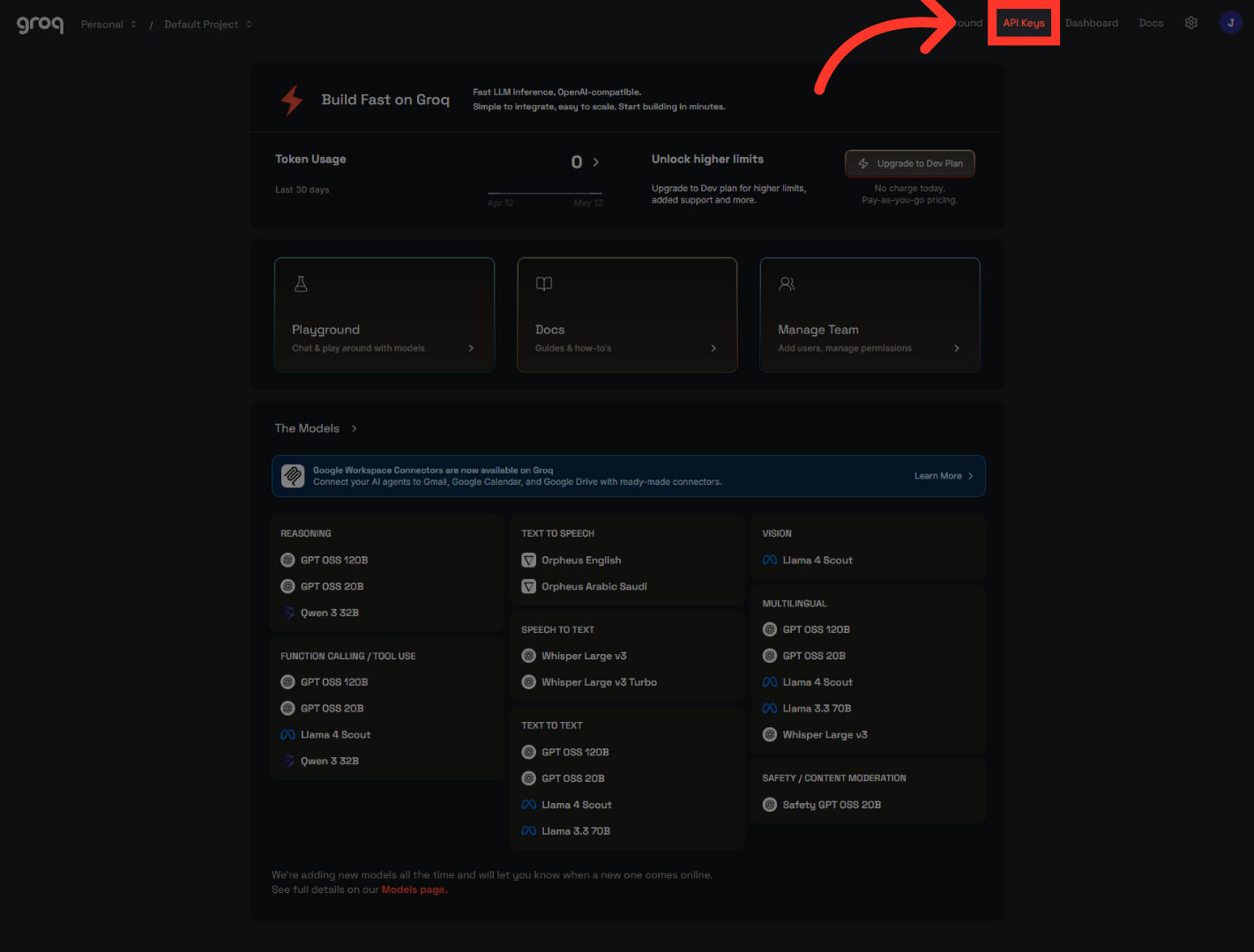
Start by heading to console.groq.com and signing in. You'll land on your console dashboard, where you can see your usage and browse the models Groq offers.

2. Access API Keys Section
Up in the top navigation bar, click "API Keys." This opens the section where you create and manage all your keys.
3. Initiate API Key Creation
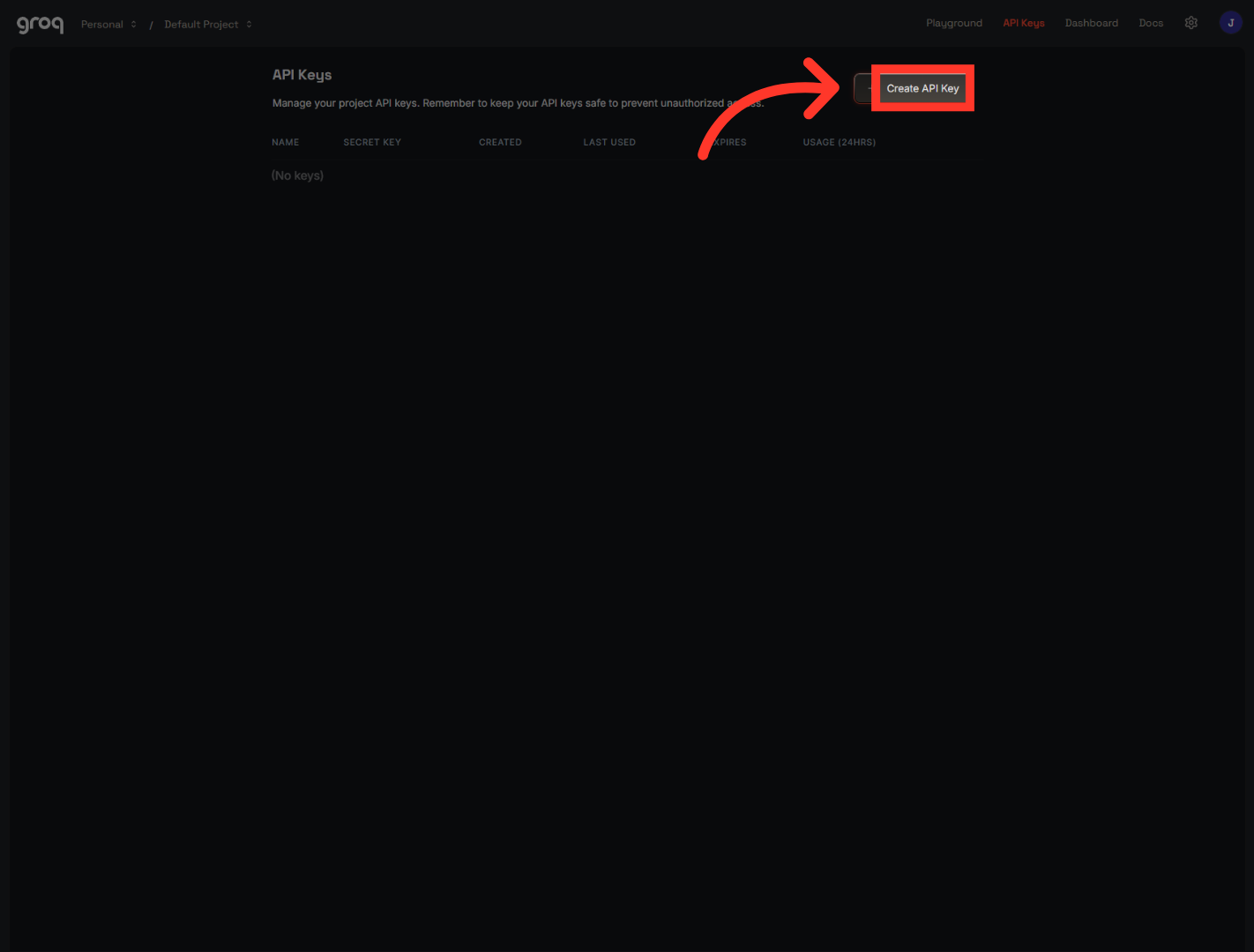
On the API Keys page, click "Create API Key" in the top-right corner. A dialog will open where we'll set it up.
4. Select Display Name Field
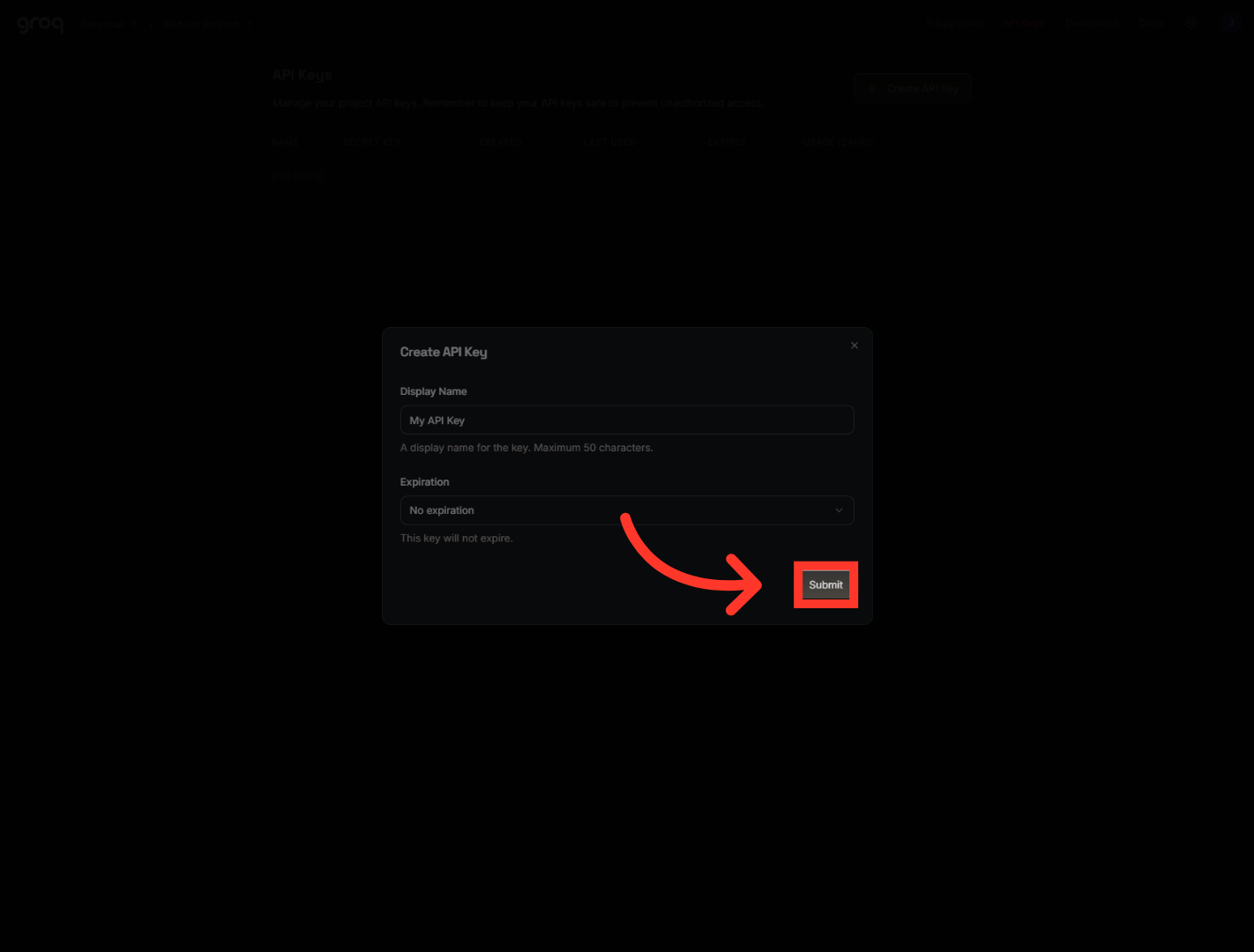
Click the "Display Name" field and give your key a label you'll recognize later — something like the name of the platform you're connecting it to. You'll also see an "Expiration" option. You can set a date if you want, but leaving it on "No expiration" is perfectly fine for most setups — your key will just keep working until you remove it.

5. Submit API Key Creation
Once it's named, click "Submit" to create the key. If you notice a quick "Verifying" message, that's just a routine security check — give it a second to finish, then it'll go through.
6. Copy Generated API Key
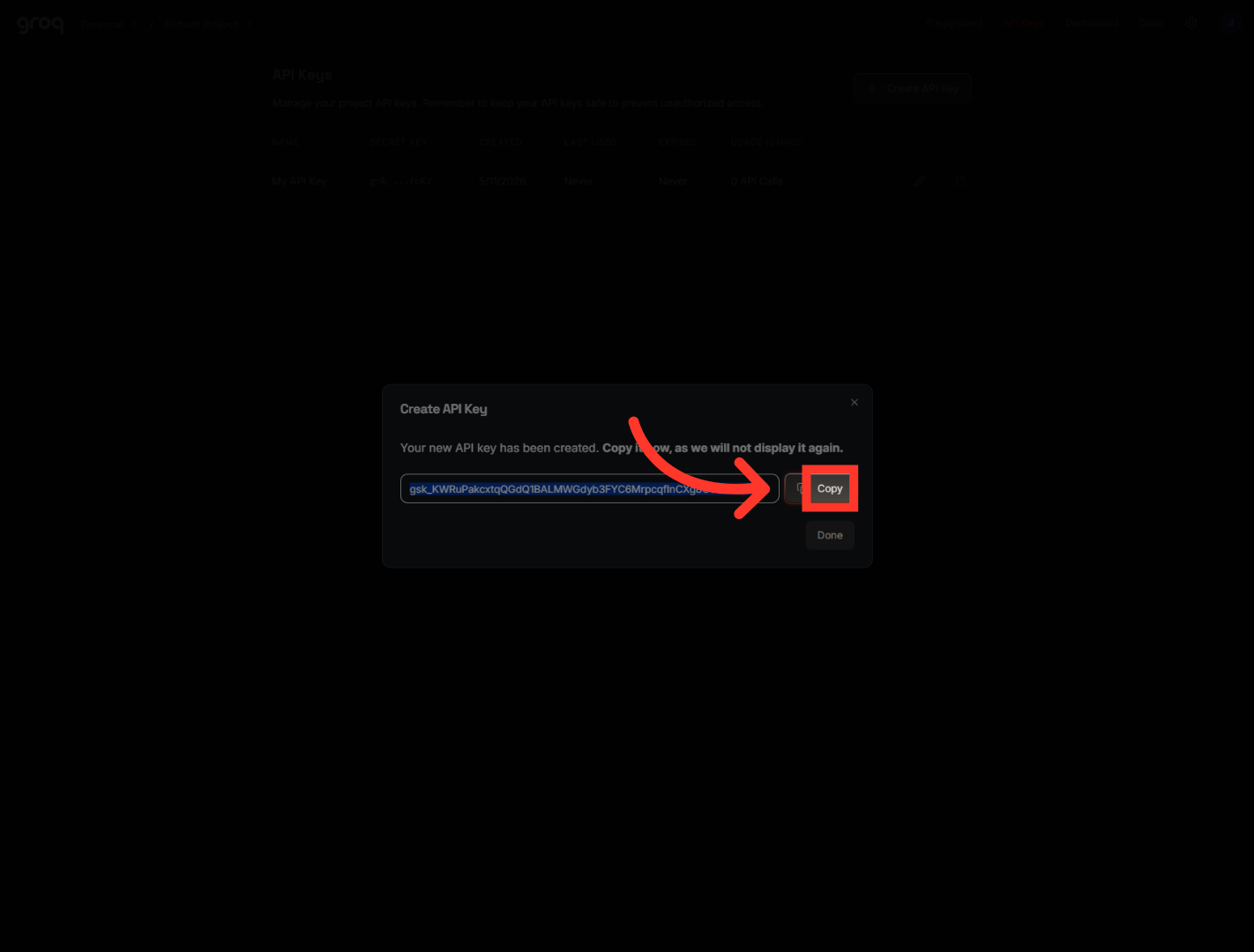
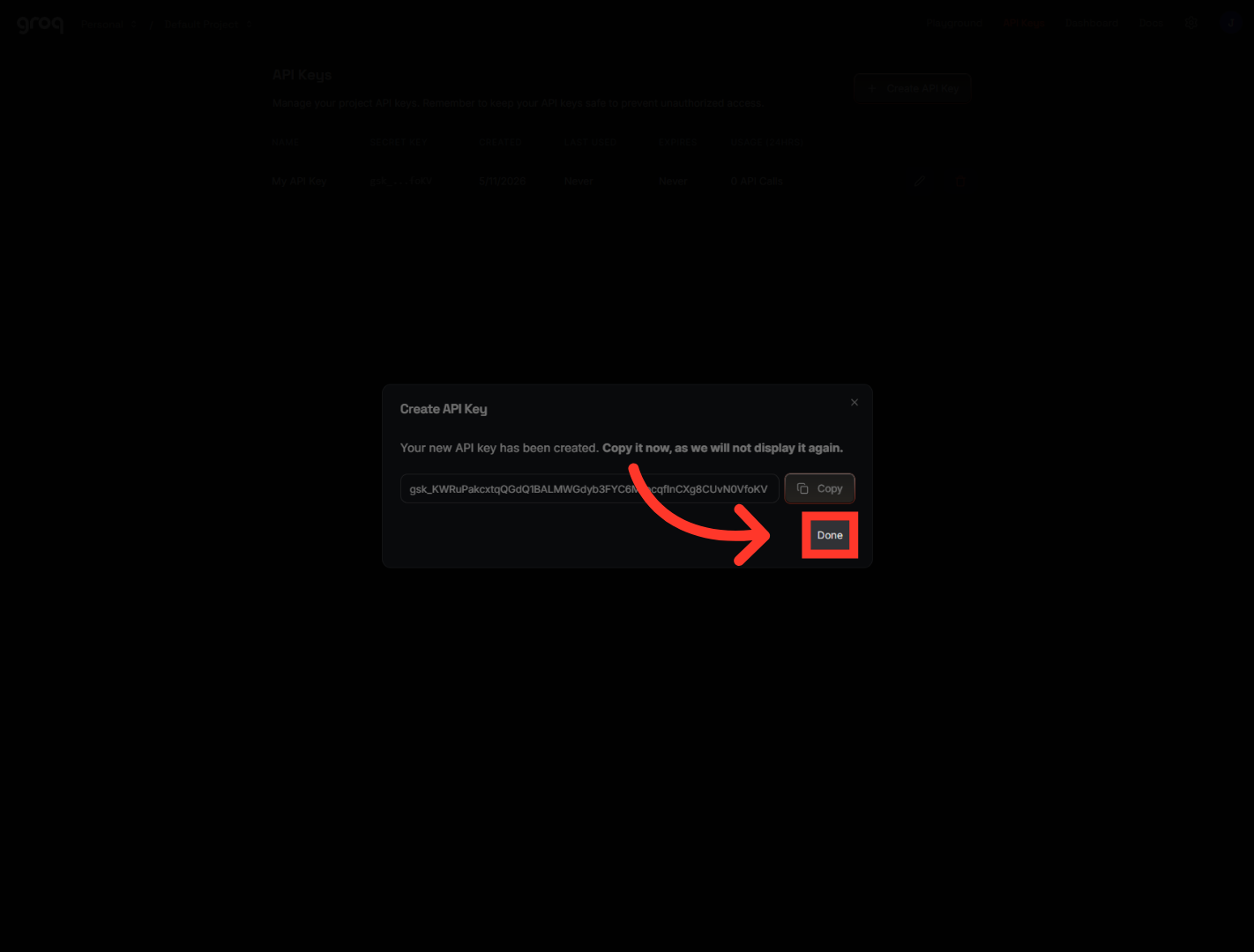
Here's the moment that matters most. Your brand-new key is shown here, and read the message carefully — Groq will not display it again once you close this. So right now, before anything else, click "Copy" to grab it.
7. Complete API Key Setup
Once your key is safely copied, click "Done." That closes the dialog and returns you to your API keys list, where you'll now see your new key.
And that's it — your Groq key is created and copied. Head back to wherever you're connecting it, paste it into the API key field, and save. Now your agent can run on Groq's lightning-fast inference. See you in the next one.
Still need help? Ask the team